
Source and PDF sync
Jump from the cursor to the matching spot in the PDF, or Cmd/Ctrl-click the PDF to land on that word in the source. Works for LaTeX through SyncTeX and for Typst, across files.
このコンテンツはまだ日本語訳がありません。
Source and PDF sync links what you write to the typeset page. In LaTeX it runs on SyncTeX: Oleafly compiles with SyncTeX data enabled on every build. In Typst it runs through the Typst language server, so the same jumps work with no extra setup. Both directions are one gesture away.
Source to PDF: ⌘⇧J
Section titled “Source to PDF: ⌘⇧J”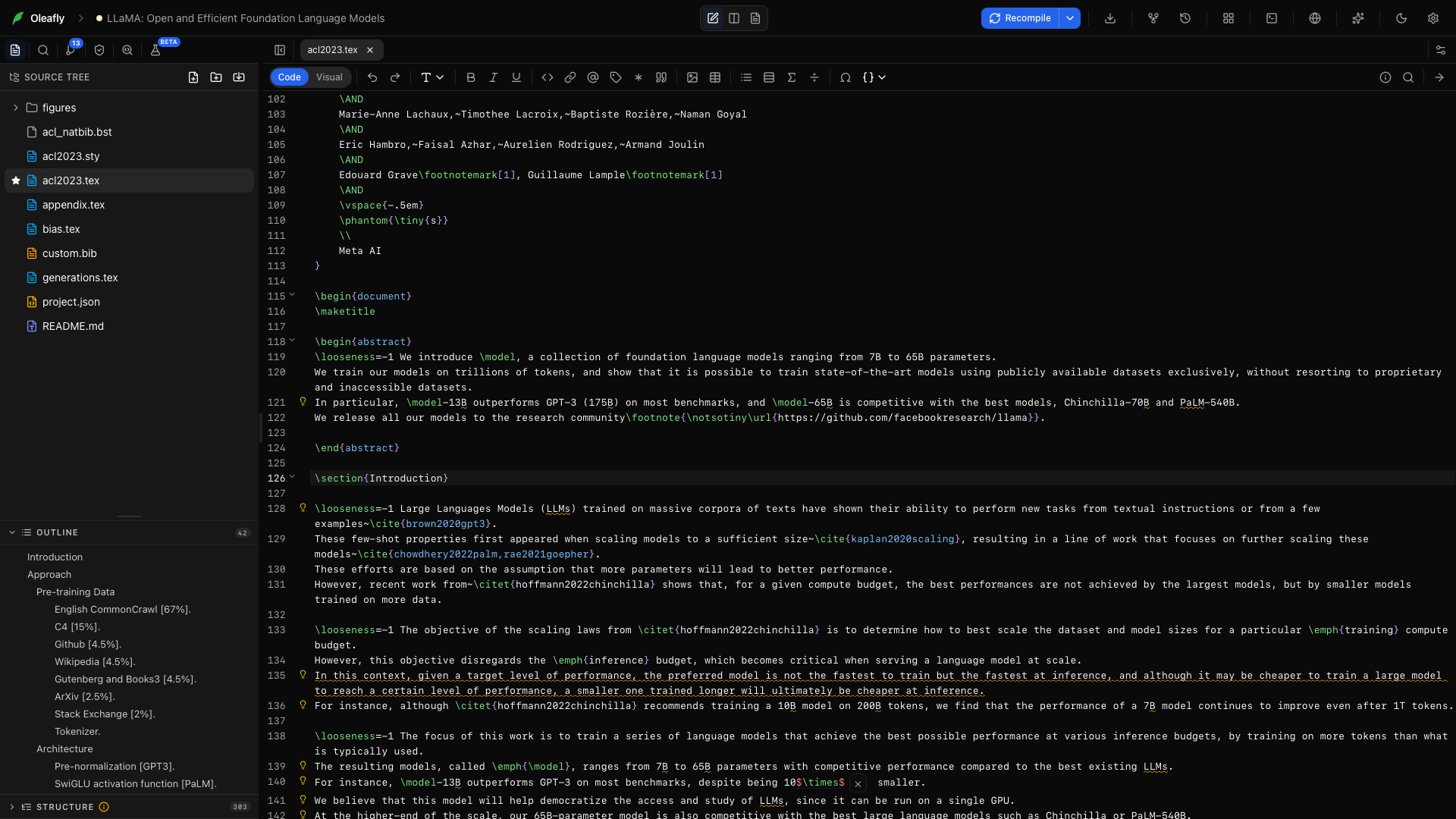
Put your cursor on any line and press ⌘⇧J (Ctrl+Shift+J). The PDF scrolls to the matching spot and flashes a blue highlight over it for a moment, so your eye lands exactly where your cursor was.
You can also use the arrow at the far right of the editor toolbar, the editor’s right-click menu, or the ⌘K palette. LaTeX projects call the command Go to PDF (SyncTeX). Typst projects call it Go to PDF.
It works across multi-file projects. A cursor inside chapters/methods.tex finds its typeset position in the combined PDF, because SyncTeX follows your \input structure. Typst does the same for files the main document includes.
PDF to source: ⌘-click
Section titled “PDF to source: ⌘-click”Hold ⌘ or Ctrl and the pointer over the PDF becomes a crosshair. Click a word to jump to it in the editor. Oleafly opens the right file first when the text came from another file, such as an \input child in LaTeX or an included .typ file.
Oleafly places the cursor on the word you clicked instead of at the start of the line. In LaTeX it reads the PDF text layer to find that word. Typst reports the position itself.
One precedence rule: ⌘-clicking a hyperlink in the PDF follows the link behavior instead of jumping.
Typst projects
Section titled “Typst projects”Typst sync needs Typst 0.13 or later. A project pinned to Typst 0.11 or 0.12 compiles normally, but the Go to PDF button is hidden and ⌘-click does nothing. To get sync back, pin a newer version under Typst version (this project) in the compile menu. Try a newer version first if the document’s layout matters.
When a jump does nothing
Section titled “When a jump does nothing”Sync data comes from the last compile, so it can go stale:
- You edited since the last build. Oleafly still maps unchanged lines exactly and edited lines to the nearest unchanged one, so most jumps keep working. If a jump lands in the wrong place, recompile (⌘↵) and jump again.
- The line produces no visible output (a comment, a preamble line, a
#setrule, a blank line). Put the cursor on a line with typeset text.
Where it doesn’t apply
Section titled “Where it doesn’t apply”- The detached preview window mirrors the PDF but does not accept ⌘-clicks. Jump from the main window.
- Markdown projects have no source and PDF sync.
- Image and diagram projects skip it, because a one-page figure does not need it.