
設定とカスタマイズ
ヘルプ、診断、アップデート
アプリのバージョンを調べ、問題を再現し、適切なサポートの窓口を開きます。
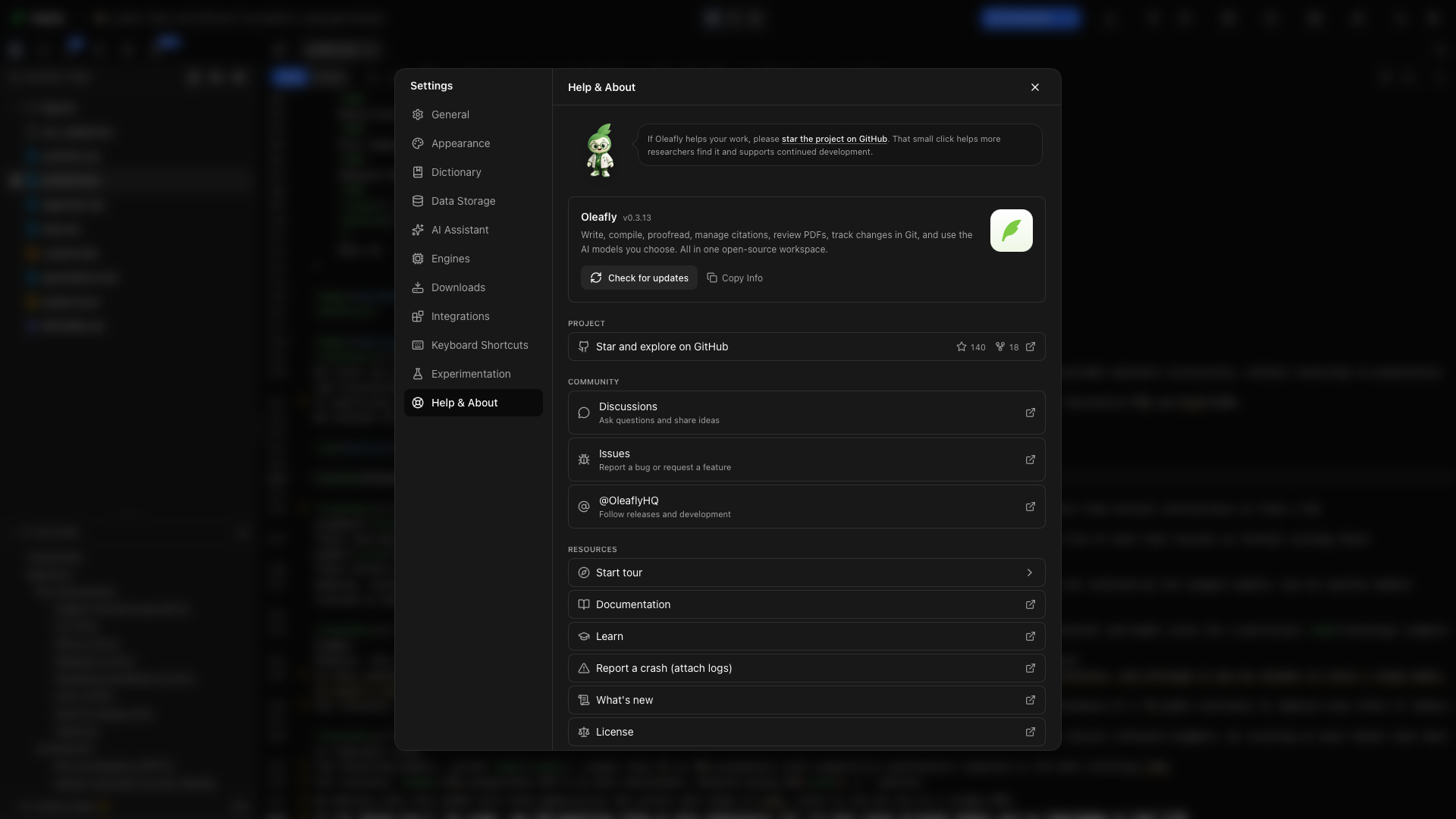
設定 → ヘルプと情報を開きます。このページには、バージョン情報、プロジェクトのリンク、サポート、学習リソースがまとまっています。
アプリのバージョン
「アプリのバージョン」セクションOleafly の横に表示されるバージョンを確認します。問題を報告するときに添えておくと、ほかの人が同じビルドで試せます。アップデートを確認はバージョンの下にあります。そのあとどうなるかについては、アプリのアップデートで説明しています。
情報をコピー
「情報をコピー」セクション情報をコピーを選ぶと、アプリのバージョンと、取得できる場合はプラットフォーム、アーキテクチャ、OS のバージョンがコピーされます。問題を再現する手順と一緒に、Issue に貼り付けてください。
新着情報
「新着情報」セクション「情報をコピー」の横か、リソースの一覧にある新着情報を選ぶと、Oleafly の中でリリースノートを読めます。ヘッダーには、使っているバージョンと、アップデートがあるかどうかが表示されます。
最新のリリースと、手元のバージョンより新しいリリースは、開いた状態で始まります。古いリリースは閉じた状態で始まるので、クリックするとそのノートが読めます。最新のリリースでは、長いセクションも折りたたまれ、「18 件の変更」のような件数が表示されます。開くと、すべてを読めます。
製品のハイライトは、機能を各ガイドにつないでいます。
コミュニティ
「コミュニティ」セクションDiscord を選ぶと、Oleafly のコミュニティサーバーに参加できます。質問、バグ報告、機能のアイデア、日々の会話はすべてここで、ほかの研究者やアプリを作っている人たちと交わされます。無料で、必要なのは Discord のアカウントだけです。
Discord の行には、オンラインのメンバー数が表示されます。Oleafly がこの数を Discord に問い合わせるのは、ヘルプと情報または情報ウィンドウを開いている間だけです。リクエストには、アカウント、プロジェクト、使用状況の情報は含まれず、オフラインモードではこの問い合わせは行われません。
X のロゴが付いた行の Oleafly を選ぶと、リリースと開発の動きをフォローできます。
プロジェクトを応援する
「プロジェクトを応援する」セクションGitHub でスターを付けて見てみるは、プロジェクトのリポジトリを開き、スターとフォークの数を表示します。GitHub のスターは、ほかの研究者がこのアプリを見つける助けになります。
ツアーを開始
「ツアーを開始」セクションツアーを開始を選ぶと、設定が閉じて、関連するガイドが始まります。ライブラリからはホームのツアー、プロジェクトからはワークスペースのツアーです。
ドキュメント
「ドキュメント」セクションドキュメントを選ぶと、これらの製品ガイドが開きます。いま使っている設定やワークフローのガイドから読み始めてください。
LaTeX のレッスンは、学ぶから開きます。レッスンでは文書の言語を説明し、製品ドキュメントでは、そのツールが Oleafly のどこにあるかを説明します。
クラッシュを報告する
「クラッシュを報告する」セクションクラッシュを報告(ログを添付) を選ぶと、クラッシュレポートを始められます。送信する前に、レポートと添付ファイルを確認してください。何をクリックしたか、何が起きたか、何を期待していたか、空のプロジェクトでも繰り返し起きるかを書いてください。
ライセンス
「ライセンス」セクションライセンスを選ぶと、デスクトップアプリケーションの利用条件を読めます。
論文で Oleafly を引用する
「論文で Oleafly を引用する」セクション論文で Oleafly を引用するのカードは、ページの最後にあります。使っているバージョンのための、そのままコピーできる BibTeX エントリが入っています。BibTeX をコピーを選び、プロジェクトの参考文献に貼り付けて、キー oleafly を引用します。
プロジェクトを開いているときは、コマンドパレットか、参考文献パネルの下部からこの論文で Oleafly を引用するも実行できます。Oleafly は、文書が宣言している参考文献にエントリを追加し、使う引用の構文を知らせます。参考文献が Hayagriva の .yml ファイルの Typst プロジェクトでは、エントリは Hayagriva 形式で書き込まれます。参考文献がない場合は、プロジェクトのファイルを変更せずに、エントリを表示します。引用と参考文献を参照してください。
投稿の前に、投稿先の引用に関する案内を確認してください。カードの下のリンクは GitHub のリポジトリを開き、そこで Cite this repository を使うと、同じ参照を APA 形式で得られます。
サイドバーの下部のボタン
「サイドバーの下部のボタン」セクション設定のサイドバーの下部には、どのセクションを開いていても、アイコンのボタンが 5 つあります。ボタンにカーソルを合わせると、名前が表示されます。
| アイコン | 名前 | 開く先 |
|---|---|---|
| Discord のロゴ | Discord コミュニティに参加 | Oleafly の Discord サーバー |
| X のロゴ | X でフォロー | X の Oleafly |
| GitHub のロゴ | ソースコードを表示 | GitHub のソースコード |
| 疑問符 | ドキュメント | これらのドキュメント |
| 巻物 | リリースノートを表示 | Oleafly の中の新着情報 |
役に立つ報告を書く
「役に立つ報告を書く」セクション- アプリの情報をコピーします。
- 問題を再現できる、いちばん小さな文書で再現します。コンパイルの問題では、スクリーンショットだけでなく、小さなサンプルファイルがあると役に立ちます。共有する前に、関係のない原稿の内容は取り除いてください。
- 操作を順番に挙げます。エンジンとレイアウトも含めてください。
- 最初に出た関連するコンパイルエラーか、失敗している操作のスクリーンショットを添えます。
- アプリを再起動すると結果が変わるかどうかを書きます。
ビルドの失敗については、コンパイルとログから始めてください。AI ツールが見つからない場合は、モデルプロバイダで、モデルの接続と機能の状態を確認してください。