
設定とカスタマイズ
ダウンロードと保存したテンプレート
オフライン作業に備えてフォントとテンプレートを用意し、再利用できる AI テンプレートを管理します。
設定 → ダウンロードを開くと、任意のアセットを 3 つのタブで管理できます。フォント、テンプレート、辞書です。オフラインになる前に必要なパックをダウンロードしておくと、新しいプロジェクトでテンプレートとフォントがすぐに使えます。
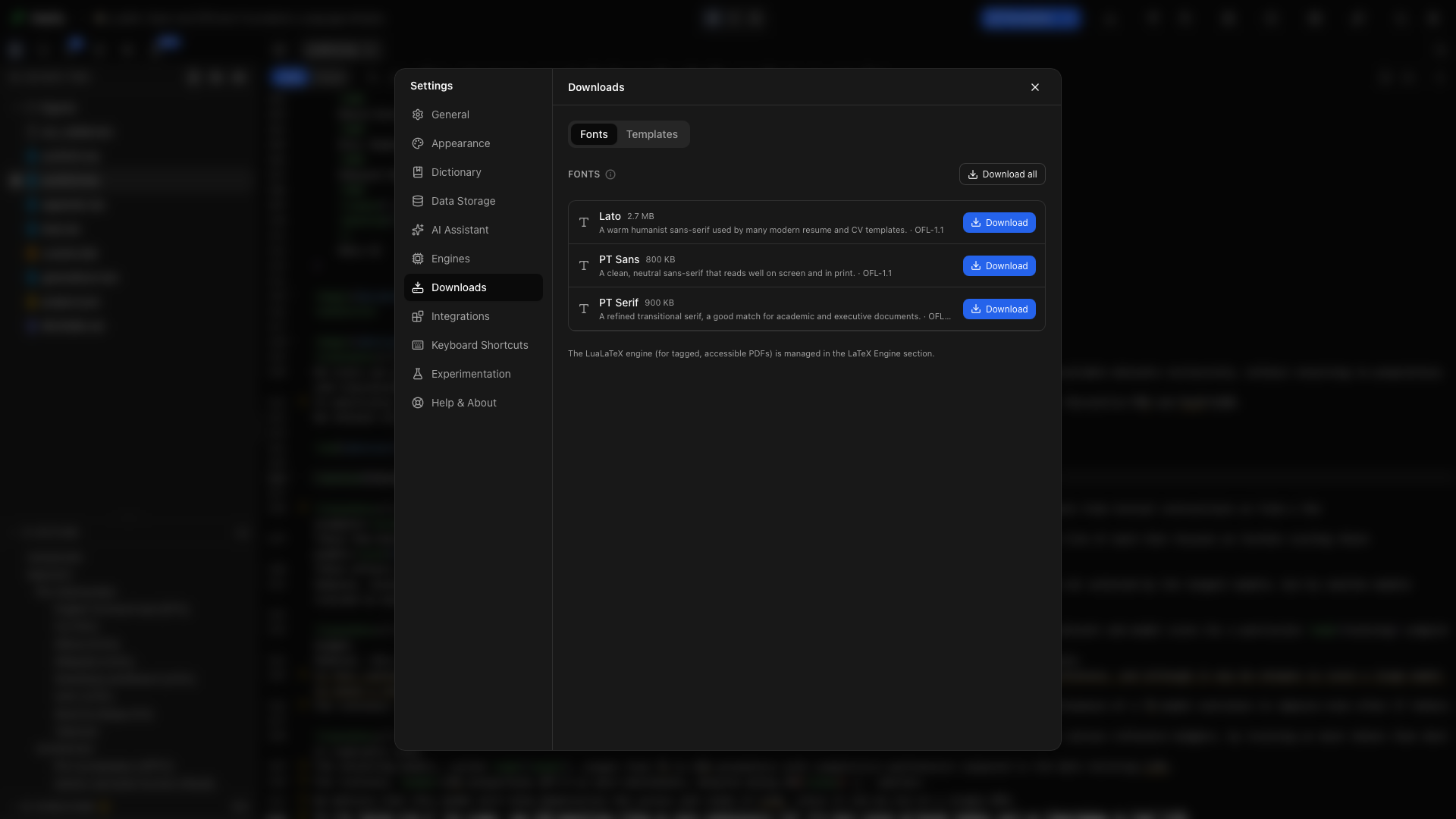
フォントタブ
「フォントタブ」セクションフォントタブには、ダウンロードできるフォントパックが、説明、おおよそのサイズ、ライセンス情報とともに一覧されます。チェックマークは、インストール済みのパックを示します。
フォントパックをダウンロードする
「フォントパックをダウンロードする」セクションパックの横のダウンロードをクリックします。進行状況のメッセージが終わるまで待ってください。これらのフォントを使うテンプレートは、プロジェクトを作成するときに、必要なファイルをプロジェクトにコピーします。
すべてのフォントをダウンロードする
「すべてのフォントをダウンロードする」セクションすべてダウンロードをクリックすると、一覧にあるフォントパックがすべて用意されます。すべてインストールされると、表示がすべてダウンロード済みに変わります。
フォントパックを取り除く
「フォントパックを取り除く」セクションインストール済みのパックの横の取り除くをクリックすると、キャッシュされたダウンロードが削除されます。すでに自分用のフォントのコピーを受け取っているプロジェクトには、そのコピーが残ります。
テンプレートタブ
「テンプレートタブ」セクション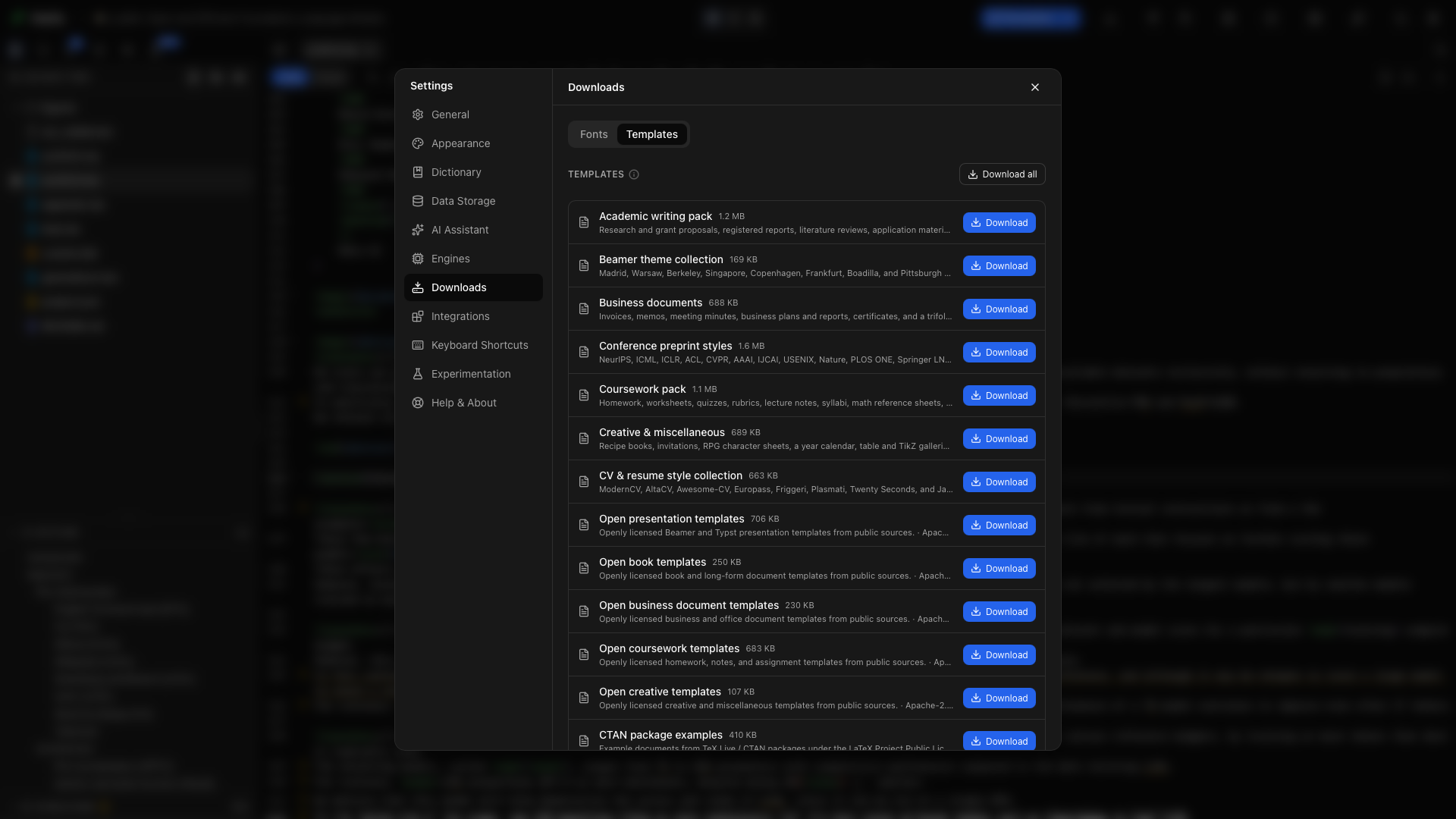
テンプレートタブには、ダウンロードできるパックが、説明、サイズ、インストールの状況とともに一覧されます。ギャラリーのうち、使いそうな部分を用意しておくのに使います。
テンプレートパックをダウンロードする
「テンプレートパックをダウンロードする」セクションパックの横のダウンロードをクリックして、完了を待ちます。そのパックのテンプレートは、もう一度ダウンロードしなくても使えるようになります。
すべてのテンプレートパックをダウンロードする
「すべてのテンプレートパックをダウンロードする」セクションすべてダウンロードを選ぶと、一覧のすべてがインストールされます。オフラインでも、利用できるカタログを見て、そこからプロジェクトを作りたいときに便利です。
テンプレートパックを取り除く
「テンプレートパックを取り除く」セクション取り除くを選ぶと、キャッシュされたパックの容量が空きます。既存のプロジェクトは別のコピーです。ギャラリーのパックを取り除いても、そのプロジェクトの原稿は削除されません。
辞書タブ
「辞書タブ」セクション辞書タブには、ダウンロード済みのスペルの言語と、それぞれが使っている容量が一覧されます。Oleafly には 5 つの言語が同梱されていて、一覧には表示されません。ほかの言語をダウンロードするには、設定 → 一般のスペル辞書でその言語を選びます。Oleafly は一度だけダウンロードし、オフラインでも使えるように保持します。
言語の横の取り除くをクリックすると、そのダウンロードが削除されます。アプリまたは開いているプロジェクトがその言語を使っていた場合は、スペルチェックが既定の辞書に戻ります。
AI 生成のテンプレートを管理する
「AI 生成のテンプレートを管理する」セクションテンプレートタブのAI 生成のテンプレートを管理を展開します。保存されたテンプレートごとに、名前、説明、利用できる場合はプレビューが表示されます。
保存した AI テンプレートを削除する
「保存した AI テンプレートを削除する」セクションテンプレートの横の削除をクリックし、ダイアログに表示された名前のテンプレートであることを確認します。再利用できるギャラリーから、そのテンプレートが取り除かれます。それをもとにすでに作成されたプロジェクトには、自分用のコピーが残ります。
オフライン作業の準備
「オフライン作業の準備」セクション- 使いたいテンプレートパックとフォントをダウンロードします。
- オンラインの間にプロジェクトを作成します。
- 一度コンパイルして、TeX のパッケージをキャッシュします。
- ローカルのアシスタントも使いたい場合は、Ollama を設定します。
- 接続を切り、プロジェクトがコンパイルできて、モデルが応答することを確認します。
LaTeX コンパイラのインストールは、エンジンで別に管理します。