
PDF preview & every control
Read, search, navigate, inspect, and save the compiled document.
Compile a document, then choose PDF View or Layout → Preview Only for a reading pass. Use Split View when you want the source beside the page. The preview displays the compiled result; it does not edit the manuscript text directly.
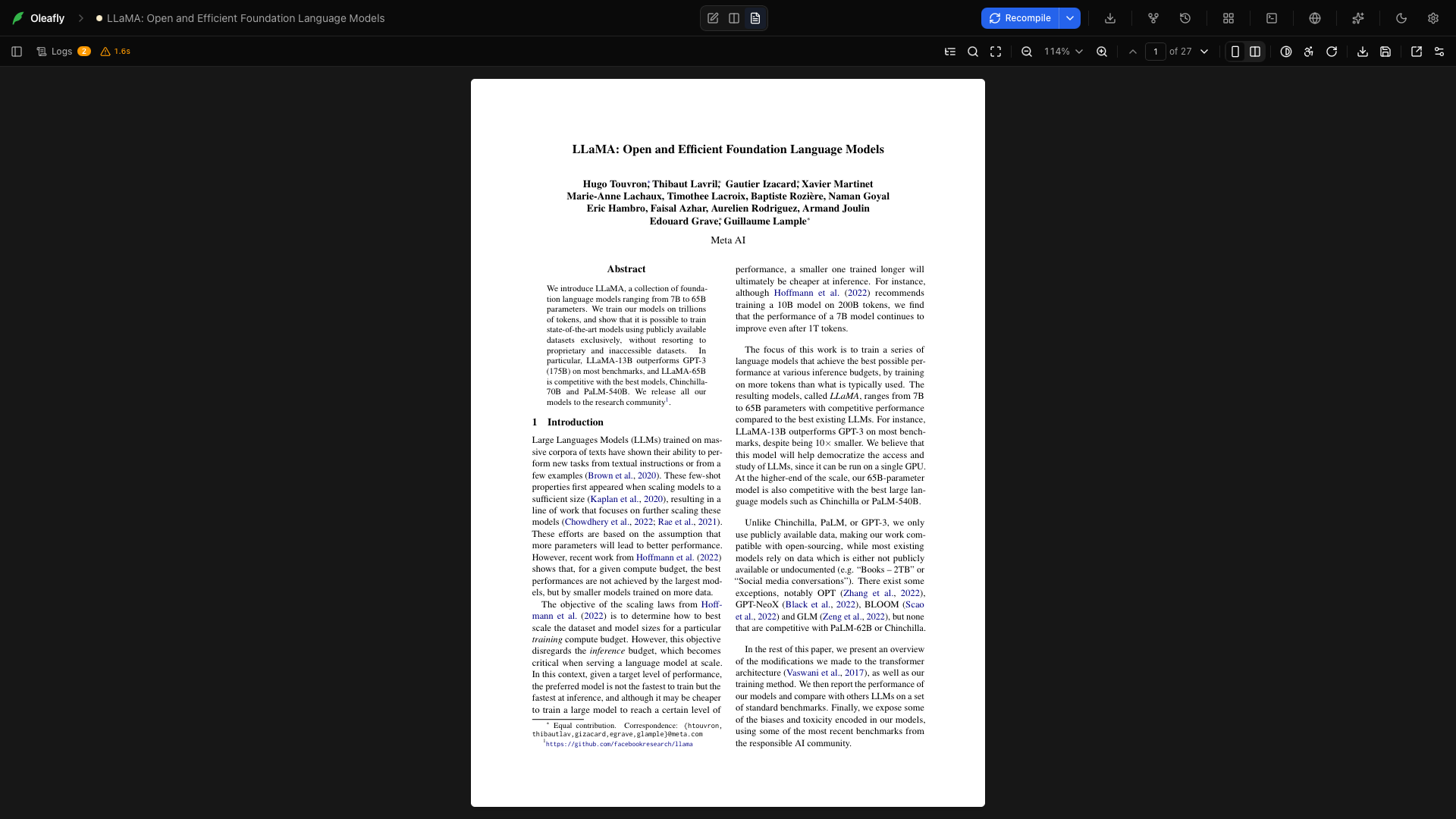
Choose Logs to see compilation output. The control switches back to the PDF when selected again. Follow the first actionable error to the relevant source file, fix it, and recompile. See Reading the logs.
When a compile can’t run, the preview offers the fix where it can. A latexmk build missing a TeX file shows Find and install. A Tectonic build that needs something Tectonic can’t do shows Choose engine, which opens the engine dialog. A Typst project that pins a version this computer lacks shows Download Typst with that version, and Use Typst with your default version. See When a pinned version is missing.
Build duration
Section titled “Build duration”The duration beside Logs reports the completed compile time. Use it to compare repeated builds of the same project, rather than treating it as a measurement of every part of the app.
Document outline
Section titled “Document outline”Choose Document outline to open the PDF’s navigation tree. Expand entries and select a heading to jump to that location. The outline comes from the PDF; a document without PDF bookmarks may have no entries even when its source contains headings. Close the panel with Close document outline.
Search PDF
Section titled “Search PDF”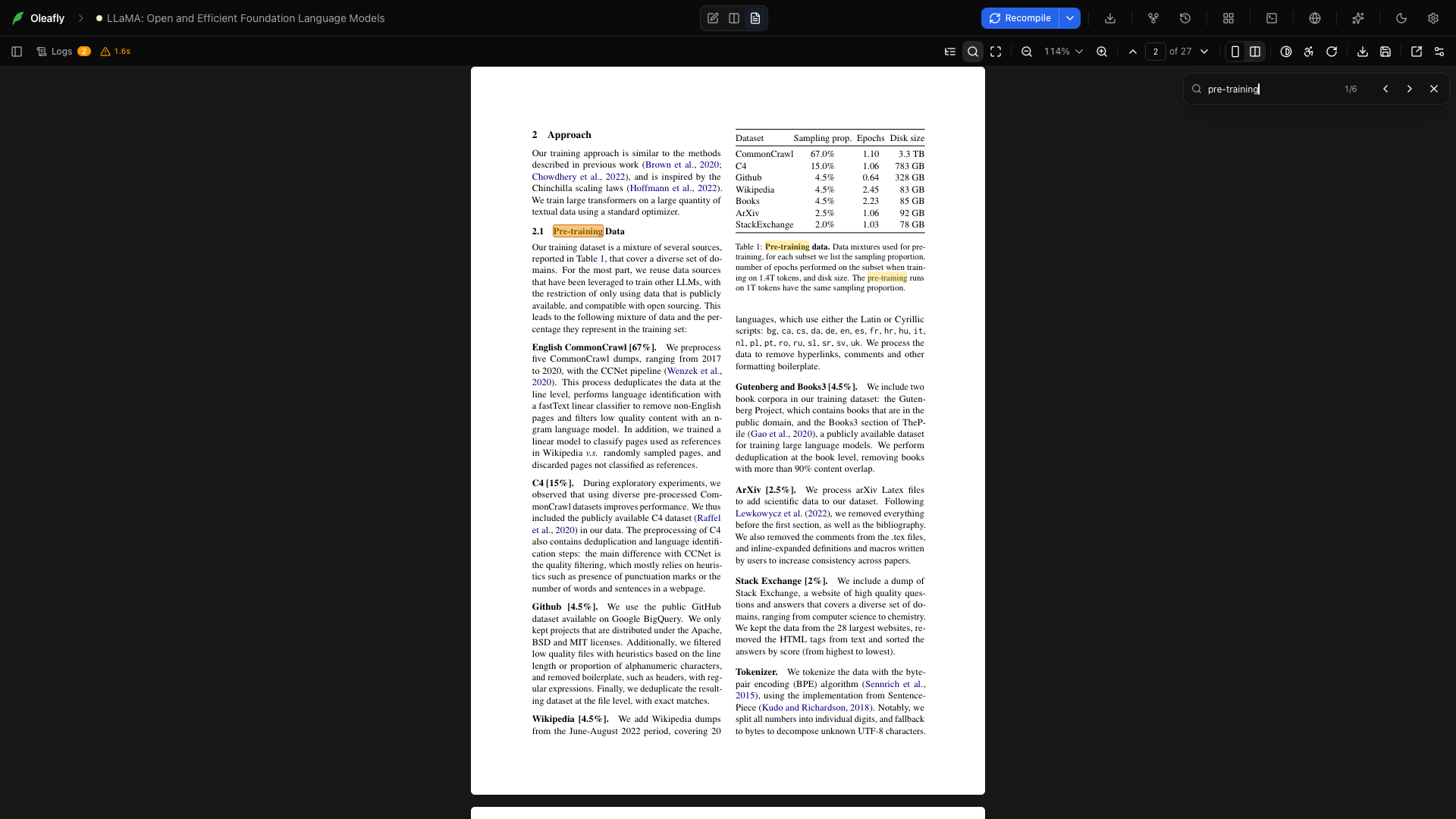
Choose Search PDF, enter a word in Search PDF text, and inspect the highlighted results. Use Previous search result and Next search result to move through matches. Choose Close PDF search to return to reading.
Try searching for estimate in the LaTeX practice document. Search works with the PDF’s text layer; a scanned page made only of images does not supply searchable text.
Fullscreen preview
Section titled “Fullscreen preview”Choose Fullscreen preview to read without the surrounding editor panes. Choose Exit fullscreen or press Esc to return. This is useful for checking a presentation or reading a page at a larger size.
Present
Section titled “Present”Choose Present, the presentation icon, to show the compiled PDF as slides, such as a Beamer, Touying, or Polylux deck. Pick Present from the start, Present from this page, or Present with presenter view, which adds the next slide, a timer, and speaker notes on your screen. Present slides covers the keys, the windows on one or two displays, and speaker notes.
Hide toolbar
Section titled “Hide toolbar”In fullscreen, choose Hide toolbar to give the page more room. Use the floating Show toolbar control to bring the controls back.
Zoom out
Section titled “Zoom out”Choose Zoom out to reduce the preview scale by one step. This affects how large the page looks on screen, not the PDF’s paper size.
Zoom in
Section titled “Zoom in”Choose Zoom in to enlarge the preview. Use it to inspect equations, plot labels, and small table text. The supported scale range is 40% to 400%.
Zoom percentage
Section titled “Zoom percentage”Open the percentage menu to choose a fixed zoom preset. It also contains Fit to width, Fit to height, and Reset to 100%. Choose a fixed value when comparing the same page across revisions.
Fit to width
Section titled “Fit to width”Choose Fit to width to fit the page to the available preview width. Use it in a split layout when reading paragraph text. Reapply it after substantially resizing the pane.
Fit to height
Section titled “Fit to height”Choose Fit to height to see the page’s vertical extent. Use it to inspect margins, footer placement, and page balance.
Reset to 100%
Section titled “Reset to 100%”Choose Reset to 100% from the zoom menu to return to the neutral scale. This resets the viewer scale; it does not change the source’s font size.
Trackpad and mouse zoom
Section titled “Trackpad and mouse zoom”Pinch on a trackpad, or use Ctrl with the scroll wheel, to zoom. Ordinary scrolling moves through the document. ⌘=, ⌘-, and ⌘0 (Ctrl on Windows and Linux) zoom the whole app, the PDF included, even while the PDF has focus. Use the toolbar, a pinch, or Ctrl and the scroll wheel when you want to zoom only the PDF.
Zoomed-in pages stay sharp. The part of the page you’re looking at is drawn again at full resolution, and the preview redraws when you move the window to a screen with a different pixel density.
Previous page
Section titled “Previous page”Choose Previous page to move backward. In a two-page layout, navigation advances by a spread. The button is unavailable when you are already at the beginning.
Page number
Section titled “Page number”Click the page-number field, enter a page, and press Enter. The counter also follows your position as you scroll. Use this to return to a page mentioned in review notes.
Next page
Section titled “Next page”Choose Next page to move forward. The button becomes unavailable at the end of the document.
Single page view
Section titled “Single page view”For a multi-page PDF, choose Single page view to read one column of pages. Scroll continuously through the document. One-page documents do not need the layout switch, so it is hidden.
Two-page view
Section titled “Two-page view”Choose Two-page view for facing pages. Use it when checking the balance of a thesis, book, or report across a spread. Return to Single page view when a narrower reading column is easier to follow.
Invert PDF preview colors
Section titled “Invert PDF preview colors”Choose Invert PDF preview colors for a dark reading view. Select the same control to restore colors. The exported PDF retains its original colors; this is a display setting.
Reader view
Section titled “Reader view”Choose Reader view for the accessible reading presentation of the PDF’s text. Use it when you want to follow the document’s reading order without relying only on the rasterized page. Exit Reader view to return to the normal page display. The quality of reading order depends on the structure supplied by the PDF.
Rotate clockwise
Section titled “Rotate clockwise”Choose Rotate clockwise to rotate the display by 90 degrees. Repeat to return to the original orientation. Use it to inspect a landscape page or rotated diagram. Viewer rotation does not rewrite the document source.
Download PDF
Section titled “Download PDF”Choose Download PDF to save the PDF currently displayed. Check whether a stale-preview notice is present before sharing it: the displayed result may be from the previous successful build. Image projects expose Download image instead.
Save PDF to project
Section titled “Save PDF to project”Choose Save PDF to project, enter the filename, and save. This puts a copy of the compiled output into the project tree so it is available with your other files. Image projects offer Save image to project and save a PNG. Use the export action when you only need a copy outside the project.
Open preview in a new window
Section titled “Open preview in a new window”Choose Open preview in a new window to detach the reader into an OS window. Move it to a second display while writing in the main window. It follows updated builds and project changes.
PDF preview settings
Section titled “PDF preview settings”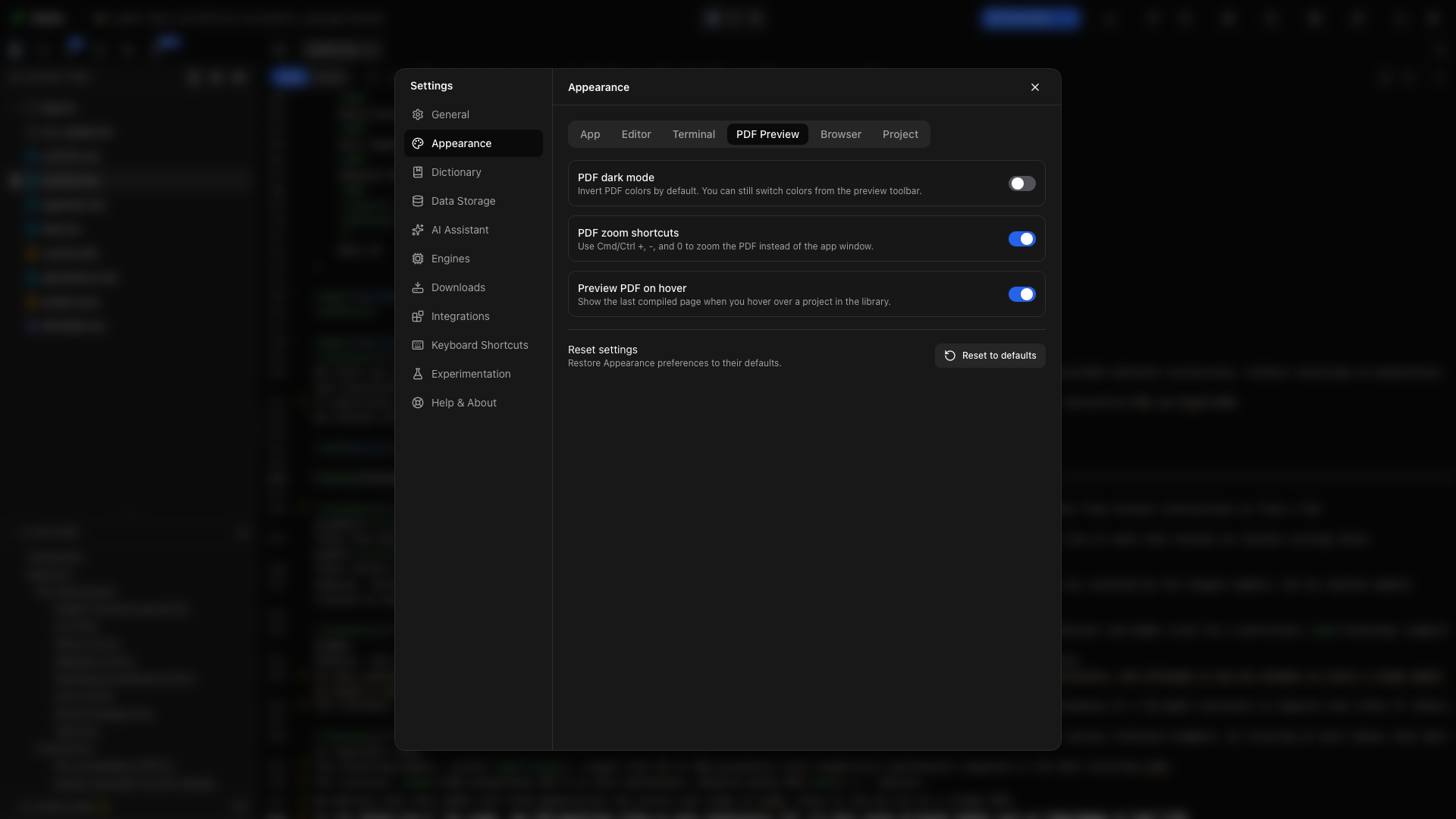
Choose PDF preview settings to open Settings → Appearance → PDF Preview. Set the default dark-reading behavior and library hover previews there.
More preview controls
Section titled “More preview controls”Narrow preview panes move controls into More preview controls. Open that menu before assuming a feature is unavailable. Widening the pane brings more controls back into the toolbar.
Select and copy text
Section titled “Select and copy text”Drag across text in the PDF to select it, then copy. ⌘A (Ctrl+A) selects the text of the whole PDF. Links inside the PDF remain clickable. Selectable text depends on the PDF’s text layer. The preview does not turn an image-only scan into editable text.
Jump to the source
Section titled “Jump to the source”Hold ⌘ or Ctrl and click a word in the PDF to open the matching source. In the source editor, Go to PDF navigates in the other direction. This works in LaTeX projects and in Typst projects on Typst 0.13 or later. See Source and PDF sync for shortcuts and limits.
Stale previews
Section titled “Stale previews”After an edit or failed build, the viewer can retain the last readable PDF. A stale-preview notice means that page is not the current source. Recompile successfully before using it as the final output.
A recompile keeps your place in the PDF, in the detached preview window too. When you hide the preview and show it again, for example with ⌘⌥P (Ctrl+Alt+P), it comes back right away at the same spot.
With Auto compile on, a Typst project refreshes the preview a moment after you stop typing and keeps your scroll position. See Live preview with Auto compile.
Try a complete reading pass
Section titled “Try a complete reading pass”- Compile the practice document.
- Choose Preview Only and Fit to height.
- Search for a phrase and visit its result.
- Open the outline and jump to a section.
- Zoom in to check its equation or table.
- Return to Split View to revise the source.
- Recompile, check that the stale notice has cleared, and download the PDF.