
ターミナルの操作
名前を付けたターミナルのセッションで、分析スクリプトとプロジェクトのコマンドを実行します。
ターミナルを使うと、執筆プロジェクトにコマンドラインが加わります。分析スクリプトの実行、生成されたファイルの確認、方法に書いたコマンドの再現に使ってください。
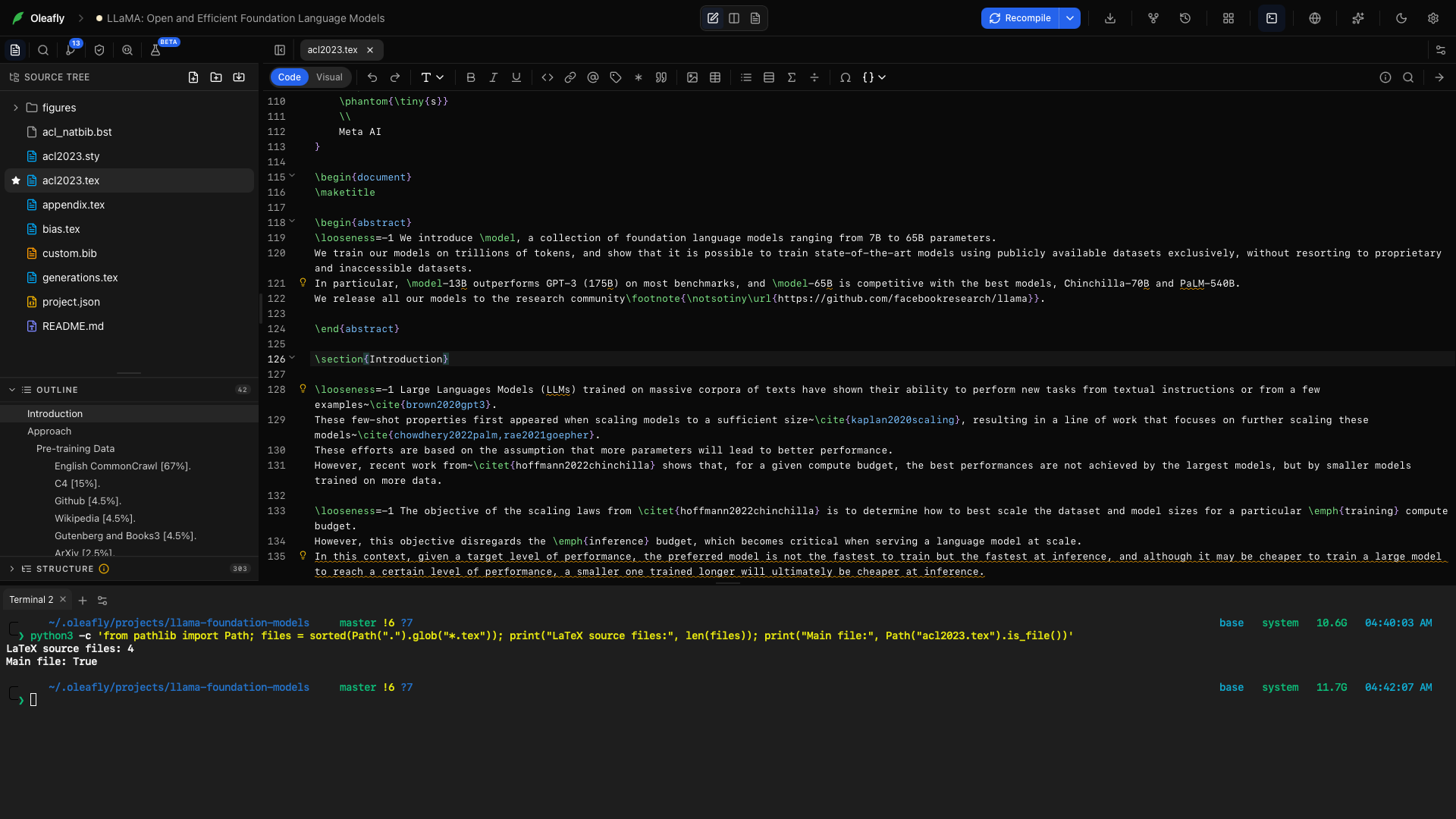
ターミナルを開く
「ターミナルを開く」セクションワークスペースのドックからターミナルを選ぶか、Ctrl+`(Control とバッククォートのキーで、どのプラットフォームでも同じ)を押します。macOS と Linux では、表示 → ターミナルの表示を切り替えでも同じことができます。ターミナルは、アクティブなプロジェクトのために開きます。ターミナルを隠すと、セッションを保ったまま、エディタに戻れます。
別のキーを使うには、設定 → キーボードショートカットのターミナルの表示を切り替えを変更します。
出力を選択してコピーする
「出力を選択してコピーする」セクションターミナルをクリックして、フォーカスを与えます。macOS では、このあと ⌘A か編集 → すべてを選択を使うと、原稿ではなくターミナルのテキストが選択されるので、そのままコピーできます。
新規ターミナル
「新規ターミナル」セクション新規ターミナルを使うと、別のセッションが開きます。長時間かかる分析は 1 つのタブに置いておき、別のタブで出力を確認できます。
セッションを切り替える
「セッションを切り替える」セクションターミナルのタブを選ぶと、その shell と出力が表示されます。実行中のコマンドは、選択しているエディタのファイルではなく、そのセッションに属します。
タブのメニュー
「タブのメニュー」セクションターミナルのタブを右クリックするか、フォーカスして Shift+F10 を押すと、メニューが開きます。
名前を変更
「名前を変更」セクション名前を変更を選ぶか、タブのタイトルをダブルクリックして、analysis や figures のような名前を入力します。複数のセッションが開いていても、それぞれの用途が見えたままになります。
色を開いて色見本を選ぶと、セッションを見分けられます。色を外すには、なしを選びます。
閉じる
「閉じる」セクション閉じるを開いて、次のどれかを選びます。どれも、メニューを開いたタブから数えます。
- 現在のタブを閉じるは、そのタブを閉じます。タブの × も同じです。
- ほかを閉じるは、そのタブを残して、ほかをすべて閉じます。
- 左側をすべて閉じるは、そのタブより前のタブを閉じます。
- 右側をすべて閉じるは、そのタブより後ろのタブを閉じます。
閉じるものがない項目は、グレーになります。
タブを閉じると、そのターミナルのセッションが終了するので、先に、まだ必要なコマンドがないか確認してください。実行中のコマンドにあとで戻りたいときは、代わりにターミナルのパネルを隠してください。
ターミナルの設定
「ターミナルの設定」セクション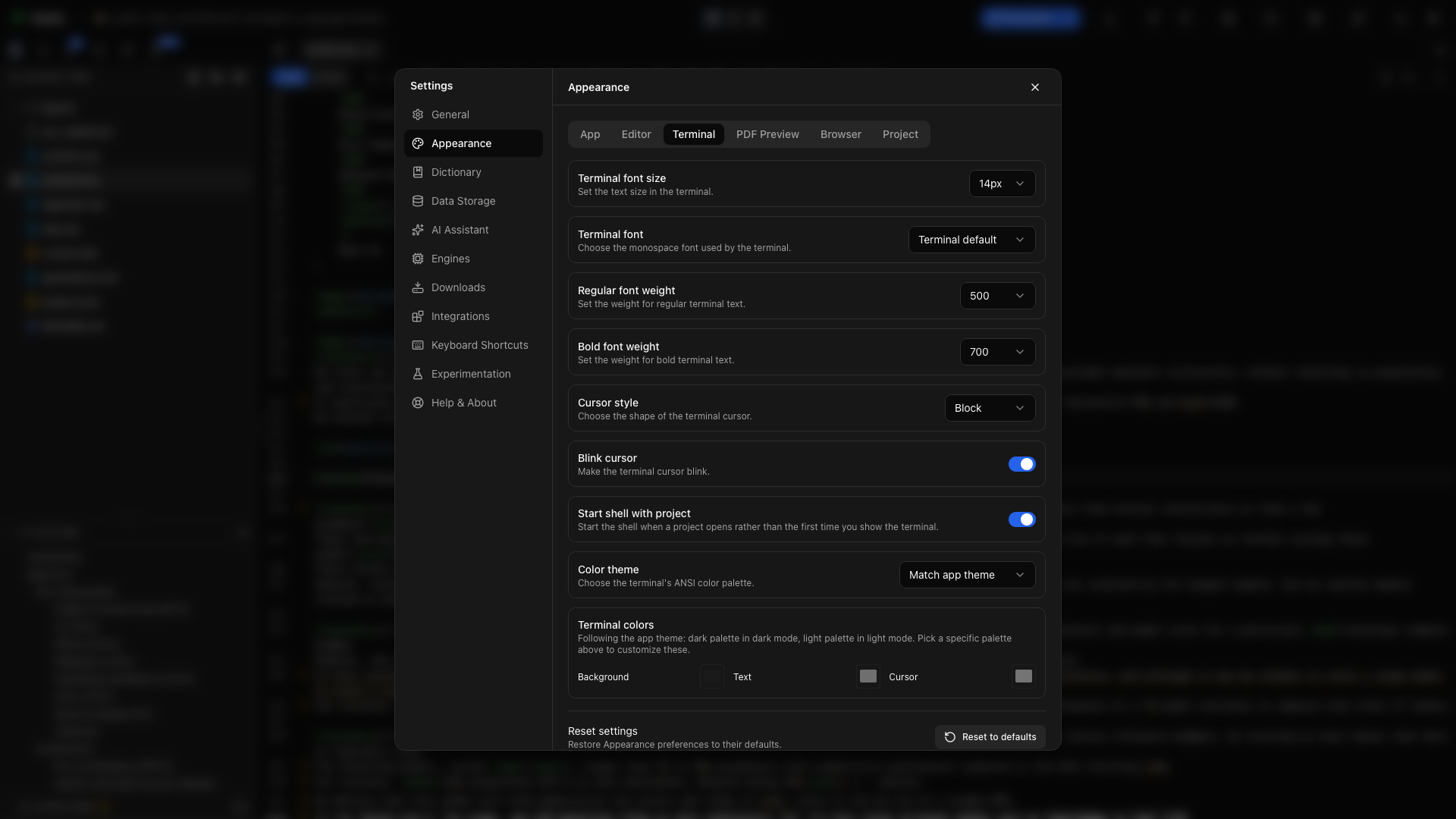
ターミナルの設定を開くと、ターミナルのフォント、サイズ、通常と太字の太さ、カーソルの形、カーソルの点滅、起動時の動作、色を調整できます。それぞれの設定は、外観のガイドで説明しています。
プロジェクトと一緒に起動する
「プロジェクトと一緒に起動する」セクションプロジェクトを開いたときにターミナルを用意しておきたい場合は、外観の設定で起動のオプションを有効にします。そうでなければ、shell が必要なときにドックから開いてください。
oleafly コマンドを使う
「oleafly コマンドを使う」セクションOleafly のターミナルでは、ほかのターミナル用にインストールしていなくても、oleafly コマンドが PATH に入っています。開いているプロジェクトで oleafly build や oleafly check を試してください。コマンドラインツールを参照してください。
LLaMA プロジェクトを確認する
「LLaMA プロジェクトを確認する」セクションLLaMA プロジェクトとそのターミナルを開きます。次のコマンドは、最上位の LaTeX ソースファイルを数え、acl2023.tex があることを確認します。プロジェクトを読み取るだけで、変更はしません。
python3 -c 'from pathlib import Path; files = sorted(Path(".").glob("*.tex")); print("LaTeX source files:", len(files)); print("Main file:", Path("acl2023.tex").is_file())'数はお使いのプロジェクトのコピーによって変わります。Main file: True は、エントリのファイルがあることを確認するものです。Python が python としてインストールされているシステムでは、代わりにそのコマンドを使ってください。
分析スクリプトでは、スクリプトと入力データをプロジェクト内にまとめて置き、このターミナルから実行して、結果を確認してから、その出力を論文に挿入します。