
Compiling
Compile LaTeX, Typst, and Markdown projects, choose compile options per engine, read logs, and control offline package fetching.
Esta página aún no está disponible en tu idioma.
A new LaTeX project starts on the default compile engine from Settings → Engines → LaTeX. Out of the box that is Tectonic, an XeTeX-based engine that ships with Oleafly. You can also use latexmk when a project needs a traditional TeX toolchain, for one project or as the default. Typst projects compile with the built-in Typst or another version the project pins, and Markdown projects go through Pandoc and Tectonic. The LaTeX compiler and the Typst version belong to the project, so changing one project does not affect the others.
Starting a compile
Section titled “Starting a compile”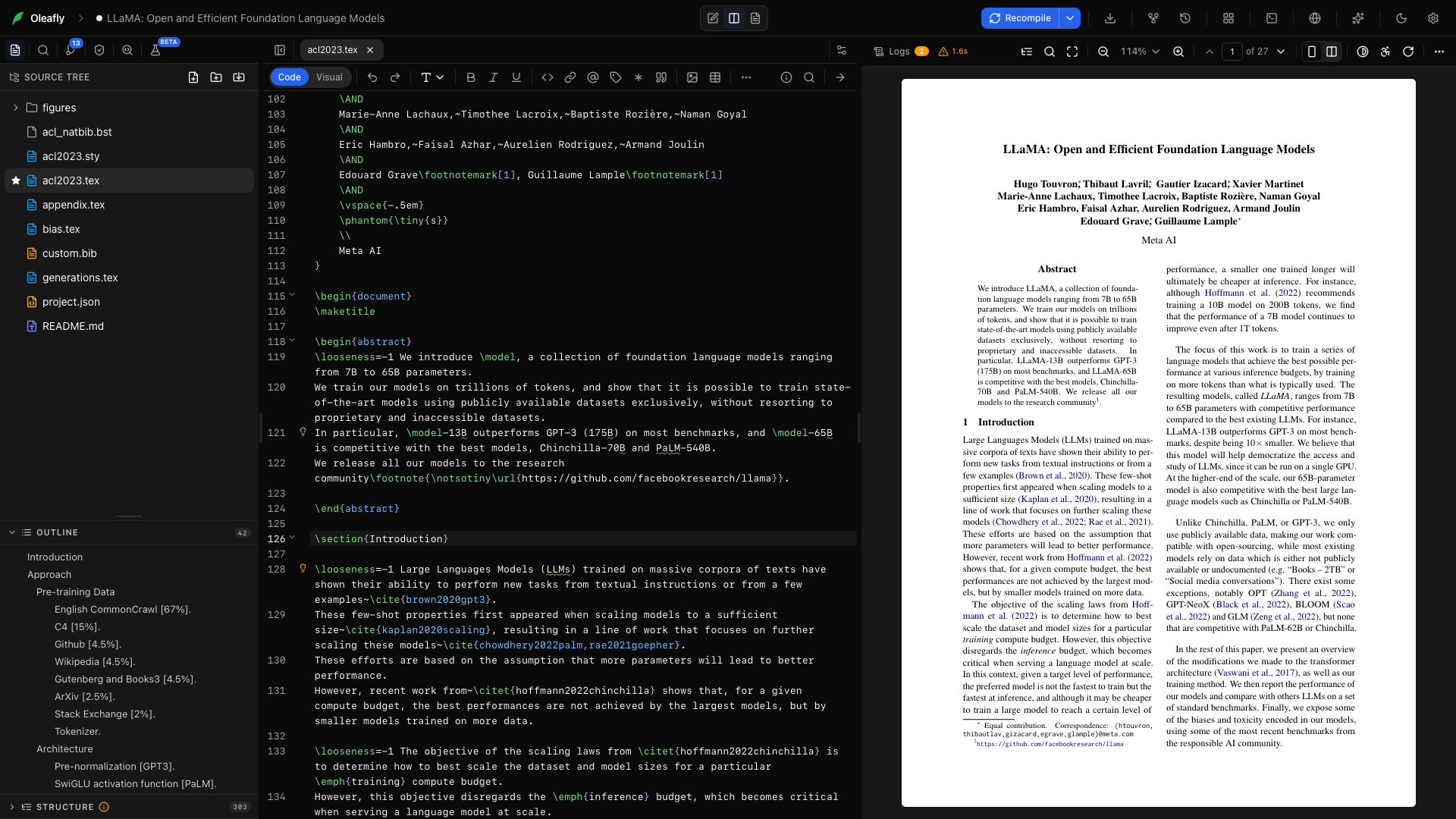
- ⌘↵ (Ctrl+Enter), anywhere.
- The Compile button at the top right of the toolbar. It reads Recompile once the project has a result.
- Recompile in the ⌘K command palette.
- Opening a project into a view that shows the PDF pane compiles once automatically, so you land on a fresh preview.
Compiling always saves the active file first, so the PDF matches what you see. If you’re in editor-only view, compiling reveals the split view so you can watch the result.
Compile options
Section titled “Compile options”The arrow beside Recompile opens the compile options. The menu shows only the options that do something for the project’s engine.
| Group | LaTeX with Tectonic | LaTeX with latexmk | Typst | Markdown |
|---|---|---|---|---|
| Auto compile | Yes | Yes | Yes | Yes |
| Compile mode (Normal or Fast) | Yes | No | No | No |
| Syntax checks | Yes | Yes | No | No |
| Compiler (this project) | Yes | Yes | No | No |
| Typst version, Fonts, Build, Variant | No | No | Yes | No |
| Compile error handling | Yes | Yes | No | No |
Stop compilation and Recompile from scratch sit at the bottom of the menu for every engine. The Variant group appears once a Typst project has build variants.
Under Compiler (this project), Tectonic is built in. Auto runs your system TeX through latexmk and picks the compiler from the source. pdfLaTeX, XeLaTeX, and LuaLaTeX pin that compiler and also run through latexmk. The Typst groups are covered in Typst projects.
Auto compile
Section titled “Auto compile”Set Auto compile to On in the compile options, or run Enable auto-compile from the ⌘K palette. It is off by default, applies to every project, and the same controls turn it back off.
In a LaTeX or Markdown project, Oleafly recompiles about 2.5 seconds after you stop typing. Only real edits trigger it. Switching tabs or opening files does not.
In a Typst project, Auto compile is the live preview. Oleafly keeps one Typst process running, the open file saves itself a moment after you stop typing, and the PDF refreshes at the same scroll position. See Live preview with Auto compile.
Compiles never pile up. If you edit while an automatic compile is running, Oleafly stops it and starts over with your latest text, so the PDF catches up sooner. It lets a compile finish when you or an agent started it, when it is downloading packages, when it is nearly done, or when it is itself a restart. In those cases exactly one follow-up compile is queued, so the final PDF still reflects your latest edits.
Watching progress
Section titled “Watching progress”A thin progress bar runs across the top of the preview during a build, and before the first PDF exists the pane shows a percentage estimate. When a build finishes, the toolbar shows a status chip with the compile time and a severity icon:
- Green check: compiled successfully.
- Amber triangle: compiled with warnings. You still get the PDF.
- Red cross: compiled with errors.
The preview switches to the PDF automatically on success. Only a genuine failure (no PDF produced) switches you to the Logs view.
Reading the logs
Section titled “Reading the logs”The Logs button at the left of the preview toolbar flips between the PDF and the compile log, with a badge counting errors (red) or warnings (amber):
- A parsed diagnostics list up top: each error or warning with its kind and, when known, the
l.42line reference. - The full raw compiler log below, colorized: errors bold red, line references highlighted, file nesting indented.
- A Copy log button grabs the whole thing for a bug report or a forum post. ⌘A followed by ⌘C in the log copies all of it too.
Long logs open right away, even ones with 100,000 lines, and scroll without blank areas.
Compile errors also become squiggles in the editor via the linter pipeline, and the AI assistant can read this same log with its get_log tool when you ask it to fix the errors.
Typst errors are marked in the editor at the exact span Typst reports, with the source line and Typst’s own hints. Common errors also come with a plain explanation of what went wrong.
Packages and offline compilation
Section titled “Packages and offline compilation”Tectonic downloads a LaTeX package the first time a document needs it, then caches it locally. The first compile of a new document type can be slower and needs a network connection. Later compiles use the cache.
Offline mode in Settings, General, or the command palette makes this a guarantee for Tectonic. The compiler runs with --only-cached and never fetches a package. A document that needs an uncached package fails with a clear error.
Offline mode covers Typst too. Typst can’t download a package while it is on, so every @preview package must already be in the cache or vendored into the project’s typst-packages folder. See Packages from Typst Universe. Markdown projects ignore Offline mode, and the log says so.
latexmk uses the TeX distribution already installed on your machine. Oleafly checks system distributions first, including MacTeX, TeX Live, MiKTeX, and TinyTeX. If none is available, the app can install and manage its own TinyTeX copy. Because a system TeX process can read files available to your user account, use latexmk only with projects you trust.
When a latexmk build cannot find a .sty, .cls, bibliography style, or other TeX file, Oleafly can offer Find and install in the error message. The file name and package name are often different: tikz.sty, for example, belongs to the TeX Live package pgf. Oleafly resolves that owner, installs it with tlmgr, refreshes the package list, and recompiles. Open Settings → Engines → Packages when you prefer to search first or manage packages by hand.
Limits and safety valves
Section titled “Limits and safety valves”- One compile runs at a time per project, in a latest-only queue: newer requests supersede stale ones, so switching projects mid-build never paints the wrong PDF, and a compile storm never forms while you type.
- A superseded or timed-out build is actually cancelled: Oleafly terminates the compiler’s whole process tree, on every platform, instead of leaving it running in the background.
- A hard 300-second timeout kills a wedged build rather than letting it spin forever.
- Results carry an identity tied to the request, so a stale PDF from an out-of-order finish is refused rather than displayed.
Common failures, quick fixes
Section titled “Common failures, quick fixes”- “Missing package” in Offline mode: turn Offline mode off for one compile to fetch and cache it, then turn it back on.
- A missing file in a
latexmkbuild: use Find and install. If the lookup fails, open Settings → Engines → Packages and search for the file or package name. MiKTeX packages are managed in MiKTeX Console. - An EPS figure, forced
pdftexdriver, or missing bundle file in Tectonic: the engine dialog opens, or choose Choose engine beside Compile. Follow the offered switch to a system pdfLaTeX toolchain. For a missing package, Oleafly can continue to its installer after the switch. See When Tectonic isn’t enough. minted, PythonTeX, or\write18is blocked: if you trust every file in the project, choose Allow external commands in the banner above the editor. See Allow external commands.- A package download failed in Tectonic: use the offered retry. Check the connection if the mirror and upstream fallback both fail.
- “Typst 0.13.1 is not installed”: the project pins a Typst version this computer doesn’t have. Choose Download Typst 0.13.1 in the preview, or Use Typst followed by your default version to drop the pin. See When a pinned version is missing.
- Undefined citation or reference warnings: Preflight pinpoints every one, with the file and line.
- An error you can’t parse: ask the AI. “Fix the LaTeX errors” triggers a compile, log read, targeted edit, and recompile loop, using your selected approval policy.
Other document engines
Section titled “Other document engines”LaTeX compiler selection is separate from the project’s document engine:
- Typst projects compile with the built-in Typst 0.15.1 or the version the project pins. See Typst projects.
- Markdown projects build to PDF through a managed Pandoc with Tectonic as the PDF engine.
- Tagged, accessible PDFs use LuaLaTeX through a system TeX installation or Oleafly’s managed TinyTeX. See LaTeX engines and packages. Typst 0.14 and later tag every PDF without extra steps.
The engine is a per-project choice made when the project is created, and the interface adapts to it: actions an engine cannot support are hidden rather than left to fail. To move a LaTeX project to Typst, convert it into a new Typst project.
Keep the source behind a successful build
Section titled “Keep the source behind a successful build”Enable checkpoints to save the source used by successful compiles. You can compare and restore an earlier build without changing your manual Git workflow.