
Ajustes y personalización
Apariencia y temas
Configura la aplicación, el editor, el terminal y la vista del PDF según tu forma de trabajar.
Abre Ajustes → Apariencia. Elige la pestaña de la parte del espacio de trabajo que quieras cambiar. Los cambios se aplican en local; no alteran el formato de tu documento exportado.
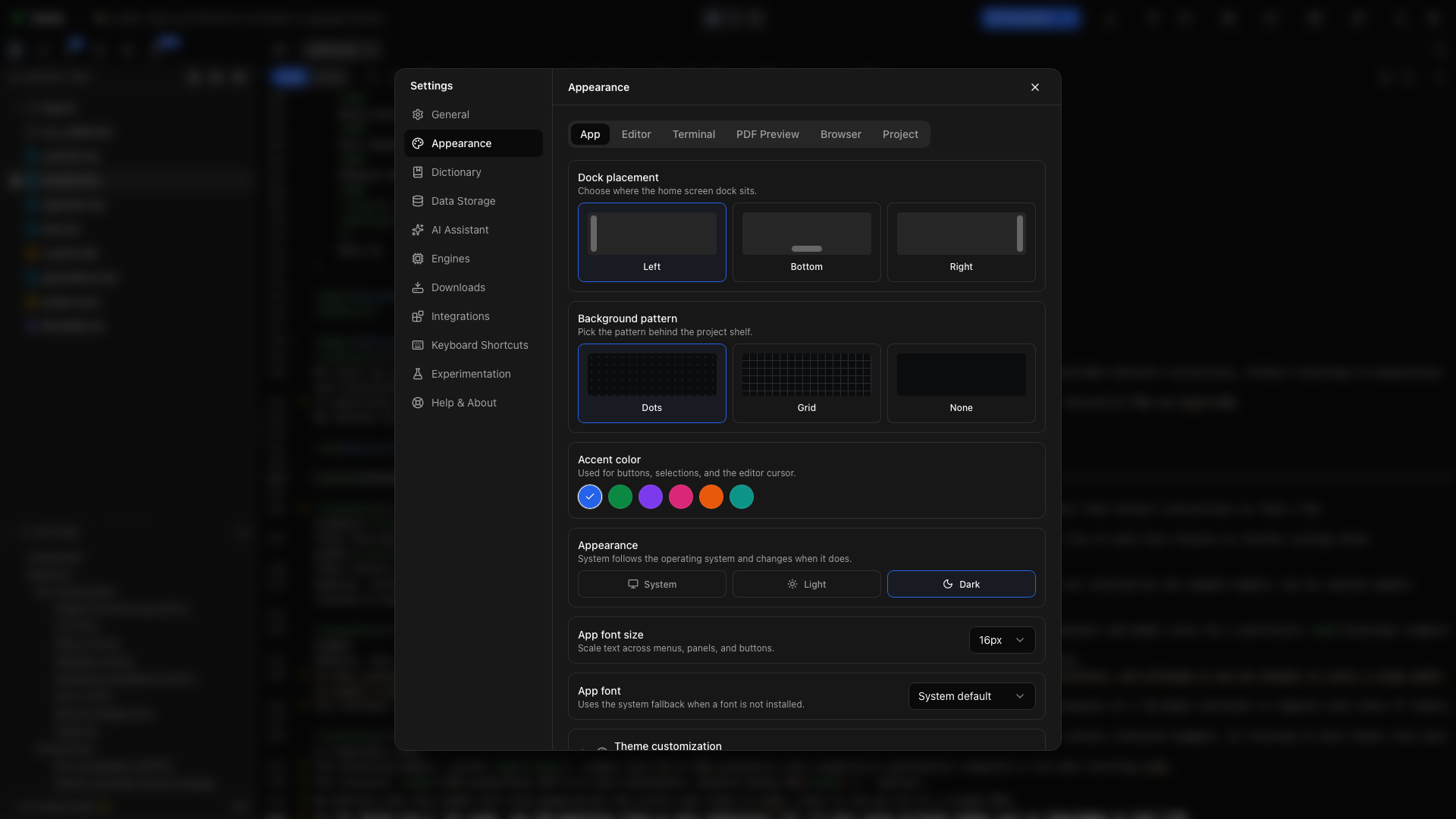
Posición del panel
Sección titulada «Posición del panel»En la pestaña Aplicación, elige Izquierda, Abajo o Derecha. Esto mueve el panel de la pantalla de inicio que contiene Proyecto nuevo, la búsqueda, las herramientas y Ajustes. Prueba con Abajo cuando quieras que la biblioteca use todo el ancho entre sus márgenes.
Patrón de fondo
Sección titulada «Patrón de fondo»Elige Puntos, Cuadrícula o Ninguno para el fondo de la biblioteca de proyectos. Ninguno deja la biblioteca con un fondo liso; el editor del documento conserva su propio tema.
Color de acento
Sección titulada «Color de acento»Elige una muestra de color para cambiar los acentos de selección y de acción de la aplicación. Esto cambia los colores de la interfaz; los colores de una figura y los estilos de LaTeX o Typst de un documento quedan bajo tu control en el código.
Modo de apariencia
Sección titulada «Modo de apariencia»En Apariencia, elige Claro, Oscuro o Sistema, que sigue a tu sistema operativo y cambia cuando él cambia. El botón de apariencia de la barra de herramientas principal es una forma más rápida de cambiar mientras trabajas. El editor cambia con él, al tema que elegiste para ese modo. Consulta Temas del editor.
Tamaño de letra de la aplicación
Sección titulada «Tamaño de letra de la aplicación»Usa Tamaño de letra de la aplicación para hacer más grande o más pequeño todo el texto de la interfaz, de 13 a 20 px. Los títulos de sección, las insignias de recuento y otras etiquetas pequeñas se escalan con él. Para un texto de código más grande, usa en su lugar el tamaño de letra del editor, o activa Usar la fuente de la aplicación.
Zoom hace más grande o más pequeño todo en Oleafly, incluidos el editor y el PDF. Elige un nivel del 80 % al 200 %. Mientras trabajas, pulsa ⌘= y ⌘- (Ctrl+= y Ctrl+- en Windows y Linux) para cambiarlo, y ⌘0 (Ctrl+0) para volver al 100 %. Todas las ventanas de Oleafly usan el mismo nivel, y Oleafly lo recuerda. Puedes cambiar las teclas en Ajustes → Atajos de teclado.
Tipografía de la aplicación
Sección titulada «Tipografía de la aplicación»Elige cualquier tipografía instalada en tu ordenador para los menús, los paneles y los diálogos. Cada nombre de la lista se dibuja con su propia tipografía. Escribe para buscar en la lista, o escribe un nombre que no aparezca. Las tipografías de símbolos como Wingdings se dejan fuera, porque convertirían cada letra en un dibujo. Si la tipografía que guardaste ya no está instalada, una nota bajo el ajuste lo indica y Oleafly usa la tipografía predeterminada.
La tipografía de la aplicación no cambia la tipografía que se compila en un PDF. Las tipografías del documento pertenecen a la plantilla o al código del manuscrito.
Tamaño de letra del editor
Sección titulada «Tamaño de letra del editor»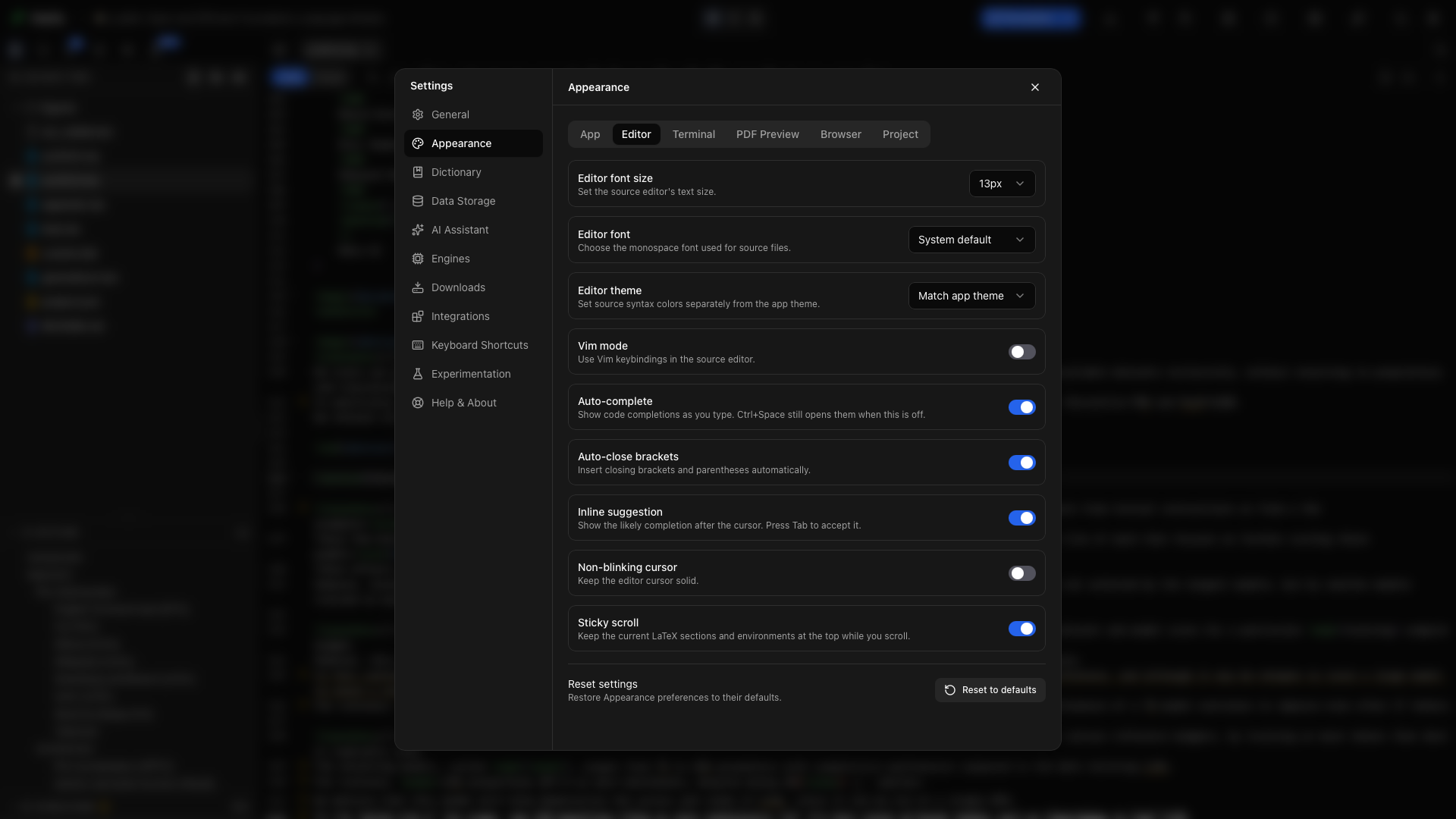
Abre la pestaña Editor y elige un tamaño de 11 a 24 px, o elige Personalizado y escribe cualquier tamaño de 6 a 100 px. Para una demostración compartiendo pantalla, prueba con 18 px y Disposición → Solo editor, de modo que la barra de herramientas y el código sigan siendo legibles.
Usar la fuente de la aplicación
Sección titulada «Usar la fuente de la aplicación»Activa Usar la fuente de la aplicación para dar al editor la tipografía y el tamaño de letra de la aplicación de la pestaña Aplicación. Mientras está activado, los controles propios de tipografía y tamaño del editor quedan bloqueados, y su descripción emergente explica por qué.
Tipografía del editor
Sección titulada «Tipografía del editor»Elige cualquier tipografía instalada en tu ordenador para los archivos de código. Las tipografías monoespaciadas van primero en la lista, y cada nombre se dibuja con su propia tipografía. Escribe para buscar, o escribe un nombre que la lista no muestre. Predeterminada del sistema vuelve a la tipografía de código predeterminada de la aplicación. El ajuste afecta a los archivos .tex, .typ, .md y otros archivos de texto del editor.
Temas del editor
Sección titulada «Temas del editor»El editor tiene un tema para el modo claro y otro para el modo oscuro. Elígelos en Tema en modo claro y Tema en modo oscuro, y el editor cambia de tema cuando lo hace la aplicación. Igual que el tema de la aplicación usa los colores claros u oscuros de la propia aplicación. Las demás opciones son Linear, GitHub Dark, Dracula, Nord, Tokyo Night, Rosé Pine, Catppuccin, One Dark, Paper y One Light. Paper, un blanco roto cálido, y One Light son los dos temas claros.
Cualquiera de las dos listas acepta cualquier tema, así que puedes tener un editor oscuro mientras el resto de la aplicación es claro. Un tema que elegiste en una versión anterior se usa para ambos modos hasta que cambies uno de ellos.
Colores del editor
Sección titulada «Colores del editor»Abre Colores del editor para cambiar cualquier color de un tema del editor. Elige Modo claro o Modo oscuro para editar el tema definido para ese modo. El texto junto a esos botones indica el tema que estás editando. Debajo, elige LaTeX, Typst o Markdown para ver una muestra breve en ese lenguaje. La muestra refleja tus cambios a medida que los haces.
Los colores se agrupan por función, y una función significa lo mismo en los tres lenguajes:
| Grupo | Colores |
|---|---|
| Editor | Fondo, Texto, Números de línea, Selección |
| Sintaxis | Comandos, Preámbulo e importaciones, Títulos, Formato, Entornos, Citas y referencias, Fórmulas, Valores y cadenas, Nombres y claves, Enlaces, Paréntesis y símbolos, Comentarios |
Haz clic en una muestra para elegir un color. Un color que cambiaste recibe una flecha de restablecimiento que devuelve el color propio del tema, y Restablecer borra todos los cambios de ese tema. Oleafly guarda tus cambios de cada tema por separado, así que vuelven cuando regresas a él. Igual que el tema de la aplicación mantiene un conjunto para el modo claro y otro para el modo oscuro. Exportar el tema, en Personalización del tema, guarda tus temas y colores del editor junto con el resto del tema.
Atajos de teclado
Sección titulada «Atajos de teclado»Elige el conjunto de teclas que usa el editor de código: Predeterminado, Vim o Emacs. Con Vim, pulsa i para entrar en el modo Insertar y Esc para volver al modo Normal. El cambio se aplica al instante, y Predeterminado vuelve a los atajos habituales del editor. Consulta Teclas de Vim y Emacs.
Tamaño de la tabulación
Sección titulada «Tamaño de la tabulación»Tamaño de la tabulación define cuántos espacios inserta un nivel de sangría y qué ancho tiene un carácter de tabulación: 2, 4 u 8. El valor predeterminado es 4.
Interlineado
Sección titulada «Interlineado»Elige Compacto, Normal o Amplio para el espacio entre líneas de código, o Personalizado para un valor exacto de 1 a 3.
Espaciado entre letras
Sección titulada «Espaciado entre letras»Espaciado entre letras añade espacio entre los caracteres: +0.5, +1 o +1.5 px, o un valor Personalizado de hasta 4 px. El espacio extra también deja más sitio alrededor del cursor.
Grosor del cursor
Sección titulada «Grosor del cursor»Haz que el cursor del editor mida 1, 2 o 3 px de ancho.
Color del cursor
Sección titulada «Color del cursor»Color del cursor tiene una muestra para los temas claros del editor y otra para los oscuros, de modo que un color que elijas sobre una página blanca no pueda desaparecer bajo un tema oscuro. Mientras no elijas un color, cada muestra enseña el color de cursor del propio tema. Usar los colores del tema vuelve al tema. El cursor de bloque de Vim y el cursor de texto del modo Visual de Markdown usan el mismo color.
Cursor sin parpadeo
Sección titulada «Cursor sin parpadeo»Activa Cursor sin parpadeo para que el cursor del editor se mantenga fijo. Esto puede hacer más fácil seguir el punto de inserción al leer o al presentar código.
Ajustar las líneas largas
Sección titulada «Ajustar las líneas largas»Las líneas largas se ajustan de forma predeterminada. Desactiva Ajustar las líneas largas para desplazarte hacia los lados en su lugar.
Autocompletado
Sección titulada «Autocompletado»Activa Autocompletado para mostrar sugerencias mientras escribes. Con él desactivado, pulsa Ctrl+Space cuando quieras la lista de autocompletado. Consulta Autocompletado para ver citas, comandos, rutas y símbolos.
Cerrar corchetes automáticamente
Sección titulada «Cerrar corchetes automáticamente»Activa Cerrar corchetes automáticamente para insertar los corchetes y paréntesis de cierre correspondientes al escribir uno de apertura. Prueba a escribir ( en un archivo de código: el cursor se queda entre el par para que escribas el contenido.
Cerrar fórmulas automáticamente
Sección titulada «Cerrar fórmulas automáticamente»Activa Cerrar fórmulas automáticamente para emparejar $, \( y \[ al escribir. En Typst, el emparejamiento de $ necesita tanto este interruptor como Cerrar corchetes automáticamente.
Cerrar entornos automáticamente
Sección titulada «Cerrar entornos automáticamente»Activa Cerrar entornos automáticamente para insertar el \end correspondiente cuando pulsas Enter después de una línea \begin.
Sugerencia en línea
Sección titulada «Sugerencia en línea»Activa Sugerencia en línea para mostrar la posible continuación después del cursor. Pulsa Tab para aceptar una sugerencia visible. Es un control de autocompletado del editor. Conectar un modelo es un paso aparte, en Asistente de IA.
Desplazamiento fijo
Sección titulada «Desplazamiento fijo»Activa Desplazamiento fijo para mantener las secciones, los títulos y los entornos actuales en la parte superior del panel de código mientras te desplazas. Úsalo en una sección de métodos larga para conservar la estructura que la rodea sin volver al título.
Vista previa de fórmulas
Sección titulada «Vista previa de fórmulas»Activa Vista previa de fórmulas para mostrar la ecuación renderizada encima de aquella en la que está el cursor. Consulta Vista previa de fórmulas.
Cuando se mueve un archivo
Sección titulada «Cuando se mueve un archivo»Renombrar o mover un archivo puede dejar en tu código rutas que siguen usando el nombre antiguo. Cuando se mueve un archivo define qué hace Oleafly al respecto. Preguntar enumera las rutas y te deja actualizarlas o dejarlas, Actualizar siempre las cambia sin preguntar y No actualizar nunca las deja como están. Consulta Las rutas siguen a un archivo movido.
Formato y pistas de Typst
Sección titulada «Formato y pistas de Typst»El grupo Typst al final de la pestaña Editor contiene Formatear al guardar, Ancho de línea del formateador, Sangría del formateador, Pistas con nombres de parámetros y Comprobaciones lint de Typst. Inteligencia del código explica cada uno.
Tamaño de letra del terminal
Sección titulada «Tamaño de letra del terminal»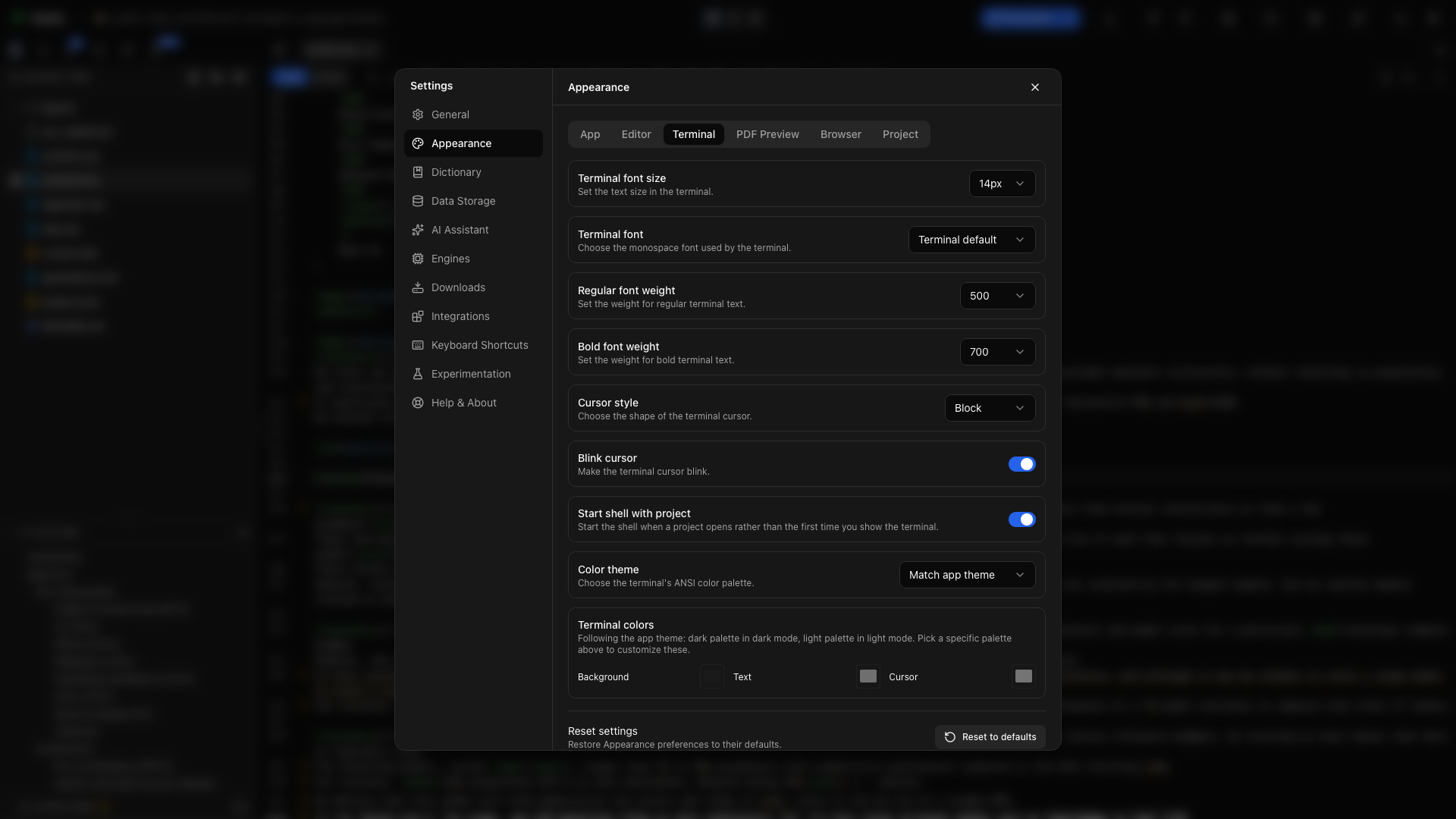
En la pestaña Terminal, elige el tamaño de la entrada y la salida del shell. Auméntalo antes de compartir una demostración de comandos; no afecta al editor del documento.
Tipografía del terminal
Sección titulada «Tipografía del terminal»Elige la tipografía monoespaciada del terminal. Usa una tipografía con puntuación clara al leer rutas del compilador y comandos del shell.
Grosor del texto normal
Sección titulada «Grosor del texto normal»Define el grosor que se usa para el texto normal del terminal. Compara unas líneas de salida antes de elegir un grosor mayor, sobre todo con fondo oscuro.
Grosor de la negrita
Sección titulada «Grosor de la negrita»Define el grosor para la salida del terminal que pide texto en negrita. Puede ser distinto del grosor normal para que los títulos y los diagnósticos de comandos sigan siendo distinguibles.
Estilo del cursor
Sección titulada «Estilo del cursor»Elige la forma del cursor del terminal en Estilo del cursor. El control afecta al cursor del shell, no al cursor del editor.
Cursor parpadeante
Sección titulada «Cursor parpadeante»Activa Cursor parpadeante para animar el cursor del terminal. Desactívalo para tener un punto de inserción fijo en el terminal.
Arrancar el shell con el proyecto
Sección titulada «Arrancar el shell con el proyecto»Activa Arrancar el shell con el proyecto para iniciar el shell al abrir un proyecto. Con él desactivado, el shell se inicia la primera vez que muestras el terminal. Usa esto último si rara vez necesitas trabajar con la línea de comandos.
Tema de color del terminal
Sección titulada «Tema de color del terminal»Elige un tema de color para el terminal, o deja que siga el de la aplicación. Abre un terminal con unas líneas de salida para comparar el texto de los comandos, los errores y el cursor.
Color de fondo del terminal
Sección titulada «Color de fondo del terminal»Usa el selector de fondo de Colores del terminal para elegir la superficie del terminal. Combínalo con un color de primer plano que siga siendo legible.
Color del texto del terminal
Sección titulada «Color del texto del terminal»Elige el color de texto predeterminado de la salida del terminal. Los programas aún pueden emitir sus propios colores ANSI.
Color del cursor del terminal
Sección titulada «Color del cursor del terminal»Elige un color de cursor que destaque tanto del fondo como del texto. Es útil cuando el prompt del shell contiene varios colores.
Modo oscuro del PDF
Sección titulada «Modo oscuro del PDF»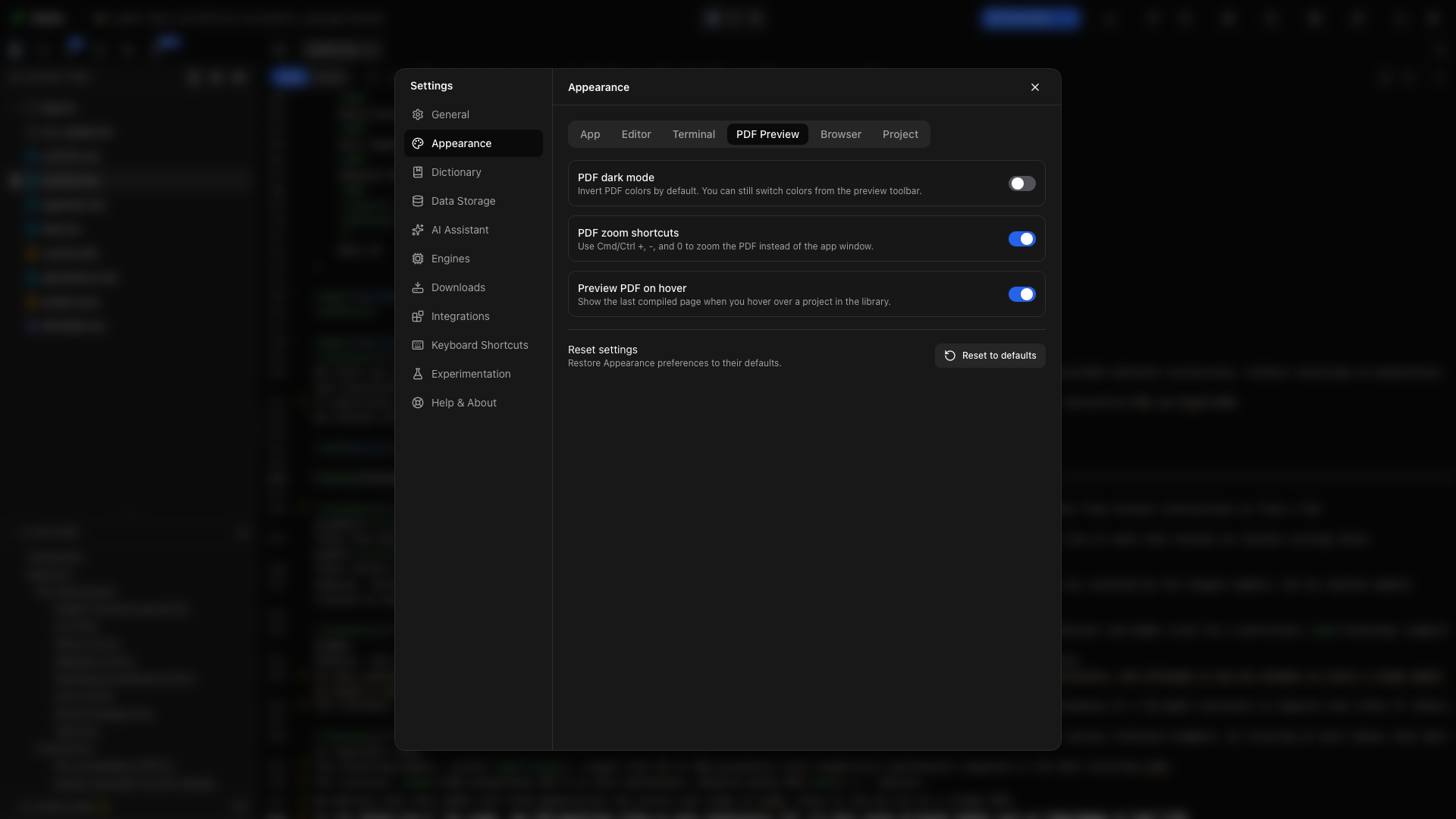
En la pestaña Vista previa del PDF, activa Modo oscuro del PDF para invertir de forma predeterminada los colores de la vista previa. Esto cambia la visualización, no el PDF exportado. Puedes activarlo para la vista actual desde la barra de herramientas del PDF.
Zoom solo del PDF
Sección titulada «Zoom solo del PDF»⌘= y ⌘- (Ctrl+= y Ctrl+-) hacen zoom en toda la aplicación, PDF incluido, incluso mientras el PDF tiene el foco. Para ampliar solo el PDF, usa los controles de zoom de la barra de herramientas de la vista previa, haz el gesto de pellizco en un trackpad o mantén pulsado Ctrl mientras te desplazas. Usa el menú de zoom para ajustar una página al ancho o al alto.
Ver el PDF al pasar el cursor
Sección titulada «Ver el PDF al pasar el cursor»Activa Ver el PDF al pasar el cursor para mostrar la última página compilada cuando pasas el cursor por un proyecto de la biblioteca. Compila primero un documento para que la biblioteca tenga una página que mostrar.
Vista de inicio predeterminada
Sección titulada «Vista de inicio predeterminada»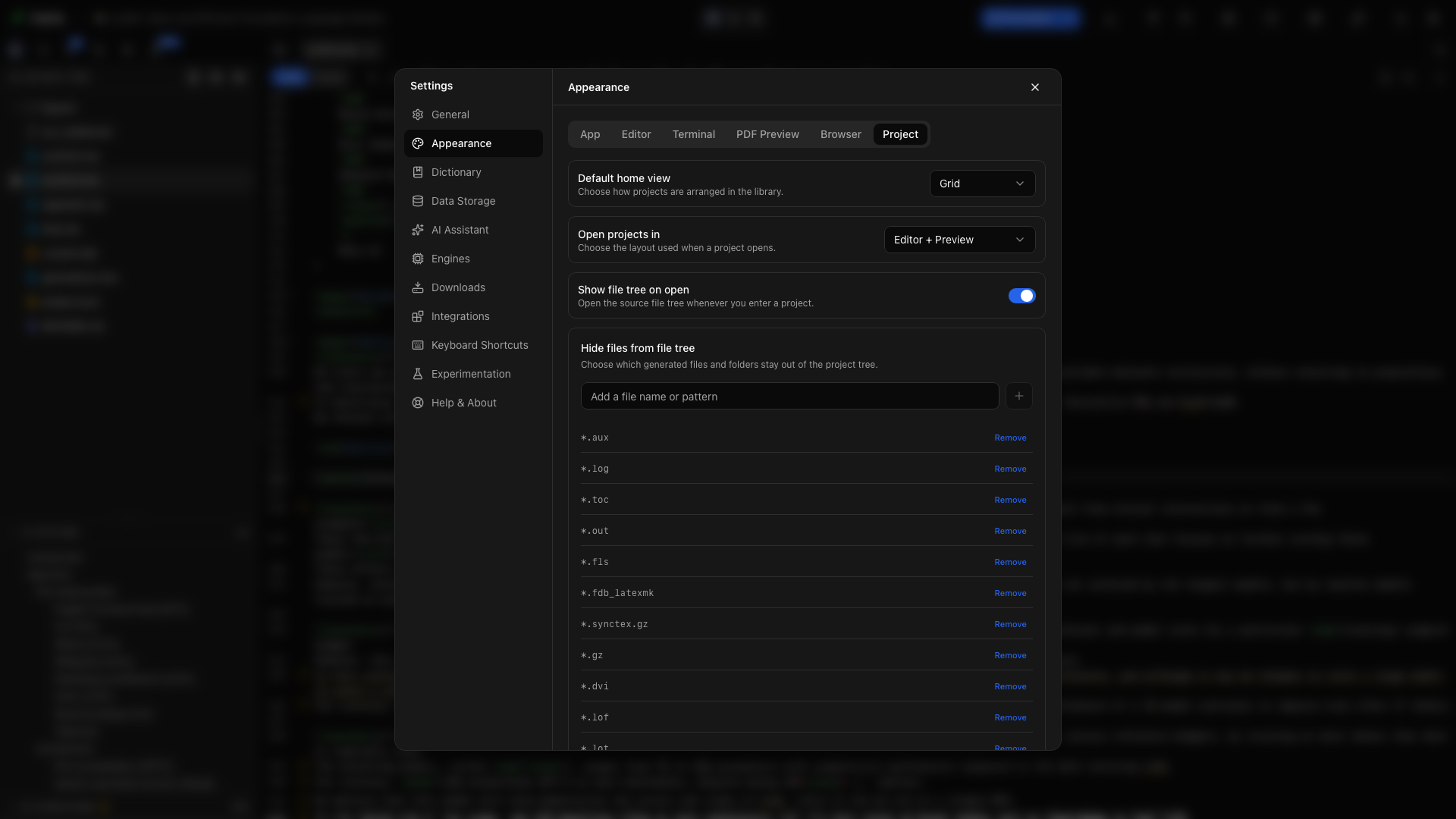
Elige si la biblioteca se abre como una cuadrícula o como una lista. La cuadrícula destaca las portadas y las vistas previas; la lista hace más fácil repasar los nombres de los proyectos.
Abrir los proyectos en
Sección titulada «Abrir los proyectos en»Elige la vista inicial de código, dividida o de PDF. Es la disposición con la que empiezas al entrar en un proyecto. La barra de herramientas del proyecto puede cambiarla mientras trabajas.
Mostrar el árbol de archivos al abrir
Sección titulada «Mostrar el árbol de archivos al abrir»Actívalo para abrir el Explorador con cada proyecto. Desactívalo para tener más espacio de escritura, y abre Explorador, la primera pestaña de la barra lateral izquierda, cuando necesites un archivo.
Archivos ocultos
Sección titulada «Archivos ocultos»Escribe un nombre de archivo o un patrón y elige Añadir para ocultar en el Explorador las entradas que coincidan. Por ejemplo, oculta un nombre de archivo auxiliar que distrae del manuscrito. Quita su chip para mostrarlo de nuevo. Ocultar un archivo no lo elimina.
Ajustes del modo Zen
Sección titulada «Ajustes del modo Zen»El grupo Modo Zen al final de la pestaña Proyecto tiene dos interruptores. Pasar a pantalla completa llena la pantalla mientras el modo Zen está activado y restaura la ventana cuando sales. Mostrar el PDF al compilar abre el PDF junto al editor cada vez que compilas mientras está oculto. La tecla que activa y desactiva el modo Zen está en Ajustes → Atajos de teclado.
Personalización del tema
Sección titulada «Personalización del tema»Al final de la pestaña Aplicación, abre Personalización del tema, elige el modo claro u oscuro que quieres editar y cambia tokens de color concretos. Haz clic en el círculo de color de un token para elegir un color en el selector de color de tu sistema. Los dos modos tienen valores independientes, y cada muestra enseña el color predeterminado de ese modo hasta que lo cambies. Inspecciona el texto, la selección, los paneles y los botones después de un cambio. Los colores dentro del editor tienen su propia sección, Colores del editor.
Radio de las esquinas
Sección titulada «Radio de las esquinas»Escribe una longitud CSS como 8px, 0.5rem o 1em. Borra el valor para usar el predeterminado. Esto ajusta las esquinas de los componentes de la aplicación.
Declaraciones CSS acotadas
Sección titulada «Declaraciones CSS acotadas»Escribe solo declaraciones, como el valor de una propiedad personalizada admitida. El campo no acepta reglas CSS completas, importaciones ni URL. Los valores no válidos se notifican en lugar de aplicarse.
Importa y exporta un tema
Sección titulada «Importa y exporta un tema»Elige Exportar el tema para guardar un archivo de tema reutilizable. Contiene los tokens de color, el radio de las esquinas y el CSS acotado, además de tus temas del editor para el modo claro y el oscuro y tus colores del editor. Importar un tema aplica un archivo guardado. Usa el control de restablecimiento para recuperar los valores predeterminados de la superficie de personalización.
Prueba una configuración de escritura
Sección titulada «Prueba una configuración de escritura»Pon el texto del código en 16 px, activa el desplazamiento fijo, abre un documento de LaTeX largo y elige Disposición → Editor + vista previa. Arrastra el divisor hasta que las líneas de código se lean con comodidad. Compila y elige Ajustar al ancho en la vista previa. Guarda la tipografía del documento en su código; usa Apariencia para tu propio entorno de lectura.
Restablecer los valores predeterminados
Sección titulada «Restablecer los valores predeterminados»Elige Restablecer los valores predeterminados al final de Apariencia para restaurar sus preferencias. El restablecimiento también borra la personalización del tema. Un puntito en el botón significa que algo de Apariencia difiere de su valor predeterminado. Revisa la confirmación antes de aplicar el restablecimiento.