
Einstellungen und Anpassung
Allgemein, Sprache & Korrekturprüfung
Wählen Sie die Sprache der Desktop-App, richten Sie die lokale Korrekturprüfung ein, bereiten Sie die Offline-Kompilierung vor und steuern Sie die geführten Touren.
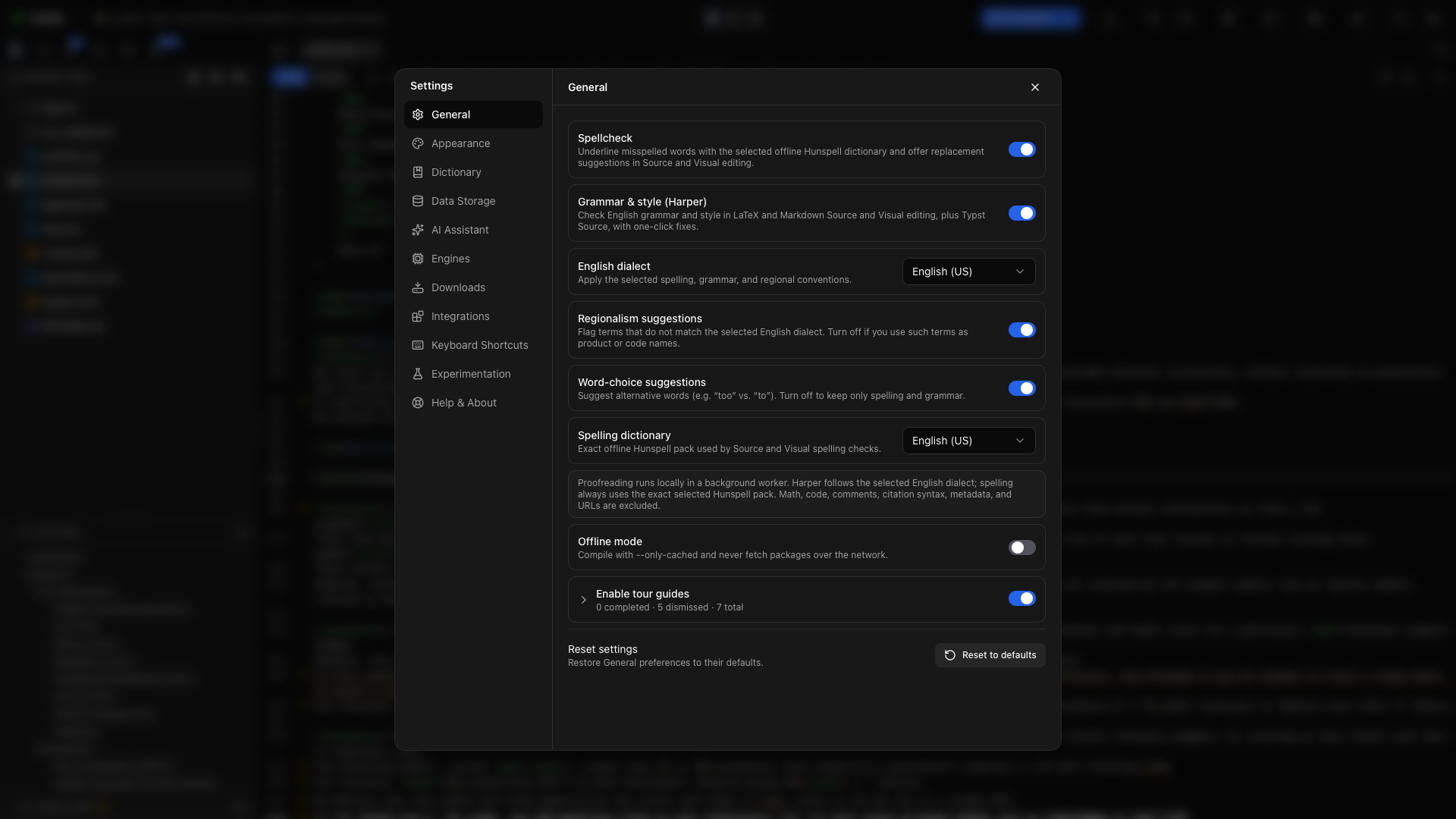
Öffnen Sie Einstellungen → Allgemein für Einstellungen, die die tägliche Arbeit auf diesem Gerät prägen. Änderungen an diesen Einstellungen schreiben keine Projektdatei um.
Sprache
Abschnitt betitelt „Sprache“Wählen Sie Systemvorgabe oder eine von 21 Oberflächensprachen. Jede Sprache steht unter ihrem eigenen Namen in der Liste, etwa English, Deutsch, 日本語 oder 简体中文, und die Oberfläche wechselt, während Oleafly geöffnet ist.
Systemvorgabe folgt der Sprache Ihres Betriebssystems, wenn Oleafly sie anbietet. Jede andere Wahl hält die App in dieser Sprache, egal welche Sprache der Rechner verwendet.
Diese Einstellung übersetzt weder Ihr Manuskript, noch ändert sie die Korrekturprüfung oder wählt die Sprache einer Antwort des Assistenten. Die genaue Grenze beschreibt Sprache und Lokalisierung.
Rechtschreibprüfung
Abschnitt betitelt „Rechtschreibprüfung“Schalten Sie die Rechtschreibprüfung ein, um Wörter zu unterstreichen, die im gewählten lokalen Hunspell-Wörterbuch fehlen. Wählen Sie einen Vorschlag oder ignorieren Sie den Begriff für dieses Projekt, überall oder für die aktuelle Sitzung.
Grammatik & Stil
Abschnitt betitelt „Grammatik & Stil“Schalten Sie Grammatik & Stil (Harper) ein für englische Grammatik- und Stilvorschläge in LaTeX, Typst und Markdown, im Quelltext und in der visuellen Ansicht. Lesen Sie die Meldung und den Regelnamen eines Funds, bevor Sie seine Korrektur anwenden.
Harper prüft nur Englisch. Solange das Rechtschreibwörterbuch auf eine andere Sprache gestellt ist, pausiert die Grammatikprüfung, und ein Hinweis sagt das.
Englische Sprachvariante
Abschnitt betitelt „Englische Sprachvariante“Wählen Sie für Harper US-amerikanisches, britisches, australisches, kanadisches oder indisches Englisch. Das ändert die Konventionen, die Harper prüft; bestehender Text wird nicht automatisch umgeschrieben.
Regionalismen und Wortwahl
Abschnitt betitelt „Regionalismen und Wortwahl“- Hinweise zu regionalen Varianten markiert Begriffe, die von der gewählten englischen Sprachvariante abweichen. Schalten Sie es aus bei beabsichtigten Produktnamen, Code oder zitierter Sprache.
- Hinweise zur Wortwahl findet kontextsensitive Alternativen wie „too“ und „to“. Schalten Sie es aus für einen enger gefassten Grammatikdurchlauf.
Rechtschreibwörterbuch
Abschnitt betitelt „Rechtschreibwörterbuch“Wählen Sie die Sprache, in der Hunspell im Quelltext und in der visuellen Ansicht prüft. Fünf Pakete liegen der App bei. Wenn Sie eine andere Sprache wählen, wird sie einmal heruntergeladen und funktioniert danach offline. Heruntergeladene Sprachen stehen unter Einstellungen → Downloads → Wörterbücher. Ein Projekt kann eine eigene Rechtschreibsprache verwenden, die in seiner Projektinfo festgelegt wird.
Das Wörterbuch und die Harper-Sprachvariante müssen nicht übereinstimmen, aber die meisten englischen Aufsätze lassen sich leichter durchsehen, wenn sie es tun.
Die vollständige Anleitung zur Korrekturprüfung behandelt die Quelltext-Maskierung, Projekt- und globale Wörterbücher, ausgeblendete Funde, die Regeln des wissenschaftlichen Profils und die aktuelle Harper-Einschränkung.
Offline-Modus
Abschnitt betitelt „Offline-Modus“Schalten Sie den Offline-Modus ein, damit Tectonic nur mit zwischengespeicherten Paketen kompiliert. Auch Typst lädt dann keine Pakete mehr herunter, doch bereits zwischengespeicherte Pakete oder Pakete im Ordner typst-packages des Projekts funktionieren weiterhin. Die Einstellung blockiert außerdem das Online-Nachschlagen von Zitationen und Metadaten sowie Wörterbuch-Downloads.
Kompilieren Sie ein Projekt zuerst erfolgreich, während eine Verbindung besteht, bevor Sie es offline nehmen, damit die benötigten Pakete vorliegen. Ein nicht zwischengespeichertes Paket erzeugt einen klaren Buildfehler statt einer versteckten Netzwerkanfrage.
Lokale KI ist davon getrennt. Folgen Sie Ollama & Offline-Schreiben, um ein Modell zu installieren und einen Offline-Workflow des Assistenten zu testen.
Tourführungen
Abschnitt betitelt „Tourführungen“Aktivieren Sie Tourführungen einschalten, um Rundgänge durch Bibliothek und Arbeitsbereich zu erlauben. Einzelne Schalter legen fest, welche Touren erscheinen dürfen.
Der Fortschritt der Touren zeigt abgeschlossene, geschlossene und verbleibende Anleitungen. Setzen Sie eine Tour zurück, wenn Sie sie erneut durchlaufen möchten. Öffnen Sie Hilfe & Über → Tour starten, um die Führung für Ihren aktuellen Bereich zu starten.
Systemintegration
Abschnitt betitelt „Systemintegration“Die Zeilen unter Systemintegration ermöglichen es, Ordner von außerhalb der App in Oleafly zu öffnen. Was Sie sehen, hängt von Ihrem System ab: Schnellaktionen im Finder unter macOS, das Kontextmenü im Datei-Explorer unter Windows oder Einträge für Dolphin, Nemo und GNOME Dateien unter Linux. Installieren fügt einen Eintrag hinzu, und Reparieren bringt einen veralteten Eintrag wieder in Ordnung.
Die Zeile Terminalbefehl legt den oleafly-Befehl in Ihren PATH, sodass oleafly . in einem Terminal den aktuellen Ordner öffnet und oleafly build ihn baut. Unter macOS und mit dem AppImage fügt Installieren ihn einem Ordner in Ihrem PATH hinzu und zeigt, was Sie hinzufügen müssen, falls dieser Ordner noch nicht darin liegt. Unter Windows kopiert Installieren ihn nach %LOCALAPPDATA%\Oleafly\bin und fügt diesen Ordner Ihrem PATH hinzu. Die Linux-Pakete installieren ihn für Sie. Siehe Befehlszeilenwerkzeug.
Ein auf diese Weise geöffneter Ordner bleibt, wo er ist, und erscheint in der Bibliothek als Extern. Siehe An Ort und Stelle geöffnete Ordner.
Korrekturentscheidungen verwalten
Abschnitt betitelt „Korrekturentscheidungen verwalten“Öffnen Sie Einstellungen → Wörterbuch, um zu verwalten:
- in jedem Projekt ignorierte Wörter, im Reiter Global;
- nur im offenen Projekt ignorierte Wörter, im Reiter Projekte;
- im aktuellen Projekt ausgeblendete Grammatikfunde;
- Harper-Regeln, die Sie abgeschaltet haben;
- Regeln, die das wissenschaftliche Profil auslässt, vollständig aufgelistet. Jede Zeile nennt die Regel, sagt, was sie tut, gibt ein Beispiel und hat einen Schalter zum Einschalten.
Wird ein Eintrag entfernt, ist er sofort wieder prüfbar.
Allgemein zurücksetzen
Abschnitt betitelt „Allgemein zurücksetzen“Wählen Sie Auf Standards zurücksetzen unten auf der Seite, um die Allgemein-Einstellungen wiederherzustellen. Ein Punkt auf der Schaltfläche bedeutet, dass etwas hier von seinem Standard abweicht. Lesen Sie die Bestätigung, bevor Sie sie anwenden; Wörterbuch und andere Bereiche der Einstellungen haben eigene, getrennte Zurücksetzungen.