
Git and source control
Review diffs, stage files, and save milestones in a plain Git repository.
Это содержимое пока не доступно на вашем языке.
Use Git for the versions you want to name: a completed chapter, a revision sent to your supervisor, or the source behind a submission. It works locally without a GitHub account.
Open source control
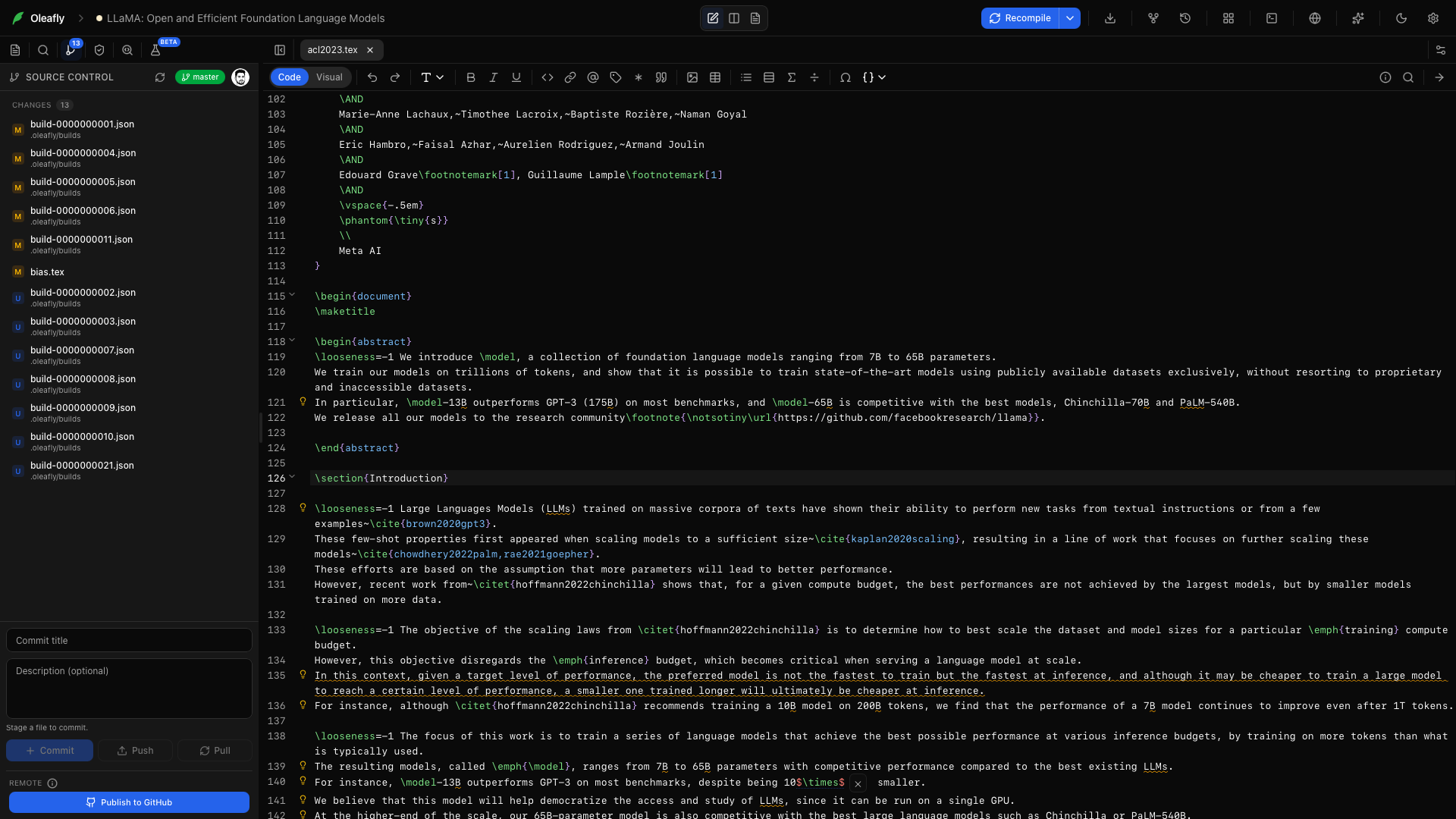
Section titled “Open source control”Open Source Control from the project rail. The panel shows the current branch, staged files, and working changes.
Click a file to see its diff. Switch between split and unified views, move between changes, and edit the working copy directly. Staged diffs remain read-only.
The Explorer marks changed files with the same letters Source Control uses, such as M for modified, A for added, D for deleted, and U for untracked. File names keep their normal color, and a folder that holds changes gets a dot. See Files & folders.
The first commit
Section titled “The first commit”When Oleafly creates or imports a project, it sets up a Git repository and records the project’s files as one commit called “Create project”. Source Control then shows real differences from the start. Git hooks and commit signing never run for this commit, so a global hook or a signing prompt can’t block project creation.
Oleafly skips that first commit when:
- the project’s files add up to more than 100 MB;
- a file usually holds passwords or keys, such as
.env,*.pem, an SSH private key, orcredentials.json. Once committed, a secret stays in the history even after you ignore it. Templates like.env.example, public keys, and Keynote.keyfiles don’t count.
When it skips the commit, the repository is still created. Every file stays untracked for you to sort out, and the app log says why.
Opening a project that has no repository only runs git init; it never commits. After the first commit, Oleafly commits only when you ask. A folder you open in place is left alone, and so is one that already sits inside another repository.
To turn all of this off, switch off Initialise Git for every project in Settings → Integrations → GitHub. Source Control then starts only when you press Initialize Repository or publish to GitHub.
When Git isn’t installed
Section titled “When Git isn’t installed”Oleafly uses the Git installed on your computer. Without it, projects still open and compile. Source Control shows Git isn’t installed and explains how to get Git for your system, instead of showing buttons that would fail:
- Windows: choose Download Git for Windows, install Git, then restart Oleafly.
- macOS: run
xcode-select --installin Terminal to install Apple’s command line tools, which include Git. Copy command copies it for you. Then refresh the panel. - Linux: install the
gitpackage with your package manager, then refresh the panel.
Save a milestone
Section titled “Save a milestone”- Review the changed files.
- Stage the files you want in the commit.
- Write a message that describes the result, such as
Revise methods and add calibration figure. - Commit.
The menu beside Commit also offers Amend last commit, Commit & Push, and Commit & Sync. These are ordinary Git commits. You can inspect the same repository with another Git client or the command line.
Branches and stashes
Section titled “Branches and stashes”Click the branch name at the top of the panel to switch branches or choose Create branch…. The More Source Control actions menu has Fetch, Pull, Push, Sync, Stash changes, and Apply latest stash.
When a pull or a stash runs into conflicts, the panel lists the conflicted files. For each one, choose Use current, Use incoming, or edit the file and choose Mark resolved. During a merge, Complete merge becomes available once every file is resolved, and Abort merge returns the files to how they were before the merge started.
Restore a commit
Section titled “Restore a commit”Open Versioning → Git History, choose a commit, and review the restore confirmation. Restoring replaces the tracked project content with that version and reloads open editor buffers. Your branch stays on its current commit.
Use Saved Checkpoints when you want the snapshots captured automatically after successful compiles. Those snapshots are stored separately; they do not create Git commits.
Add a remote
Section titled “Add a remote”Connect GitHub when you want an off-machine copy or to move work between computers. Publish to GitHub, Push, and Pull live in the Source Control panel.