
Ollama и работа офлайн
Подключите локальную модель и подготовьте рабочий процесс письма, доступный без подключения к сети.
Ollama запускает скачанные модели на вашем компьютере. Подключите его к Oleafly, чтобы использовать локальный ИИ вместе с рукописью. Подготовьте модель и зависимости документа, пока есть подключение к сети, а затем проверьте рабочий процесс, который вы планируете использовать офлайн.
Установка и запуск Ollama
Заголовок раздела «Установка и запуск Ollama»Установите Ollama с официальной страницы загрузки (откроется в новой вкладке). Откройте Ollama или запустите его локальный сервер из терминала:
ollama serveЕсли Ollama уже запущен, используйте существующий сервер. Скачайте модель, подходящую вашему компьютеру. Например:
ollama pull qwen3:8bollama listПервая команда скачивает модель; вторая выводит список локальных моделей. На скорость влияют размер модели, доступная память и длина контекста. В документации (откроется в новой вкладке) Ollama описаны поддерживаемые модели и настройка системы.
Проверка наличия Ollama
Заголовок раздела «Проверка наличия Ollama»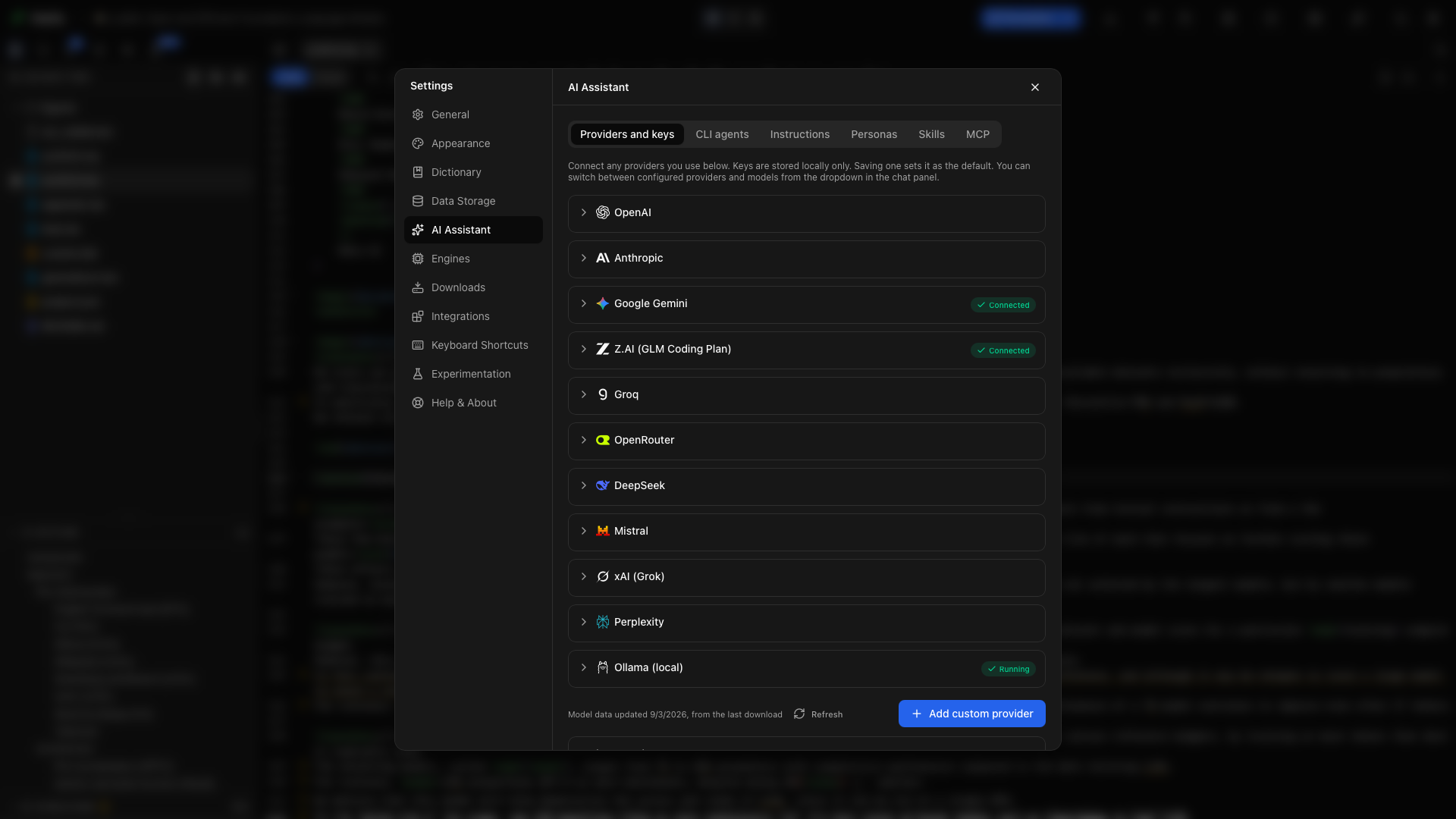
- Откройте Настройки → ИИ-ассистент → Поставщики и ключи.
- Разверните Ollama.
- Выберите Проверить наличие Ollama.
- Изучите статус и список установленных моделей.
Если приложение находит установленный, но остановленный Ollama, кнопка Запустить Ollama запускает его. Выберите Проверить снова после запуска сервера или после скачивания ещё одной модели.
Выбор локальной модели
Заголовок раздела «Выбор локальной модели»Выберите модель из найденного списка и примените её действием на карточке. Откройте ассистента и убедитесь, что выбрана локальная модель, прежде чем отправлять сообщение.
Опробуйте это на учебном документе:
Объясните структуру этого документа. Перечислите его разделы, не изменяя файлы.
Для правок и компиляции используйте модель, которая поддерживает работу с инструментами, необходимую Oleafly. Проверьте результат определения возможностей модели: модель, умеющая вести беседу, не обязана уметь надёжно выполнять рабочий процесс с инструментами.
Смена узла
Заголовок раздела «Смена узла»Выберите Сменить узел (для опытных), чтобы изменить адрес сервера Ollama. Обычный локальный узел — http://127.0.0.1:11434. Используйте встроенную карточку Ollama с адресом сервера; суффикс /v1 относится к настройке OpenAI-совместимой конечной точки.
Сервер, работающий на другом компьютере, — это сетевое подключение. Используйте локальный петлевой адрес, если хотите, чтобы обработка оставалась на этом компьютере.
Использование совместимого поставщика
Заголовок раздела «Использование совместимого поставщика»Для собственного OpenAI-совместимого подключения используйте конечную точку Ollama http://localhost:11434/v1/. Ollama принимает обязательное поле API-ключа клиента совместимости, не считая его облачными учётными данными. См. руководство по совместимости Ollama (откроется в новой вкладке) и собственные поставщики.
Подготовка компиляции к офлайн-работе
Заголовок раздела «Подготовка компиляции к офлайн-работе»Откройте документ и успешно скомпилируйте его при подключении к сети. Tectonic скачивает недостающие пакеты TeX по мере необходимости и кэширует их; Typst поступает так же с пакетами из Typst Universe. Затем включите Настройки → Общие → Офлайн-режим и скомпилируйте снова, чтобы проверить, достаточно ли кэша. Офлайн-режим охватывает LaTeX и Typst.
Проект Typst может также хранить собственные пакеты. Откройте Пакеты Typst на панели инструментов Typst и выберите Скопировать пакеты в проект. Oleafly копирует пакеты, которые импортирует проект, в папку typst-packages, поэтому проект компилируется офлайн и на других компьютерах.
Для системного движка TeX установите нужный дистрибутив и пакеты до отключения от сети. Держите изображения, файлы библиографии, подключаемые разделы и необходимые шрифты доступными локально.
Проверка без подключения к сети
Заголовок раздела «Проверка без подключения к сети»- Откройте проект, с которым будете работать.
- Убедитесь, что Ollama запущен и выбрана скачанная модель.
- Отключитесь от сети.
- Скомпилируйте документ.
- Попросите локальную модель объяснить абзац.
- Опробуйте нужную вам правку или рабочий процесс с инструментами и проверьте результат.
Письмо, локальные файлы, компиляция из кэша и запросы к локальной модели продолжают работать. Для онлайн-поиска источников, синхронизации с GitHub, облачных моделей и сетевых служб MCP нужны собственные подключения. Офлайн-режим Oleafly управляет компиляцией из кэша и поиском литературы для цитирования; это не брандмауэр для всей системы.
Отключение Ollama
Заголовок раздела «Отключение Ollama»Используйте Отключить на карточке поставщика, чтобы удалить сохранённое в Oleafly подключение. Установленные в Ollama модели при этом не удаляются.
Устранение неполадок
Заголовок раздела «Устранение неполадок»Не запущен
Заголовок раздела «Не запущен»Запустите Ollama, проверьте узел и порт, затем нажмите «Проверить снова». Если сервер сообщает, что порт уже занят, изучите существующий экземпляр, прежде чем запускать другой.
Нет установленных моделей
Заголовок раздела «Нет установленных моделей»Выполните ollama list. Скачайте модель, дождитесь завершения загрузки и нажмите «Проверить снова» в Oleafly.
Модель отвечает, но не использует инструменты
Заголовок раздела «Модель отвечает, но не использует инструменты»Проверьте состояние её возможностей и попробуйте модель с поддержкой инструментов. Начните с небольшого запроса, который читает проект, прежде чем просить длинную последовательность правки и компиляции.
Ответ не имеет отношения к вопросу
Заголовок раздела «Ответ не имеет отношения к вопросу»Скорее всего, контекст модели слишком мал. Инструкции проекта и инструменты Oleafly занимают место раньше вашего сообщения, и контекста в 4096 токенов может не хватить даже для короткого запроса. Запустите сервер Ollama с контекстом не менее 16384 токенов, например:
OLLAMA_CONTEXT_LENGTH=16384 ollama serveВ Windows PowerShell выполните $env:OLLAMA_CONTEXT_LENGTH = "16384", а затем ollama serve. Сначала завершите работу запущенного Ollama. Этот параметр относится к серверу Ollama, а не к Oleafly. Более длинные беседы и крупные проекты требуют большего контекста, а больший контекст расходует больше памяти. Подробности — в руководстве Ollama о длине контекста (откроется в новой вкладке).
Локальный ответ медленный
Заголовок раздела «Локальный ответ медленный»Попробуйте меньшую модель или более короткий и целенаправленный запрос. Прикрепите нужный файл или раздел, а не просите сразу проверить всю диссертацию.