
Files & folders
The Explorer: creating, renaming, moving, and copying files, Git status, the main document, tabs, image and PDF views, and how autosave protects your work.
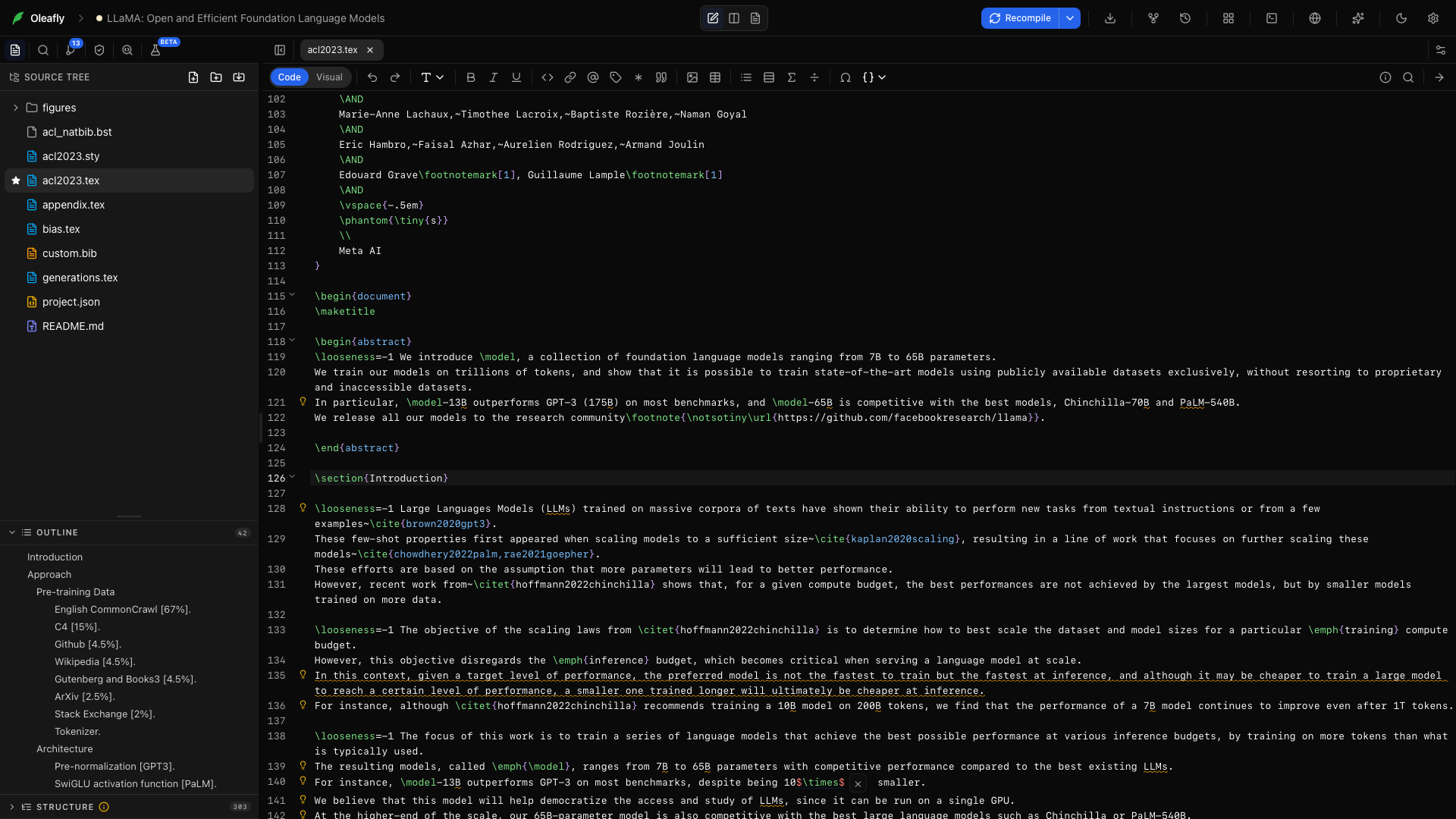
Every project is a real folder of files, and the Explorer panel (the first tab in the left rail) is how you work with it. Multi-file projects are first-class: split chapters into their own .tex files, keep images in a folder, and Oleafly’s compile, navigation, and search all follow along.
The Explorer panel
Section titled “The Explorer panel”Folders sort first, then files alphabetically. Click a folder to expand or collapse it, click a file to open it in a tab, and use the arrow keys plus Enter for full keyboard navigation. The project’s main document (the file the compiler starts from) is marked with a star.
Two buttons in the panel header create things: New file and New folder. Both create inside the currently selected folder, or at the project root if nothing is selected. Type the name inline and press Enter; new files open immediately.
Housekeeping is invisible: internal folders like .git and the build cache never appear in the tree, and symlinks are not followed.
Git status in the tree
Section titled “Git status in the tree”When the project uses Git, the Explorer marks changed files with the same letters as Source Control:
| Letter | Meaning |
|---|---|
| M | Modified |
| A | Added |
| D | Deleted |
| R | Renamed |
| U | Untracked (a new file Git isn’t tracking yet) |
| ! | Conflict |
The letter sits at the right end of the row, and hovering it names the status. File names keep their normal color. A folder that holds changes gets a dot instead of a letter, colored for the most pressing change inside it, so a conflict deep in sections/ shows on the sections row even while the folder is closed.
The right-click menu
Section titled “The right-click menu”On a file:
- Open
- Set as main document (available for the file types the project’s engine compiles, such as
.tex,.typ, or.md): makes this file the compile entry point and moves the star. - Rename: edit the name inline. Open tabs, unsaved edits, and the main-document pointer all follow the rename, and so can the paths that point to the file.
- Make a copy: creates
name copy.texnext to the original. Works byte-for-byte, so images and other binaries copy safely. - Delete: removes the file after a confirmation. This cannot be undone from the app, though Git history can bring back anything you had committed. In a folder you opened in place, Delete moves the file to the Trash (the Recycle Bin on Windows) instead.
On a folder: New file, New folder, Import file(s), Import folder, Rename, Make a copy (copies the whole folder recursively), and Delete.
Moving things: drag and drop
Section titled “Moving things: drag and drop”Drag any file or folder onto another folder to move it inside, or onto the empty area at the bottom of the tree to move it to the project root. Drop targets highlight as you hover. Oleafly refuses moves that would put a folder inside itself.
Files and folders dragged in from your file manager are copied into the folder under the pointer. This works on macOS, Windows, and Linux.
Paths follow a moved file
Section titled “Paths follow a moved file”Renaming or moving a file can break the paths that point to it. Oleafly finds them and updates them:
- In LaTeX:
\input,\include,\includegraphics,\bibliography, and similar commands. - In Typst:
#include,image(), andbibliography(). - In Markdown: links and images.
You can start it from the editor or the Explorer. In the editor, put the cursor on a path and press F2, or choose Rename file… from the right-click menu. The Rename file dialog takes a full path, so it can move the file to another folder too, and it creates folders that don’t exist yet. In the Explorer, use Rename or drag the file to a new folder.
By default Oleafly asks first. A dialog lists each file that still uses the old path and how many references it holds. Choose Update references or Don’t update, and tick Don’t ask again to keep that answer. To change it later, set When a file moves in Settings → Appearance → Editor to Ask, Always update, or Never update. A file that changed after the move, or couldn’t be saved, keeps the old path, and the dialog says so.
Open files appear as tabs above the editor, in the order you opened them. A dot on the tab means unsaved changes are pending (they’ll autosave in a moment). Git diff views open as tabs in the same strip, labeled with the file name plus (Index) or (Working Tree).
Closing the active tab activates the previous one. Undo history never crosses files: each file keeps its own.
How different file types open
Section titled “How different file types open”- LaTeX and text files (
.tex,.sty,.cls,.bib,.md, and friends) open in the editor with syntax highlighting matched to the extension. - Images (
.png,.jpg,.gif,.webp,.svg, and more) open as a rendered picture. - PDFs open in the PDF viewer.
- Opaque binaries (
.zip,.eps, font files) show a “Binary file. No preview available.” notice rather than risking corruption by loading them as text. .bibfiles are also parsed in the background the moment a project opens, which is what powers citation autocomplete.
Autosave
Section titled “Autosave”You never press save. Edits write to disk about 1.5 seconds after you pause typing, and Oleafly goes further than a simple timer:
- Edit file A, switch to file B before the timer fires, and A still saves.
- Closing or reloading the app flushes every pending save first, so a quit inside the debounce window loses nothing.
- Compiling saves the active file first, so the PDF always reflects what you see.
Adding existing files
Section titled “Adding existing files”Use Import file(s) or Import folder (in the panel header’s menu and the right-click menu) to copy images, .bib files, or whole directories from anywhere on disk into the project. Importing into a selected folder puts the copies there; otherwise they land at the project root.
Because a project is also a plain folder, the direct route works too: drop files into ~/.oleafly/projects/<project>/ with your file manager, then reopen the project so Oleafly picks them up. Do the copy while the project is closed (or reopen right after), since the app’s autosave writes what it has in memory.