
Citations & bibliography
Find a source, inspect its metadata, add it to the right bibliography, cite it at the cursor, choose a Typst citation style, and clean a library without losing the original.
Este conteúdo não está disponível em sua língua ainda.
A citation is a chain: the claim points to a key, the key points to a bibliography entry, and the entry points to a real source. Oleafly keeps that chain visible so a quick lookup does not become a mysterious reference later.
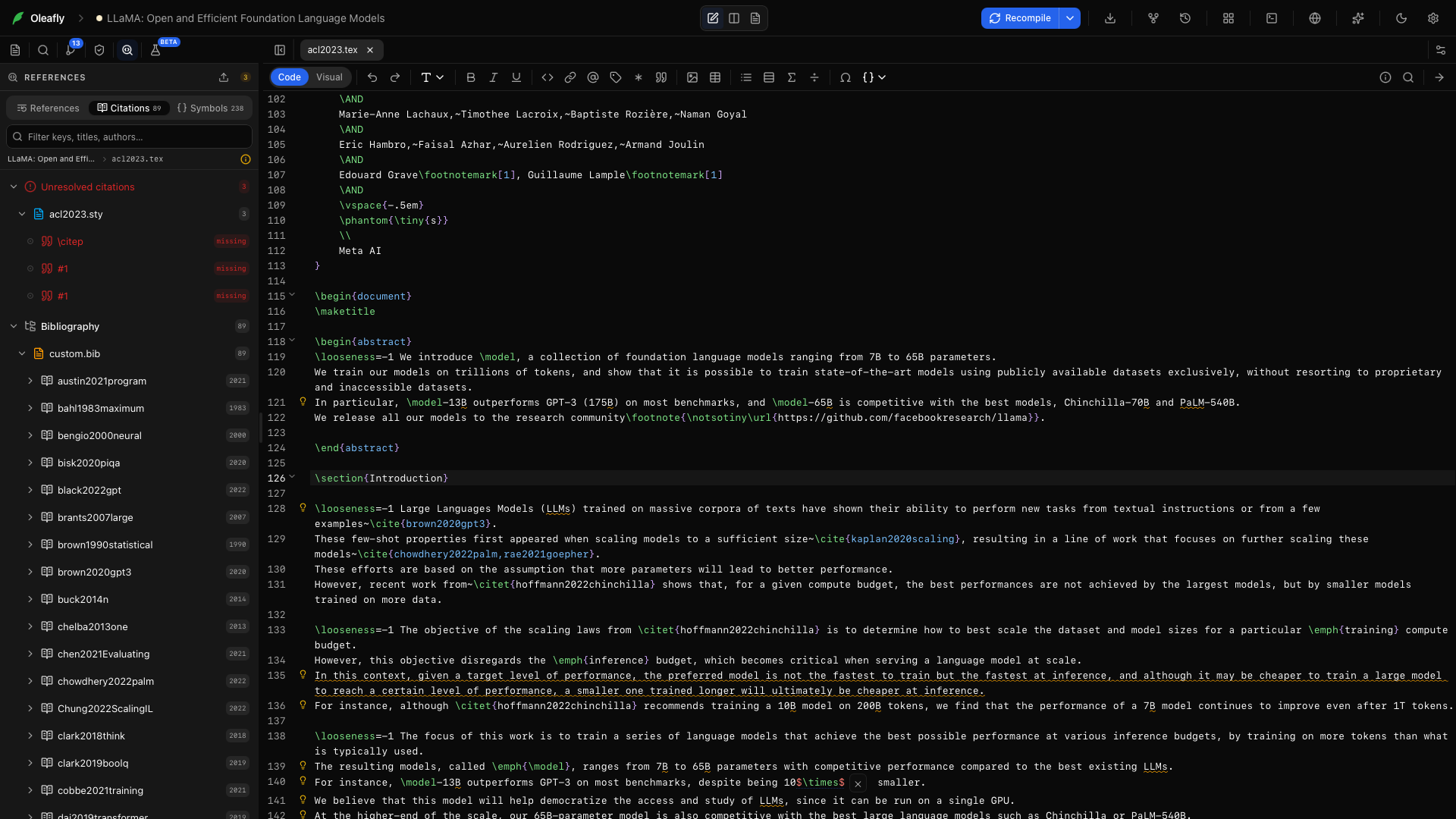
Cite while you write
Section titled “Cite while you write”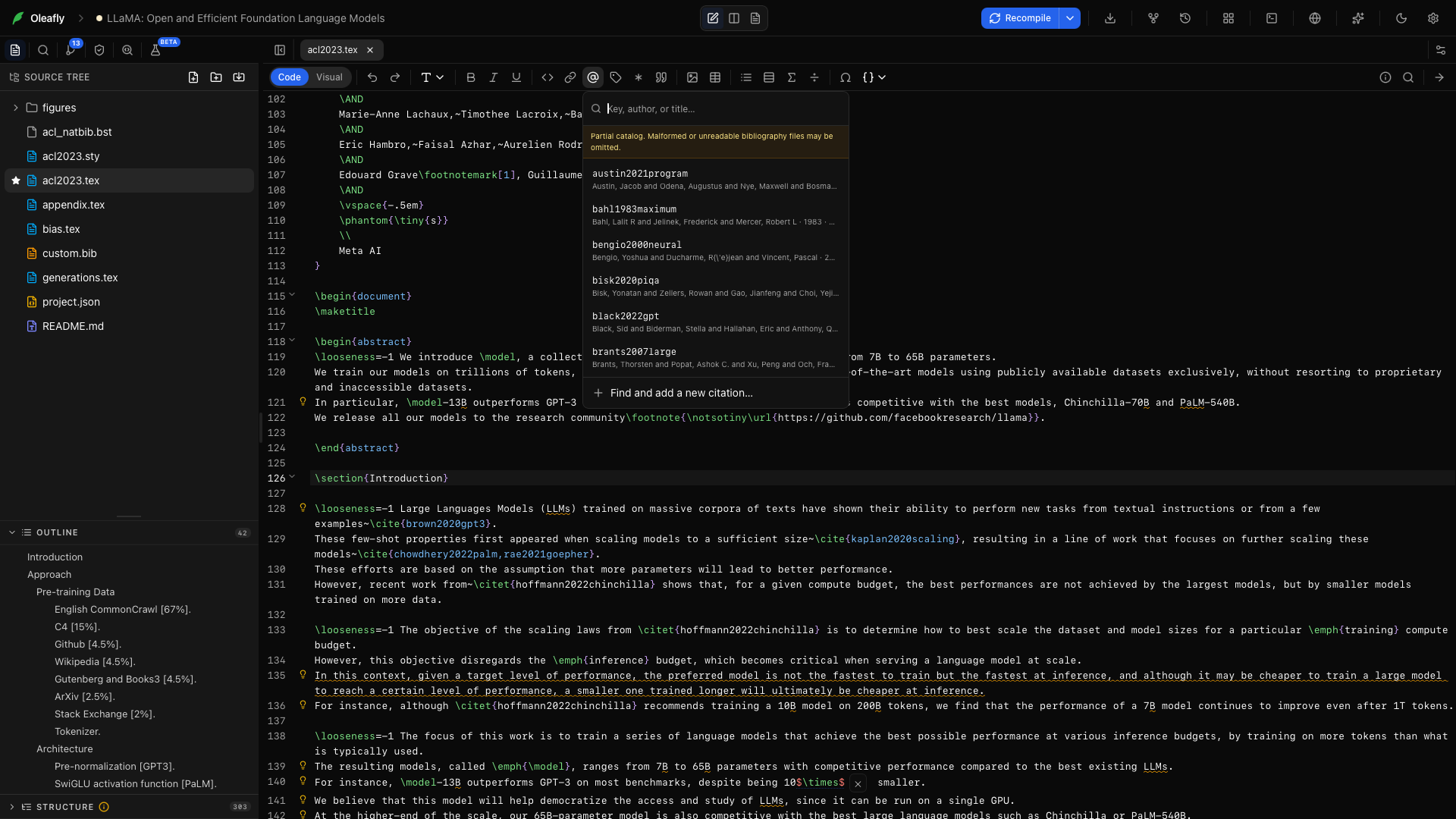
In the LaTeX or Typst toolbar, choose Cite from project (the @ icon). Search the current bibliography by key, author, or title and select an entry.
You can also run Add citation from the ⌘K or Ctrl+K command palette. Oleafly inserts syntax for the active project:
\cite{key}in LaTeX;@keyin Typst, adding a#bibliography(...)line at the end of the main document when it has none;[@key]in Markdown, adding abibliography:line to the front matter when needed.
With Zotero connected, Add citation lists matches from your Zotero library first.
Cite from your Zotero library
Section titled “Cite from your Zotero library”Once Zotero is connected, type @ and part of an author’s name, a word from the title, a year, or a key. Your whole Zotero library shows up next to the project’s own references. Pick a paper and Oleafly inserts the citation the way the document already cites. LaTeX gets the command the document uses most, such as \citep or \parencite, Typst gets @key, and Markdown gets [@key]. Typing @ inside an existing \cite{...} adds another key to it.
Only that one entry goes into the project’s .bib, at the end of the file, and the rest of the file stays as it was. A paper already in the .bib, under its key or its DOI, is never added twice. Entries never include the paths of the PDFs on your computer. If the project has no bibliography line yet, Oleafly adds one: \bibliography or \addbibresource in LaTeX, #bibliography in Typst, or bibliography: in the Markdown front matter. With more than one .bib file, Oleafly asks once which file gets new references and remembers your answer.
The first time you cite from Zotero in a LaTeX paper that lists its references by hand, in a thebibliography environment, Oleafly offers to move that list into the .bib. Every reference then shares one numbered list.
Keep the .bib in step with Zotero
Section titled “Keep the .bib in step with Zotero”A cited key that’s missing from the .bib but is in Zotero offers Add from Zotero. Run Add missing citations from Zotero from the ⌘K palette to check every cited key at once. It adds the ones Zotero has, lists the ones it doesn’t, and points out keys that cite a paper already in your bibliography.
When a paper changes in Zotero, its .bib entry offers Update from Zotero. Update .bib entries from Zotero in the palette reviews every changed entry. An entry you edited by hand is replaced only after you confirm. Sync Zotero library reads the library again. Oleafly never removes anything from the .bib on its own.
Find and add a new reference
Section titled “Find and add a new reference”Choose Find and add a new citation from the picker. Start with any of these:
- a DOI such as
10.1145/3592979; - an arXiv ID such as
1706.03762; - an ISBN-10 or ISBN-13;
- a PubMed ID (PMID);
- a URL containing one of those identifiers;
- a paper title.
DOI, arXiv, ISBN, and PubMed lookups use their public catalogs. A title search returns possible matches with authors, year, and venue so you can choose rather than accept a guess.
Review the returned BibTeX, then choose Add to .bib and cite. Oleafly:
- adds a collision-free key to the active bibliography;
- reuses an existing entry when the DOI already exists;
- inserts the citation at the current cursor;
- refreshes the file tree and References panel immediately.
The metadata is editable. Correct the record before it becomes part of the manuscript.
When the document declares more than one bibliography, the dialog shows a Bibliography menu. The entry goes into the file you pick, and Oleafly remembers the choice for that project.
How Oleafly chooses the bibliography
Section titled “How Oleafly chooses the bibliography”LaTeX projects follow the declarations in the effective main document:
\addbibresource{references.bib}forbiblatex;\bibliography{references}for BibTeX workflows.
Paths resolve with the same extension and relative-path behavior the TeX toolchain expects. A declaration that points to a missing file is reported at that source line instead of silently writing somewhere else.
Typst projects follow the #bibliography(...) call, whether it names one file or a list, and whether the files are BibTeX .bib or Hayagriva .yml and .yaml. A new citation goes into the file the document declares. If that file is Hayagriva, Oleafly converts the BibTeX entry before writing it. When the call names more than one file, pick the target in the dialog’s Bibliography menu.
Markdown projects follow the bibliography: field in the front matter.
When no bibliography is declared, Oleafly uses the first .bib in the project. If none exists, it creates references.bib and makes it available in the file tree and citation picker.
For a project with several libraries, inspect the selected target before adding a record.
Choose a Typst citation style
Section titled “Choose a Typst citation style”When a Typst document has a #bibliography(...) call, the bottom of the References panel’s Citations view shows a Citation style menu. It lists Typst’s built-in styles for the project’s Typst version, plus any .csl files in the project. Picking a style writes it into the style: argument of that call. Without one, Typst uses ieee.
For LaTeX, set the style in the source. \bibliographystyle{ completes the usual BibTeX styles; with biblatex, use its style= option.
Import a whole reference library
Section titled “Import a whole reference library”In the References panel, choose Import reference library. You can import a file or your Zotero library.
From a file, choose an exported library:
| Source format | File |
|---|---|
| BibTeX | .bib |
| RIS | .ris |
| EndNote XML | .xml |
| Zotero RDF | .rdf |
From Zotero, connect your zotero.org account once in Settings → Integrations → Zotero, then choose Import Zotero library on the Zotero card. Oleafly brings in up to 5,000 items. Connect research sources walks through the setup.
Oleafly maps the records to BibTeX and skips any reference whose DOI is already in the target library or earlier in the same batch. It creates collision-free keys and appends the result in one write. The message says how many references were added and how many were already there. A library import does not insert a citation at the cursor.
After import, search the new entries in the citation picker and verify a sample against the original catalog.
Clean a reference library
Section titled “Clean a reference library”The References panel can preview a cleanup before changing files.
- Open the project and choose Clean reference library in the References panel.
- Select the
.bibfile when the project has more than one. - Read the action list and the before/after diff.
- Inspect every proposed key rename, removed DOI duplicate, and advisory.
- Apply only after the preview matches your intent.
The cleaner renames keys to a consistent author-year-title pattern and updates citations across project source files. It removes a DOI duplicate only when the kept entry preserves every field from the removed one. Conflicting DOI records and similar titles are flagged for review, not merged on a hunch.
Comments and BibTeX string definitions are preserved. Applying checks that the library still matches the preview and writes a backup before changing files. Large diffs show the first 500 lines in the preview; the complete files are still used when changes are applied.
Complete and navigate references
Section titled “Complete and navigate references”Inside LaTeX citation commands such as \cite{}, \citep{}, \citet{}, \parencite{}, and \textcite{}, autocomplete searches every project .bib file. In Typst, @ completes keys from both .bib and Hayagriva files. With Zotero connected, the list includes your Zotero library too.
A citation to an entry that was added to the .bib while that file wasn’t open, for example by the assistant or from Zotero, resolves right away. You don’t have to type in the document first.
- F12 or modifier-click jumps from a citation key to its entry.
- ⇧F12 lists every use of a source.
- F2 renames a key across source and bibliography files.
- Hover shows the target; unresolved or ambiguous keys are marked before compile.
Code intelligence explains the full navigation model.
Cite Oleafly
Section titled “Cite Oleafly”If Oleafly helped with a paper, run Cite Oleafly in this paper from the command palette or from the bottom of the References panel’s Citations view. Oleafly adds an entry with the key oleafly to the bibliography the document declares, in BibTeX or, for a Hayagriva file, in Hayagriva. A message names the file and the syntax to use, such as \cite{oleafly} or @oleafly, with Undo beside it. If the entry is already there, you get a reminder of the key instead.
A project with no bibliography file is left unchanged, and a dialog shows the entry for you to copy. The same entry is always in Settings → Help & About.
Bibliography builds and Biber
Section titled “Bibliography builds and Biber”For biblatex, Oleafly reruns its matched Biber step when the compiler has not produced a usable .bbl. Biber messages, including a missing .bib path, appear in the compile log and editor diagnostics.
If references remain undefined:
- Check the bibliography declaration and path.
- Open Logs and find the first Biber or bibliography message.
- Confirm that the citation key exists exactly once.
- Recompile after the
.bibfile is saved.
See Compiling & logs and LaTeX engines & packages for engine-specific recovery.
Standalone reference tools
Section titled “Standalone reference tools”You can prepare references without opening a project:
- Citation Generator accepts identifiers, titles, structured fields, or BibTeX.
- Bibliography Generator builds and validates a list.
- Citation Generators by Style compares eight styles.
- Focused tools handle DOIs, ISBNs, PubMed IDs, arXiv, and web addresses.
Manual editing and citation formatting stay local. Identifier and title lookup need a connection. Offline mode blocks those lookups while existing bibliography completion and navigation continue to work.
Find evidence, then verify it
Section titled “Find evidence, then verify it”Find Citations searches scholarly indexes or scans the open draft for passages that may need support. Read the paper before citing it and keep each claim within what the methods and results establish.