
Configurações e personalização
Aparência e temas
Configure o aplicativo, o editor, o terminal e a visualização de PDF do jeito que você trabalha.
Abra Configurações → Aparência. Escolha a aba da parte do espaço de trabalho que você quer mudar. As alterações valem localmente; elas não mudam a formatação do documento exportado.
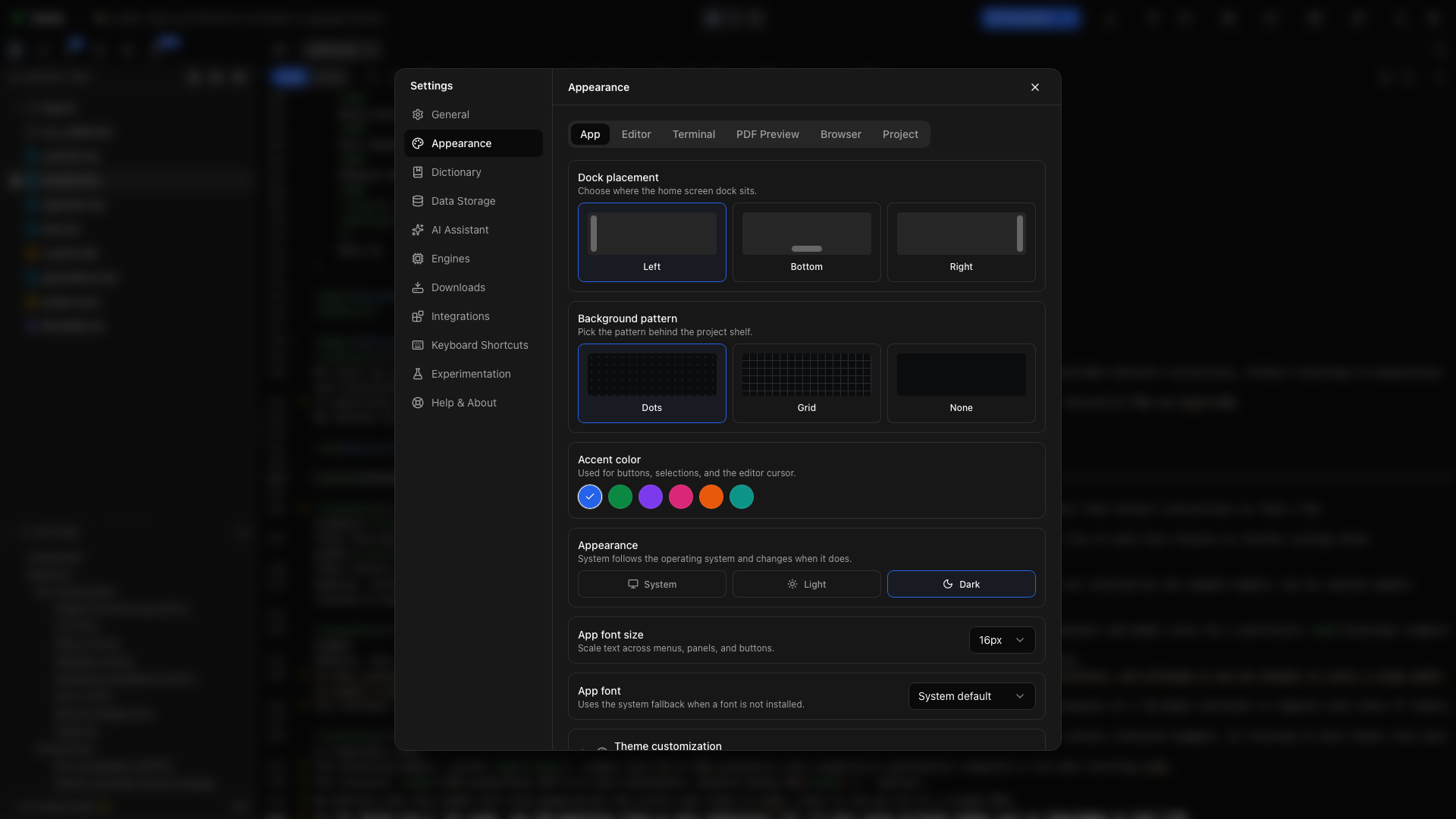
Posicionamento da dock
Seção intitulada “Posicionamento da dock”Na aba Aplicativo, escolha À esquerda, Embaixo ou À direita. Isso move a dock da tela inicial, que contém Novo projeto, a busca, as ferramentas e as Configurações. Experimente Embaixo quando você quiser que a biblioteca use toda a largura entre as margens.
Padrão de fundo
Seção intitulada “Padrão de fundo”Escolha Pontos, Grade ou Nenhum para o fundo da biblioteca de projetos. Nenhum deixa a estante com um fundo liso; o editor de documentos mantém o próprio tema.
Cor de destaque
Seção intitulada “Cor de destaque”Escolha uma amostra de cor para mudar os destaques de seleção e de ação do aplicativo. Isso muda as cores da interface; as cores de uma figura e os estilos LaTeX ou Typst de um documento continuam sob o seu controle no código.
Modo de aparência
Seção intitulada “Modo de aparência”Em Aparência, escolha Claro, Escuro ou Sistema, que segue o seu sistema operacional e muda quando ele muda. O botão de aparência na barra de ferramentas principal é um caminho mais rápido para alternar durante o trabalho. O editor muda junto, para o tema que você escolheu para aquele modo. Veja Temas do editor.
Tamanho da fonte do aplicativo
Seção intitulada “Tamanho da fonte do aplicativo”Use Tamanho da fonte do aplicativo para aumentar ou diminuir todo texto de interface, de 13 a 20 px. Títulos de seção, distintivos de contagem e outros rótulos pequenos escalam junto. Para um código maior, use o Tamanho da fonte do editor, ou ative Usar a fonte do app.
Zoom aumenta ou diminui tudo no Oleafly, o editor e o PDF incluídos. Escolha um nível de 80% a 200%. Enquanto trabalha, pressione ⌘= e ⌘- (Ctrl+= e Ctrl+- no Windows e no Linux) para mudar, e ⌘0 (Ctrl+0) para voltar a 100%. Toda janela do Oleafly usa o mesmo nível, e o Oleafly se lembra dele. Você pode mudar as teclas em Configurações → Atalhos de teclado.
Fonte do aplicativo
Seção intitulada “Fonte do aplicativo”Escolha qualquer fonte instalada no seu computador para menus, painéis e diálogos. Cada nome da lista é desenhado na própria fonte. Digite para buscar na lista, ou digite um nome que ela não mostra. Fontes de símbolos como Wingdings ficam de fora, porque transformariam cada letra em uma figura. Se a fonte que você salvou não estiver mais instalada, uma nota sob a configuração avisa e o Oleafly usa a fonte padrão.
A fonte do aplicativo não muda a fonte compilada no PDF. As fontes do documento pertencem ao modelo ou ao código do manuscrito.
Tamanho da fonte do editor
Seção intitulada “Tamanho da fonte do editor”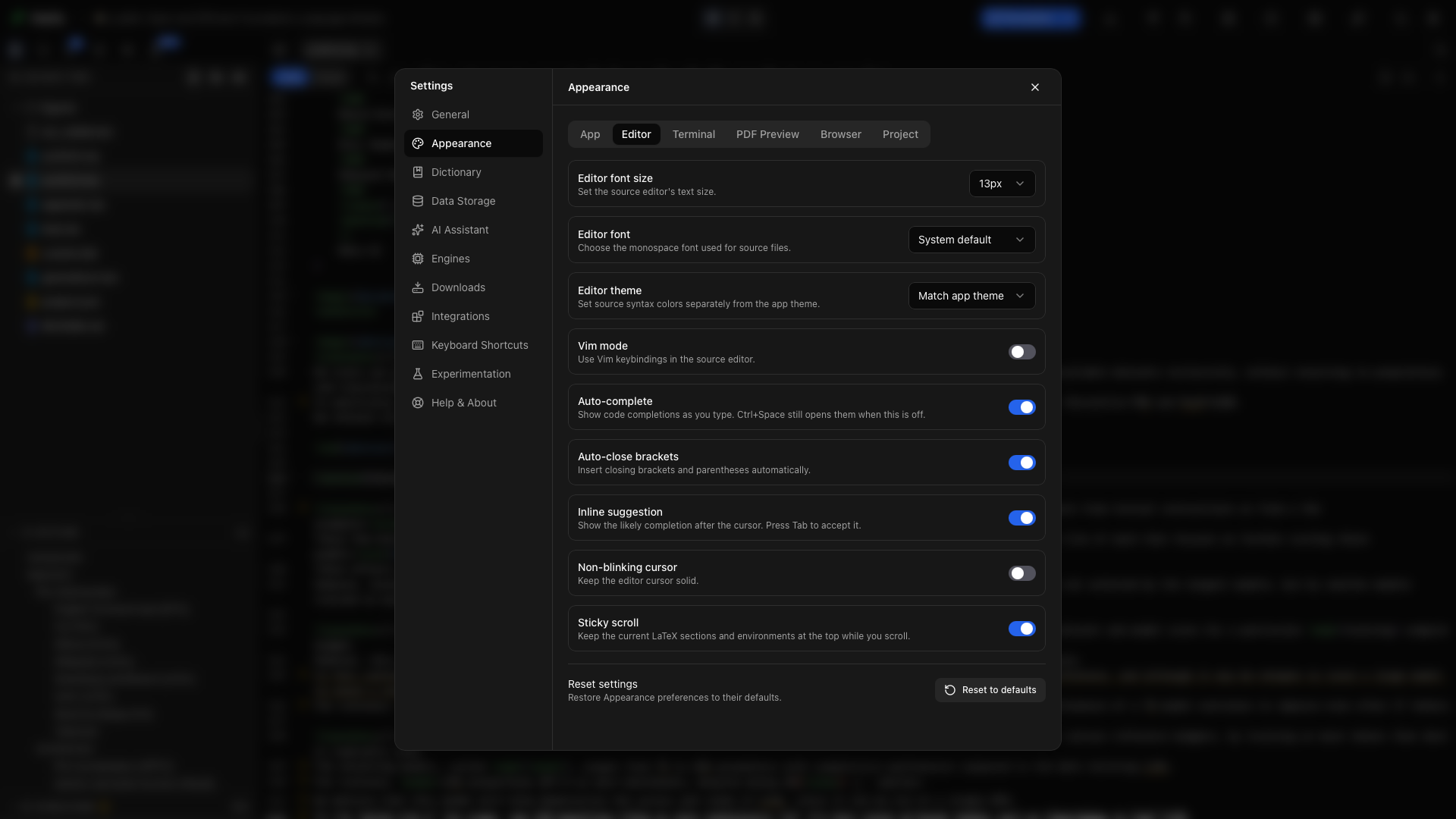
Abra a aba Editor e escolha um tamanho de 11 a 24 px, ou escolha Personalizado e informe qualquer tamanho de 6 a 100 px. Para uma demonstração com compartilhamento de tela, experimente 18 px e Layout → Só editor, para a barra de ferramentas e o código continuarem legíveis.
Usar a fonte do app
Seção intitulada “Usar a fonte do app”Ative Usar a fonte do app para dar ao editor a Fonte do aplicativo e o Tamanho da fonte do aplicativo da aba Aplicativo. Enquanto estiver ativado, os próprios controles de fonte e tamanho do editor ficam bloqueados, e a dica deles explica o motivo.
Fonte do editor
Seção intitulada “Fonte do editor”Escolha qualquer fonte instalada no seu computador para os arquivos de código. As fontes monoespaçadas vêm primeiro na lista, e cada nome é desenhado na própria fonte. Digite para buscar, ou digite um nome que a lista não mostra. Padrão do sistema volta à fonte de código padrão do aplicativo. A configuração afeta arquivos .tex, .typ, .md e outros arquivos de texto no editor.
Temas do editor
Seção intitulada “Temas do editor”O editor tem um tema para o modo claro e outro para o modo escuro. Escolha-os em Tema no modo claro e Tema no modo escuro, e o editor muda de tema quando o aplicativo muda. Acompanhar o tema do aplicativo usa as próprias cores claras ou escuras do aplicativo. As outras opções são Linear, GitHub Dark, Dracula, Nord, Tokyo Night, Rosé Pine, Catppuccin, One Dark, Paper e One Light. Paper, um branco off-white quente, e One Light são os dois temas claros.
Qualquer uma das listas aceita qualquer tema, então você pode manter um editor escuro enquanto o resto do aplicativo está claro. Um tema escolhido em uma versão mais antiga é usado nos dois modos até você mudar um deles.
Cores do editor
Seção intitulada “Cores do editor”Abra Cores do editor para mudar qualquer cor de um tema do editor. Escolha Modo claro ou Modo escuro para editar o tema definido para aquele modo. O texto ao lado desses botões nomeia o tema que você está editando. Abaixo deles, escolha LaTeX, Typst ou Markdown para ver uma amostra curta naquele idioma. A amostra mostra as suas mudanças conforme você as faz.
As cores são agrupadas por papel, e um papel significa a mesma coisa nos três idiomas:
| Grupo | Cores |
|---|---|
| Editor | Fundo, Texto, Números de linha, Seleção |
| Sintaxe | Comandos, Preâmbulo e imports, Títulos, Formatação, Ambientes, Citações e referências, Matemática, Valores e strings, Nomes e chaves, Links, Colchetes e símbolos, Comentários |
Clique em uma amostra para escolher uma cor. Uma cor que você mudou ganha uma seta de redefinição que devolve a cor própria do tema, e Redefinir limpa toda mudança daquele tema. O Oleafly guarda as suas mudanças de cada tema separadamente, então elas voltam quando você volta para ele. Acompanhar o tema do aplicativo mantém um conjunto para o modo claro e outro para o escuro. Exportar tema em Personalização do tema salva os seus temas e cores do editor junto com o resto do tema.
Atalhos
Seção intitulada “Atalhos”Escolha o conjunto de teclas que o editor de código usa: Padrão, Vim ou Emacs. Com o Vim, pressione i para entrar no modo de inserção e Esc para voltar ao modo normal. A mudança vale imediatamente, e Padrão retorna às associações comuns do editor. Veja Teclas Vim e Emacs.
Tamanho da tabulação
Seção intitulada “Tamanho da tabulação”Tamanho da tabulação define quantos espaços um nível de recuo insere e a largura com que um caractere de tabulação aparece: 2, 4 ou 8. O padrão é 4.
Altura de linha
Seção intitulada “Altura de linha”Escolha Compacta, Normal ou Ampla para o espaço entre as linhas de código, ou Personalizado para um valor exato de 1 a 3.
Espaçamento entre letras
Seção intitulada “Espaçamento entre letras”Espaçamento entre letras adiciona espaço entre os caracteres: +0.5, +1 ou +1.5 px, ou um valor Personalizado de até 4 px. O espaço extra também deixa mais espaço em volta do cursor.
Largura do cursor
Seção intitulada “Largura do cursor”Deixe o cursor do editor com 1, 2 ou 3 px de largura.
Cor do cursor
Seção intitulada “Cor do cursor”Cor do cursor tem uma amostra para os temas claros do editor e outra para os escuros, assim uma cor que você escolhe numa página branca não pode desaparecer sob um tema escuro. Até você escolher uma cor, cada amostra mostra a cor de cursor própria do tema. Usar as cores do tema volta ao tema. O cursor em bloco do Vim e o acento circunflexo do modo Visual do Markdown usam a mesma cor.
Cursor sem piscar
Seção intitulada “Cursor sem piscar”Ative Cursor sem piscar para manter fixo o acento circunflexo do editor. Isso pode facilitar o acompanhamento do ponto de inserção ao ler ou apresentar código.
Quebrar linhas longas
Seção intitulada “Quebrar linhas longas”Linhas longas quebram por padrão. Desative Quebrar linhas longas para rolar lateralmente.
Autocompletar
Seção intitulada “Autocompletar”Ative Autocompletar para mostrar sugestões enquanto você digita. Com ele desativado, pressione Ctrl+Space quando quiser a lista de autocompletar. Veja Autocompletar para citações, comandos, caminhos e símbolos.
Fechar chaves automaticamente
Seção intitulada “Fechar chaves automaticamente”Ative Fechar chaves automaticamente para inserir colchetes e parênteses de fechamento correspondentes enquanto você digita um caractere de abertura. Experimente digitar ( em um arquivo de código: o cursor fica entre o par para você digitar o conteúdo.
Fechar matemática automaticamente
Seção intitulada “Fechar matemática automaticamente”Ative Fechar matemática automaticamente para parear $, \( e \[ enquanto você digita. Em Typst, o pareamento de $ precisa deste interruptor e de Fechar chaves automaticamente.
Fechar ambientes automaticamente
Seção intitulada “Fechar ambientes automaticamente”Ative Fechar ambientes automaticamente para inserir o \end correspondente quando você pressiona Enter depois de uma linha \begin.
Sugestão em linha
Seção intitulada “Sugestão em linha”Ative Sugestão em linha para mostrar a conclusão provável depois do cursor. Pressione Tab para aceitar uma sugestão visível. Este é um controle de autocompletar do editor. Conectar um modelo é um passo à parte, no Assistente de IA.
Rolagem fixa
Seção intitulada “Rolagem fixa”Ative Rolagem fixa para manter as seções, os títulos e os ambientes atuais no topo do painel de código enquanto você rola. Use-a em uma longa seção de metodologia para reter a estrutura ao redor sem voltar ao título.
Prévia da matemática
Seção intitulada “Prévia da matemática”Ative Prévia da matemática para mostrar a equação renderizada acima daquela em que o cursor está. Veja Prévia da matemática.
Quando um arquivo é movido
Seção intitulada “Quando um arquivo é movido”Renomear ou mover um arquivo pode deixar nos seus códigos caminhos que ainda usam o nome antigo. Quando um arquivo é movido define o que o Oleafly faz com eles. Perguntar lista os caminhos e deixa você atualizá-los ou mantê-los, Sempre atualizar os muda sem perguntar, e Nunca atualizar os deixa como estão. Veja Os caminhos seguem um arquivo movido.
Formatação e dicas do Typst
Seção intitulada “Formatação e dicas do Typst”O grupo Typst no fim da aba Editor reúne Formatar ao salvar, Largura de linha do formatador, Recuo do formatador, Dicas de nome de parâmetro e Verificações de lint do Typst. A Inteligência de código explica cada um.
Tamanho da fonte do terminal
Seção intitulada “Tamanho da fonte do terminal”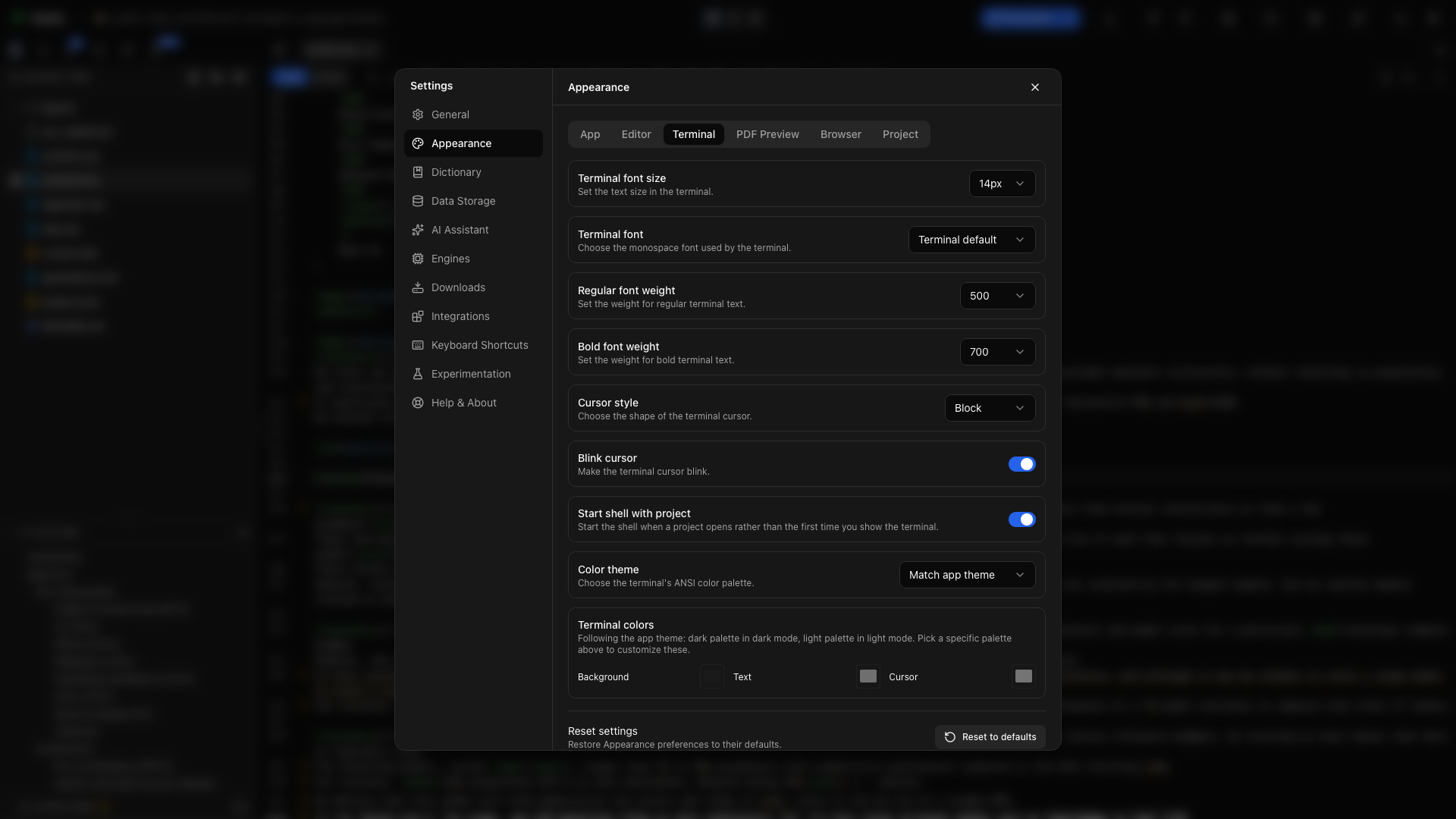
Na aba Terminal, escolha o tamanho da entrada e da saída do shell. Aumente-o antes de compartilhar uma demonstração de comandos; isso não afeta o editor de documentos.
Fonte do terminal
Seção intitulada “Fonte do terminal”Escolha a fonte monoespaçada do terminal. Use uma fonte com pontuação clara na hora de ler caminhos do compilador e comandos do shell.
Peso da fonte normal
Seção intitulada “Peso da fonte normal”Defina o peso usado para o texto comum do terminal. Compare algumas linhas de saída antes de escolher um peso mais pesado, especialmente em um fundo escuro.
Peso da fonte em negrito
Seção intitulada “Peso da fonte em negrito”Defina o peso da saída do terminal que pede texto em negrito. Ele pode diferir do peso normal, para títulos e diagnósticos de comandos continuarem distintos.
Estilo do cursor
Seção intitulada “Estilo do cursor”Escolha a forma do cursor do terminal em Estilo do cursor. O controle afeta o acento circunflexo do shell, não o do editor.
Cursor piscante
Seção intitulada “Cursor piscante”Ative Cursor piscante para animar o acento circunflexo do terminal. Desative-o para um ponto de inserção estável.
Iniciar o shell junto com o projeto
Seção intitulada “Iniciar o shell junto com o projeto”Ative Iniciar o shell junto com o projeto para iniciar o shell quando você abre um projeto. Desativado, o shell inicia quando você mostra o terminal pela primeira vez. Use a segunda opção se você raramente precisa de trabalho em linha de comando.
Tema de cores do terminal
Seção intitulada “Tema de cores do terminal”Escolha um tema de cores do terminal, ou deixe-o acompanhar o aplicativo. Abra um terminal com algumas linhas de saída para comparar o texto dos comandos, os erros e o cursor.
Cor de fundo do terminal
Seção intitulada “Cor de fundo do terminal”Use o seletor de fundo sob Cores do terminal para escolher a superfície do terminal. Combine-o com uma cor de primeiro plano que continue legível.
Cor de primeiro plano do terminal
Seção intitulada “Cor de primeiro plano do terminal”Escolha a cor de texto padrão da saída do terminal. Os programas ainda podem emitir as próprias cores ANSI.
Cor do cursor do terminal
Seção intitulada “Cor do cursor do terminal”Escolha uma cor de cursor que se destaque tanto do fundo quanto do texto. Isso é útil quando o prompt do shell contém várias cores.
Modo escuro no PDF
Seção intitulada “Modo escuro no PDF”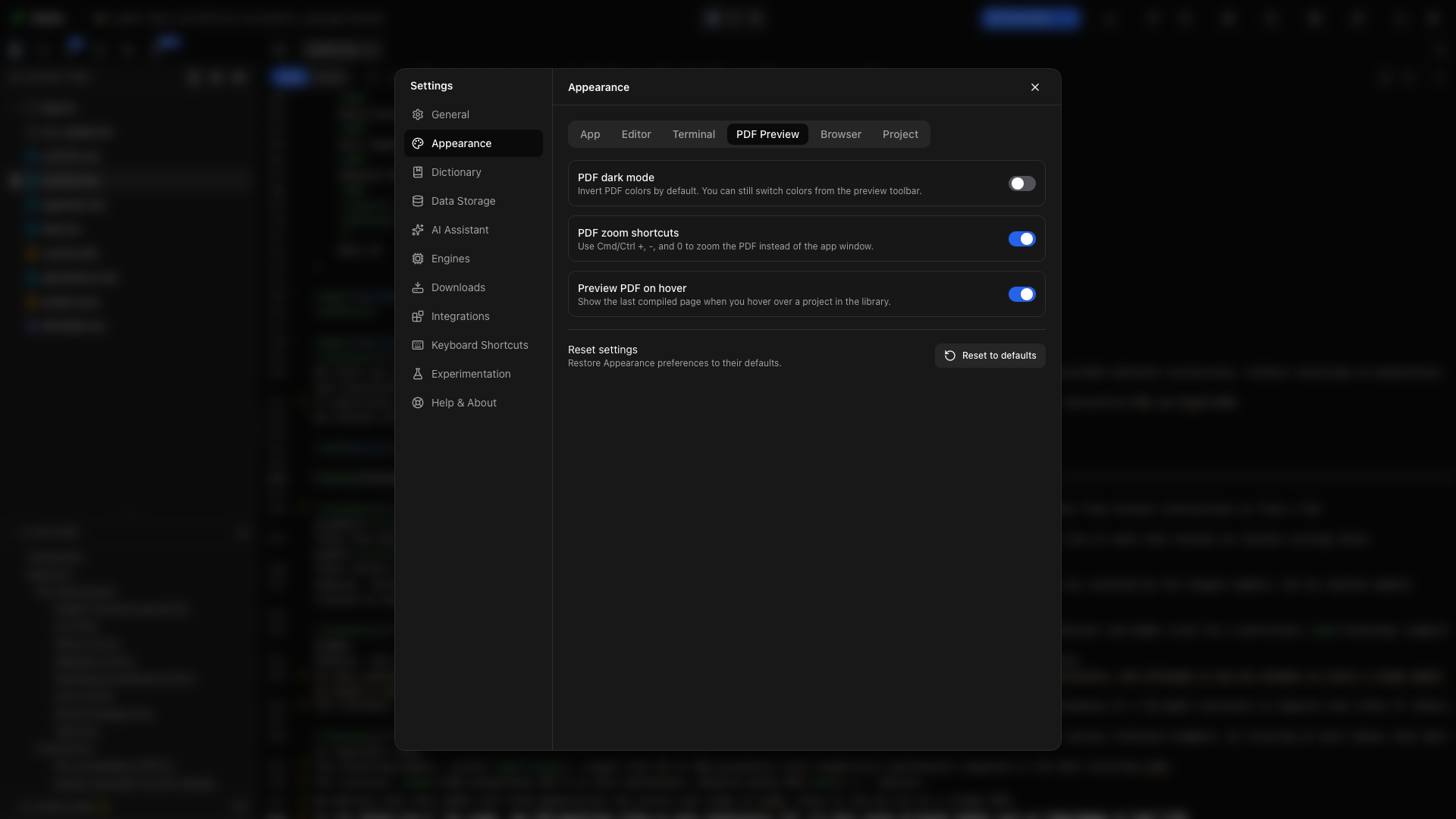
Na aba Visualização do PDF, ative Modo escuro no PDF para inverter por padrão as cores da prévia. Isso muda a exibição, não o PDF exportado. Você pode alterná-lo na visualização atual pela barra de ferramentas do PDF.
Dar zoom só no PDF
Seção intitulada “Dar zoom só no PDF”⌘= e ⌘- (Ctrl+= e Ctrl+-) aplicam zoom no aplicativo inteiro, o PDF incluído, mesmo com o PDF em foco. Para dar zoom só no PDF, use os controles de zoom da barra de ferramentas da prévia, faça uma pinça no trackpad, ou segure Ctrl e role. Use o menu de zoom para ajustar uma página à largura ou à altura.
Prévia do PDF ao passar o mouse
Seção intitulada “Prévia do PDF ao passar o mouse”Ative Prévia do PDF ao passar o mouse para mostrar a página compilada mais recente quando você passa o mouse sobre um projeto na biblioteca. Compile um documento antes, para a estante ter uma página a exibir.
Visualização inicial padrão
Seção intitulada “Visualização inicial padrão”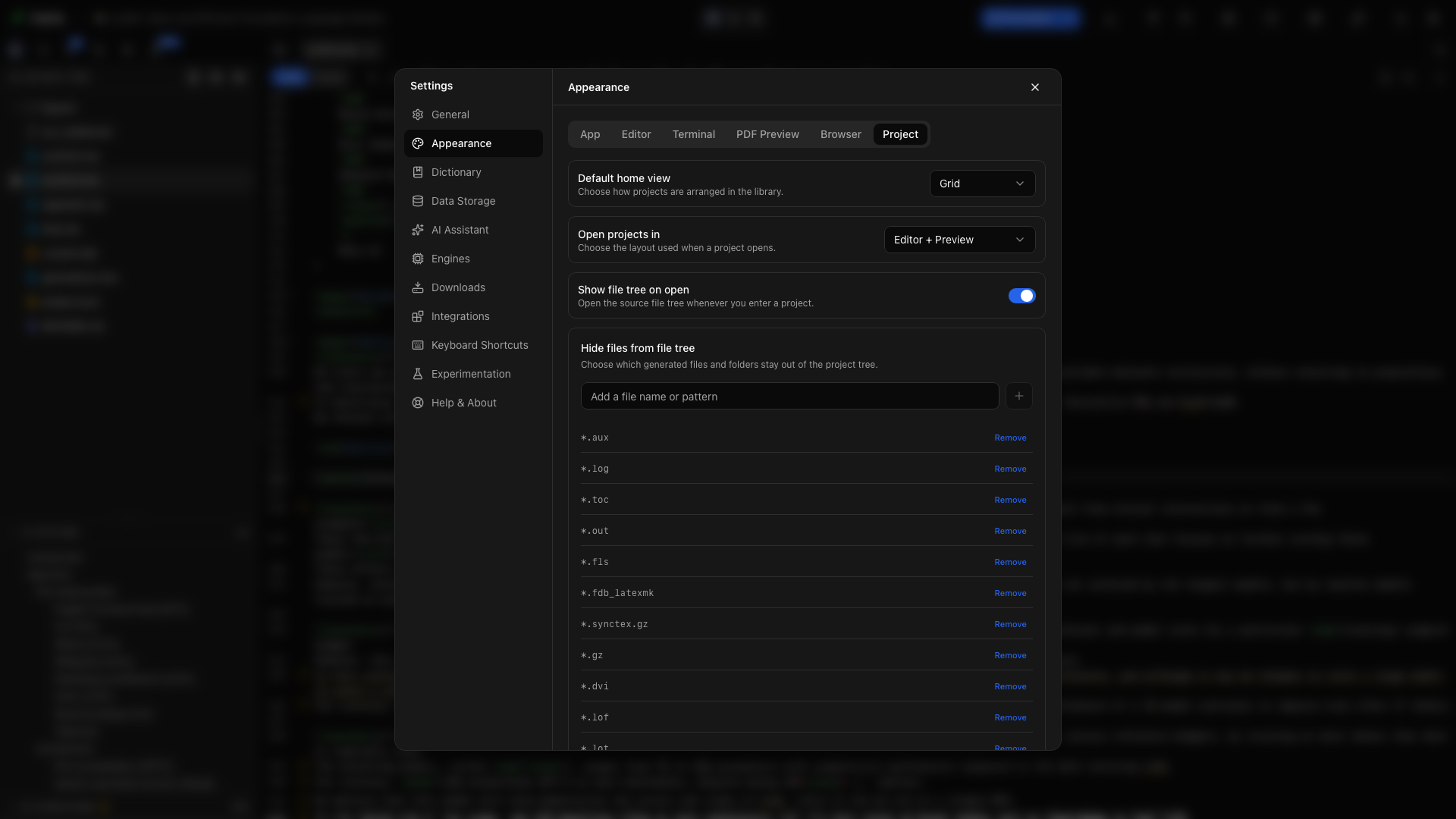
Escolha se a biblioteca abre como grade ou como lista. A grade dá destaque a capas e prévias; a lista facilita percorrer os nomes dos projetos.
Abrir os projetos em
Seção intitulada “Abrir os projetos em”Escolha a visualização inicial: código, dividida ou PDF. Este é o arranjo inicial quando você entra em um projeto. A barra de ferramentas do projeto pode mudá-lo durante o trabalho.
Mostrar a árvore de arquivos ao abrir
Seção intitulada “Mostrar a árvore de arquivos ao abrir”Ative isto para abrir o Explorador com cada projeto. Desative para ter mais espaço de escrita e abra o Explorador, a primeira aba do trilho esquerdo, quando precisar de um arquivo.
Arquivos ocultos
Seção intitulada “Arquivos ocultos”Digite um nome de arquivo ou padrão e escolha Adicionar para esconder do Explorador as entradas correspondentes. Por exemplo, esconda um nome de arquivo auxiliar que distrai do manuscrito. Remova a etiqueta dele para mostrá-lo de novo. Esconder um arquivo não o exclui.
Configurações do Modo Zen
Seção intitulada “Configurações do Modo Zen”O grupo Modo Zen no fim da aba Projeto tem dois interruptores. Entrar em tela cheia preenche a tela enquanto o Modo Zen está ativado e restaura a janela quando você sai. Mostrar o PDF ao compilar abre o PDF ao lado do editor a cada compilação enquanto ele estiver oculto. A tecla que liga e desliga o Modo Zen está em Configurações → Atalhos de teclado.
Personalização do tema
Seção intitulada “Personalização do tema”Na parte de baixo da aba Aplicativo, abra Personalização do tema, escolha o modo claro ou escuro para editar e mude tokens de cor individuais. Clique no círculo de cor de um token para escolher uma cor no seletor de cores do seu sistema. Os dois modos têm valores separados, e cada amostra mostra a cor padrão daquele modo até você mudá-la. Inspecione texto, seleção, painéis e botões depois de uma mudança. As cores dentro do editor têm a própria seção, Cores do editor.
Raio dos cantos
Seção intitulada “Raio dos cantos”Informe um comprimento CSS como 8px, 0.5rem ou 1em. Limpe o valor para usar o padrão. Isso ajusta os cantos dos componentes do aplicativo.
Declarações CSS com escopo
Seção intitulada “Declarações CSS com escopo”Informe somente declarações, como um valor suportado de propriedade personalizada. O campo não aceita regras CSS completas, imports nem URLs. Valores inválidos são reportados em vez de aplicados.
Importar e exportar um tema
Seção intitulada “Importar e exportar um tema”Escolha Exportar tema para salvar um arquivo de tema reutilizável. Ele guarda os tokens de cor, o raio dos cantos e o CSS com escopo, além dos seus temas do editor para o modo claro e escuro e das suas cores do editor. Importar tema aplica um arquivo salvo. Use o controle de redefinição para restaurar os padrões da superfície de personalização.
Experimente uma configuração de escrita
Seção intitulada “Experimente uma configuração de escrita”Defina o texto de código em 16 px, ative a Rolagem fixa, abra um documento LaTeX longo e escolha Layout → Editor + visualização. Arraste o divisor até as linhas de código ficarem confortáveis de ler. Compile e escolha Ajustar à largura na prévia. Guarde a tipografia do documento no código dele; use a Aparência para o seu próprio ambiente de leitura.
Restaurar os padrões
Seção intitulada “Restaurar os padrões”Escolha Restaurar os padrões na parte de baixo da Aparência para devolver as preferências dela. A restauração também limpa a Personalização do tema. Um ponto no botão significa que algo na Aparência difere do padrão. Revise a confirmação antes de aplicar a restauração.