
Traga trabalhos existentes para o Oleafly
Importe um arquivo de projeto, converta um documento, traga um pacote de código do arXiv, copie um repositório do GitHub ou transforme um projeto LaTeX em um projeto Typst.
Escolha Novo projeto → Importar um projeto ou use Importar na biblioteca. O Oleafly cria um novo projeto local e deixa o arquivo ou repositório original inalterado. A menos que a importação traga o próprio repositório Git, os arquivos importados se tornam o primeiro commit do Git do projeto, Create project.
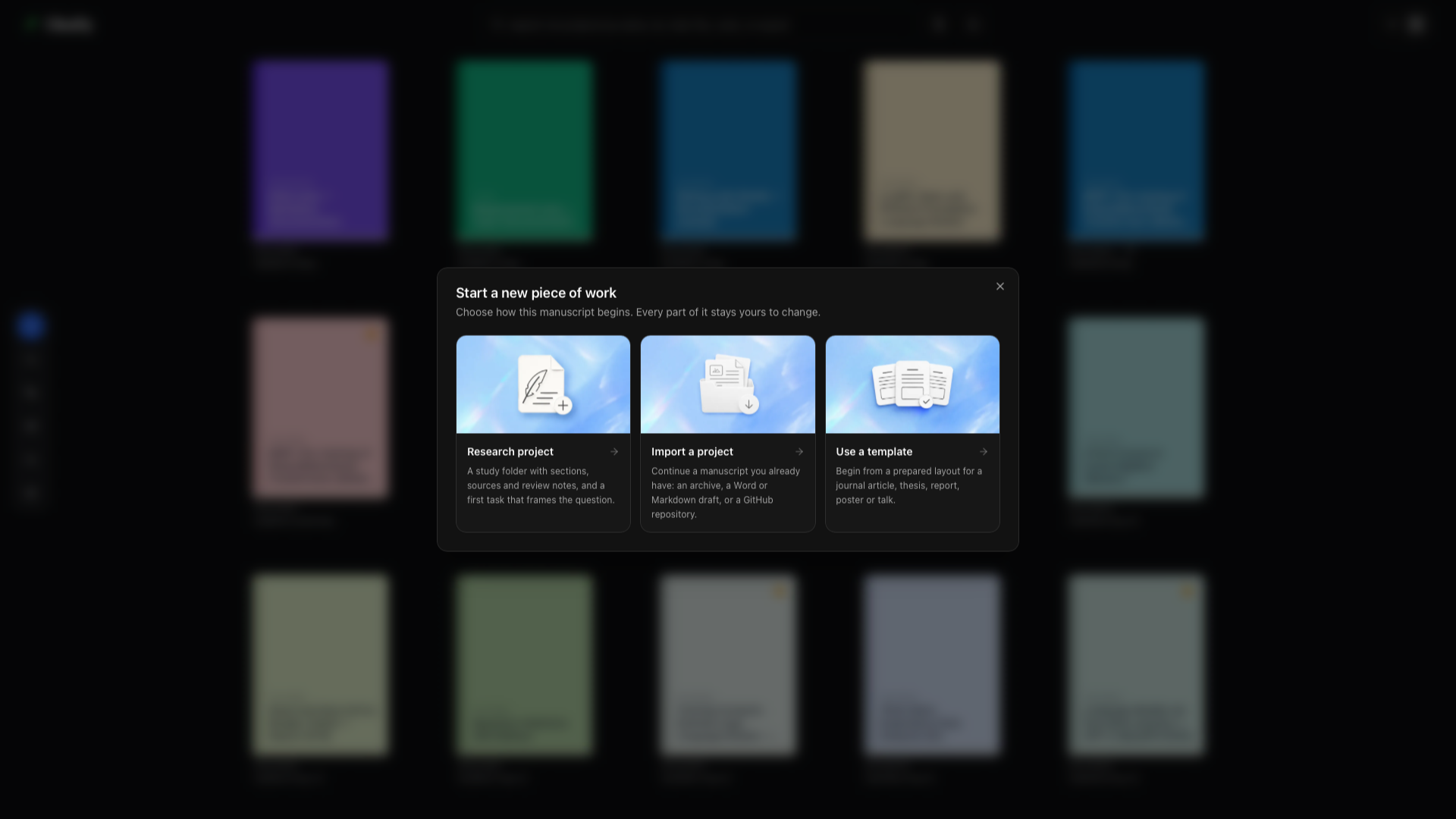
Escolha o caminho que corresponde à sua origem
Seção intitulada “Escolha o caminho que corresponde à sua origem”| O que você tem | Caminho de importação | Projeto que você pode criar |
|---|---|---|
| Uma pasta de projeto completa | Projeto existente (.zip) | O código-fonte arquivado, as figuras, a bibliografia e os arquivos de estilo locais |
| Um documento do Word | Documento do Word (.docx) | LaTeX, Markdown ou Typst |
| Um documento Markdown | Documento Markdown (.md, .markdown) | LaTeX ou Typst |
| Um documento HTML | Página HTML (.html, .htm) | LaTeX, Markdown ou Typst |
| Um documento Typst | Documento Typst (.typ) | LaTeX ou Markdown |
| Um artigo do arXiv | Artigo do arXiv com um ID ou URL | O pacote de código-fonte LaTeX do artigo |
| Um repositório do GitHub | GitHub | Um projeto local conectado ao repositório |
| Um PDF sem código-fonte editável | Ferramentas do Oleafly → Conversores de PDF | LaTeX, Markdown ou Typst reconstruído, dependendo da ferramenta que você escolher |
| Um projeto LaTeX já no Oleafly | Converter em um projeto Typst na paleta de comandos | Um novo projeto Typst, com o projeto LaTeX deixado como estava |
Escolha o mesmo formato de autoria somente quando o Oleafly o oferecer. Para manter um arquivo Markdown ou Typst no formato original, comece um projeto em branco para esse formato e adicione o arquivo de código-fonte pela árvore de arquivos.
Importar um arquivo de projeto completo
Seção intitulada “Importar um arquivo de projeto completo”Use um ZIP quando você já tem uma árvore de código-fonte funcionando.
- Coloque o documento principal, as figuras, a bibliografia e os arquivos locais de classe ou estilo em uma pasta. Mantenha os caminhos relativos usados pelo código-fonte.
- Comprima a pasta como um arquivo
.zip. - Escolha Importar → Projeto existente e selecione o ZIP.
- Verifique o documento principal marcado com estrela na árvore de arquivos importada.
- Compile. Se o projeto precisar de uma cadeia de ferramentas LaTeX diferente, escolha-a no menu do compilador.
Por exemplo, mantenha main.tex, references.bib, sections/method.tex e figures/plot.pdf juntos. Um ZIP de código-fonte preserva essas relações. Um PDF não contém a mesma estrutura de projeto editável.
Se o arquivo contiver mais de um provável documento principal, confirme o correto pelo menu de arquivos antes de compilar.
Qual compilador LaTeX uma importação usa
Seção intitulada “Qual compilador LaTeX uma importação usa”Um projeto LaTeX importado ou convertido começa no motor de compilação padrão de Configurações → Motores → LaTeX, que é o Tectonic, a menos que você o tenha alterado. Quando esse padrão é latexmk e o projeto indica pdfLaTeX, XeLaTeX ou LuaLaTeX, esse compilador é mantido. Se a importação encontrar recursos que o Tectonic não consegue tratar, o diálogo de motores abre para você escolher outro. Veja Definir um padrão para novos projetos e Quando o Tectonic não é suficiente.
Converter Word, Markdown, HTML ou Typst
Seção intitulada “Converter Word, Markdown, HTML ou Typst”- Escolha o tipo de documento correspondente em Importar.
- Selecione o arquivo.
- Se o Oleafly oferecer mais de um destino, escolha o formato que você quer editar em seguida. O LaTeX está marcado como o caminho recomendado.
- Conclua a configuração do Pandoc se solicitado. O Oleafly pode usar uma instalação compatível ou baixar a versão gerenciada por ele.
- Abra o novo projeto, compile-o e compare-o com o original.
As conversões acontecem localmente pelo Pandoc. Uma importação de Word ou HTML também extrai as mídias incorporadas para o projeto, para que o código convertido possa fazer referência a elas. Um documento Markdown importado para um projeto LaTeX mantém suas citações: [@key] vira \citep ou \citet, e o arquivo de bibliografia vem junto, então o painel Referências já tem suas fontes desde o início.
Escolha o destino para o trabalho à frente:
- LaTeX serve para modelos de periódicos, diagramação detalhada e fluxos de trabalho com PDF marcado.
- Markdown serve para um formato de código-fonte mais leve e conversão ampla de documentos.
- Typst serve para compilação rápida e modelos nativos do Typst.
A conversão preserva a estrutura do documento onde o formato de origem a expõe. Layouts de página específicos do Word, estilização HTML personalizada, tabelas ajustadas à mão, citações e equações complexas ainda podem precisar de uma passada de limpeza. Compare títulos, listas, tabelas, equações, links, citações e o posicionamento de imagens antes de excluir o original.
Importar um pacote de código do arXiv
Seção intitulada “Importar um pacote de código do arXiv”Escolha Artigo do arXiv e cole um identificador como 2401.01234 ou uma URL arxiv.org/abs/.... O Oleafly baixa o pacote de código enviado e o abre como um projeto LaTeX.
Use este caminho quando você precisa do código editável dos autores. Use arXiv para LaTeX quando você quer inspecionar ou salvar um pacote de código sem começar pelo diálogo de importação, e arXiv para Typst quando você quer o artigo convertido para Typst. Um identificador do arXiv precisa de conexão de rede; um pacote de código já no disco não.
Sempre verifique a licença e os termos dos autores antes de reutilizar código ou figuras.
Importar do GitHub
Seção intitulada “Importar do GitHub”Escolha GitHub no diálogo de importação. Se necessário, conecte sua conta por Configurações → Integrações → GitHub e selecione um repositório ao qual você tenha acesso.
O Oleafly cria uma cópia local na biblioteca. Verifique o documento principal dele e faça uma compilação antes de editar. A sincronização com o GitHub explica como puxar, fazer commit e publicar alterações depois da importação.
Converter um projeto LaTeX em Typst
Seção intitulada “Converter um projeto LaTeX em Typst”O Oleafly pode criar uma cópia em Typst de um projeto LaTeX que você já tem. O projeto LaTeX não é alterado.
- Abra o projeto LaTeX.
- Abra a paleta de comandos ⌘K (Ctrl+K) e execute Converter em um projeto Typst.
- Confira o Nome do novo projeto. O padrão é o nome do projeto seguido de
(Typst). - Escolha Converter. O Oleafly converte o projeto com o Pandoc, cria o projeto Typst e o compila uma vez como verificação.
- Leia o relatório e escolha Abrir o projeto Typst.
O relatório diz se o novo projeto compila, conta o que foi convertido e lista o que precisa de correção manual, com links para cada erro de compilação. Projetos Typst explica a conversão e o relatório em detalhe.
Reconstruir um PDF
Seção intitulada “Reconstruir um PDF”Ative Ferramentas LaTeX em Configurações → Experimentação e escolha a ferramenta que corresponde à saída de que você precisa:
- PDF para LaTeX para um projeto LaTeX ou pacote de código
- PDF para Markdown para Markdown editável
- PDF para Typst para Typst editável
O pipeline local de PDF lê a camada de texto, restaura a ordem de leitura e extrai figuras. Em PDF para LaTeX, mude para o modo de documento digitalizado quando o PDF é feito de imagens de página. Esse caminho usa o modelo para as Ferramentas, um modelo local do Ollama a menos que você escolha outro, e aceita documentos de até 50 páginas.
Compare o resultado com o PDF página por página. Colunas, equações, tabelas, notas de rodapé e ordem de leitura são problemas de reconstrução, então nenhuma conversão de PDF deve ser tratada como o código-fonte original.
Adicionar referências sem importar um manuscrito
Seção intitulada “Adicionar referências sem importar um manuscrito”Importe BibTeX, RIS, EndNote XML ou Zotero RDF por Referências e citações. Vincule uma pasta de artigos ou dados como contexto de pesquisa somente leitura quando ela deve ficar fora do projeto.