
Settings & customization
General, language & proofreading
Choose the desktop language, configure local proofreading, prepare offline compilation, and control guided tours.
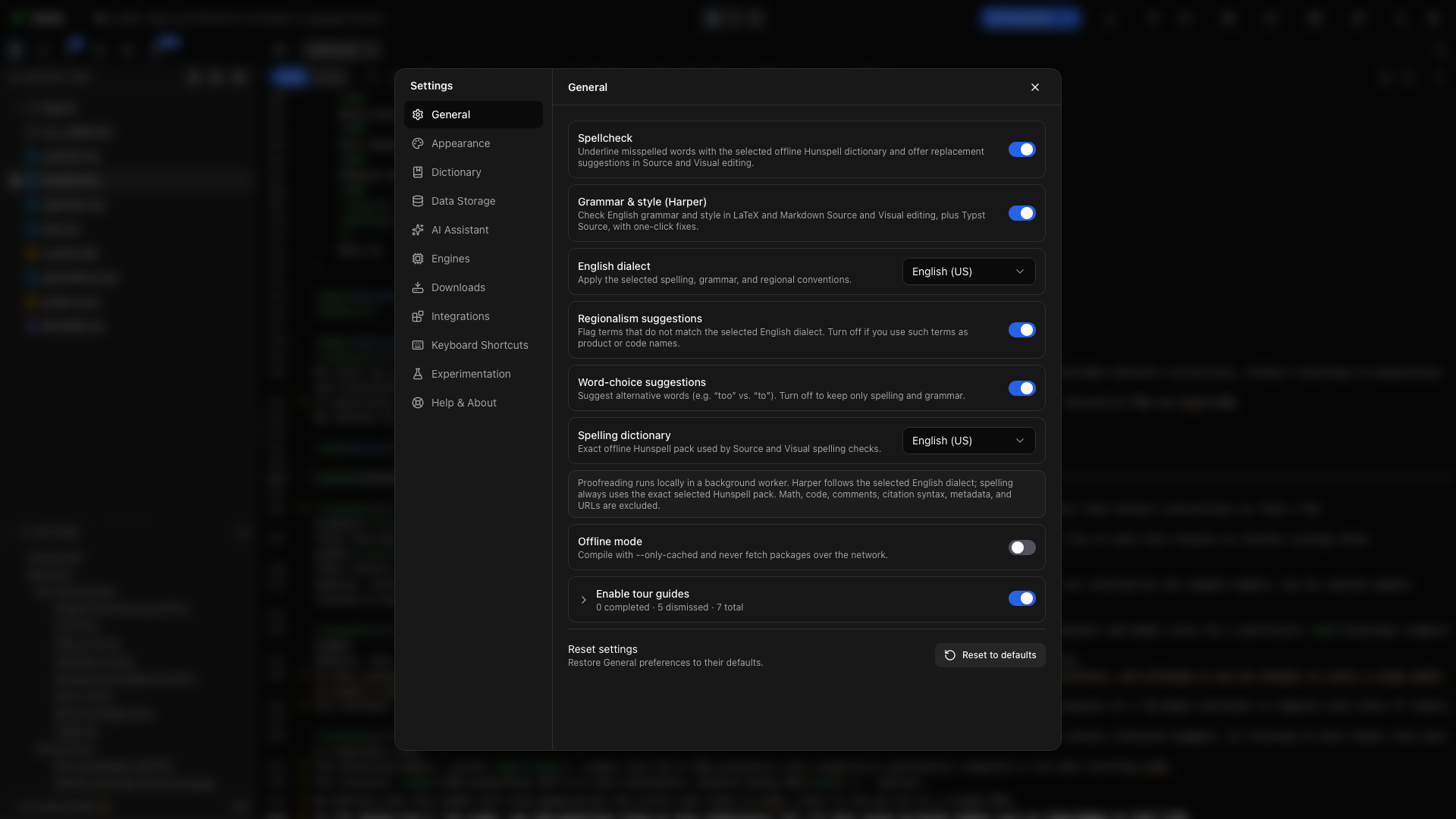
Open Settings → General for preferences that shape everyday work on this device. Changing these settings does not rewrite a project file.
Language
Section titled “Language”Choose System default or one of 21 interface languages. Each language is listed by its own name, such as English, Deutsch, 日本語, or 简体中文, and the interface switches while Oleafly is open.
System default follows your operating system’s language when Oleafly offers it. Any other choice keeps the app in that language, whatever the computer uses.
The setting does not translate your manuscript, change proofreading, or choose the language of an assistant reply. See Language & localization for the exact boundary.
Spellcheck
Section titled “Spellcheck”Turn on Spellcheck to underline words missing from the selected local Hunspell dictionary. Choose a suggestion or ignore the term for this project, everywhere, or for the current session.
Grammar & style
Section titled “Grammar & style”Turn on Grammar & style (Harper) for English grammar and style suggestions in LaTeX, Typst, and Markdown, in both Source and Visual editing. Read a finding’s message and rule name before applying its fix.
Harper checks English only. While the spelling dictionary is set to another language, grammar checking pauses and a note says so.
English dialect
Section titled “English dialect”Choose US, UK, Australian, Canadian, or Indian English for Harper. This changes the conventions it checks; it does not rewrite existing text automatically.
Regionalism and word choice
Section titled “Regionalism and word choice”- Regionalism suggestions flags terms that differ from the chosen English dialect. Turn it off for intentional product names, code, or quoted language.
- Word-choice suggestions catches context-sensitive alternatives such as “too” and “to.” Turn it off for a narrower grammar pass.
Spelling dictionary
Section titled “Spelling dictionary”Choose the language Hunspell checks in Source and Visual editing. Five packs ship with the app. Picking any other language downloads it once, and it then works offline. Downloaded languages are listed under Settings → Downloads → Dictionaries. A project can use its own spelling language, set in its Project info panel.
The dictionary and Harper dialect do not have to match, but most English papers are easier to review when they do.
The full proofreading guide covers source masking, project and global dictionaries, dismissed findings, academic-profile rules, and the current Harper limitation.
Offline mode
Section titled “Offline mode”Turn on Offline mode to make Tectonic compile with cached packages only. Typst stops downloading packages too, though packages already cached or kept in the project’s typst-packages folder still work. The setting also blocks online citation and metadata lookups and dictionary downloads.
Compile a project successfully while connected before taking it offline, so its required packages are present. An uncached package produces a clear build failure rather than a hidden network request.
Local AI is separate. Follow Ollama and offline work to install a model and test an offline assistant workflow.
Tour guides
Section titled “Tour guides”Turn on Enable tour guides to allow walkthroughs around the Library and workspace. Individual toggles decide which tours may appear.
Tour progress shows completed, dismissed, and remaining guidance. Reset a tour when you want to follow it again. Open Help & About → Start tour to launch the guide for your current area.
System integration
Section titled “System integration”The System integration rows let you open folders in Oleafly from outside the app. What you see depends on your system: Finder Quick Actions on macOS, the File Explorer right-click menu on Windows, or entries for Dolphin, Nemo, and GNOME Files on Linux. Install adds an entry, and Repair fixes one that has gone out of date.
The Terminal command row puts the oleafly command on your PATH, so oleafly . in a terminal opens the current folder and oleafly build builds it. On macOS and with the AppImage, Install adds it to a folder on your PATH and shows what to add if that folder isn’t on it yet. On Windows, Install copies it to %LOCALAPPDATA%\Oleafly\bin and adds that folder to your PATH. The Linux packages install it for you. See Command-line tool.
A folder opened this way stays where it is and shows up in the library as External. See Folders opened in place.
Manage proofreading choices
Section titled “Manage proofreading choices”Open Settings → Dictionary to manage:
- words ignored in every project, on the Global tab;
- words ignored only in the open project, on the Projects tab;
- grammar findings dismissed in the current project;
- Harper rules you turned off;
- Rules the academic profile keeps off, listed in full. Each row names the rule, says what it does, gives an example, and has a switch to turn it on.
Removing an item makes it eligible for checking again immediately.
Reset General
Section titled “Reset General”Choose Reset to defaults at the bottom of the page to restore General preferences. A dot on the button means something here differs from its default. Read the confirmation before applying it; Dictionary and other Settings sections have their own separate resets.