
Comece um novo projeto
Escolha um espaço de pesquisa, importe um manuscrito existente ou comece com um modelo.
Clique em Novo projeto no dock do espaço de trabalho. Escolha como você quer começar: organizar um estudo, trazer um trabalho existente ou partir de um layout pronto.
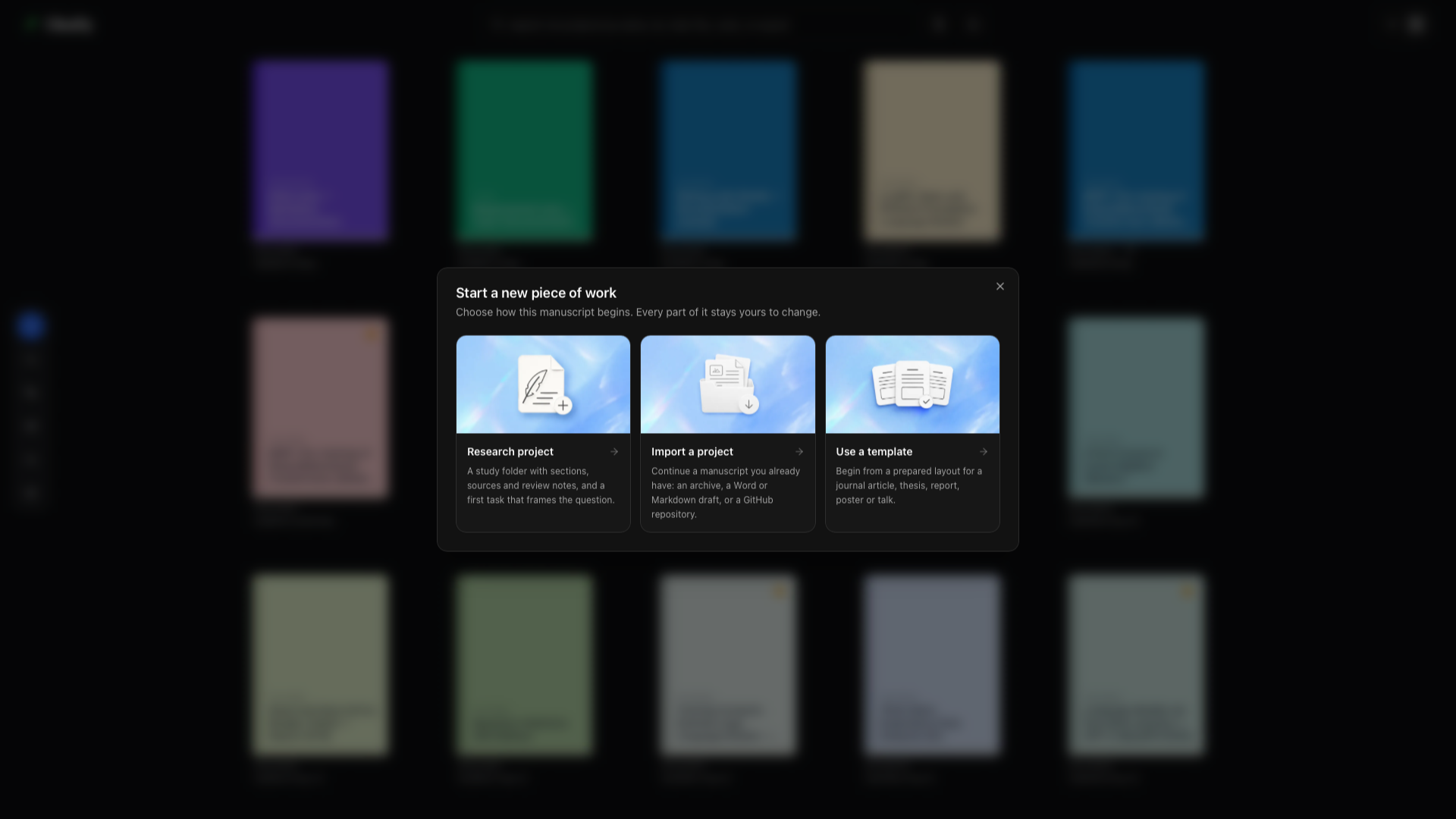
| Ponto de partida | Escolha quando | O que acontece a seguir |
|---|---|---|
| Projeto de pesquisa | Você quer um manuscrito com espaço para fontes, análise e anotações de revisão | Escolha um idioma e o ponto de partida do estudo e depois inspecione os arquivos propostos |
| Importar um projeto | Você já tem um arquivo compactado, um rascunho ou um repositório | Selecione a origem da importação e crie um projeto local |
| Usar um modelo | Você sabe o layout de documento de que precisa | Navegue e faça a prévia de um modelo, ou gere um com IA |
Projeto de pesquisa
Seção intitulada “Projeto de pesquisa”Este caminho cria uma pasta de trabalho de estudo em torno do seu manuscrito. Ele dá a você lugares para guardar as evidências e o trabalho de revisão que pertencem ao artigo.
Nome do projeto
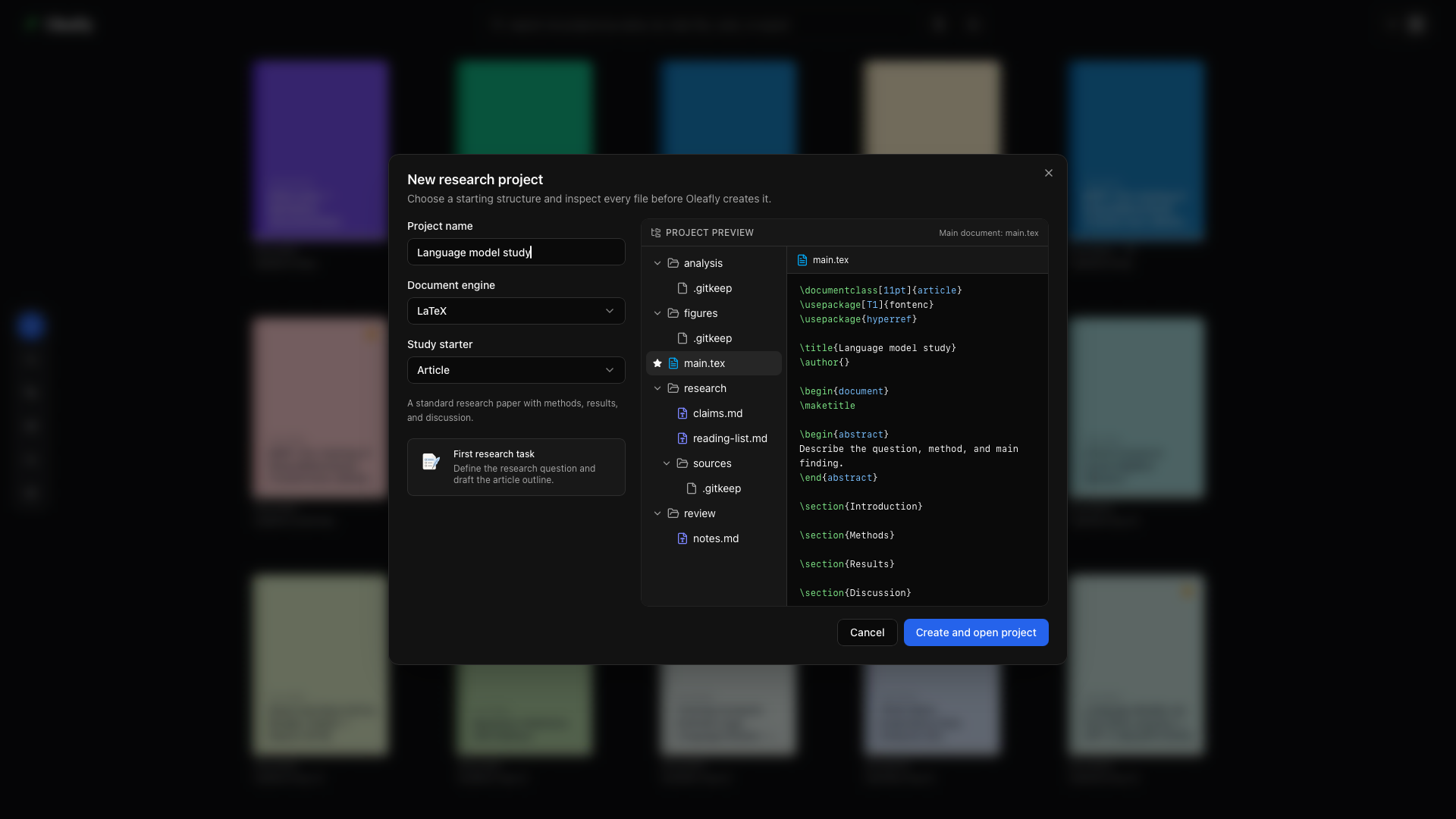
Seção intitulada “Nome do projeto”Digite um nome descritivo. A prévia se atualiza enquanto você digita, para você ver o título e os arquivos propostos antes de criar qualquer coisa.
Motor de documento
Seção intitulada “Motor de documento”Escolha LaTeX, Typst ou Markdown. Isso determina o arquivo-fonte principal e as ferramentas do editor. Leia Escolha um motor de documento se você está começando com um formato novo.
Ponto de partida do estudo
Seção intitulada “Ponto de partida do estudo”Escolha o ponto de partida que corresponde ao trabalho. Um Artigo começa com a estrutura de um artigo de pesquisa, incluindo um resumo e seções para a introdução, os métodos, os resultados, a discussão e a conclusão. Revise a descrição do ponto de partida e a prévia dos arquivos antes de continuar.
Primeira tarefa de pesquisa
Seção intitulada “Primeira tarefa de pesquisa”Leia a tarefa mostrada abaixo do ponto de partida. Para um Artigo, ela formula a pergunta de pesquisa e o esboço do artigo. A tarefa dá um ponto de partida para o seu trabalho; criar o projeto não produz resultados de pesquisa para você.
Prévia do projeto
Seção intitulada “Prévia do projeto”Selecione arquivos na árvore de prévia para inspecionar o conteúdo deles. Um Artigo inclui o manuscrito e pastas para análise, figuras, notas de pesquisa, fontes e anotações de revisão. O rótulo Documento principal identifica o arquivo usado para compilar o artigo.
Criar e abrir o projeto
Seção intitulada “Criar e abrir o projeto”Quando a prévia parecer certa, escolha Criar e abrir o projeto. O seu projeto novo abre no espaço de trabalho de escrita. Comece pelo guia do espaço de pesquisa para conectar fontes e organizar tarefas.
Cancelar
Seção intitulada “Cancelar”Feche o diálogo ou escolha Cancelar para sair sem criar o projeto.
Importar um projeto
Seção intitulada “Importar um projeto”Escolha este caminho para continuar um trabalho que você já tem. O diálogo oferece um ZIP de projeto, um documento do Word, um documento Markdown, uma página HTML, um documento Typst, um artigo do arXiv ou um repositório do GitHub. O Oleafly cria um projeto local a partir da entrada selecionada.
Use um ZIP para um projeto existente com vários arquivos-fonte e figuras. As importações de Word, Markdown, HTML e Typst convertem o documento para outro formato, então inspecione o manuscrito convertido e compile-o antes de continuar. Para escrever em Markdown nativo, crie um projeto Markdown e traga para ele o seu código-fonte e os seus recursos.
Siga os passos de importação para cada formato →
Usar um modelo
Seção intitulada “Usar um modelo”Abra a galeria, busque ou filtre pelo tipo de documento de que você precisa e inspecione a prévia. Os modelos podem fornecer o layout de um artigo, tese, relatório, currículo, carta, pôster, apresentação ou de uma figura isolada, em LaTeX, Typst ou Markdown. Um ponto de partida em branco é útil quando você já tem um código-fonte para colar.
O segundo passo pede um nome de projeto e uma cor de capa. Se você não escolher uma cor, o Oleafly escolhe uma da paleta aleatoriamente, para os projetos novos serem mais fáceis de distinguir na estante.
Alguns modelos baixam um pacote ou fontes no primeiro uso. Prepare esses downloads enquanto estiver online se você planeja trabalhar offline.
Navegue, faça a prévia e crie a partir de um modelo →
Gerar um modelo com IA
Seção intitulada “Gerar um modelo com IA”Escolha Gerar um modelo na galeria quando você quiser descrever o seu próprio layout inicial. Dê ao assistente o tipo de documento, as seções necessárias, o tamanho da página e as preferências de formatação. Faça a prévia do resultado, refine-o e salve o modelo para reutilizar.
Gere e reutilize um modelo de IA →
O primeiro commit no Git
Seção intitulada “O primeiro commit no Git”Um projeto que o Oleafly cria ou importa começa com um commit no Git dos arquivos dele, chamado Criar projeto. O controle de versão então mostra diferenças reais a partir da sua primeira edição, e as tarefas de pesquisa têm uma versão para comparar. Hooks do Git e assinatura de commit nunca rodam para este commit, então uma configuração global do Git não pode bloquear nem interromper a criação do projeto. Depois dele, o Oleafly só faz commit quando você pede.
O Oleafly ainda cria o repositório, mas pula este commit quando:
- os arquivos do projeto somam mais de 100 MB, para um conjunto de dados importado não ser copiado sozinho para o histórico do Git;
- o projeto contém arquivos que costumam guardar senhas ou chaves, como
.env,*.pem, chaves privadas de SSH oucredentials.json. Uma vez commitado, um segredo fica no histórico mesmo depois de você excluir o arquivo.
Modelos como .env.example, chaves públicas terminadas em .pub e apresentações .key do Keynote não contam como segredos. Quando o commit é pulado, o motivo é gravado no log do aplicativo, e você mesmo pode fazer o primeiro commit a partir de Git e controle de versão.
Nenhum repositório é criado quando o Git não está instalado, quando o projeto já tem um ou quando Inicializar o Git em todos os projetos está desligado em Configurações → Integrações → GitHub.