
Занесення наявної роботи в Oleafly
Імпортуйте архів проєкту, конвертуйте документ, занесіть вихідний пакунок arXiv, скопіюйте репозиторій GitHub або перетворіть проєкт LaTeX на проєкт Typst.
Виберіть Новий проєкт → Імпортувати проєкт або скористайтеся Імпортувати у бібліотеці. Oleafly створює новий локальний проєкт і залишає початковий файл або репозиторій без змін. Якщо імпорт не містить власного репозиторію Git, імпортовані файли стають першим комітом Git проєкту — Створити проєкт.
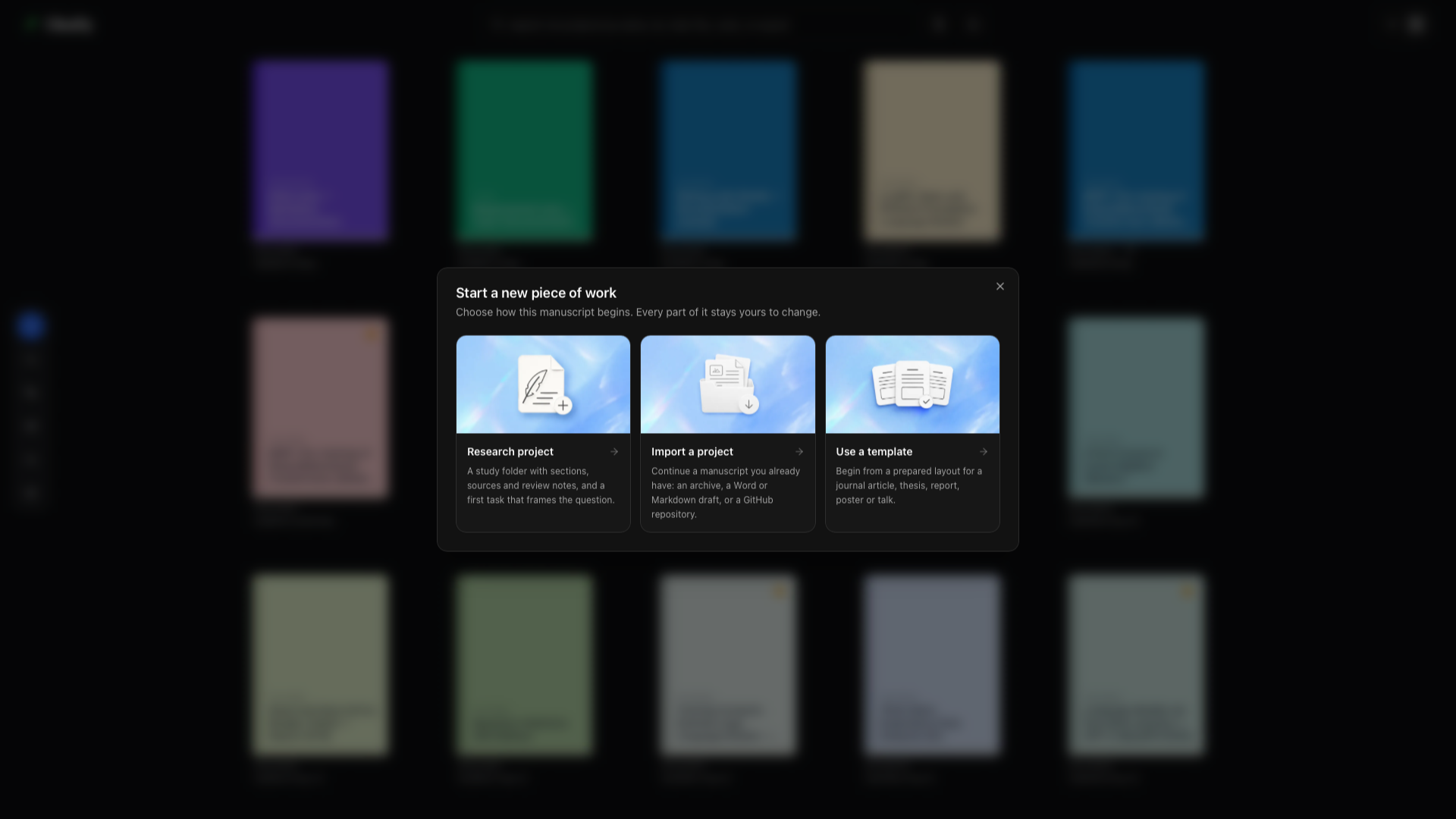
Виберіть маршрут під ваше джерело
Розділ «Виберіть маршрут під ваше джерело»| Що у вас є | Маршрут імпорту | Проєкт, який можна створити |
|---|---|---|
| Повна папка проєкту | Наявний проєкт (.zip) | Заархівовані вихідні файли, рисунки, бібліографія та локальні файли стилів |
| Документ Word | Документ Word (.docx) | LaTeX, Markdown або Typst |
| Документ Markdown | Документ Markdown (.md, .markdown) | LaTeX або Typst |
| Документ HTML | Сторінка HTML (.html, .htm) | LaTeX, Markdown або Typst |
| Документ Typst | Документ Typst (.typ) | LaTeX або Markdown |
| Стаття з arXiv | Стаття з arXiv за ідентифікатором або URL | Вихідний пакунок LaTeX статті |
| Репозиторій GitHub | GitHub | Локальний проєкт, з’єднаний із репозиторієм |
| PDF без редагованого вихідного коду | Інструменти Oleafly → Конвертери PDF | Відтворений LaTeX, Markdown або Typst залежно від вибраного інструмента |
| Проєкт LaTeX, який уже є в Oleafly | Перетворити на проєкт Typst у палітрі команд | Новий проєкт Typst, а проєкт LaTeX лишається таким, яким був |
Вибирайте той самий формат написання, лише коли Oleafly його пропонує. Щоб зберегти файл Markdown або Typst у початковому форматі, створіть порожній проєкт для цього формату й додайте вихідний файл через дерево файлів.
Імпорт повного архіву проєкту
Розділ «Імпорт повного архіву проєкту»Скористайтеся ZIP, коли у вас уже є робоче дерево вихідних файлів.
- Покладіть головний документ, рисунки, бібліографію та локальні файли класів чи стилів в одну папку. Збережіть відносні шляхи, які використовує джерело.
- Стисніть папку у файл
.zip. - Виберіть Імпортувати → Наявний проєкт і вкажіть ZIP.
- Перевірте позначений зіркою головний документ в імпортованому дереві файлів.
- Скомпілюйте. Якщо проєкту потрібен інший інструментарій LaTeX, виберіть його в меню компілятора.
Наприклад, тримайте разом main.tex, references.bib, sections/method.tex і figures/plot.pdf. Вихідний ZIP зберігає ці зв’язки. PDF не містить такої самої редагованої структури проєкту.
Якщо в архіві більше ніж один імовірний головний документ, підтвердьте правильний через меню файлу перед компіляцією.
Який компілятор LaTeX використовує імпорт
Розділ «Який компілятор LaTeX використовує імпорт»Імпортований або конвертований проєкт LaTeX починає на типовому рушієві компіляції з Налаштування → Рушії → LaTeX, тобто на Tectonic, якщо ви його не змінили. Коли типовим є latexmk, а проєкт називає pdfLaTeX, XeLaTeX або LuaLaTeX, цей компілятор зберігається. Якщо під час імпорту знайдено можливості, з якими Tectonic не справляється, відкривається діалог рушія, щоб ви могли обрати інший. Див. Задати типовий рушій для нових проєктів і Коли Tectonic недостатньо.
Конвертація Word, Markdown, HTML або Typst
Розділ «Конвертація Word, Markdown, HTML або Typst»- Виберіть відповідний тип документа в Імпортувати.
- Вкажіть файл.
- Якщо Oleafly пропонує кілька напрямків, виберіть формат, у якому хочете редагувати далі. LaTeX позначено як рекомендований маршрут.
- Заверште налаштування Pandoc, якщо з’явиться запит. Oleafly може скористатися сумісним встановленням або завантажити власну керовану версію.
- Відкрийте новий проєкт, скомпілюйте його й порівняйте з оригіналом.
Конвертації виконуються локально через Pandoc. Імпорт Word або HTML також витягує вбудовані медіа в проєкт, щоб конвертоване джерело могло на них посилатися. Документ Markdown, імпортований у проєкт LaTeX, зберігає свої цитування: [@key] стає \citep або \citet, а файл бібліографії приходить разом, тож панель «Посилання» має ваші джерела з самого початку.
Виберіть напрямок для подальшої роботи:
- LaTeX підходить для журнальних шаблонів, детального набору та робочих процесів тегованого PDF.
- Markdown підходить для легшого формату вихідного коду й широкої конвертації документів.
- Typst підходить для швидкої компіляції та нативних шаблонів Typst.
Конвертація зберігає структуру документа там, де вихідний формат її відкриває. Макети сторінок, специфічні для Word, нетипове стилювання HTML, вивірені вручну таблиці, цитування та складні формули все ж можуть потребувати доопрацювання. Порівняйте заголовки, списки, таблиці, формули, посилання, цитування та розташування зображень, перш ніж видаляти оригінал.
Імпорт вихідного пакунка arXiv
Розділ «Імпорт вихідного пакунка arXiv»Виберіть Стаття з arXiv, потім вставте ідентифікатор, як-от 2401.01234, або URL arxiv.org/abs/.... Oleafly завантажує поданий вихідний пакунок і відкриває його як проєкт LaTeX.
Скористайтеся цим маршрутом, коли вам потрібне редаговане джерело авторів. Скористайтеся arXiv у LaTeX, коли хочете переглянути або зберегти вихідний архів, не починаючи в діалозі імпорту, та arXiv у Typst, коли хочете конвертувати статтю в Typst. Для ідентифікатора arXiv потрібне мережеве з’єднання; для вихідного архіву, який уже на диску, — ні.
Завжди перевіряйте ліцензію та умови авторів перед повторним використанням вихідного коду чи рисунків.
Імпорт із GitHub
Розділ «Імпорт із GitHub»Виберіть GitHub у діалозі імпорту. За потреби підключіть обліковий запис через Налаштування → Інтеграції → GitHub, потім виберіть репозиторій, до якого маєте доступ.
Oleafly створює локальну копію в бібліотеці. Перевірте її головний документ і запустіть компіляцію перед редагуванням. У Синхронізації GitHub пояснено отримання, коміти й публікацію змін після імпорту.
Перетворення проєкту LaTeX на Typst
Розділ «Перетворення проєкту LaTeX на Typst»Oleafly може зробити копію в Typst зі вже наявного проєкту LaTeX. Проєкт LaTeX не змінюється.
- Відкрийте проєкт LaTeX.
- Відкрийте палітру команд ⌘K (Ctrl+K) і запустіть Перетворити на проєкт Typst.
- Перевірте Назву нового проєкту. Типово це назва проєкту з доданим
(Typst). - Виберіть Перетворити. Oleafly конвертує проєкт через Pandoc, створює проєкт Typst і один раз компілює його для перевірки.
- Прочитайте звіт, потім виберіть Відкрити проєкт Typst.
У звіті сказано, чи компілюється новий проєкт, підраховано, що конвертовано, і перелічено, що потрібно виправити вручну, з посиланнями на кожну помилку компіляції. У Проєктах Typst конвертацію і звіт описано докладно.
Відтворення PDF
Розділ «Відтворення PDF»Увімкніть Інструменти LaTeX у Налаштування → Експерименти, потім виберіть інструмент під потрібний результат:
- PDF у LaTeX для проєкту LaTeX або вихідного архіву
- PDF у Markdown для редагованого Markdown
- PDF у Typst для редагованого Typst
Локальний конвеєр PDF читає текстовий шар, відновлює порядок читання та витягує рисунки. У PDF у LaTeX перейдіть у режим відсканованих документів, коли PDF складається із зображень сторінок. Цей маршрут використовує модель для інструментів, локальну модель Ollama, якщо ви не виберете іншу, і підтримує документи до 50 сторінок.
Порівняйте результат із PDF сторінка за сторінкою. Колонки, формули, таблиці, виноски та порядок читання — проблеми відтворення, тож жодну конвертацію PDF не слід вважати початковим джерелом.
Додавання джерел без імпорту рукопису
Розділ «Додавання джерел без імпорту рукопису»Імпортуйте BibTeX, RIS, EndNote XML або Zotero RDF через Посилання та цитування. З’єднайте папку статей або даних як контекст дослідження лише для читання, коли вона має лишатися поза проєктом.