
Агенти командного рядка
Використовуйте агента, якого ви вже запускаєте з термінала, у своєму робочому просторі для написання.
Підключіть уже встановленого агента до Oleafly. Режим Агент командного рядка використовує середовище виконання та вхід цього агента, тож ви можете працювати поруч із рукописом інструментами, якими вже користуєтесь.
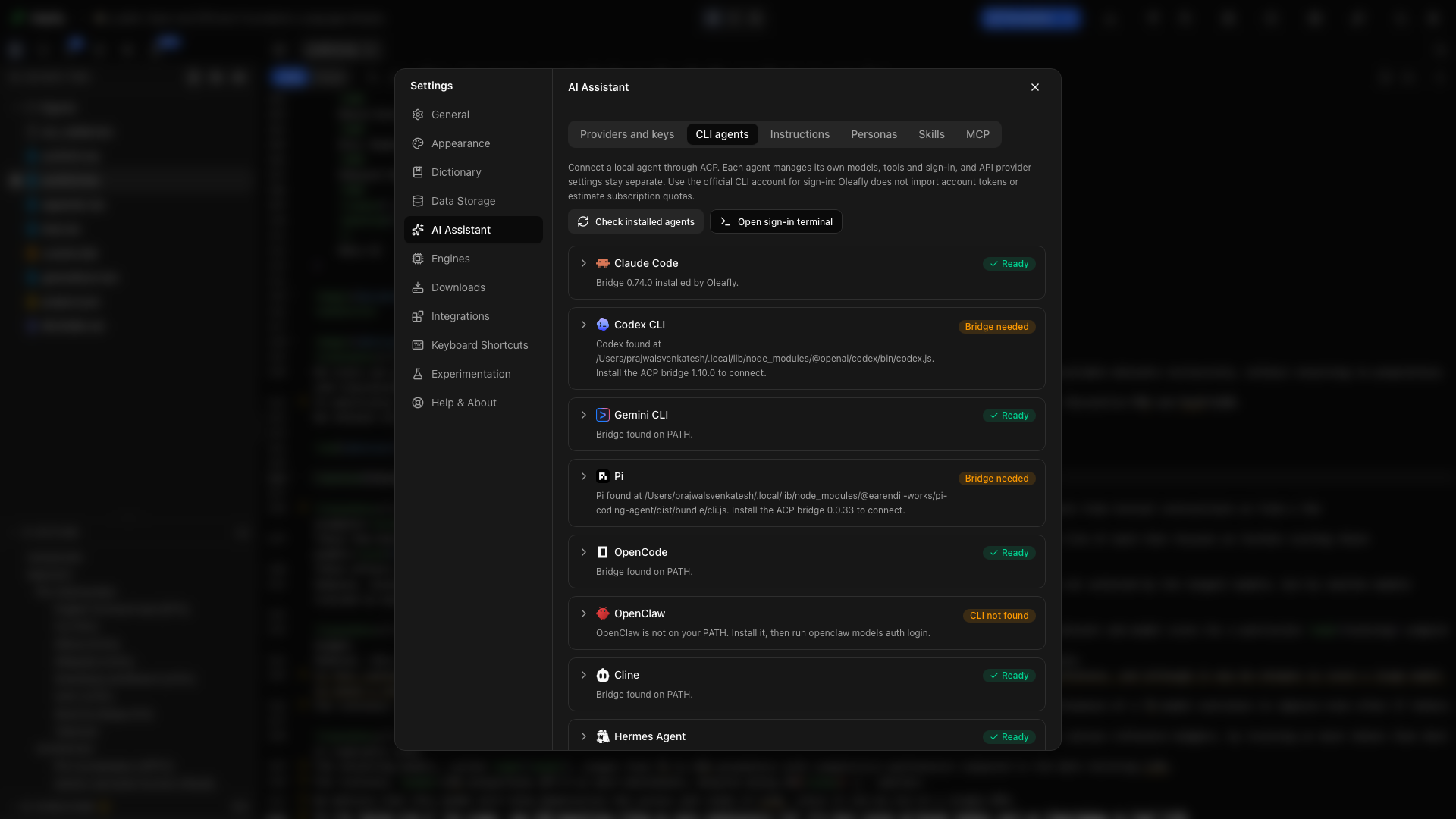
Підключіть агента
Розділ «Підключіть агента»- Відкрийте Налаштування → Асистент ШІ → Агенти командного рядка і виберіть Перевірити встановлених агентів.
- Розгорніть свого агента. Рядок Програма показує програму, яку знайшов Oleafly, і де вона.
- Виберіть Перевірити. Якщо картка просить встановити міст, спершу виберіть Встановити міст.
- Увійдіть через власний інструмент командного рядка агента. Картка показує його Команду входу, а з відкритим проєктом Відкрити термінал для входу дає термінал, щоб її виконати.
- Відкрийте асистента, перейдіть у режим Агент командного рядка і виберіть агента.
- Почніть з невеликого завдання, як-от пояснення структури проєкту або доопрацювання одного абзацу.
Якщо ви переходите на агента, який ще не готовий, асистент показує картку налаштування, де сказано, чого не вистачає. Її кнопка Налаштувати, як-от Налаштувати Claude Code, відкриває цього агента в Налаштуваннях. Коли бракує лише моста, Встановити міст на картці встановлює його.
Автентифікація, доступ до моделей і оплата належать вибраному агентові. Обліковим записом або підпискою, яка підтримує CLI, можна користуватися відповідно до умов того постачальника; Oleafly не додає окремої підписки на ШІ.
Виберіть програму
Розділ «Виберіть програму»Під написом Програма картка показує файл, який запускає Oleafly, і звідки він: Знайдено автоматично, Вибрано вами або Встановлено через Oleafly. Для деяких агентів цей рядок натомість міститься в подробицях Міст ACP.
Щоб використати іншу копію, виберіть Вибрати… і вкажіть файл. Якщо Oleafly нічого не знайшов, рядок каже Не знайдено на цьому комп’ютері та дає поле для розташування. Введіть або вставте шлях, потім натисніть Enter або виберіть Перевірити. Файл, який ви обрали або ввели, зберігається, лише коли він проходить перевірку. Використовувати автоматичне виявлення відкидає ваш вибір.
Oleafly шукає в теках, куди встановлювачі кладуть агентів:
- У Windows він знаходить агентів, установлених через npm, pnpm, Scoop, winget і подібні інструменти, на будь-якому диску. Він зчитує шлях пошуку щоразу наново, тож Перевірити встановлених агентів знаходить і агента, встановленого, поки Oleafly був відкритий.
- У macOS він знаходить агентів у теках, про які зазвичай знає лише ваша оболонка, як-от
~/.local/binабо тека nvm, навіть коли ви відкриваєте Oleafly з Dock або Finder.
Коли Oleafly знаходить файл із правильною назвою, який не може використати, налаштування повідомляє, що знайдено і чому. Типовий випадок у Windows — скрипт PowerShell, коли Oleafly потрібна версія .cmd або .exe. Файли, пропущені Oleafly перелічують кожен такий файл із причиною, наприклад тека, настільна програма, оболонка або середовище виконання, як-от node, або копія в мережевому розташуванні.
Шляхи в Налаштуваннях лишаються розмитими, поки ви не наведете на них вказівник або не перейдете до них табуляцією, тож знімок екрана Налаштувань не показує, де живуть ваші файли.
Перевірте агента
Розділ «Перевірте агента»Перевірити запускає агента в порожній теці, що належить Oleafly, подалі від вашого проєкту, і чекає на відповідь. Нічого не зберігається. Коли перевірка проходить, ви бачите назву й версію агента. Коли вона провалюється, ви отримуєте одне речення з причиною і одну дію, яку варто спробувати:
| Що повідомляє перевірка | Що спробувати |
|---|---|
| Файла немає, або це тека, настільна програма чи файл, який Oleafly не може запустити | Вибрати… і вказати саму програму |
| Міст ще не встановлено | Встановити міст |
| Агенту потрібен Node.js або новіша його версія | Завантажити Node.js |
| Агент запустився, але не відповів, зупинився завчасно або надіслав відповідь, яку Oleafly не зміг прочитати | Копіювати подробиці або Відкрити термінал, щоб запустити агента власноруч |
Якщо вибраний вами файл провалює перевірку з причини, відмінної від самого файла, Однаково використовувати зберігає його попри це.
Каталог агентів
Розділ «Каталог агентів»| Агент | Команда CLI |
|---|---|
| Claude Code | claude |
| Codex CLI | codex |
| Gemini CLI | gemini |
| Pi | pi |
| OpenCode | opencode |
| OpenClaw | openclaw |
| Cline | cline |
| Hermes Agent | hermes |
| CodeBuddy | codebuddy |
| Kimi Code | kimi |
| Grok Build | grok |
| Cursor | cursor-agent або agent |
| DeepSeek Harness | dsh |
| Qoder | qodercli |
Каталог визначає підтримувані шляхи запуску. Доступні моделі, вкладення, відновлення сесій і звітування про використання залежать від того, що відкриває агент. Налаштування повідомляє про відсутні вимоги до початку сесії.
Pi працює через міст pi-acp, версії 0.0.34, і Oleafly спрямовує міст на вашу програму Pi. У Windows він обробляє теки проєктів із пробілами в назвах.
Працюйте поруч із рукописом
Розділ «Працюйте поруч із рукописом»Дайте агентові конкретне прохання і стежте за його відповідями, роботою інструментів та запитами на дозвіл у панелі асистента. Відкрийте отриманий вихідний файл і скомпілюйте його в Oleafly.
Прочитайте вступ і методи. Перелічіть усі терміни, які вводяться непослідовно, із зазначенням файлів.
Для окремої копії та фінального рецензування виберіть доступного агента в Дослідницькі завдання. На тій сторінці перелічено платформні вимоги для ізольованої роботи.
Стартові точки для дослідження
Розділ «Стартові точки для дослідження»Нова розмова відкривається на домашній сторінці агента, де є стартові точки для дослідження. Вибір однієї заповнює повідомлення, але не надсилає його, тож ви можете спершу прочитати й скоригувати його. Якщо розмови ще не відкрито, вона починає нову.
| Стартова точка | Що вона просить |
|---|---|
| Пошук літератури | Анотований перелік для читання за дослідницьким питанням проєкту, з навичкою oleafly-literature-sweep |
| Суміжні роботи | Розділ про суміжні роботи на основі переліку для читання та бібліографії, з oleafly-related-work |
| Перевірка цитувань | Перевірка тверджень рукопису за їхніми цитованими джерелами, з oleafly-verify-claims |
| Рецензування рукопису | Рецензування повного рукопису, з oleafly-review-manuscript |
| Перевірка відтворюваності | Чого бракує кожному результату для відтворення: код, дані, версії програмного забезпечення, випадкові початкові значення й інструкції збірки |
| Перевірка рисунків | Перевірка кожного рисунка й таблиці: підписи, мітки, перехресні посилання, підписи осей і одиниці, читабельність і кольори, що витримують градації сірого |
| Огляд змін у Git | Зведення незафіксованих змін і нещодавніх комітів, яке позначає правки, що виглядають ненавмисними. Показується лише в репозиторії Git |
| Очищення джерел | Відкриває Очищення бібліотеки джерел, яке стандартизує ключі цитувань і видаляє дублікати після попереднього перегляду змін |
Перевірки й рецензування рукопису просять агента лишити файли рукопису без змін і записати свої висновки у файл у research/, як-от research/figure-audit.md.
Навичка, яку ви оберете, зі стартової точки або з переліку навичок на домашній сторінці, показується як мітка над повідомленням. Oleafly надсилає інструкції навички разом із вашим повідомленням, тож агенти, які не отримують інструментів Oleafly, як-от Pi, усе одно можуть виконати її інструкції. Клацніть мітку, щоб прибрати її. Якщо навичку вимкнено для проєкту, стартова точка заповнює повідомлення без неї.
Запити на дозвіл
Розділ «Запити на дозвіл»Коли агент питає дозвіл перед дією, картка повідомляє, що агент потребує дозволу, і пропонує власні варіанти агента. Якщо запит змінив би файли, картка їх перелічує. Показати зміну відкриває різницю для файла, щоб ви могли прочитати її до відповіді. Зміна, завелика для показу, повідомляє про це, і ви можете переглянути її після ходу. Відхилити скасовує запит, не надаючи дозволу. Якщо запит лишити без відповіді на дві хвилини, він спливає, і агентові доводиться запитати знову.
Перегляд і скасування змін
Розділ «Перегляд і скасування змін»Після ходу, який змінив файли, рядок під відповіддю показує, скільки їх. Переглянути показує кожну зміну, а Скасувати і Повторити працюють для окремого файла або для всього ходу. У Перегляд і скасування ходу пояснено, як це працює і чого воно не торкається.
Розмови та експорт
Розділ «Розмови та експорт»У заголовку асистента є Нова розмова, Збережені розмови та Налаштування агента. Кожна розмова запам’ятовує коміт Git, на якому перебував проєкт на її початку.
Щоб зберегти копію поза Oleafly, відкрийте Збережені розмови та виберіть Експортувати розмову…, потім вкажіть Markdown або JSON у діалозі збереження. Файл Markdown починається з проєкту, агента, моделі, коміта, на якому розмова почалася (із зазначенням незафіксованих змін), а також часу початку й останнього оновлення. Далі йдуть повідомлення, навички, виклики інструментів і змінені файли. JSON містить повний запис.
Власні агенти
Розділ «Власні агенти»Виберіть Знайти більше агентів, щоб шукати в реєстрі ACP агентів, опублікованих іншими командами, або Додати власного агента, щоб вставити визначення власноруч. Перегляньте його виконуваний файл або пакунок, аргументи та вимоги з’єднання перед запуском. Реєстрація визначення не встановлює агента і не запускає його.
Натомість використовуйте зовнішній клієнт
Розділ «Натомість використовуйте зовнішній клієнт»Якщо вам зручніше лишатися у власному інтерфейсі агента, підключіть його через MCP. MCP-сервер Oleafly дає йому інструменти проєкту із застосунку, поки Oleafly відкритий. Команда oleafly працює і тоді, коли застосунок закрито, а навичка oleafly-cli навчає вашого агента її команд.