
Set up AI
Connect an API provider, a local model, or an installed CLI agent.
Цей контент ще не доступний вашою мовою.
Choose how you want to work. Oleafly can run its built-in assistant against a model API, connect to a local model, or use an installed CLI agent.
| You already have… | Choose… |
|---|---|
| A model API key | Providers and keys |
| A local model server | Ollama or a custom OpenAI-compatible provider |
| An installed coding agent | CLI agents |
| An external MCP client | MCP |
Open Settings → AI Assistant to configure the route you want. You can keep several providers connected and switch models in chat.
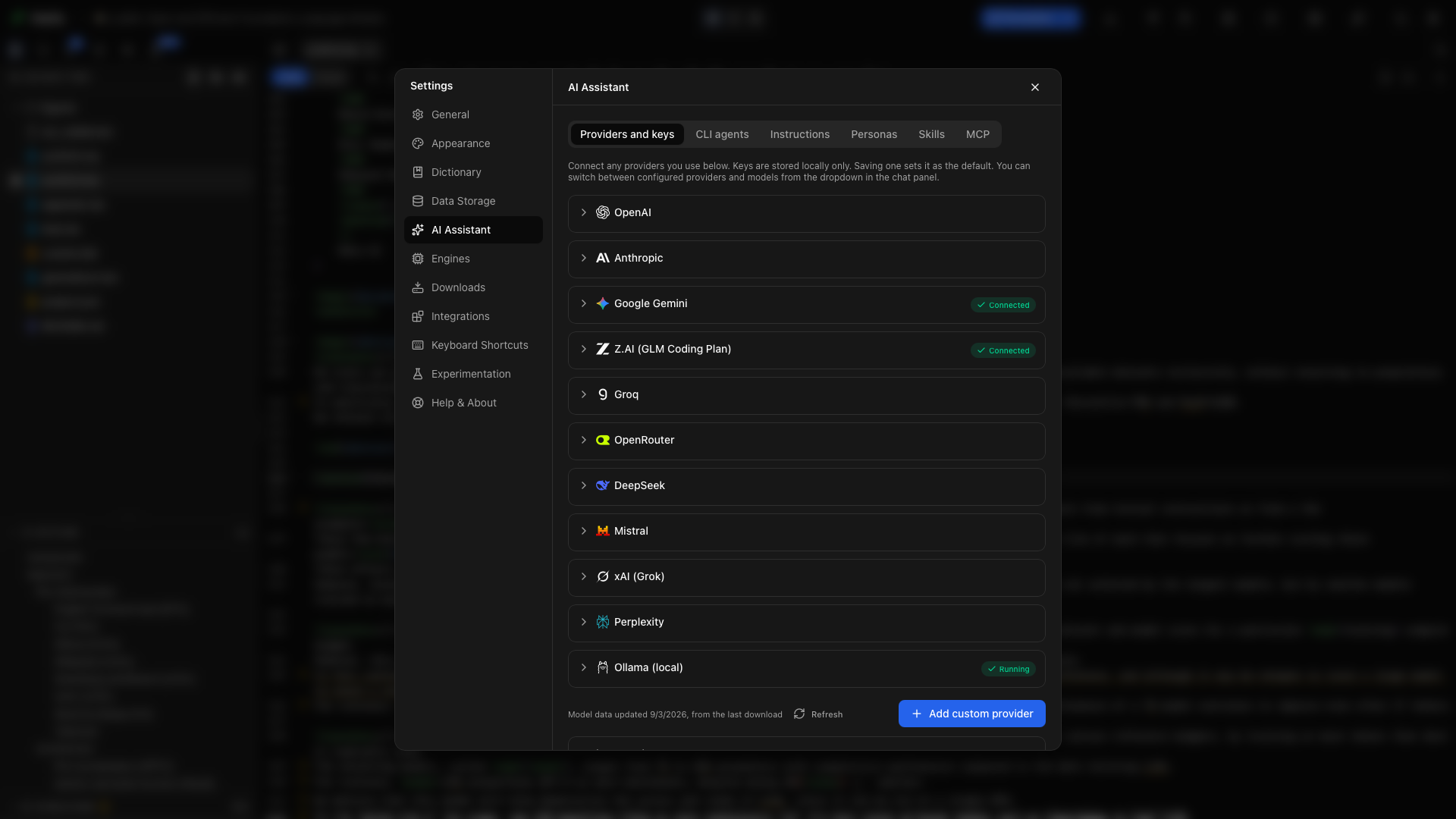
Connect a provider
Section titled “Connect a provider”- Open Providers and keys and expand a provider.
- Enter its API key and save.
- Oleafly checks the connection and refreshes the model list.
- Choose a model in the assistant, or set a default in Instructions.
Each provider card in Settings links to its key setup. Ollama connects to a local model server.
Choose a model
Section titled “Choose a model”Model rows show capability information when available: context size, vision, tools, and reasoning. Use a model with tool support for project work and vision for image inspection.
Verified means a tool-call check succeeded. Untested means the assistant has not verified that model; Blocked includes a reason it cannot be selected. These badges describe tool compatibility. They do not rate the quality of a model’s research or writing.
A model that can’t call tools still works for plain chat. While it’s selected, the composer says Chat only, this model cannot use tools.
Choose Refresh on a provider card when its available models change. Each provider can be refreshed once every 30 seconds; hover over the button to see how long is left. You can also add a model by its identifier.
Connect a local model
Section titled “Connect a local model”Install and start Ollama (opens in a new tab), then download a model in Ollama. In Oleafly, open the Ollama card and choose Check for Ollama. Select an installed model once the server is found.
A local model keeps model requests on your machine. Online research tools still contact their source services when used.
Add a custom endpoint
Section titled “Add a custom endpoint”Choose Add custom provider for an OpenAI-compatible service, local server, or gateway. Enter a name, base URL, and any required key. Save and choose a model.
Editing a saved provider lets you change its address. A saved key will be sent to the new address when that provider is used, so check the destination before saving.
Set writing preferences
Section titled “Set writing preferences”Instructions holds standing preferences and the default chat model. Use concrete instructions:
Use British spelling. Preserve citation keys. Explain changes to equations before applying them.
Personas stores named instruction presets. Skills supplies procedures for recurring research work. Explore skills →
Keys and costs
Section titled “Keys and costs”Provider keys are encrypted in local app storage and kept out of project source files. Hosted requests go to the selected provider with the supplied context. Model API charges and CLI subscriptions are billed by their providers.