
Editing tools
Spelling, grammar & academic style
Proofread LaTeX, Markdown, and Typst locally, apply precise fixes, and decide which words, findings, and style rules belong in your work.
Proofreading should help you finish a sentence, not argue with every symbol in it. Oleafly checks the prose around your markup, keeps the draft on your device, and gives every finding an explanation and a way forward.
Two local engines share the work:
- Hunspell checks spelling against the exact dictionary you choose.
- Harper checks English grammar, usage, regional conventions, and style.
They run in a background worker. Your manuscript is not uploaded to a grammar service.
Turn proofreading on
Section titled “Turn proofreading on”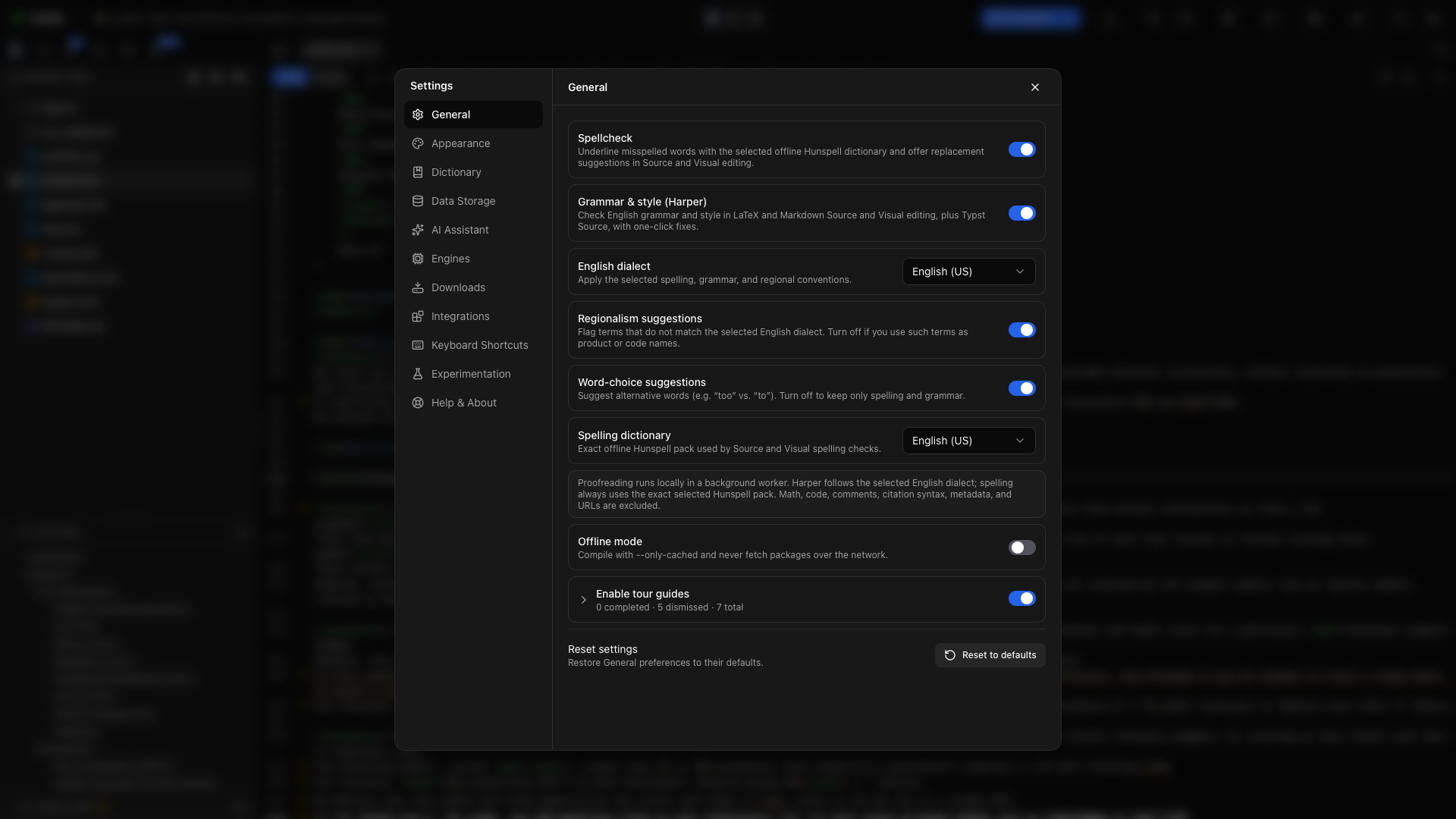
Open Settings → General:
- Turn on Spellcheck for dictionary-based spelling.
- Turn on Grammar & style (Harper) for English grammar and style.
- Choose the English dialect Harper should follow.
- Choose the Spelling dictionary Hunspell should use.
- Decide whether you want Regionalism suggestions and Word-choice suggestions.
The grammar dialect and spelling dictionary are separate on purpose. You can pair British grammar conventions with a British dictionary, or use a German or French spelling dictionary while leaving English grammar off.
Five spelling packs ship with the app: English (US), English (UK), English (Australia), German, and French. Pick any other language and Oleafly downloads its pack once and keeps it for offline use. Harper grammar supports US, UK, Australian, Canadian, and Indian English.
What Oleafly reads
Section titled “What Oleafly reads”Proofreading works in:
- LaTeX Source and Visual editing;
- Markdown Source and Visual editing;
- Typst Source and Visual editing.
Commands, comments, math, citation syntax, metadata, URLs, and code-like regions are excluded. Prose inside structures such as headings, emphasis, captions, footnotes, and list labels remains checkable.
For example, in this LaTeX:
\section{A clearer result}The estimates is stable for $n > 20$; see \cite{lee2026}.Harper can flag “estimates is” while leaving \section, $n > 20$, and \cite{lee2026} alone.
In Typst, the text inside content arguments is checked too: figure captions, table and grid cells, footnotes, and template fields such as title: and abstract:. Code is skipped, including the expression after #context, strings in code, labels, references, and raw blocks. An escape such as \u{e9} is read as the letter it stands for, here é. A " typed inside a caption or cell counts as text, so it doesn’t cut the check short, and grammar reads the same text that spelling does. Files in a vendored typst-packages folder are not proofread.
No masking system can understand every custom macro. If a project command contains printable prose and the text is skipped, expand it temporarily or proofread that passage in a plain paragraph.
Fix a finding
Section titled “Fix a finding”Select an underline to open its card. The card names what was found, shows Harper’s rule for grammar findings, and offers the actions that apply.
Spelling actions
Section titled “Spelling actions”- Choose a replacement to apply it at the exact source range.
- Ignore in this project adds a paper-specific term to the project dictionary.
- Ignore everywhere adds a personal term to the global dictionary.
- Ignore for now hides the word for the current app session.
Use project scope for a study acronym, participant code, or specialist term used only in one manuscript. Use global scope for your name, institution, or vocabulary you use across projects.
Grammar and style actions
Section titled “Grammar and style actions”- Apply a suggested replacement, removal, or insertion.
- Ignore in this project hides that rule on that sentence while keeping the same rule active elsewhere.
- Turn off rule disables the named Harper rule across projects.
Ignoring one finding also clears overlapping findings on the same text for the rest of the session. That prevents a second underline from appearing immediately underneath the one you just dismissed.
The academic profile
Section titled “The academic profile”Harper was designed for general prose, including chat and email. Some of its defaults fight normal scholarly writing. Oleafly’s academic profile therefore keeps a documented set of rules off, including rules that object to long sentences, hedging, standard abbreviations such as kB and min, one side of the Oxford-comma debate, or dash conventions that belong in source markup.
Open Settings → Dictionary → Grammar rules and dismissed findings to see every profile rule, the reason it is off, and an example. Turn on any rule that matches your venue or house style.
The same section lets you:
- restore a rule you turned off from a finding card;
- show project findings you previously dismissed;
- remove project or global dictionary words;
- reset proofreading customizations without changing unrelated settings.
When to use a narrower pass
Section titled “When to use a narrower pass”Turn off regionalism suggestions when a product name, code identifier, or quoted wording intentionally uses another dialect. Turn off word-choice suggestions when you want a quieter spelling-and-grammar pass. Turn Harper off and leave Spellcheck on when you only need dictionary feedback.
Files longer than roughly 150,000 characters skip the grammar pass to keep typing responsive. Split a long manuscript across included files, or proofread one chapter at a time. Spellchecking can continue independently.
What proofreading cannot decide
Section titled “What proofreading cannot decide”Oleafly can find a mismatch, repeated word, or awkward pattern. It cannot verify a claim, judge the strength of evidence, preserve every nuance of a rewrite, or know that field-specific wording is intentional.
Read the sentence after applying a suggestion. For the final pass, compile the document and review the prose in context, including captions, headings, footnotes, and the bibliography.
The desktop interface language is independent from proofreading. Language & localization explains how to use a Chinese interface with an English paper, or an English interface with another writing language.