
Ollama & offline writing
Connect a local model and prepare a writing workflow you can use without a network connection.
Ollama runs downloaded models on your computer. Connect it to Oleafly to use local AI alongside your manuscript. Prepare the model and document dependencies while you have a connection, then test the workflow you intend to use offline.
Install and start Ollama
Section titled “Install and start Ollama”Install Ollama from its official download page (opens in a new tab). Open Ollama, or start its local server from a terminal:
ollama serveIf Ollama is already running, use that existing server. Download a model that fits your computer. For example:
ollama pull qwen3:8bollama listThe first command downloads a model; the second lists local models. Model size, available memory, and context length affect speed. Ollama’s documentation (opens in a new tab) describes supported models and system setup.
Check for Ollama
Section titled “Check for Ollama”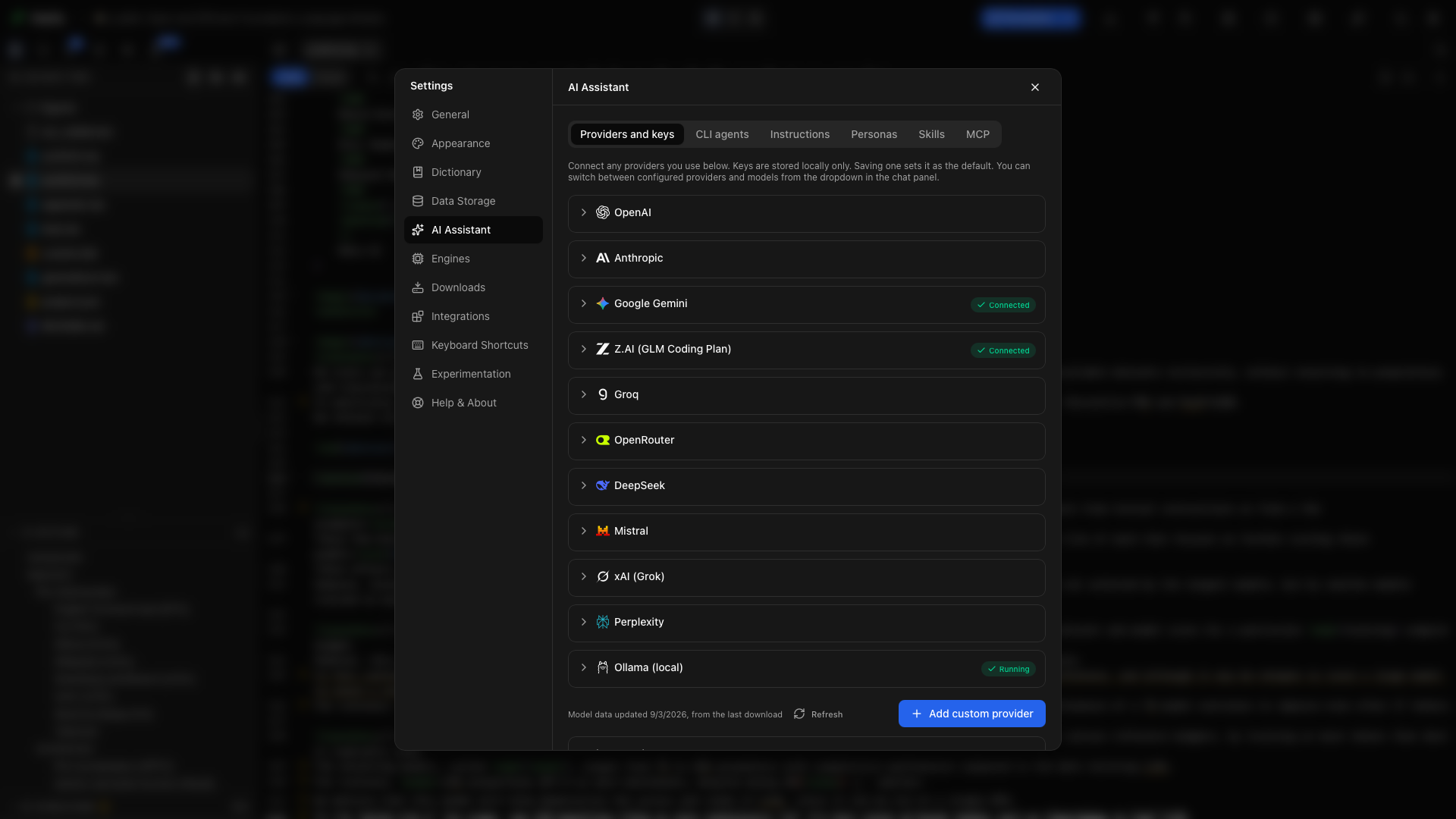
- Open Settings → AI Assistant → Providers and keys.
- Expand Ollama.
- Choose Check for Ollama.
- Inspect the status and installed-model list.
If the app finds an installed but stopped Ollama, Start Ollama starts it. Choose Re-check after the server starts or after downloading another model.
Choose a local model
Section titled “Choose a local model”Select a model from the detected list and use the card’s action to apply it. Open the assistant and confirm that the local model is selected before sending a message.
Try this with a practice document:
Explain the structure of this document. List its sections without changing any files.
For edits or compilation, use a model that supports the tool behavior Oleafly needs. Check the model’s capability result; a model that can chat is not automatically able to execute a reliable tool workflow.
Change host
Section titled “Change host”Choose Change host (advanced) to edit the Ollama server address. The usual local host is http://127.0.0.1:11434. Use the built-in Ollama card with the server host; the /v1 suffix belongs to an OpenAI-compatible endpoint configuration.
A server running on another computer is a network connection. Use the local loopback address when you want processing to stay on this computer.
Use a compatible provider instead
Section titled “Use a compatible provider instead”For a custom OpenAI-compatible connection, use Ollama’s endpoint http://localhost:11434/v1/. Ollama accepts the compatibility client’s required API-key field without treating it as a cloud credential. See Ollama’s compatibility guide (opens in a new tab) and custom providers.
Prepare compilation offline
Section titled “Prepare compilation offline”Open the document and compile it successfully while connected. Tectonic downloads missing TeX packages as needed and caches them, and Typst does the same for packages from Typst Universe. Then enable Settings → General → Offline mode and compile again to check that the cache is sufficient. Offline mode covers LaTeX and Typst.
A Typst project can also keep its own packages. Open Typst packages from the Typst toolbar and choose Vendor packages into project. Oleafly copies the packages the project imports into a typst-packages folder, so the project compiles offline and on other computers.
For a system TeX engine, install the required distribution and packages before disconnecting. Keep images, bibliography files, included sections, and required fonts available locally.
Test without a network connection
Section titled “Test without a network connection”- Open the project you will use.
- Confirm Ollama is running with the downloaded model selected.
- Disconnect from the network.
- Compile the document.
- Ask the local model to explain a paragraph.
- Try the specific edit or tool workflow you need and inspect the result.
Writing, local files, cached compilation, and local-model requests can continue. Online source discovery, GitHub sync, cloud models, and network MCP services need their own connections. Oleafly’s Offline mode controls cached compilation and citation lookups; it is not a system-wide network firewall.
Disconnect Ollama
Section titled “Disconnect Ollama”Use Disconnect on the provider card to remove Oleafly’s saved connection. This does not delete the models installed in Ollama.
Troubleshooting
Section titled “Troubleshooting”Not running
Section titled “Not running”Start Ollama, confirm the host and port, then Re-check. If the server reports that its port is already in use, inspect the existing instance before starting another.
No installed models
Section titled “No installed models”Run ollama list. Download a model, wait for the download to finish, and Re-check in Oleafly.
The model answers but does not use tools
Section titled “The model answers but does not use tools”Inspect its capability state and try a model with tool support. Start with a small request that reads the project before asking for a long edit-and-compile sequence.
The reply has nothing to do with the question
Section titled “The reply has nothing to do with the question”The model’s context is probably too small. Oleafly’s project instructions and tools take room before your message does, and a 4,096-token context can cut off even a short request. Start the Ollama server with at least 16,384 tokens of context, for example:
OLLAMA_CONTEXT_LENGTH=16384 ollama serveIn Windows PowerShell, run $env:OLLAMA_CONTEXT_LENGTH = "16384" and then ollama serve. Quit any running Ollama first. The setting belongs to the Ollama server, not to Oleafly. Longer conversations and larger projects need more context, and more context uses more memory. Ollama’s context length guide (opens in a new tab) has the details.
The local response is slow
Section titled “The local response is slow”Try a smaller model or a shorter, more focused request. Attach the relevant file or section rather than asking for an entire thesis review at once.