
Settings & customization
Settings
Choose how you write, connect your research tools, and manage local storage.
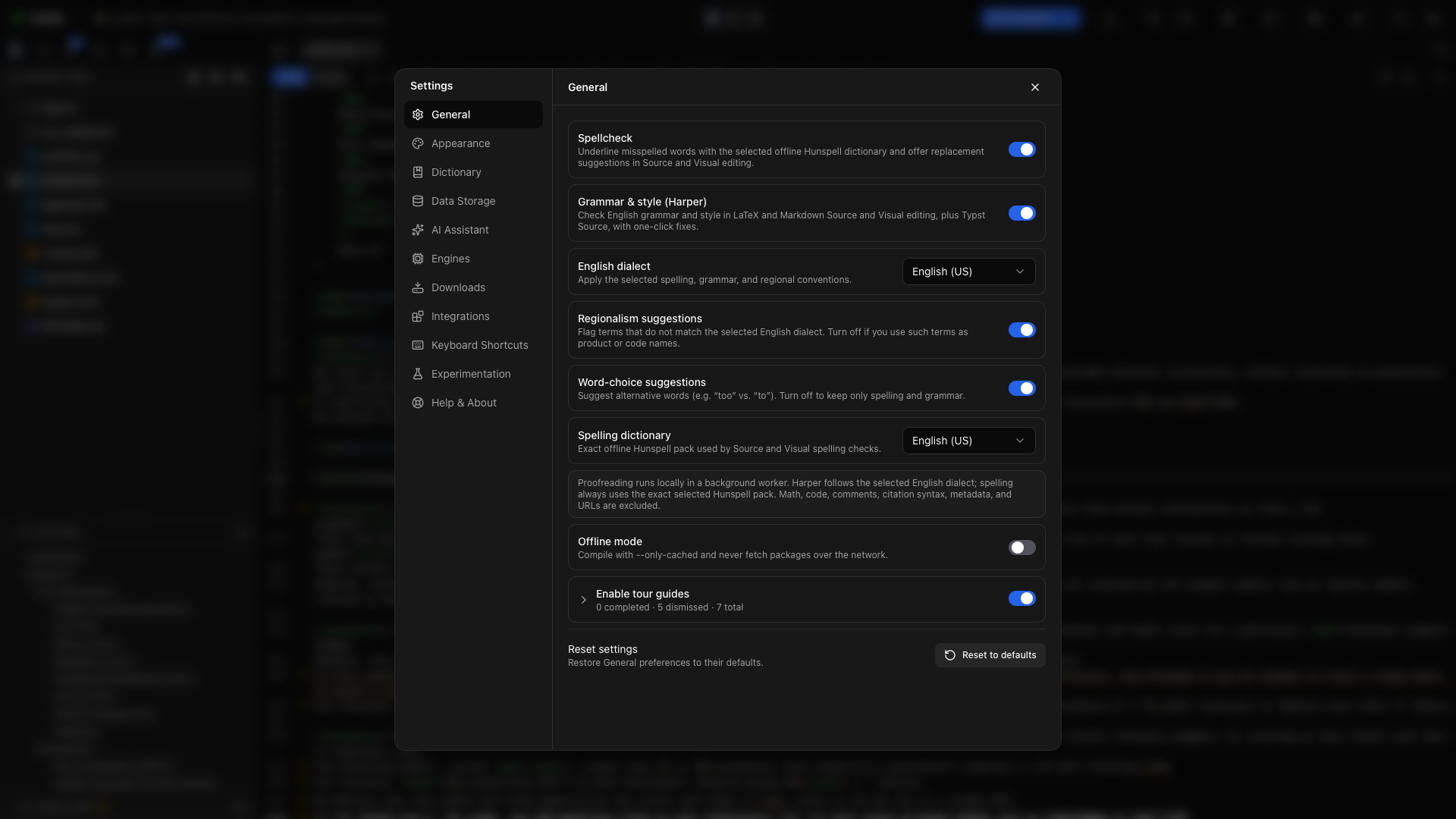
Open Settings from the gear in the rail or the command palette, or press ⌘, on macOS or Ctrl+, on Windows and Linux. The shortcut works from the detached PDF window too, and on macOS the Oleafly menu also has Settings…. Settings apply to this computer, unless you turn on cloud sync. A project’s engine, main document, and other project choices travel with its files.
Find a setting
Section titled “Find a setting”Type a word into Search settings at the top of the left column, such as “theme”, “Zotero”, or “spelling”. The section list narrows to the sections and settings that match. Pick a setting to jump to it. Oleafly opens the right tab, scrolls to the row, and tints it so you can find it.
Reset a section
Section titled “Reset a section”General, Appearance, Dictionary, AI Assistant, Engines, Keyboard Shortcuts, and Experimentation each end with Reset to defaults. A small dot on the button means something in that section differs from its default. Resetting one section leaves the others alone.
Paths stay hidden
Section titled “Paths stay hidden”Paths inside your home folder appear as ~/…. File and folder paths in Settings, such as the projects folder, engine locations, and CLI agent programs, stay blurred until you hover over them or reach them with Tab. A screenshot of Settings then doesn’t show where your files live.
General
Section titled “General”Choose the interface language, set up proofreading, turn offline compilation on or off, and control tours. The interface is available in 21 languages, and System default follows your operating system. A new language applies right away.
Every General control has its own explanation. Offline mode keeps Tectonic and Typst to the packages they already have and turns off network citation lookups. Read Compiling before taking a new project offline.
Appearance
Section titled “Appearance”Choose a light or dark theme, an accent color, a background, and fonts for the app and editor. Any font installed on your computer works. Set the zoom level of the whole app, adjust text sizes, and choose whether projects open in split view, editor only, or PDF only. The editor gets one theme for light mode and one for dark mode, and Editor colors changes any color of either theme. Editor controls here also include line height, letter spacing, the cursor, automatic completion, bracket, math, and environment pairing, sticky context, keybindings (Default, Vim, or Emacs), inline suggestions, and what happens to paths when a file moves. You can also control the file tree, library PDF previews, and Zen mode. See Appearance & themes.
Dictionary
Section titled “Dictionary”Review the words you have ignored. The Global tab lists words skipped in every project, and the Projects tab lists words skipped only in the open project. Remove a word to include it in proofreading again. Below the tabs are grammar rules you turned off, dismissed findings, and Rules the academic profile keeps off: every rule with what it does, an example, and a switch to turn it on. See Spelling & grammar.
Data Storage
Section titled “Data Storage”See where your library lives and how much space projects, files, Git history, and build caches use. Control automatic checkpoints and their storage notices under Local store. The Cloud sync tab backs up your library projects and settings to Dropbox. Manage local storage here and follow Where your data lives when making a backup.
AI Assistant
Section titled “AI Assistant”| Tab | What you can set up |
|---|---|
| Providers and keys | Cloud providers, compatible endpoints, local models, the model picker, project approvals, and budgets. |
| CLI agents | Install, connect, and configure agents that run on your computer. |
| Instructions | Writing instructions, model defaults, PDF capture, and the tool catalog. |
| Personas | Named instruction presets for different kinds of work. |
| Skills | Research workflows, domain guidance, and your own reusable skills, with a search box and one switch per skill. |
| MCP | External tools the assistant can use, including server discovery and configuration import. |
Start with Set up AI. Read CLI agents, Skills, and Usage & budgets for the individual controls.
Engines
Section titled “Engines”Manage the tools that compile your documents. For LaTeX, Oleafly can detect a system TeX installation or install its own TinyTeX. Package management and tagged PDF setup live here. See LaTeX engines & packages.
The LaTeX tab also holds Default compile engine. New, imported, and converted LaTeX projects start on the engine you pick there. See Set a default for new projects.
For Typst, Versions lists Typst 0.11 to 0.15. Install a version, choose the default for new projects, and use Try a newer version to build the open project with a newer Typst and see which errors and warnings would change before you switch. Each project pins its own version from the Compile menu. See Typst versions.
The Markdown compiler row installs or repairs the managed Pandoc.
Downloads
Section titled “Downloads”Download template and font packs, review downloaded spelling dictionaries, and manage AI templates saved to your gallery. See Downloads.
Integrations
Section titled “Integrations”Each tab shows the service’s own logo.
| Tab | What it connects |
|---|---|
| GitHub | Your account for publishing, pulling, and pushing projects, and whether new projects get a Git repository. |
| alphaXiv | alphaXiv’s MCP server, so the assistant can search and read papers. |
| Zotero | Your Zotero library, to cite from while you write or to import into a project’s bibliography. |
| Citation Search | Keys and a contact email for scholarly search services. |
| Oleafly MCP | Oleafly’s local server for an external assistant to work with your project. |
| Desktop apps | Cua Driver, so an agent can use the desktop programs and websites you allow. |
Connect research sources covers alphaXiv, Zotero, and Citation Search. An external MCP tool connects under AI Assistant → MCP. An external assistant connects to Oleafly through Integrations → Oleafly MCP. The MCP guide covers both directions.
Keyboard Shortcuts
Section titled “Keyboard Shortcuts”Search the shortcut list and record replacements for the app actions that support customization. Editor bindings are listed alongside app commands. See Keyboard shortcuts.
Experimentation
Section titled “Experimentation”Enable the features you want to try:
- LaTeX tools shows the Oleafly Tools gallery and its slash commands. The Oleafly Tools guide covers every converter, reference builder, research utility, checker, and writing helper.
- Cloud sync backs up your library projects and settings to your own Dropbox. See Cloud sync with Dropbox.
These options are off by default. Turn them on here before following a guide that uses them.
Help & About
Section titled “Help & About”Check the app version, look for updates, read What’s new, restart a tour, open documentation, or report a problem. Copy Info gathers version and system details for a bug report. Cite Oleafly in your paper is the last card on the page.
Five small buttons sit at the bottom of the Settings sidebar, whichever section is open: Discord, X, GitHub, the documentation, and release notes. The last one opens What’s new.
Read the individual guides for General, Appearance, Downloads, Storage, and Help.