
Bring existing work into Oleafly
Import a project archive, convert a document, bring in an arXiv source bundle, copy a GitHub repository, or turn a LaTeX project into a Typst project.
Choose New project → Import a project, or use Import in the library. Oleafly creates a new local project and leaves the original file or repository unchanged. Unless the import brings its own Git repository, the imported files become the project’s first Git commit, Create project.
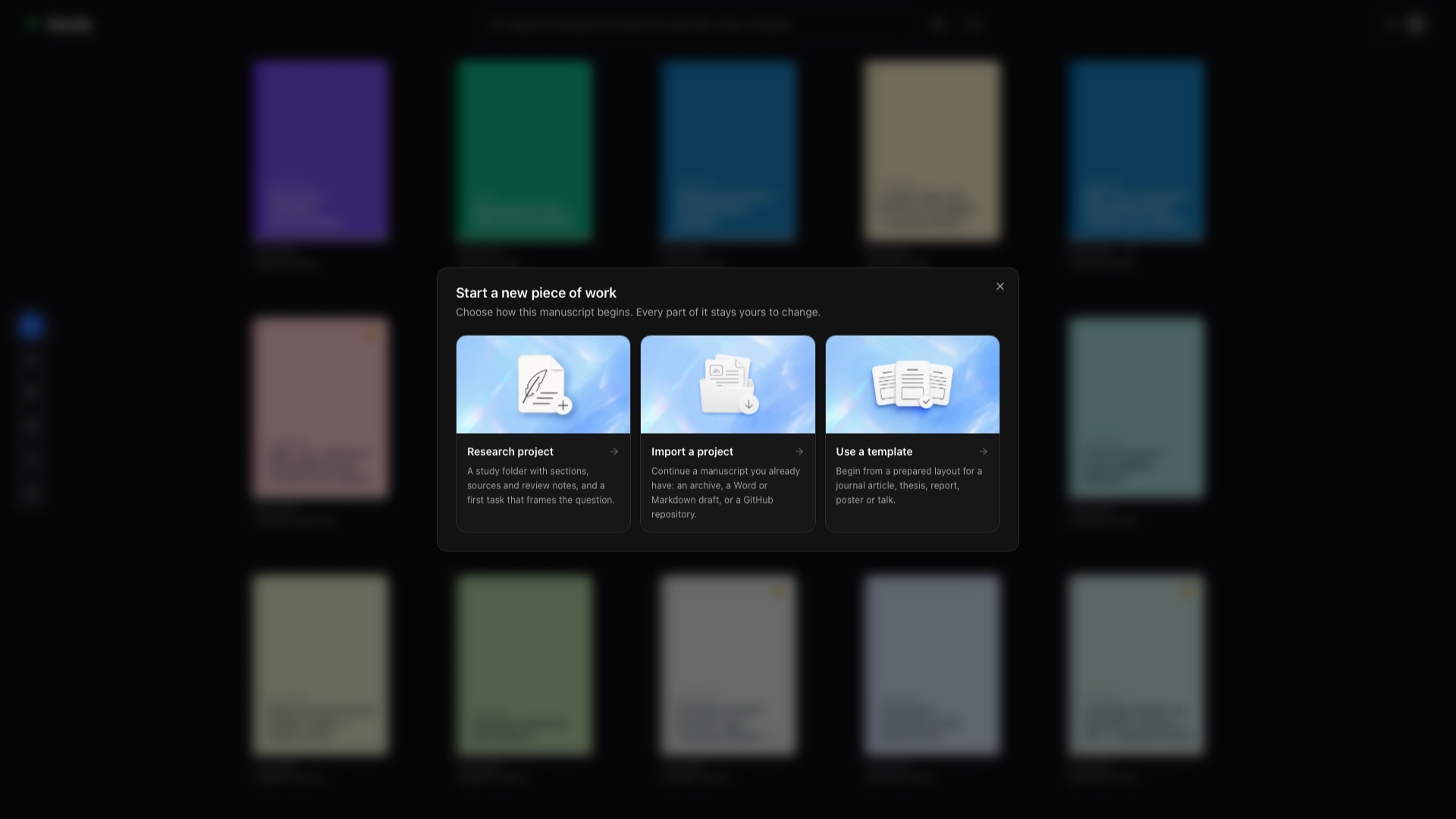
Choose the route that matches your source
Section titled “Choose the route that matches your source”| What you have | Import route | Project you can create |
|---|---|---|
| A complete project folder | Existing project (.zip) | The archived source, figures, bibliography, and local style files |
| A Word document | Word document (.docx) | LaTeX, Markdown, or Typst |
| A Markdown document | Markdown document (.md, .markdown) | LaTeX or Typst |
| An HTML document | HTML page (.html, .htm) | LaTeX, Markdown, or Typst |
| A Typst document | Typst document (.typ) | LaTeX or Markdown |
| An arXiv paper | arXiv paper with an ID or URL | The paper’s LaTeX source bundle |
| A GitHub repository | GitHub | A local project connected to the repository |
| A PDF without editable source | Oleafly Tools → PDF converters | Reconstructed LaTeX, Markdown, or Typst, depending on the tool you choose |
| A LaTeX project already in Oleafly | Convert to a Typst project in the command palette | A new Typst project, with the LaTeX project left as it was |
Choose the same authoring format only when Oleafly offers it. To keep a Markdown or Typst file in its original format, start a blank project for that format and add the source file through the file tree.
Import a complete project archive
Section titled “Import a complete project archive”Use a ZIP when you already have a working source tree.
- Put the main document, figures, bibliography, and local class or style files in one folder. Keep the relative paths used by the source.
- Compress the folder as a
.zipfile. - Choose Import → Existing project and select the ZIP.
- Check the starred main document in the imported file tree.
- Compile. If the project needs a different LaTeX toolchain, choose it from the compiler menu.
For example, keep main.tex, references.bib, sections/method.tex, and figures/plot.pdf together. A source ZIP preserves those relationships. A PDF does not contain the same editable project structure.
If the archive contains more than one likely main document, confirm the correct one through the file menu before compiling.
Which LaTeX compiler an import uses
Section titled “Which LaTeX compiler an import uses”An imported or converted LaTeX project starts on the default compile engine from Settings → Engines → LaTeX, which is Tectonic unless you changed it. When that default is latexmk and the project names pdfLaTeX, XeLaTeX, or LuaLaTeX, it keeps that compiler. If the import finds features Tectonic can’t handle, the engine dialog opens so you can pick another. See Set a default for new projects and When Tectonic isn’t enough.
Convert Word, Markdown, HTML, or Typst
Section titled “Convert Word, Markdown, HTML, or Typst”- Choose the matching document type in Import.
- Select the file.
- If Oleafly offers more than one destination, choose the format you want to edit next. LaTeX is marked as the recommended route.
- Complete Pandoc setup if prompted. Oleafly can use a compatible installation or download its managed version.
- Open the new project, compile it, and compare it with the original.
Conversions run locally through Pandoc. A Word or HTML import also extracts embedded media into the project so the converted source can refer to it. A Markdown document imported into a LaTeX project keeps its citations: [@key] becomes \citep or \citet, and the bibliography file comes along, so the References panel has your sources from the start.
Choose the destination for the work ahead:
- LaTeX suits journal templates, detailed typesetting, and tagged-PDF workflows.
- Markdown suits a lighter source format and broad document conversion.
- Typst suits fast compilation and Typst-native templates.
Conversion preserves document structure where the source format exposes it. Word-specific page layouts, custom HTML styling, hand-tuned tables, citations, and complex equations can still need a cleanup pass. Compare headings, lists, tables, equations, links, citations, and image placement before deleting the original.
Import an arXiv source bundle
Section titled “Import an arXiv source bundle”Choose arXiv paper, then paste an identifier such as 2401.01234 or an arxiv.org/abs/... URL. Oleafly downloads the submitted source bundle and opens it as a LaTeX project.
Use this route when you need the authors’ editable source. Use arXiv to LaTeX when you want to inspect or save a source archive without starting in the import dialog, and arXiv to Typst when you want the paper converted to Typst. An arXiv identifier needs a network connection; a source archive already on disk does not.
Always check the license and the authors’ terms before reusing source or figures.
Import from GitHub
Section titled “Import from GitHub”Choose GitHub in the import dialog. If needed, connect your account through Settings → Integrations → GitHub, then select a repository you can access.
Oleafly creates a local copy in the library. Check its main document and run a compile before editing. GitHub sync explains pulling, committing, and publishing changes after import.
Convert a LaTeX project to Typst
Section titled “Convert a LaTeX project to Typst”Oleafly can make a Typst copy of a LaTeX project you already have. The LaTeX project isn’t changed.
- Open the LaTeX project.
- Open the ⌘K (Ctrl+K) command palette and run Convert to a Typst project.
- Check the New project name. It defaults to the project’s name followed by
(Typst). - Choose Convert. Oleafly converts the project with Pandoc, creates the Typst project, and compiles it once as a check.
- Read the report, then choose Open the Typst project.
The report says whether the new project compiles, counts what was converted, and lists what needs a fix by hand, with links to each compile error. Typst projects explains the conversion and the report in detail.
Reconstruct a PDF
Section titled “Reconstruct a PDF”Enable LaTeX tools in Settings → Experimentation, then choose the tool that matches the output you need:
- PDF to LaTeX for a LaTeX project or source archive
- PDF to Markdown for editable Markdown
- PDF to Typst for editable Typst
The local PDF pipeline reads the text layer, restores reading order, and extracts figures. In PDF to LaTeX, switch to scanned-document mode when the PDF is made of page images. That route uses the model for Tools, a local Ollama model unless you pick another, and supports documents up to 50 pages.
Compare the result with the PDF page by page. Columns, equations, tables, footnotes, and reading order are reconstruction problems, so no PDF conversion should be treated as the original source.
Add references without importing a manuscript
Section titled “Add references without importing a manuscript”Import BibTeX, RIS, EndNote XML, or Zotero RDF through References & citations. Link a folder of papers or data as read-only research context when it should remain outside the project.