
Start a new project
Choose a research workspace, import an existing manuscript, or begin with a template.
Click New project in the workspace dock. Choose how you want to begin: organize a study, bring in existing work, or start from a prepared layout.
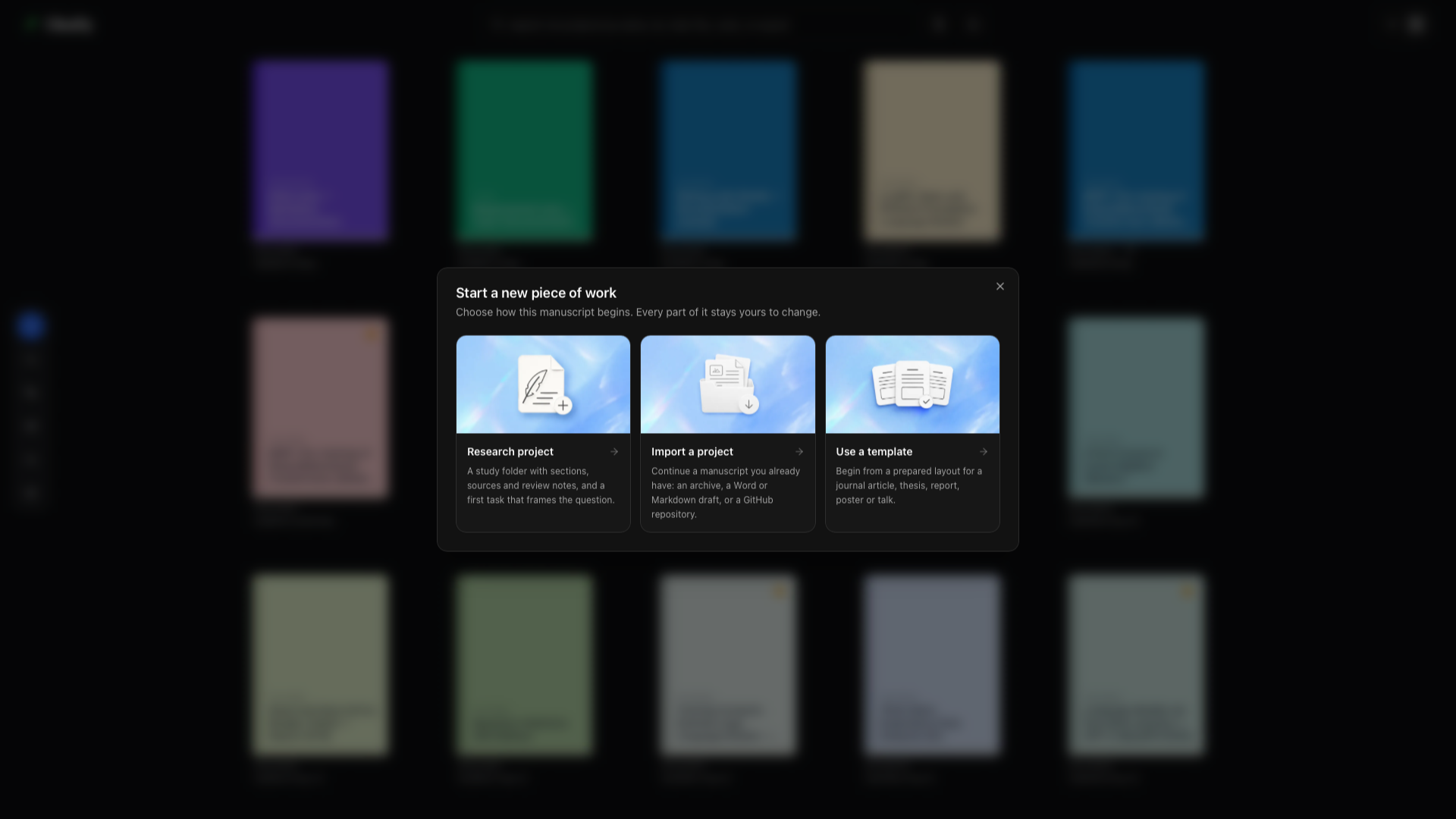
| Starting point | Choose it when | What happens next |
|---|---|---|
| Research project | You want a manuscript with room for sources, analysis, and review notes | Choose a language and study starter, then inspect the proposed files |
| Import a project | You already have an archive, draft, or repository | Select the import source and create a local project |
| Use a template | You know the document layout you need | Browse and preview a template, or generate one with AI |
Research project
Section titled “Research project”This route creates a working study folder around your manuscript. It gives you places to keep the evidence and review work that belong with the paper.
Project name
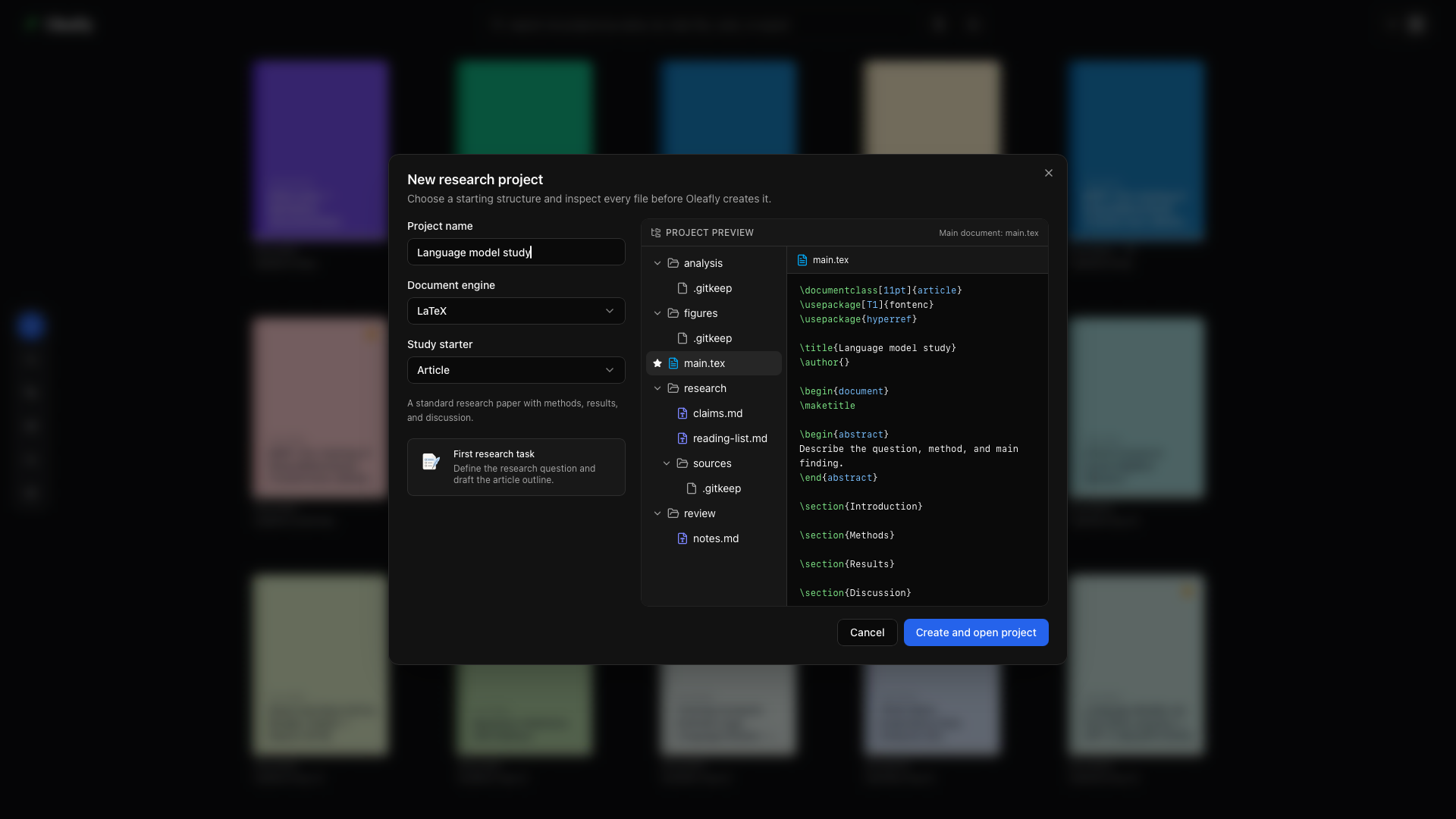
Section titled “Project name”Enter a descriptive name. The preview updates as you type so you can see the proposed title and files before creating anything.
Document engine
Section titled “Document engine”Choose LaTeX, Typst, or Markdown. This determines the main source file and editor tools. Read Choose a document engine if you are starting with a new format.
Study starter
Section titled “Study starter”Choose the starter that matches the work. An Article starts with the structure of a research paper, including an abstract and sections for the introduction, methods, results, discussion, and conclusion. Review the starter’s description and file preview before continuing.
First research task
Section titled “First research task”Read the task shown below the starter. For an Article, it frames the research question and article outline. The task provides a starting point for your work; creating the project does not produce research findings for you.
Project preview
Section titled “Project preview”Select files in the preview tree to inspect their contents. An Article includes the manuscript and folders for analysis, figures, research notes, sources, and review notes. The Main document label identifies the file used to compile the paper.
Create and open project
Section titled “Create and open project”When the preview looks right, choose Create and open project. Your new project opens in the writing workspace. Start with the research workspace guide to connect sources and organize tasks.
Cancel
Section titled “Cancel”Close the dialog or choose Cancel to leave without creating the project.
Import a project
Section titled “Import a project”Choose this route to continue work you already have. The dialog offers a project ZIP, a Word document, a Markdown document, an HTML page, a Typst document, an arXiv paper, or a GitHub repository. Oleafly creates a local project from the selected input.
Use a ZIP for an existing project with multiple source files and figures. Word, Markdown, HTML, and Typst imports convert the document into another format, so inspect the converted manuscript and compile it before continuing. For native Markdown writing, create a Markdown project and bring your source and assets into it.
Follow the import steps for each format →
Use a template
Section titled “Use a template”Open the gallery, search or filter for the kind of document you need, and inspect the preview. Templates can provide the layout for an article, thesis, report, resume, letter, poster, presentation, or a single figure, in LaTeX, Typst, or Markdown. A blank starting point is useful when you already have source code to paste.
The second step asks for a project name and a cover color. If you don’t pick a color, Oleafly chooses one from the palette at random, so new projects are easier to tell apart on the shelf.
Some templates download a pack or fonts on first use. Prepare those downloads while online if you plan to work offline.
Browse, preview, and create from a template →
Generate a template with AI
Section titled “Generate a template with AI”Choose Generate a template in the gallery when you want to describe your own starting layout. Give the assistant the document type, required sections, page size, and formatting preferences. Preview the result, refine it, and save the template for reuse.
Generate and reuse an AI template →
The first Git commit
Section titled “The first Git commit”A project Oleafly creates or imports starts with one Git commit of its files, called Create project. Source control then shows real differences from your first edit, and research tasks have a version to compare against. Git hooks and commit signing never run for this commit, so a global Git setting can’t block or interrupt project creation. After it, Oleafly commits only when you ask.
Oleafly still creates the repository but skips this commit when:
- the project’s files add up to more than 100 MB, so an imported data set isn’t copied into the Git history on its own;
- the project contains files that usually hold passwords or keys, such as
.env,*.pem, SSH private keys, orcredentials.json. Once committed, a secret stays in the history even after you delete the file.
Templates such as .env.example, public keys ending in .pub, and Keynote .key presentations don’t count as secrets. When the commit is skipped, the reason is written to the app log, and you can make the first commit yourself from Git and source control.
No repository is created when Git isn’t installed, when the project already has one, or when Initialise Git for every project is off in Settings → Integrations → GitHub.