
Keyboard shortcuts
The complete shortcut reference for macOS, Windows, and Linux, from compiling and PDF sync to Typst editing, presenting, and platform menus.
Nội dung này hiện chưa có sẵn bằng ngôn ngữ của bạn.
Oleafly is comfortable to drive entirely from the keyboard. Press ⌘/ (Ctrl+/) anywhere outside the editor for a searchable version of this list. Inside the editor, the same key comments out lines.
macOS shortcuts are listed first; the Windows/Linux equivalent swaps ⌘ for Ctrl.
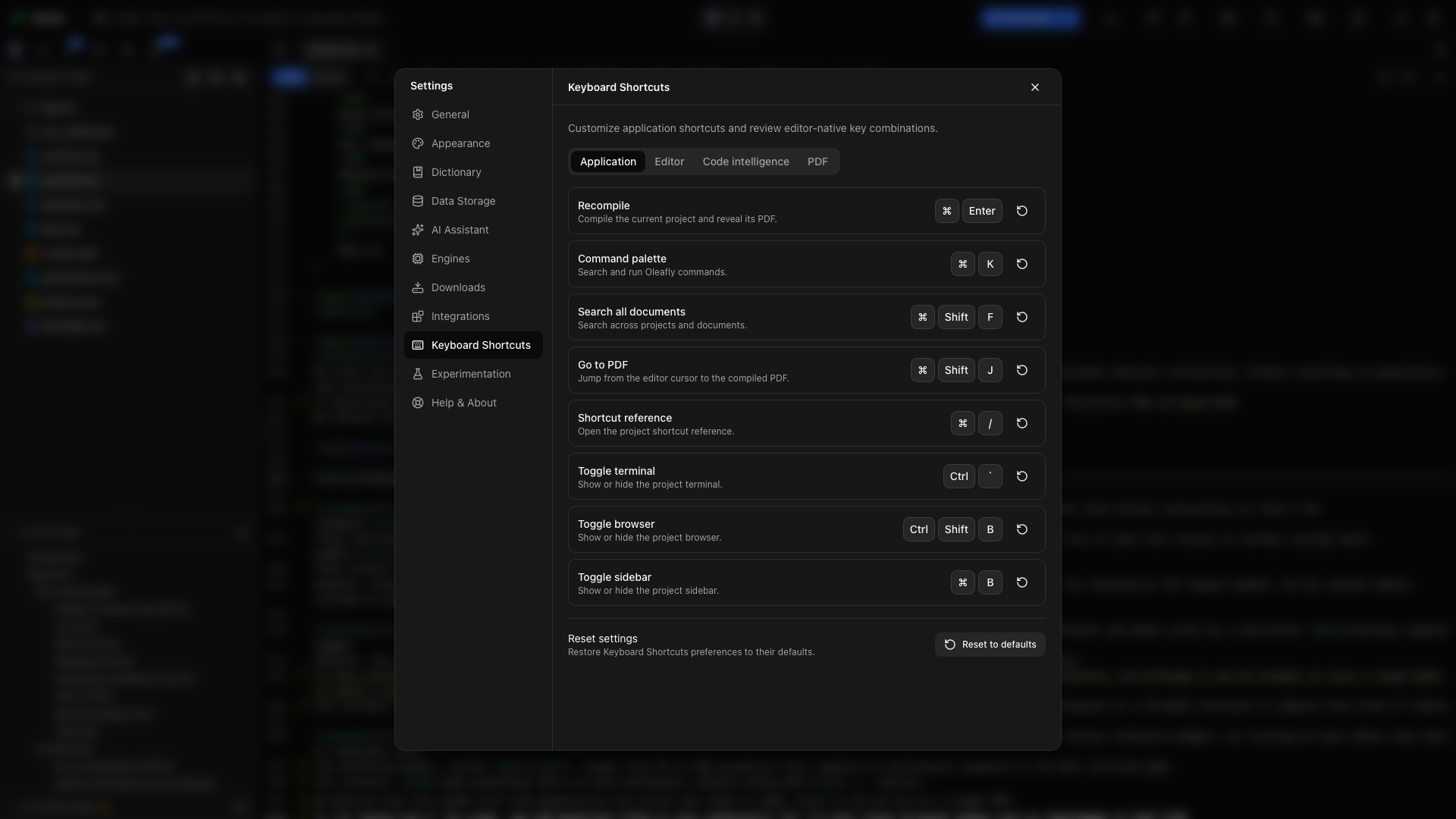
Customize shortcuts
Section titled “Customize shortcuts”Open Settings → Keyboard Shortcuts. The Application tab lists Recompile, Command palette, Search all documents, Go to PDF, Shortcut reference, Toggle terminal, Toggle browser, Toggle sidebar, Toggle PDF preview, Toggle Zen mode, Open folder, Open settings, Zoom in, Zoom out, and Reset zoom. Select the displayed keys, press the new combination, and click elsewhere to cancel recording. Reset controls restore one binding or all of them. The shortcut reference, the command palette, and button tooltips, such as the one on the Settings button, show the keys you set.
A custom binding must include ⌘ or Control on macOS, or Ctrl on Windows and Linux. A function key such as F11 also works, with or without other keys. Oleafly turns down:
- standalone keys, and combinations another action already uses
- keys the operating system keeps for itself: ⌘ (or Ctrl) with Q, W, S, A, C, X, V, or Space. On macOS that also covers ⌘H, ⌘M, and ⌘` (window switching).
- characters typed with AltGr, or with Option on macOS. They would otherwise fire every time you typed that character.
- on macOS and Linux, a terminal, browser, or Open folder shortcut on a key the app menu can’t use. Letters, numbers, and function keys work.
While you record, the current terminal, browser, Open folder, and Quit shortcuts pause, so pressing one records it instead of running it.
The Editor tab has a second set, Editor keys, listed under Editor keys you can change. Backspace leaves one of them unbound, and Shift with a letter or Space is refused because it only types text.
Global
Section titled “Global”| macOS | Windows / Linux | Action |
|---|---|---|
| ⌘K | Ctrl+K | Command palette |
| ⌘⇧F | Ctrl+Shift+F | Search omnibar: projects, all documents, / commands |
| ⌘↵ | Ctrl+Enter | Recompile |
| ⌘⇧J | Ctrl+Shift+J | Jump from the cursor to the PDF (LaTeX and Typst) |
| ⌘/ | Ctrl+/ | Keyboard shortcuts reference (outside the editor) |
| Ctrl+` | Ctrl+` | Show or hide the terminal |
| Ctrl+Shift+B | Ctrl+Shift+B (Windows), Ctrl+Alt+B (Linux) | Open or close the browser |
| ⌘B | Ctrl+B | Show or hide the sidebar (when the editor doesn’t have focus) |
| ⌘⌥P | Ctrl+Alt+P | Show or hide the PDF beside the editor, in Zen mode too |
| Ctrl+⌘⇧F | Shift+F11 | Turn Zen mode on or off |
| ⌘⇧O | Ctrl+Shift+O | Open a folder as a project |
| ⌘, | Ctrl+, | Open Settings |
| ⌘= / ⌘- | Ctrl+= / Ctrl+- | Zoom the whole app in or out, the editor and PDF included |
| ⌘0 | Ctrl+0 | Set the app zoom back to 100% |
The terminal and browser keys use the Control key on macOS too, not ⌘. In Zen mode, pressing Esc twice also leaves it.
Editor
Section titled “Editor”| macOS | Windows / Linux | Action |
|---|---|---|
| ⌘F | Ctrl+F | Find & replace |
| ⌘A | Ctrl+A | Select the whole file |
| ⌘B | Ctrl+B | Bold, in the file’s own markup |
| ⌘I | Ctrl+I | Italic, in the file’s own markup |
| ⌘Z / ⌘⇧Z | Ctrl+Z / Ctrl+Shift+Z | Undo / redo |
| ⌘/ | Ctrl+/ | Comment or uncomment lines (% in LaTeX, // in Typst) |
| ⌘L | Ctrl+L | Ask AI to edit the selection (inline edit) |
| Ctrl+Space | Ctrl+Space | Trigger autocomplete |
/ | / | Slash insert menu in LaTeX and Typst (/figure, /table, /equation, …) |
| Tab | Tab | Accept suggestion, otherwise indent |
| Alt-drag | Alt-drag | Rectangular (column) selection |
| Gutter arrow | Gutter arrow | Fold / unfold an environment, section, or Typst heading |
In the find widget: Enter next match, Shift+Enter previous, Esc close.
In plain text fields, such as a project name, a search box, or the chat input, ⌘Z and ⌘⇧Z undo and redo that field’s own typing.
Editor keys you can change
Section titled “Editor keys you can change”These work inside the source editor. Rebind them on the Editor tab in Settings → Keyboard Shortcuts. Vim and Emacs modes keep their own bindings.
| macOS | Windows / Linux | Action |
|---|---|---|
| Ctrl+U | Ctrl+U | Uppercase |
| Ctrl+Shift+U | Ctrl+Shift+U | Lowercase |
| ⌘D | Ctrl+D | Delete line |
| ⌘⇧D | Ctrl+Shift+D | Duplicate selection or line |
| Ctrl+⌥↑ / Ctrl+⌥↓ | Ctrl+Alt+↑ / Ctrl+Alt+↓ | Add cursor above / below |
| ⌘⇧L | Ctrl+Shift+L | Go to line |
| ⌘/ | Ctrl+/ | Toggle comment |
Title case, Select next occurrence, Indent, and Outdent ship unbound. Give them keys if you use them.
| macOS | Windows / Linux | Action |
|---|---|---|
| ⌘⌥. | Ctrl+Alt+. | Close the innermost open environment |
| ⌘⌥E | Ctrl+Alt+E | Surround the selection with an environment |
| macOS | Windows / Linux | Action |
|---|---|---|
| Enter | Enter | Continue the list with a new item |
| Shift+Enter | Shift+Enter | Start a new line inside the list item |
| Backspace | Backspace | Remove the list marker before the cursor |
| Tab / Shift+Tab | Tab / Shift+Tab | Nest the list item deeper / move it up a level |
$, then Space | $, then Space | Pair $ signs; Space in an empty pair makes display math |
* _ ` $ | * _ ` $ | Wrap the selection in strong, emphasis, raw, or math |
| ⇧⌥F | Shift+Alt+F | Format the document with typstyle |
| ⌘S | Ctrl+S | Save, and format first when Format on save is on |
More on these in The editor.
Code intelligence
Section titled “Code intelligence”| macOS | Windows / Linux | Action |
|---|---|---|
| F12 or ⌘-click | F12 or Ctrl-click | Go to definition (across files) |
| ⇧F12 | Shift+F12 | Find references (opens the References panel) |
| F2 | F2 | Rename symbol project-wide, or, on a file path, rename that file and update the paths to it |
| ⌘-hover | Ctrl-hover | Underline symbols as clickable links |
PDF preview
Section titled “PDF preview”| macOS | Windows / Linux | Action |
|---|---|---|
| ⌘-click on the PDF | Ctrl-click on the PDF | Jump to the matching source (LaTeX and Typst) |
| Pinch on trackpad | Ctrl+scroll | Zoom the PDF only (40% to 400%) |
| Esc | Esc | Exit fullscreen preview |
Click anywhere in the preview, including the page margins and the gray background, to give it the keyboard. Its keys then keep working after a recompile redraws the page. ⌘= and ⌘- zoom the whole app here too.
Presenting
Section titled “Presenting”While you present slides, these keys work in the audience window and the presenter view:
| Key | Action |
|---|---|
| →, ↓, Page Down, Space, Enter, N | Next slide |
| ←, ↑, Page Up, Backspace, P | Previous slide |
| Home / End | First / last slide |
| B or . | Blank the audience screen, or show it again |
| Esc | End the presentation |
Inline AI review
Section titled “Inline AI review”While an inline AI edit is showing its diff: Enter accepts, Esc rejects.
Layout
Section titled “Layout”The Source / Split / PDF control on the toolbar switches layouts, the divider drags to resize, and clicking the active rail tab collapses the sidebar. ⌘B also shows or hides the sidebar when the editor doesn’t have focus. In the editor it means bold. ⌘⌥P (Ctrl+Alt+P) shows or hides the PDF, and it works while you type in the editor too.
macOS menus
Section titled “macOS menus”- The Oleafly menu has Settings… (⌘,), Hide Oleafly (⌘H), Hide Others (⌥⌘H), and Show All.
- The View menu has Zen Mode (Ctrl+⌘⇧F).
- The Window menu has Minimize (⌘M), Toggle Full Screen (Ctrl+⌘F), and Bring All to Front. Since these keys belong to the system, ⌘H and ⌘M can’t be assigned to Oleafly shortcuts.
- ⌘A and Edit → Select All select the content of the view you’re in: the whole file in the editor, the whole PDF in the preview, the whole log in Logs, or the terminal’s text. They never select the toolbars and labels around it. Clicking anywhere else clears the selection.
- ⌘Z and ⇧⌘Z work in text fields everywhere, including the home screen, tours, and the preview and browser windows. Edit → Undo and Edit → Redo act on the window in front, so clicking them in a preview or browser window never changes your paper.
Toggle browser defaults to Ctrl+Alt+B, because Ctrl+Shift+B makes a blockquote in the Markdown visual editor. If you had the old default, it moved to the new one. A key you picked yourself stays.
Windows
Section titled “Windows”- Release builds ignore F5 and Ctrl+R (reload), Ctrl+P (print), and the webview’s own find bar, so a stray key can’t reload or print the app. Pages in the browser window still use those keys.
- Toggle browser stays Ctrl+Shift+B. In the Markdown visual editor, that key makes a blockquote instead.
Typing goes to the editor
Section titled “Typing goes to the editor”You can type as soon as Oleafly opens, after you leave full screen, and after you switch back from another app (on Windows, with Alt+Tab or the taskbar). A new preview or browser window takes keys straight away too. There’s no need to click inside the window first.
Vim and Emacs
Section titled “Vim and Emacs”Choose Vim or Emacs under Keybindings in Settings → Appearance → Editor, or run Enable vim mode from the ⌘K palette. Vim adds its usual set (hjkl, i, :w, dd, ciw, visual mode) alongside everything above. See The editor.
Where else commands live
Section titled “Where else commands live”Almost everything with a shortcut also lives somewhere clickable: the editor toolbar, the right-click menu, the ⌘K command palette (fuzzy-searches every action: recompile, word count, add citation, insert figure, toggle theme, present slides, and more), and the ⌘⇧F omnibar with its / scopes (/create, /projects, /docs, /theme, /settings).