
Ollama & viết tài liệu offline
Kết nối một mô hình cục bộ và chuẩn bị một quy trình viết mà bạn có thể dùng khi không có kết nối mạng.
Ollama chạy các mô hình đã tải về ngay trên máy tính của bạn. Kết nối nó với Oleafly để dùng AI cục bộ bên cạnh bản thảo của bạn. Hãy chuẩn bị mô hình và các phần phụ thuộc của tài liệu trong lúc bạn còn kết nối mạng, rồi kiểm tra quy trình bạn định dùng khi offline.
Cài đặt và khởi động Ollama
Phần tiêu đề “Cài đặt và khởi động Ollama”Cài đặt Ollama từ trang tải về chính thức (mở trong thẻ mới) của nó. Mở Ollama, hoặc khởi động máy chủ cục bộ của nó từ một terminal:
ollama serveNếu Ollama đã chạy rồi, hãy dùng máy chủ hiện có đó. Tải về một mô hình phù hợp với máy tính của bạn. Ví dụ:
ollama pull qwen3:8bollama listLệnh đầu tiên tải về một mô hình; lệnh thứ hai liệt kê các mô hình cục bộ. Kích thước mô hình, bộ nhớ khả dụng và độ dài ngữ cảnh ảnh hưởng đến tốc độ. Tài liệu (mở trong thẻ mới) của Ollama mô tả các mô hình được hỗ trợ và cách thiết lập hệ thống.
Kiểm tra Ollama
Phần tiêu đề “Kiểm tra Ollama”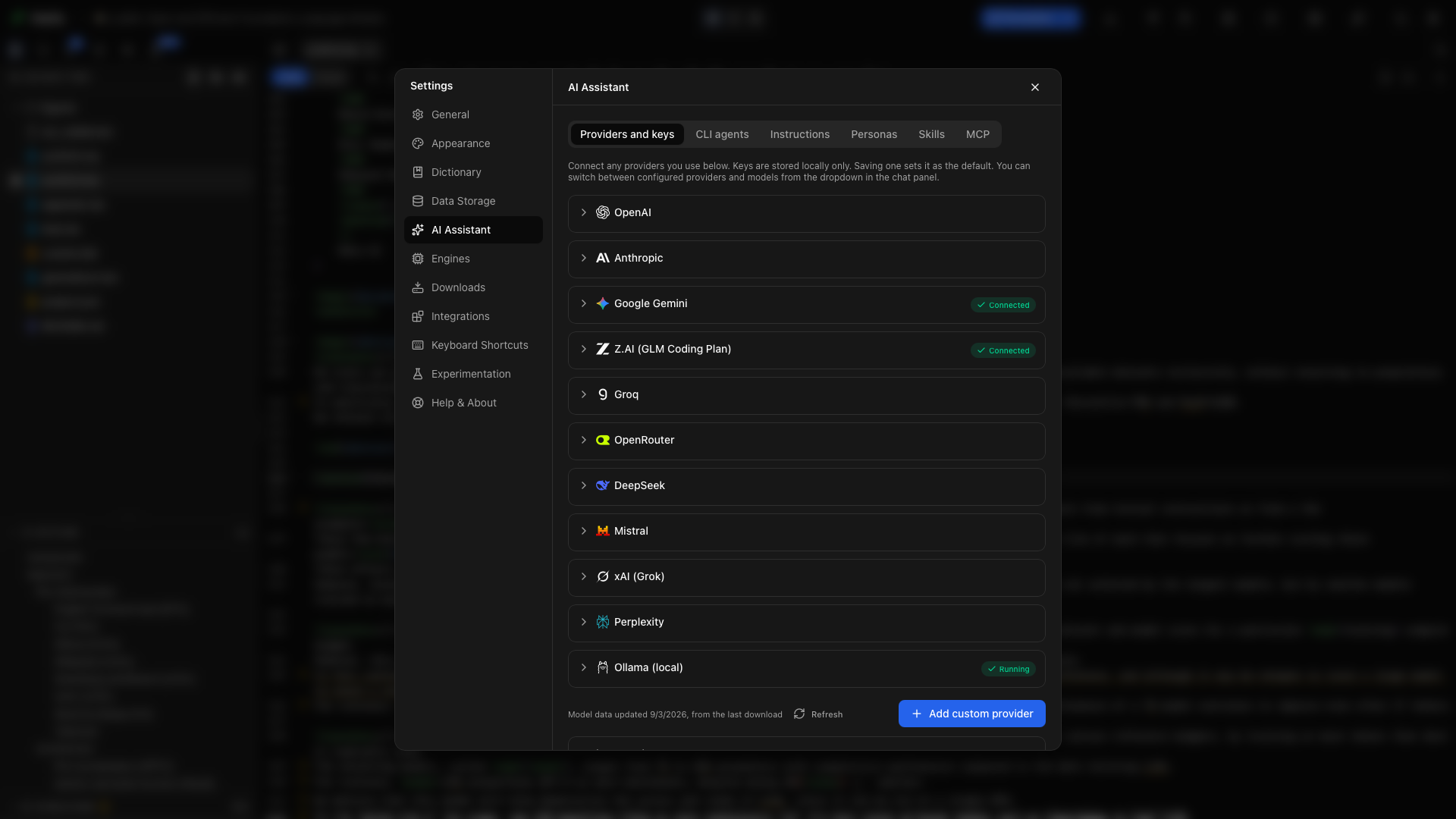
- Mở Settings → AI Assistant → Providers and keys.
- Mở rộng Ollama.
- Chọn Check for Ollama.
- Xem trạng thái và danh sách mô hình đã cài.
Nếu ứng dụng tìm thấy một Ollama đã cài nhưng đang dừng, Start Ollama sẽ khởi động nó. Chọn Re-check sau khi máy chủ khởi động hoặc sau khi tải về một mô hình khác.
Chọn một mô hình cục bộ
Phần tiêu đề “Chọn một mô hình cục bộ”Chọn một mô hình từ danh sách đã phát hiện và dùng hành động trên thẻ của mô hình để áp dụng nó. Mở trợ lý và xác nhận mô hình cục bộ đã được chọn trước khi gửi tin nhắn.
Thử điều này với một tài liệu luyện tập:
Giải thích cấu trúc của tài liệu này. Liệt kê các phần của nó mà không thay đổi bất kỳ tệp nào.
Để chỉnh sửa hoặc biên dịch, hãy dùng một mô hình hỗ trợ hành vi công cụ mà Oleafly cần. Kiểm tra kết quả năng lực của mô hình; một mô hình trò chuyện được chưa chắc đã thực hiện được một quy trình công cụ tin cậy.
Đổi host
Phần tiêu đề “Đổi host”Chọn Change host (advanced) để chỉnh địa chỉ máy chủ Ollama. Host cục bộ thông thường là http://127.0.0.1:11434. Dùng thẻ Ollama tích hợp sẵn với host của máy chủ; hậu tố /v1 thuộc về một cấu hình endpoint tương thích OpenAI.
Một máy chủ chạy trên máy tính khác là một kết nối mạng. Hãy dùng địa chỉ loopback cục bộ khi bạn muốn việc xử lý ở lại trên máy tính này.
Dùng một nhà cung cấp tương thích thay thế
Phần tiêu đề “Dùng một nhà cung cấp tương thích thay thế”Cho một kết nối tùy chỉnh tương thích OpenAI, hãy dùng endpoint http://localhost:11434/v1/ của Ollama. Ollama chấp nhận trường khóa API mà client tương thích yêu cầu mà không coi nó là thông tin xác thực đám mây. Xem hướng dẫn tương thích của Ollama (mở trong thẻ mới) và nhà cung cấp tùy chỉnh.
Chuẩn bị biên dịch offline
Phần tiêu đề “Chuẩn bị biên dịch offline”Mở tài liệu và biên dịch thành công trong lúc còn kết nối. Tectonic tải về các gói TeX còn thiếu khi cần và lưu chúng vào bộ nhớ đệm, và Typst cũng làm vậy với các gói đến từ Typst Universe. Sau đó bật Settings → General → Offline mode và biên dịch lại để kiểm tra bộ nhớ đệm đã đủ chưa. Chế độ Offline bao gồm LaTeX và Typst.
Một dự án Typst cũng có thể tự giữ các gói của riêng mình. Mở Typst packages từ thanh công cụ Typst và chọn Vendor packages into project. Oleafly sao chép các gói mà dự án nhập vào một thư mục typst-packages, nhờ vậy dự án biên dịch được khi offline và trên các máy tính khác.
Với một engine TeX của hệ thống, hãy cài bản phân phối và các gói cần thiết trước khi ngắt kết nối. Giữ các hình, tệp tài liệu tham khảo, các phần được nhúng và các phông chữ cần thiết sẵn có ở cục bộ.
Kiểm tra khi không có kết nối mạng
Phần tiêu đề “Kiểm tra khi không có kết nối mạng”- Mở dự án bạn sẽ dùng.
- Xác nhận Ollama đang chạy với mô hình đã tải về được chọn.
- Ngắt kết nối khỏi mạng.
- Biên dịch tài liệu.
- Hỏi mô hình cục bộ giải thích một đoạn văn.
- Thử đúng quy trình chỉnh sửa hoặc công cụ bạn cần và xem xét kết quả.
Viết, tệp cục bộ, biên dịch từ bộ nhớ đệm và các yêu cầu đến mô hình cục bộ có thể tiếp tục. Tìm nguồn trực tuyến, đồng bộ GitHub, các mô hình đám mây và các dịch vụ MCP qua mạng cần kết nối riêng của chúng. Chế độ Offline của Oleafly kiểm soát biên dịch từ bộ nhớ đệm và tra cứu tài liệu tham khảo; nó không phải là một tường lửa cấp hệ thống.
Ngắt kết nối Ollama
Phần tiêu đề “Ngắt kết nối Ollama”Dùng Disconnect trên thẻ nhà cung cấp để xóa kết nối đã lưu của Oleafly. Việc này không xóa các mô hình đã cài trong Ollama.
Xử lý sự cố
Phần tiêu đề “Xử lý sự cố”Không chạy
Phần tiêu đề “Không chạy”Khởi động Ollama, xác nhận host và cổng, rồi Re-check. Nếu máy chủ báo cổng của nó đã được dùng, hãy kiểm tra Ollama đang chạy hiện có trước khi khởi động thêm một cái khác.
Không có mô hình nào đã cài
Phần tiêu đề “Không có mô hình nào đã cài”Chạy ollama list. Tải về một mô hình, đợi quá trình tải hoàn tất, rồi Re-check trong Oleafly.
Mô hình trả lời nhưng không dùng công cụ
Phần tiêu đề “Mô hình trả lời nhưng không dùng công cụ”Kiểm tra trạng thái năng lực của nó và thử một mô hình có hỗ trợ công cụ. Bắt đầu với một yêu cầu nhỏ đọc dự án trước khi yêu cầu một chuỗi chỉnh sửa và biên dịch dài.
Câu trả lời không liên quan gì đến câu hỏi
Phần tiêu đề “Câu trả lời không liên quan gì đến câu hỏi”Ngữ cảnh của mô hình có lẽ quá nhỏ. Các chỉ dẫn dự án và công cụ của Oleafly chiếm chỗ trước cả tin nhắn của bạn, và một ngữ cảnh 4.096 token có thể cắt ngang cả một yêu cầu ngắn. Khởi động máy chủ Ollama với ít nhất 16.384 token ngữ cảnh, ví dụ:
OLLAMA_CONTEXT_LENGTH=16384 ollama serveTrong Windows PowerShell, hãy chạy $env:OLLAMA_CONTEXT_LENGTH = "16384" rồi ollama serve. Thoát mọi Ollama đang chạy trước. Cài đặt này thuộc về máy chủ Ollama, không thuộc về Oleafly. Cuộc hội thoại dài hơn và dự án lớn hơn cần nhiều ngữ cảnh hơn, và ngữ cảnh nhiều hơn tốn nhiều bộ nhớ hơn. Hướng dẫn độ dài ngữ cảnh (mở trong thẻ mới) của Ollama có chi tiết.
Phản hồi cục bộ chậm
Phần tiêu đề “Phản hồi cục bộ chậm”Thử một mô hình nhỏ hơn hoặc một yêu cầu ngắn hơn và tập trung hơn. Đính kèm tệp hoặc phần liên quan thay vì yêu cầu xem xét cả một luận văn trong một lần.