
Preflight checks
Inspect the source, build log, PDF, references, accessibility signals, and submission risks before a document leaves your hands.
Nội dung này hiện chưa có sẵn bằng ngôn ngữ của bạn.
A successful compile only proves that a PDF was made. It does not prove that every citation resolved, the reading order makes sense, the submission archive is clean, or the file carries the accessibility structure it claims.
Preflight brings those questions into one local review. Open the shield in the project rail, choose the checks that fit the document, and run one check while fixing a problem or the full set before submission.
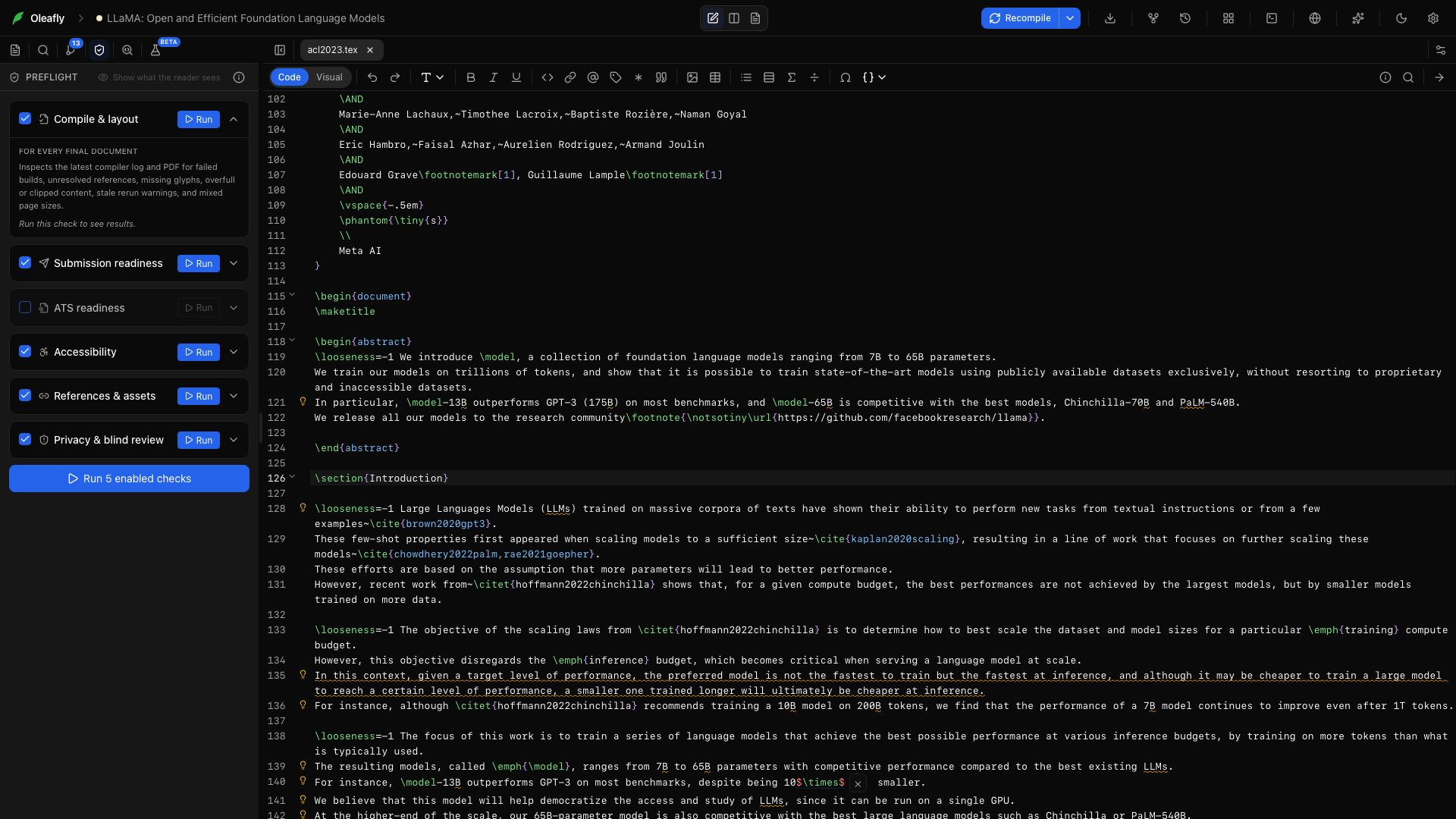
Six independent checks
Section titled “Six independent checks”Compile & layout
Section titled “Compile & layout”Reads the latest build log and PDF for failed builds, unresolved citations and references, rerun warnings, missing glyphs, overfull boxes, clipped text, duplicate PDF destinations, and mixed page sizes.
Submission readiness
Section titled “Submission readiness”Applies a selected publication profile to the project. It checks stable requirements around the document class, abstract and keywords, figure formats, embedded fonts, PDF restrictions, captions, portable names, and source-package clutter.
ATS readiness
Section titled “ATS readiness”Extracts a resume much like an applicant tracking system would. It reports contact fields, expected sections, and layouts that can scramble reading order.
Accessibility
Section titled “Accessibility”Checks source and PDF signals around tagging, alternative text, language and title metadata, viewer settings, headings, tables, links, reading order, selectable text, bookmarks where useful, and very small text.
References & assets
Section titled “References & assets”Finds missing files, unresolved citations and cross-references, duplicate labels and DOIs, incomplete bibliography entries, and uncited references when the complete project is available.
Privacy & blind review
Section titled “Privacy & blind review”Looks for credentials, private keys, sensitive files, draft notes, internal comments, acknowledgements, author fields, and identity metadata that may break a blind review.
Typst projects
Section titled “Typst projects”Typst sources get their own checks. They read your .typ files directly, so LaTeX rules never fire on Typst syntax.
- References & assets finds
@references and citations with no matching label or bibliography entry, duplicate labels, image or#includepaths that match no project file, a#bibliographyfile that isn’t in the project, and a document that cites sources but never calls#bibliography. Citation keys can live in a.bibfile or a Hayagriva.ymlfile. - Accessibility flags images with no
alttext, on the image or on the figure that holds it, empty headings, and a document with no title set through#set document(title: ...)or the template. - Submission readiness checks that the project imports a template that fits the chosen profile, that the template gets an abstract and keywords, and that no
#loremtext, placeholder, or TODO note is left. It also looks at captions, image sizes, and file names. - Privacy & blind review finds author names, emails, and affiliations passed to the template, acknowledgements, and local file paths.
Each finding names the file and line, and its detail shows the Typst fix, such as #image("chart.png", alt: "Bar chart of yearly sales").
Read the certainty, not only the color
Section titled “Read the certainty, not only the color”Every result explains how Oleafly reached it:
- Verified means the app observed direct evidence in the source, log, project, or PDF.
- Advisory means a documented heuristic found something a person should inspect.
- Manual names a check the files cannot settle safely.
A missing input never becomes a pass. Source-only findings remain partial until a current PDF exists.
Choose a publication profile
Section titled “Choose a publication profile”Use the general publication, arXiv, IEEE, ACM, journal, or thesis profile that best matches the destination. Profiles cover requirements stable enough to check automatically. In a Typst project, a profile also expects a matching Typst template, and the finding names the templates it accepts.
Then open the current venue instructions. Page limits, margins, file-size caps, anonymization rules, and naming conventions change too often for a generic profile to decide them.
See what another reader receives
Section titled “See what another reader receives”Choose Screen Reader in the Preflight panel to open What the reader sees, which extracts the PDF text page by page. Use it to catch a two-column paper read across the page, a missing icon-font phone number, a caption in the wrong place, or a page with no selectable text.
For resumes, What a parser extracted shows the name, email, phone, links, and standard sections the ATS simulation could recover.
These views are evidence, not a substitute for testing with the real submission portal, screen reader, or parser used by your audience.
PDF/UA and accessibility: the honest boundary
Section titled “PDF/UA and accessibility: the honest boundary”Oleafly checks the part of PDF/UA-1 that it can read from the file. Findings cite PDF/UA-1, PDF/UA-2 where it differs, Matterhorn Protocol checkpoints, and WCAG 2.2 PDF techniques.
The report covers machine-readable signals such as:
- a tag tree that contains real content;
- alternative text on figures and formulas;
- header cells in tables;
- heading progression;
- document language and XMP title;
- the viewer preference that displays the title;
- link descriptions and suspicious untagged content;
- whether a declared PDF/UA-1 claim is backed by the file.
The panel reports how many of 106 machine-checkable PDF/UA-1 rules were verified. It also tells you when a rule could not be read or did not apply. An unchecked rule is not counted as a pass.
Prepare a tagged PDF from LaTeX
Section titled “Prepare a tagged PDF from LaTeX”LaTeX tagging depends on the document class, packages, engine, and TeX Live version. Preflight checks the effective main document and the preamble files it loads before offering preparation.
- Run Accessibility on the current PDF and read the findings.
- Open Accessible export.
- Check the class and package compatibility report. An incompatible class blocks preparation; a partly compatible or unknown package appears as a warning.
- Choose Prepare for accessible export and review every proposed source change.
- Replace each generated alternative-text placeholder with a meaningful description and add the document title when requested.
- Compile with pdfLaTeX or LuaLaTeX from TeX Live 2025 or newer. Accessible math needs LuaLaTeX.
- Run Accessibility again, inspect the reader view, then validate the final PDF outside Oleafly when conformance matters.
Preparation can add or update \DocumentMetadata with language, PDF/UA-2 intent, and tagging; declare a first table-header row; add visible placeholders for missing figure alternatives; and add unicode-math when the chosen engine needs it. It shows the changes before applying them.
The bundled Tectonic engine cannot create a tag tree. Compile tagged and verify uses an available system TeX distribution or Oleafly’s managed TinyTeX. You can also compile the prepared source with your own current toolchain.
See LaTeX engines & packages for TinyTeX, package status, and the security boundary around system TeX.
PDF standards from Typst
Section titled “PDF standards from Typst”A Typst project has no source to prepare. Typst writes archival and accessible PDFs itself, so the Accessibility check shows PDF standards in place of Accessible export.
- Run Accessibility and fix missing alternative text and a missing document title. PDF/UA-1 needs both.
- Under PDF standards, pick a Standard, such as PDF/UA-1 or PDF/A-2b.
- Choose Export PDF and save the file.
- Validate the exported PDF outside Oleafly when conformance matters.
Typst 0.14 and later tag every PDF, so there is no separate tagged compile. Older versions offer fewer standards, and Typst 0.11 offers none; the panel says which applies. To use a newer version, change Typst version (this project) in the compile menu. See Typst projects.
A practical final pass
Section titled “A practical final pass”- Compile the exact source you intend to submit.
- Run all relevant Preflight checks.
- Fix verified findings and investigate advisories.
- Complete every manual item against the current venue guide.
- Read the final PDF from first page to last, including references and appendices.
- Open the exported file and source archive from their saved locations.
- Use the destination’s own validator before the deadline.
Preflight reduces avoidable surprises. Acceptance, accessibility, and scientific correctness still require the author, the venue, and the people who will use the document.