
Các CLI agent
Dùng một agent bạn vẫn chạy trong terminal ngay bên trong không gian viết của mình.
Đưa agent đã cài đặt trên máy của bạn vào Oleafly. Chế độ CLI Agent dùng runtime và thông tin đăng nhập của chính agent đó, nên bạn có thể làm việc bên cạnh bản thảo với các công cụ vẫn đang dùng.
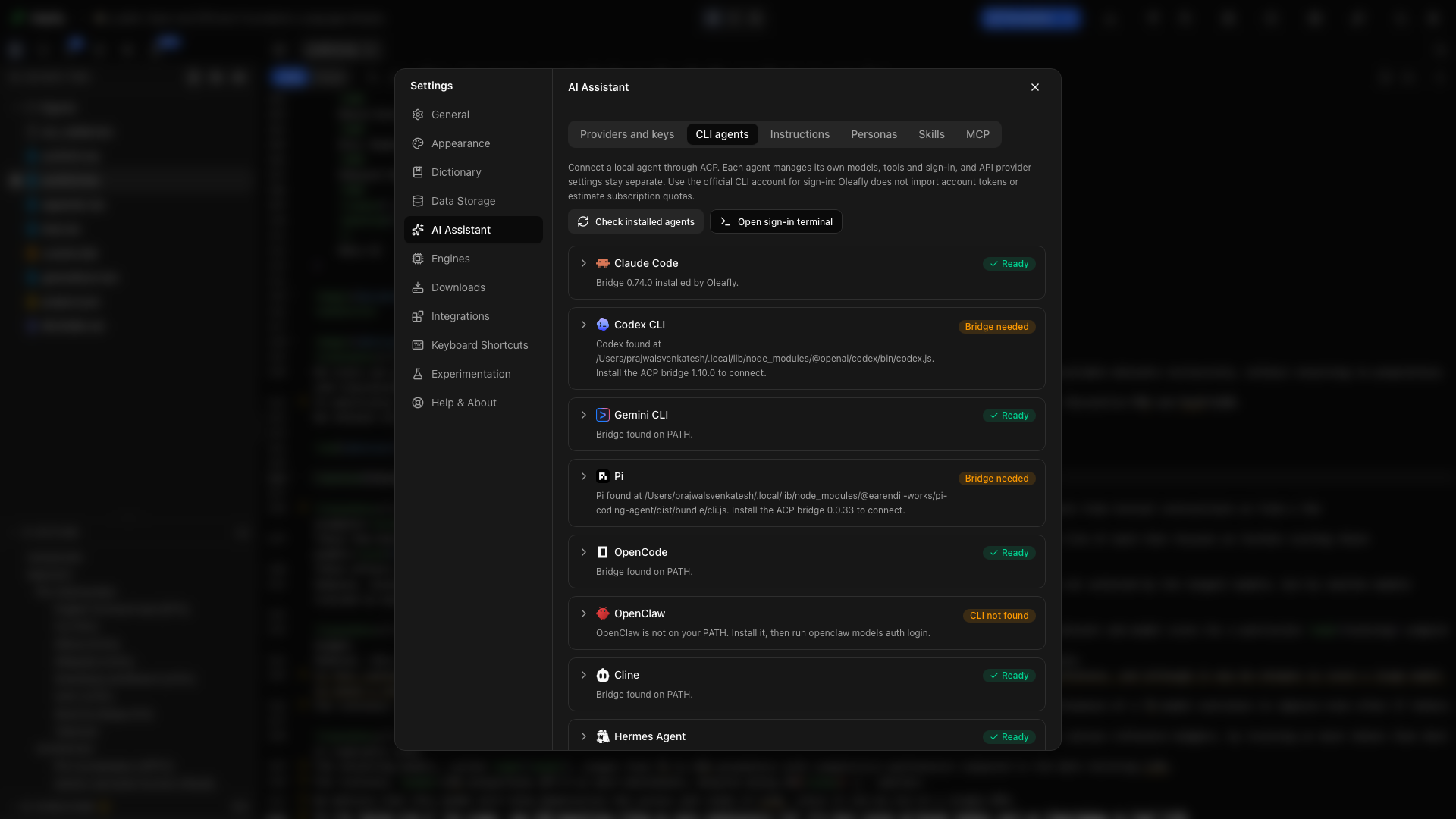
Kết nối một agent
Phần tiêu đề “Kết nối một agent”- Mở Settings → AI Assistant → CLI agents và chọn Check installed agents.
- Mở rộng agent của bạn. Dòng Program cho thấy chương trình Oleafly tìm thấy và vị trí của nó.
- Chọn Test. Nếu thẻ yêu cầu bridge, hãy chọn Install bridge trước.
- Đăng nhập qua công cụ dòng lệnh của chính agent. Thẻ hiển thị Sign-in command của nó, và khi có dự án đang mở, Open sign-in terminal mở cho bạn một terminal để chạy lệnh đó.
- Mở trợ lý, chuyển sang CLI Agent, rồi chọn agent.
- Bắt đầu với một việc nhỏ, chẳng hạn giải thích cấu trúc dự án hoặc chỉnh lại một đoạn văn.
Nếu bạn chuyển sang một agent chưa sẵn sàng, trợ lý hiển thị một thẻ thiết lập nói rõ còn thiếu gì. Nút Set up của thẻ, chẳng hạn Set up Claude Code, mở agent đó trong Settings. Khi chỉ thiếu bridge, nút Install bridge trên thẻ sẽ cài nó.
Xác thực, quyền truy cập mô hình và thanh toán thuộc về agent được chọn. Tài khoản hoặc gói đăng ký hỗ trợ CLI có thể được dùng theo điều khoản của nhà cung cấp đó; Oleafly không thêm một gói đăng ký AI riêng.
Chọn chương trình
Phần tiêu đề “Chọn chương trình”Dưới nhãn Program, thẻ cho thấy tệp mà Oleafly khởi chạy và nguồn gốc của tệp: Found automatically, Chosen by you, hoặc Installed by Oleafly. Với một số agent, dòng này nằm trong chi tiết ACP bridge.
Để dùng một bản khác, chọn Choose… rồi chọn tệp. Nếu Oleafly không tìm thấy gì, dòng đó ghi Not found on this computer và cho bạn một ô nhập vị trí. Gõ hoặc dán đường dẫn, rồi nhấn Enter hoặc chọn Test. Tệp bạn chọn hoặc gõ chỉ được lưu sau khi vượt qua phép thử. Use automatic detection bỏ lựa chọn của bạn.
Oleafly tìm trong các thư mục nơi trình cài đặt đặt agent:
- Trên Windows, Oleafly tìm thấy agent cài bằng npm, pnpm, Scoop, winget và các công cụ tương tự, trên mọi ổ đĩa. Nó đọc lại đường dẫn tìm kiếm mỗi lần, nên Check installed agents còn tìm thấy agent bạn cài trong lúc Oleafly đang mở.
- Trên macOS, Oleafly tìm thấy agent trong các thư mục mà thường chỉ shell của bạn biết, chẳng hạn
~/.local/binhoặc một thư mục nvm, kể cả khi bạn mở Oleafly từ Dock hoặc Finder.
Khi Oleafly tìm thấy một tệp đúng tên nhưng không dùng được, phần thiết lập cho bạn biết nó tìm thấy gì và vì sao. Một trường hợp thường gặp trên Windows là một tập lệnh PowerShell trong khi Oleafly cần bản .cmd hoặc .exe. Files Oleafly skipped liệt kê từng tệp như vậy kèm lý do, chẳng hạn một thư mục, một ứng dụng desktop, một shell hoặc runtime như node, hoặc một bản nằm trên vị trí mạng.
Các đường dẫn trong Settings được làm mờ cho đến khi bạn di chuột hoặc đưa tiêu điểm bàn phím đến chúng, nên ảnh chụp màn hình Settings không cho thấy các tệp của bạn nằm ở đâu.
Kiểm tra một agent
Phần tiêu đề “Kiểm tra một agent”Test khởi chạy agent trong một thư mục trống thuộc về Oleafly, tách khỏi dự án của bạn, rồi chờ nó phản hồi. Nó không lưu gì. Khi thành công, bạn thấy tên và phiên bản của agent. Khi thất bại, bạn nhận một câu nói lý do và một việc nên thử:
| Kết quả kiểm tra báo gì | Việc nên thử |
|---|---|
| Không có tệp ở đó, hoặc là một thư mục, ứng dụng desktop, hay tệp mà Oleafly không khởi chạy được | Choose… và chọn chính chương trình đó |
| Bridge chưa được cài | Install bridge |
| Agent cần Node.js, hoặc một phiên bản mới hơn của nó | Get Node.js |
| Agent đã khởi chạy nhưng không phản hồi, dừng sớm, hoặc gửi câu trả lời mà Oleafly không đọc được | Copy details, hoặc Open terminal để tự chạy |
Nếu tệp bạn chọn thất bại vì lý do không phải do bản thân tệp, Use anyway vẫn lưu nó.
Danh mục agent
Phần tiêu đề “Danh mục agent”| Agent | Lệnh CLI |
|---|---|
| Claude Code | claude |
| Codex CLI | codex |
| Gemini CLI | gemini |
| Pi | pi |
| OpenCode | opencode |
| OpenClaw | openclaw |
| Cline | cline |
| Hermes Agent | hermes |
| CodeBuddy | codebuddy |
| Kimi Code | kimi |
| Grok Build | grok |
| Cursor | cursor-agent hoặc agent |
| DeepSeek Harness | dsh |
| Qoder | qodercli |
Danh mục xác định các đường dẫn khởi chạy được hỗ trợ. Mô hình khả dụng, tệp đính kèm, khả năng tiếp tục phiên và báo cáo mức dùng phụ thuộc vào những gì agent cung cấp. Phần thiết lập báo các yêu cầu còn thiếu trước khi một phiên bắt đầu.
Pi chạy qua bridge pi-acp, phiên bản 0.0.34, và Oleafly trỏ bridge đến chương trình Pi của bạn. Trên Windows, nó xử lý được thư mục dự án có dấu cách trong tên.
Làm việc bên cạnh bản thảo
Phần tiêu đề “Làm việc bên cạnh bản thảo”Đưa cho agent một yêu cầu cụ thể và theo dõi câu trả lời, hoạt động công cụ và lời nhắc quyền của nó trong khung trợ lý. Mở tệp nguồn thu được và biên dịch trong Oleafly.
Hãy đọc phần giới thiệu và phương pháp. Liệt kê các thuật ngữ được đưa vào không nhất quán, kèm vị trí tệp.
Để có một bản riêng và bước rà soát cuối, hãy chọn một agent khả dụng trong Research tasks. Trang đó liệt kê các yêu cầu nền tảng cho công việc cách ly.
Điểm khởi đầu nghiên cứu
Phần tiêu đề “Điểm khởi đầu nghiên cứu”Một cuộc hội thoại mới mở trên trang chủ của agent, nơi có các điểm khởi đầu nghiên cứu. Chọn một điểm sẽ điền sẵn tin nhắn nhưng không gửi, để bạn đọc và chỉnh trước. Nếu chưa có cuộc hội thoại nào đang mở, nó sẽ mở một cuộc.
| Điểm khởi đầu | Nội dung yêu cầu |
|---|---|
| Literature sweep | Một danh sách đọc có chú thích cho câu hỏi nghiên cứu của dự án, với skill oleafly-literature-sweep |
| Related work | Một phần công trình liên quan được soạn từ danh sách đọc và danh mục tài liệu tham khảo, với oleafly-related-work |
| Citation audit | Một cuộc kiểm tra các luận điểm của bản thảo đối chiếu nguồn đã trích, với oleafly-verify-claims |
| Manuscript review | Một lượt rà soát toàn bộ bản thảo, với oleafly-review-manuscript |
| Reproducibility audit | Những gì mỗi kết quả còn thiếu để tái lập được: mã, dữ liệu, phiên bản phần mềm, hạt ngẫu nhiên và hướng dẫn dựng |
| Figure audit | Một cuộc kiểm tra mọi hình và bảng: chú thích, nhãn, tham chiếu chéo, nhãn trục và đơn vị, độ dễ đọc, và màu vẫn rõ ở thang xám |
| Git review | Bản tóm tắt các thay đổi chưa commit và các commit gần đây, đánh dấu những chỉnh sửa có vẻ ngoài ý muốn. Chỉ hiển thị trong kho Git |
| Reference cleanup | Mở Clean the reference library, vốn chuẩn hóa các khóa trích dẫn và xóa bản trùng sau khi bạn xem trước các thay đổi |
Các cuộc kiểm toán và lượt rà soát bản thảo yêu cầu agent không đụng vào các tệp bản thảo và ghi phát hiện của mình vào một tệp trong research/, chẳng hạn research/figure-audit.md.
Một skill bạn chọn, từ một điểm khởi đầu hoặc từ danh sách skill trên trang chủ, hiển thị dạng con chip phía trên tin nhắn. Oleafly gửi hướng dẫn của skill kèm tin nhắn của bạn, nên các agent không nhận được công cụ của Oleafly, như Pi, vẫn có thể làm theo. Nhấp vào chip để bỏ nó. Nếu skill bị tắt cho dự án, điểm khởi đầu sẽ điền tin nhắn mà không kèm skill.
Yêu cầu quyền
Phần tiêu đề “Yêu cầu quyền”Khi agent hỏi trước khi hành động, một thẻ cho biết agent needs permission và đưa ra các lựa chọn của chính agent. Nếu yêu cầu sẽ thay đổi tệp, thẻ liệt kê các tệp đó. Show change mở diff của một tệp để bạn đọc trước khi trả lời. Một thay đổi quá lớn không hiển thị được sẽ ghi rõ như vậy, và bạn có thể xem lại sau lượt. Dismiss hủy yêu cầu mà không cho phép. Một yêu cầu bị bỏ qua hai phút sẽ hết hạn, và agent phải hỏi lại.
Xem lại và hoàn tác thay đổi
Phần tiêu đề “Xem lại và hoàn tác thay đổi”Sau một lượt đã thay đổi tệp, một dòng dưới câu trả lời cho biết có bao nhiêu tệp. Review hiển thị từng thay đổi, còn Undo và Redo hoạt động từng tệp một hoặc cho cả lượt. Xem lại và hoàn tác một lượt giải thích cách hoạt động này và những gì nó không đụng đến.
Hội thoại và xuất
Phần tiêu đề “Hội thoại và xuất”Thanh đầu khung trợ lý có New conversation, Saved conversations và Agent setup. Mỗi cuộc hội thoại ghi lại commit Git mà dự án đang ở khi cuộc hội thoại bắt đầu.
Để giữ một bản sao ngoài Oleafly, hãy mở Saved conversations và chọn Export conversation…, rồi chọn Markdown hoặc JSON trong hộp thoại lưu. Tệp Markdown mở đầu bằng dự án, agent, mô hình, commit mà cuộc hội thoại bắt đầu (ghi chú các thay đổi chưa commit), cùng thời điểm bắt đầu và lần cập nhật cuối. Tiếp theo là các tin nhắn, skill, lệnh gọi công cụ và các tệp đã đổi. JSON chứa bản ghi đầy đủ.
Agent tùy chỉnh
Phần tiêu đề “Agent tùy chỉnh”Chọn Find more agents để tìm trong registry ACP các agent do nhóm khác xuất bản, hoặc Add a custom agent để tự dán một định nghĩa. Hãy xem lại tệp thực thi hoặc gói, các đối số và yêu cầu kết nối của nó trước khi chạy. Đăng ký một định nghĩa không cài đặt hay khởi chạy agent.
Dùng một client bên ngoài thay thế
Phần tiêu đề “Dùng một client bên ngoài thay thế”Nếu bạn muốn ở trong giao diện của chính agent, hãy kết nối nó qua MCP. MCP server của Oleafly cung cấp cho nó các công cụ dự án của ứng dụng trong khi Oleafly đang mở. Lệnh oleafly còn hoạt động cả khi ứng dụng đã đóng, và skill oleafly-cli dạy agent của bạn các lệnh của nó.