
Ayarlar ve özelleştirme
Genel, dil ve redaksiyon
Masaüstü dilini seçin, yerel redaksiyonu yapılandırın, çevrimdışı derlemeye hazırlanın ve tur rehberlerini denetleyin.
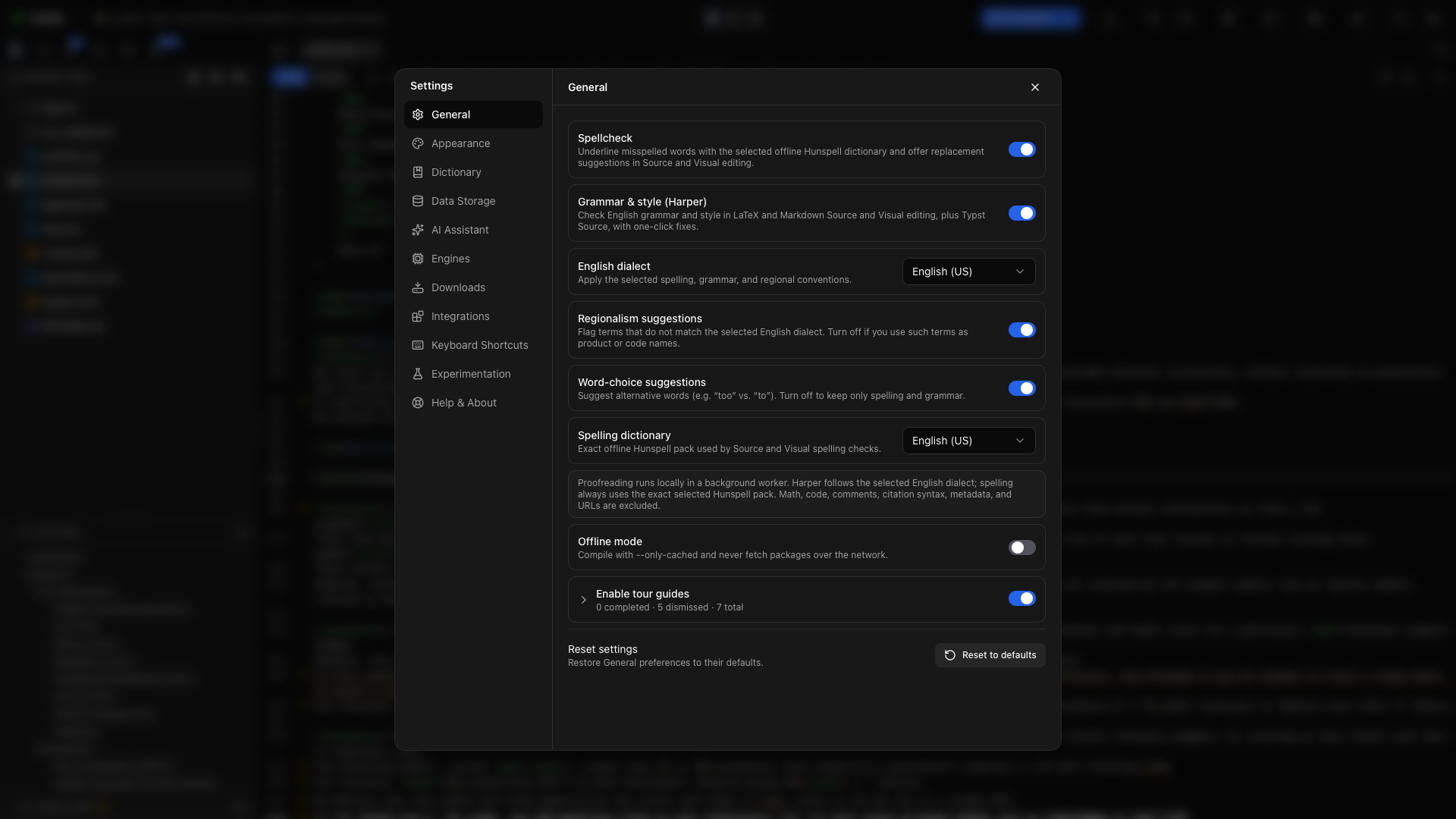
Bu cihazdaki günlük çalışmayı şekillendiren tercihler için Ayarlar → Genel’i açın. Bu ayarların değiştirilmesi bir proje dosyasını yeniden yazmaz.
Sistem varsayılanı’nı ya da 21 arayüz dilinden birini seçin. Her dil kendi adıyla listelenir; örneğin English, Deutsch, 日本語 ya da 简体中文. Arayüz, Oleafly açıkken geçiş yapar.
Sistem varsayılanı, Oleafly’nin sunduğu durumlarda işletim sisteminizin dilini izler. Diğer herhangi bir seçim, bilgisayar ne kullanırsa kullansın uygulamayı o dilde tutar.
Bu ayar makalenizi çevirmez, redaksiyonu değiştirmez ve asistan yanıtının dilini seçmez. Tam sınır için Dil ve yerelleştirme bölümüne bakın.
Yazım denetimi
Bölüm başlığı “Yazım denetimi”Seçili yerel Hunspell sözlüğünde bulunmayan sözcüklerin altının çizilmesi için Yazım denetimi’ni açın. Bir öneri seçin ya da terimi bu proje için, her yerde ya da geçerli oturum için yok sayın.
Dil bilgisi ve üslup
Bölüm başlığı “Dil bilgisi ve üslup”LaTeX, Typst ve Markdown’da, hem Kaynak hem Görsel düzenlemede İngilizce dil bilgisi ve üslup önerileri için Dil bilgisi ve üslup (Harper) seçeneğini açın. Bir bulgunun iletisini ve kural adını, düzeltmeyi uygulamadan önce okuyun.
Harper yalnızca İngilizceyi denetler. Yazım sözlüğü başka bir dile ayarlıyken dil bilgisi denetimi duraklar ve bunu belirten bir not görünür.
İngilizce lehçesi
Bölüm başlığı “İngilizce lehçesi”Harper için Amerikan, İngiliz, Avustralya, Kanada ya da Hindistan İngilizcesi’ni seçin. Bu, Harper’in denetlediği yazım kurallarını değiştirir; mevcut metni kendiliğinden yeniden yazmaz.
Bölgesel kullanım ve sözcük seçimi
Bölüm başlığı “Bölgesel kullanım ve sözcük seçimi”- Bölgesel kullanım önerileri, seçilen İngilizce lehçesinden ayrılan terimleri işaretler. Bilinçli kullanılan ürün adları, kod ya da alıntılanmış dil için kapatın.
- Sözcük seçimi önerileri, “too” ve “to” gibi bağlama duyarlı alternatifleri yakalar. Daha dar kapsamlı bir dil bilgisi denetimi için kapatın.
Yazım sözlüğü
Bölüm başlığı “Yazım sözlüğü”Hunspell’in Kaynak ve Görsel düzenlemede hangi dilde denetleme yapacağını seçin. Beş paket uygulama ile birlikte gelir. Başka bir dili seçmek onu bir kez indirir; ardından çevrimdışı çalışır. İndirilen diller Ayarlar → İndirilenler → Sözlükler altında listelenir. Bir proje, Proje bilgileri panelinde ayarlanan kendi yazım dilini kullanabilir.
Sözlüğün ve Harper lehçesinin eşleşmesi zorunlu değildir; ancak eşleştiklerinde çoğu İngilizce makaleyi gözden geçirmek daha kolaydır.
Kapsamlı redaksiyon kılavuzu; kaynak maskeleme, proje ve genel sözlükler, kapatılmış bulgular, akademik profil kuralları ve mevcut Harper sınırlamasını kapsar.
Çevrimdışı kip
Bölüm başlığı “Çevrimdışı kip”Tectonic’in yalnızca önbelleğe alınmış paketlerle derlemesi için Çevrimdışı kip’i açın. Typst da paket indirmeyi bırakır; ancak önceden önbelleğe alınmış ya da projenin typst-packages klasöründe tutulan paketler çalışmaya devam eder. Bu ayar, çevrimiçi atıf ve üst veri aramalarını ve sözlük indirmelerini de engeller.
Bir projeyi çevrimdışına almadan önce, bağlıyken başarıyla derleyin ki gerekli paketleri hazır olsun. Önbelleğe alınmamış bir paket, gizli bir ağ isteği yerine açık bir derleme hatası üretir.
Yerel yapay zeka ayrıdır. Bir model kurmak ve çevrimdışı bir asistan iş akışını denemek için Ollama ve çevrimdışı yazım bölümünü izleyin.
Tur rehberleri
Bölüm başlığı “Tur rehberleri”Kitaplıkta ve çalışma alanında gezinmelere izin vermek için Tur rehberlerini aç seçeneğini etkinleştirin. Hangi turların görünebileceğine tek tek anahtarlar karar verir.
Tur ilerlemesi, tamamlanmış, kapatılmış ve kalan yönlendirmeleri gösterir. Bir turu yeniden izlemek istediğinizde onu sıfırlayın. Bulunduğunuz alanın rehberini başlatmak için Yardım ve Hakkında → Turu başlat’ı açın.
Sistem entegrasyonu
Bölüm başlığı “Sistem entegrasyonu”Sistem entegrasyonu satırları, uygulamanın dışından Oleafly’de klasör açmanızı sağlar. Neyi gördüğünüz sisteminize bağlıdır: macOS’ta Finder’da Hızlı Eylemler, Windows’ta Dosya Gezgini sağ tık menüsü, Linux’ta Dolphin, Nemo ve GNOME Files için girdiler. Kur bir girdi ekler; Onar ise güncelliğini yitirmiş bir girdiyi düzeltir.
Terminal komutu satırı oleafly komutunu PATH’inize koyar; böylece terminalde oleafly . çalıştırmak geçerli klasörü açar, oleafly build ise onu derler. macOS’ta ve AppImage ile Kur, komutu PATH’inizdeki bir klasöre ekler ve o klasör henüz PATH’inizde değilse neyi eklemeniz gerektiğini gösterir. Windows’ta Kur, komutu %LOCALAPPDATA%\Oleafly\bin konumuna kopyalar ve o klasörü PATH’inize ekler. Linux paketleri komutu sizin yerinize kurar. Bkz. Komut satırı aracı.
Bu şekilde açılan bir klasör yerinde kalır ve kitaplıkta Harici olarak görünür. Bkz. Yerinde açılan klasörler.
Redaksiyon seçeneklerini yönetme
Bölüm başlığı “Redaksiyon seçeneklerini yönetme”Şunları yönetmek için Ayarlar → Sözlük’ü açın:
- her projede yok sayılan sözcükler, Genel sekmesinde;
- yalnızca açık projede yok sayılan sözcükler, Projeler sekmesinde;
- geçerli projede kapatılmış dil bilgisi bulguları;
- kapattığınız Harper kuralları;
- Akademik profilin kapalı tuttuğu kurallar, eksiksiz listelenmiş. Her satır kuralı adlandırır, ne yaptığını söyler, bir örnek verir ve açmak için bir anahtar bulundurur.
Bir öğeyi kaldırmak, onu hemen yeniden denetlemeye uygun hâle getirir.
Genel’i sıfırlama
Bölüm başlığı “Genel’i sıfırlama”Genel tercihlerini geri yüklemek için sayfanın altındaki Varsayılanlara sıfırla’yı seçin. Düğme üzerindeki nokta, buradaki bir şeyin varsayılanından farklı olduğu anlamına gelir. Uygulamadan önce onay iletişim kutusunu okuyun; Sözlük ve diğer Ayarlar bölümlerinin kendi, ayrı sıfırlamaları vardır.