
Browser & terminal
Read source material and run project commands alongside your writing.
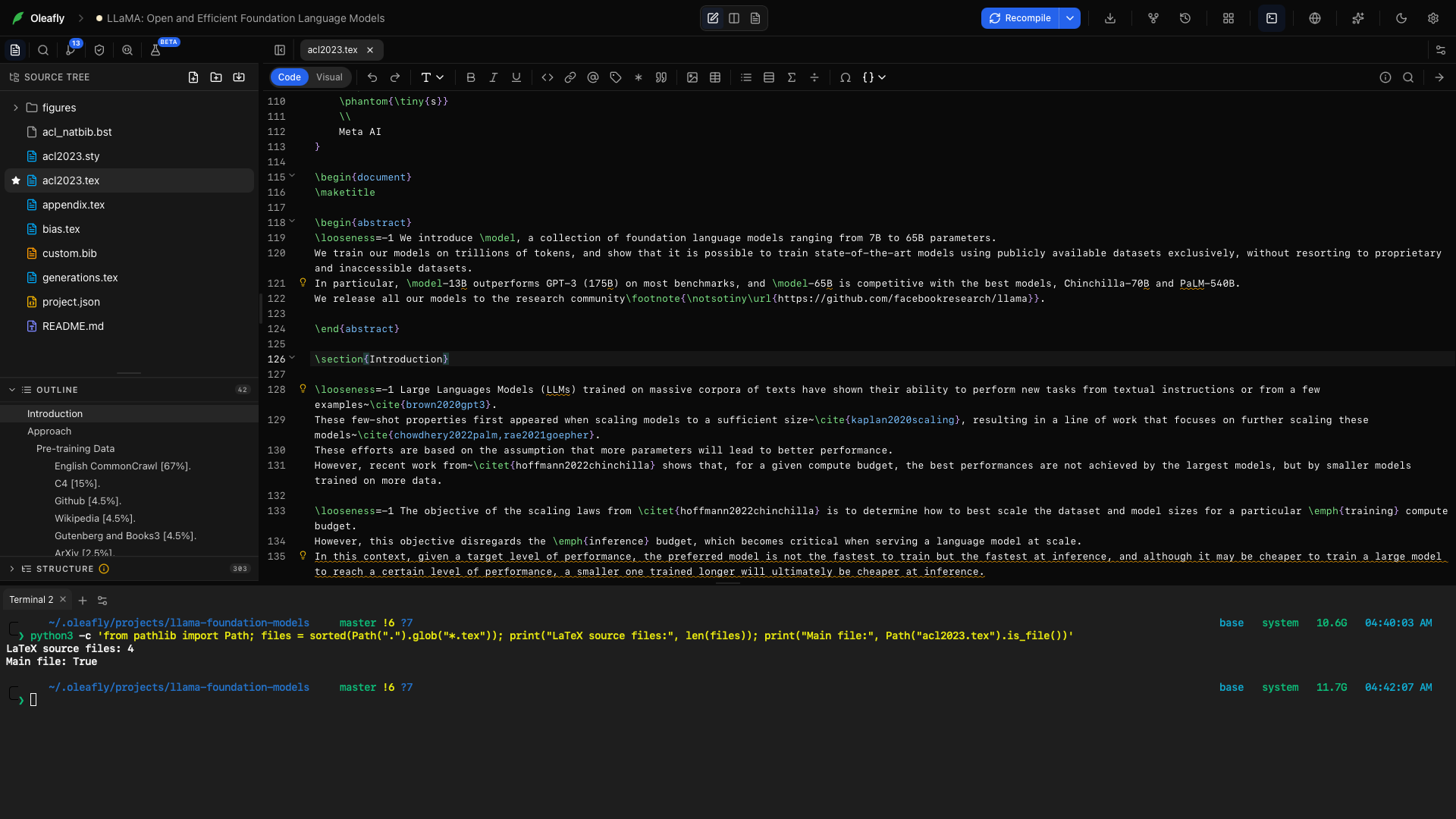
Keep the tools around your paper close to the manuscript. The browser opens reference pages in an Oleafly window, and the terminal gives you a shell for the active project.
Open a reference page
Section titled “Open a reference page”Enable Web browser in Settings → Experimentation, then use the browser control in the workspace dock or press Ctrl+Shift+B (Ctrl+Alt+B on Linux). You can type in the new window right away, without clicking it first. The browser has tabs, an address bar, back and forward navigation, and reload. You can also open the current page in your system browser.
Use it to read a paper’s landing page, consult an author guide, or check a source while writing. Enabling this feature also makes browser computer-use tools available to the assistant.
Run a project command
Section titled “Run a project command”Open Terminal from the workspace dock or press Ctrl+`. Use New terminal to keep separate sessions for an analysis, a build, or another project task. Rename tabs and assign colors so you can tell them apart.
A terminal runs commands on your computer. Keep the script and generated outputs in the project when they belong with the paper. For a reproducible analysis, save the command you ran and the input data it used.
Terminal settings opens the appearance controls for the terminal. Closing a tab ends that session; hiding the dock lets you return to it while working in the editor.
Both shortcuts can be changed in Settings → Keyboard Shortcuts as Toggle terminal and Toggle browser. See Keyboard shortcuts for the rest.
Work with an assistant
Section titled “Work with an assistant”The assistant can use available tools to inspect material or run project work. Set its approval policy before starting. Use an isolated research task when you want to review a separate copy’s results before applying them.