跳转到内容
Oleaflyv0.4.3

Name, compile, export, and arrange a project from the top bar.

此内容尚不支持你的语言。

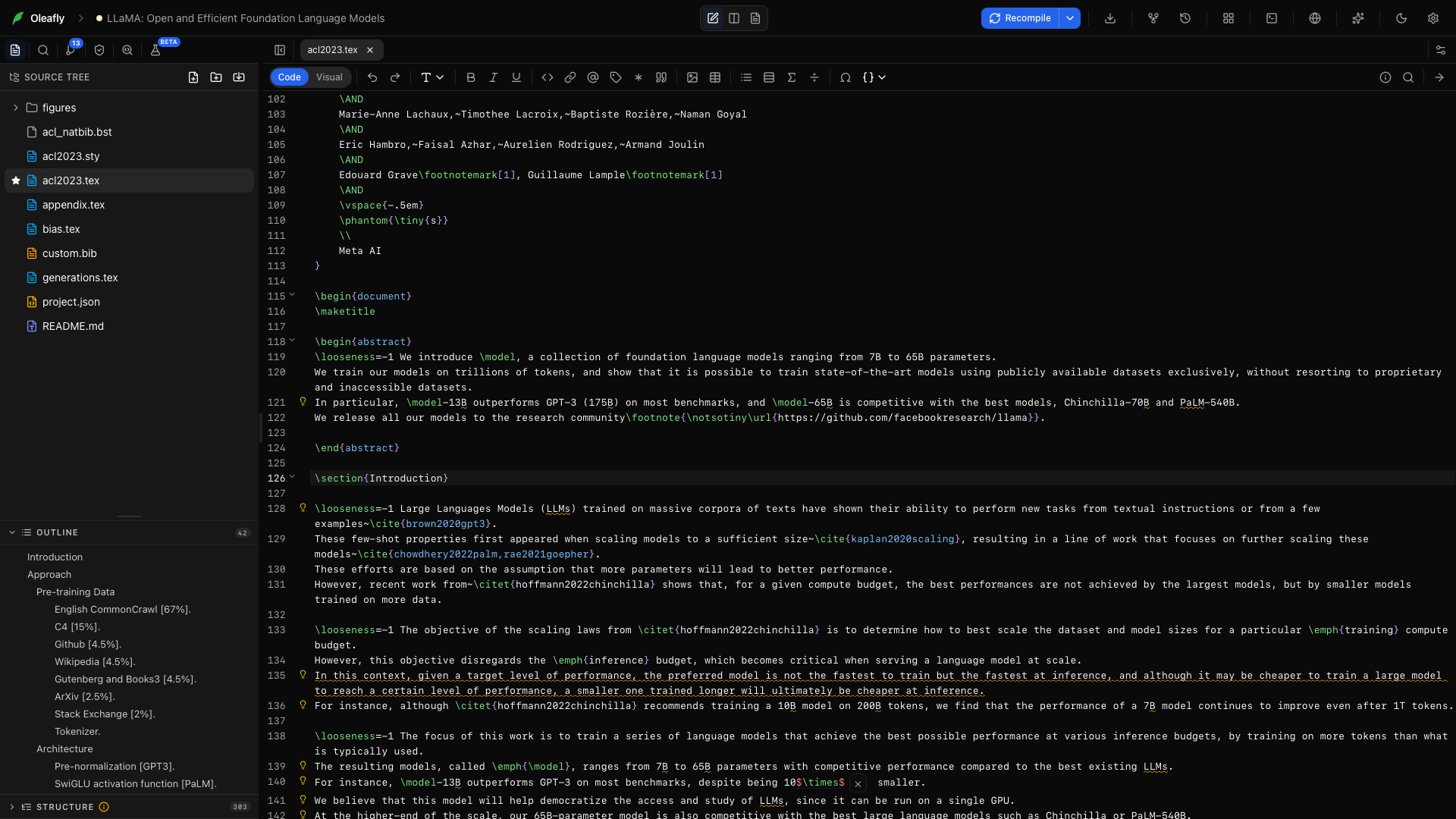
The project toolbar stays above the workspace. Open a practice document and use this guide to identify each action. Formatting buttons inside the editor are described separately for LaTeX, Typst, and Markdown.

The leaf logo returns to the library. Your project name is beside it.
The leaf logo returns to the library. Your project name is beside it. Open full screenshot

Choose Home at the left to return to the library. Reopen the project from its book or list entry when you want to continue.

Click the current project name to edit it. Enter a descriptive name, then press Enter or choose Save name. Press Esc or Cancel to keep the previous name. The project name identifies the work in the library; renaming the main source file is a separate file-tree action.

The three view buttons sit in the middle of the project toolbar: Source, Split, then PDF.
The three view buttons sit in the middle of the project toolbar: Source, Split, then PDF. Open full screenshot

Choose Source View to give the document editor the main workspace. Use it for writing long passages, editing the preamble, or inspecting the complete formatting toolbar.

Choose Split View to keep the source and preview beside each other. Drag the divider to choose how much space each pane gets. This is useful while adjusting a table, equation, or figure.

Choose PDF View to read the compiled output in the main workspace. Compile first if the project has no preview yet. Use this arrangement for a full reading pass.

Recompile and its options arrow are followed by Export and the versioning controls.
Recompile and its options arrow are followed by Export and the versioning controls. Open full screenshot

Choose Recompile to build the current project. The result appears in the preview; failures appear in Logs. The engine determines how source becomes a PDF. See Choosing an engine and Compiling.

Open the arrow beside Recompile to see the compile options for the current project. The menu lists only the options that do something for the project’s engine.

In LaTeX projects, select the compiler required by your template. Use Tectonic for a bundled setup, or a latexmk compiler when you need a traditional TeX distribution. Keep the project on the compiler you have tested before submission.

In Typst projects, the menu holds Auto compile, which keeps Typst running and refreshes the PDF as you type, plus Typst version (this project), Fonts (this project), Build (this project), and Variant (this project). Installing other Typst versions happens in Settings → Engines → Typst, and the fonts Typst can find are listed in Document settings. Compiling explains each option.

Open Export to download source or a compiled result. Source as .zip packages editable project files; the PDF action saves the readable document. Conversion entries depend on the engine and document type. Follow Export formats for Word, HTML, text, presentations, and books.

Choose Fork project to create another project from the current one. Enter a new name that explains the purpose, such as “Paper, shorter abstract”. Use the copy to try a different direction while keeping the original available in the library.

Open Versioning to inspect saved versions and recovery options. Saved checkpoints record successful builds; Git history records commits you control. Choose the kind of history that matches the work you want to recover.

On the right: Layout, Terminal, Browser, AI assistant, Appearance, and Settings.
On the right: Layout, Terminal, Browser, AI assistant, Appearance, and Settings. Open full screenshot

Open Layout to choose one of seven arrangements. A layout changes which editor, preview, and assistant panes are shown. It does not change the manuscript.

Show the source, compiled page, and assistant together. Use it for a focused revision followed by a compile. On a smaller display, widen the pane you are using or choose a two-pane arrangement.

Keep the source and PDF together. This is a useful layout for ordinary writing and page-layout work.

Give the source and assistant more space. Use it to discuss a section, review a proposed edit, or work through a compiler error before reopening the PDF.

Keep the rendered page beside the assistant. Use it to discuss an awkward figure placement or ask for a visual layout check with a model that supports page images.

Use the full workspace for source editing. This exposes more toolbar controls at once and makes long lines easier to read.

Read the finished document with fewer distractions. Use PDF search, the document outline, page navigation, and reader view during the review.

Give the assistant the workspace. Use it for planning or a longer research conversation, then reopen the source to inspect the resulting work.

Choose Show terminal or press Ctrl+` to reveal the project’s shell. Hiding the panel is different from closing its terminal session. See Terminal for tabs, commands, and output.

Choose Open browser or press Ctrl+Shift+B (Ctrl+Alt+B on Linux) to open Oleafly’s browser window. Enable Settings → Experimentation → Web browser if the button is absent. See Browser for tabs, navigation, and research use.

Both shortcuts can be changed in Settings → Keyboard Shortcuts, and the button tooltips show the current key.

Choose Show AI assistant to open or hide the assistant pane. The assistant’s model, approval, attachment, prompt, and conversation controls are explained in Chat, plans & tools.

Use Appearance to switch the interface theme while writing. For fonts, colors, PDF defaults, and terminal styling, open Appearance settings.

Choose the gear to open Settings. The settings catalog links each section to its controls and setup procedures.

Under the project toolbar, each open file has its own editor toolbar for LaTeX, Typst, or Markdown. Its right end holds the document tools:

  • LaTeX packages or Typst packages search CTAN or Typst Universe and add a package to the document. See Packages.
  • Document insights lists the figures, tables, equations, labels, citations, and TODOs in the document. See Document insights.
  • Document settings changes paper size, margins, font, language, line spacing, and numbering. See Document settings.

Undo and Redo sit near the start of that toolbar and are greyed out when there is nothing to undo or redo. The editor guide describes the rest.

To show compiled slides full screen, use Present on the preview toolbar. See Present slides.

Toolbars adapt to the available width. The editor toolbars move every button that doesn’t fit into More formatting options (…), at any width, so nothing disappears. Preview controls have their own overflow menu. If a control seems absent, open the overflow menu or widen the pane; changing a document’s view never removes its features.

Image preview

AI answers couldn’t load

Try again, or search the documentation.