
टर्मिनल नियंत्रण
नाम वाले टर्मिनल सत्रों में विश्लेषण स्क्रिप्ट और प्रोजेक्ट कमांड चलाएँ।
टर्मिनल आपके लेखन प्रोजेक्ट को एक कमांड लाइन देता है। इसका उपयोग कोई विश्लेषण स्क्रिप्ट चलाने, जनरेट की गई फ़ाइलें जाँचने, या अपनी विधियों में वर्णित किसी कमांड को फिर से चलाने के लिए करें।
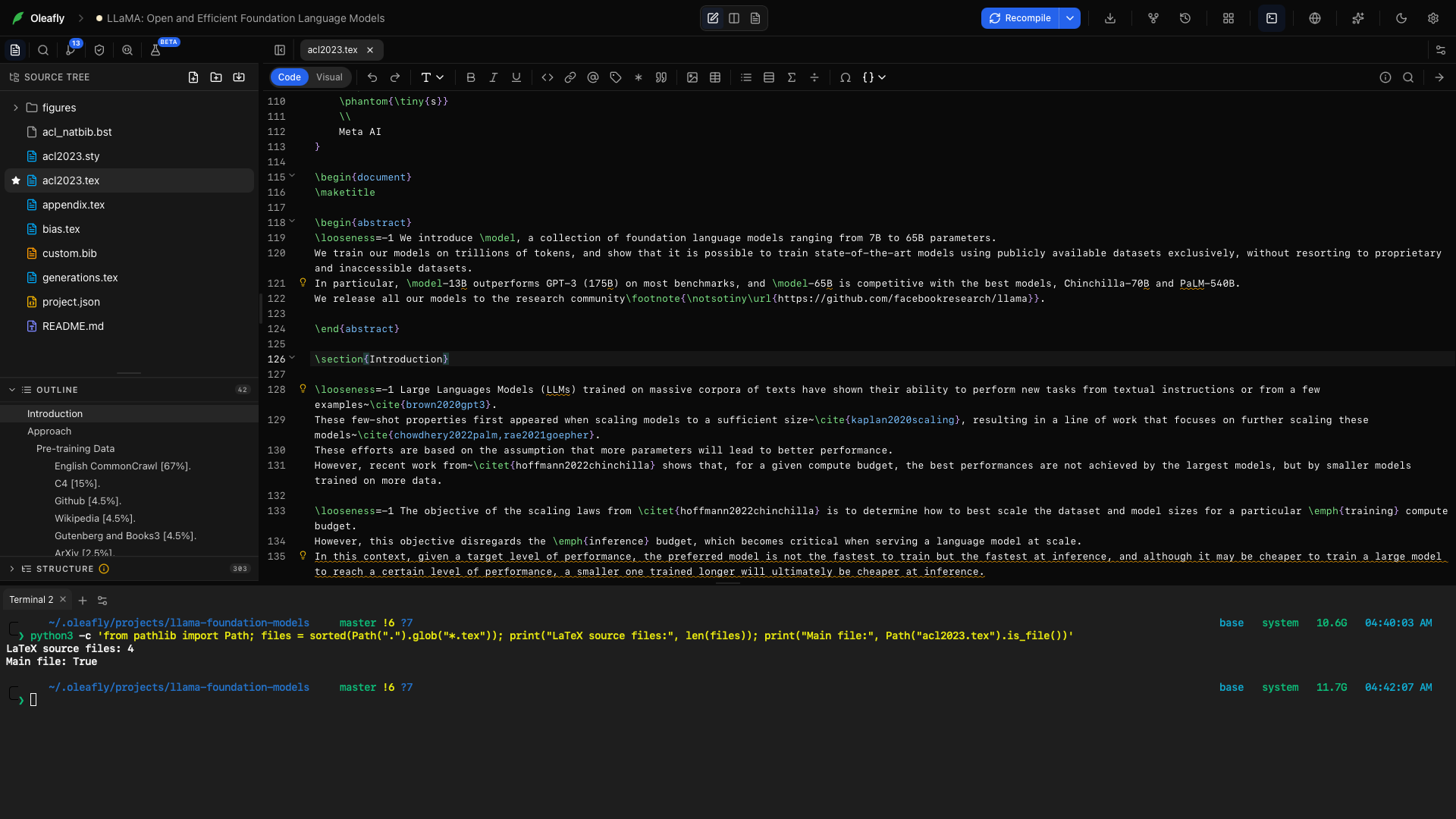
टर्मिनल खोलें
“टर्मिनल खोलें” शीर्षक वाला अनुभागवर्कस्पेस डॉक से Terminal चुनें, या Ctrl+` दबाएँ (हर प्लेटफ़ॉर्म पर Control और बैकटिक कुंजी)। macOS और Linux पर View → Toggle Terminal वही काम करता है। टर्मिनल सक्रिय प्रोजेक्ट के लिए खुलता है। टर्मिनल छिपाने पर आप संपादक में लौट सकते हैं और सत्र उपलब्ध बना रहता है।
कोई दूसरी कुंजी उपयोग करने के लिए Settings → Keyboard Shortcuts में Toggle terminal बदलें।
आउटपुट चुनें और कॉपी करें
“आउटपुट चुनें और कॉपी करें” शीर्षक वाला अनुभागटर्मिनल में क्लिक करके उसे फ़ोकस दें। macOS पर ⌘A या Edit → Select All तब आपकी पांडुलिपि के बजाय टर्मिनल का टेक्स्ट चुनता है, कॉपी के लिए तैयार।
नया टर्मिनल
“नया टर्मिनल” शीर्षक वाला अनुभागकोई और सत्र खोलने के लिए New terminal का उपयोग करें। लंबे समय तक चलने वाले विश्लेषण को एक टैब में रखें और आउटपुट जाँचने के लिए दूसरे का उपयोग करें।
सत्र बदलें
“सत्र बदलें” शीर्षक वाला अनुभागकिसी टर्मिनल टैब का चयन करके उसका शेल और आउटपुट देखें। चल रही कमांड उस सत्र से संबंधित होती है, न कि जो भी संपादक फ़ाइल चयनित है।
टैब मेनू
“टैब मेनू” शीर्षक वाला अनुभागकिसी टर्मिनल टैब पर राइट-क्लिक करें, या उसे फ़ोकस देकर Shift+F10 दबाएँ, ताकि उसका मेनू खुले।
नाम बदलें
“नाम बदलें” शीर्षक वाला अनुभागRename चुनें, या टैब के शीर्षक पर डबल-क्लिक करें, और analysis या figures जैसा नाम टाइप करें। कई सत्र खुले होने पर भी हर सत्र का उद्देश्य दिखता रहता है।
Color खोलें और सत्रों को अलग पहचानने के लिए कोई स्वैच चुनें। रंग हटाने के लिए None चुनें।
बंद करें
“बंद करें” शीर्षक वाला अनुभागClose खोलें और इनमें से कोई एक चुनें। हर विकल्प उस टैब से गिनती करता है जिसका मेनू आपने खोला था:
- Close current वह टैब बंद करता है। टैब पर मौजूद × भी वही करता है।
- Close others उस टैब को खुला रखता है और बाक़ी सब बंद कर देता है।
- Close all to the left उससे पहले के टैब बंद करता है।
- Close all to the right उसके बाद के टैब बंद करता है।
जिस विकल्प के बंद करने को कुछ नहीं बचता, वह ग्रे हो जाता है।
टैब बंद करने से उसका टर्मिनल सत्र समाप्त हो जाता है, इसलिए पहले जाँच लें कि कोई कमांड अभी ज़रूरी तो नहीं है। किसी चल रही कमांड पर बाद में लौटना हो तो इसके बजाय टर्मिनल पैनल छिपा दें।
टर्मिनल सेटिंग
“टर्मिनल सेटिंग” शीर्षक वाला अनुभाग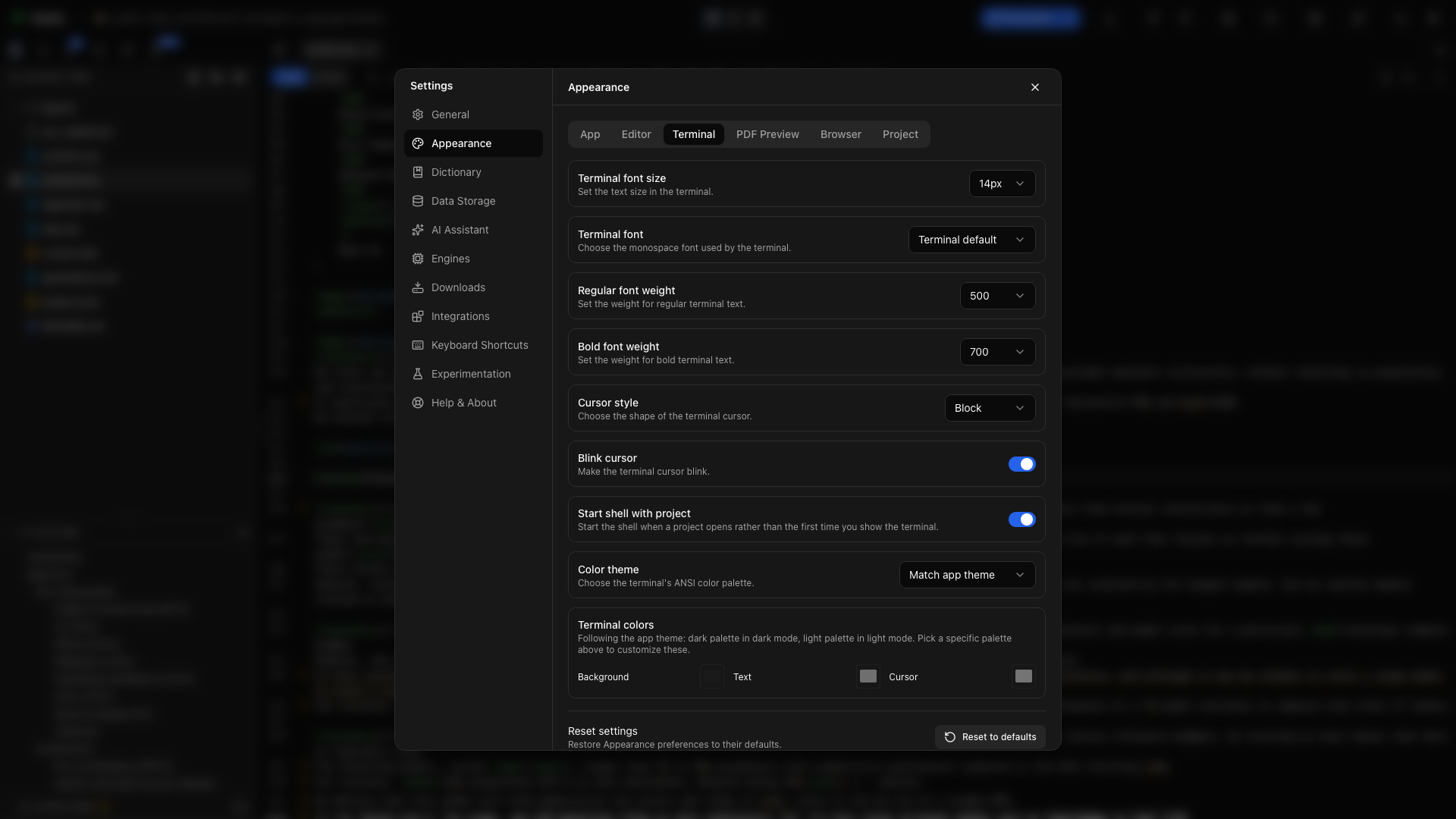
टर्मिनल का फ़ॉन्ट, आकार, सामान्य और बोल्ड वेट, कर्सर का आकार, कर्सर ब्लिंक, स्टार्टअप व्यवहार और रंग समायोजित करने के लिए Terminal settings खोलें। रूप गाइड इन नियंत्रणों को अलग-अलग समझाता है।
प्रोजेक्ट के साथ शुरू करें
“प्रोजेक्ट के साथ शुरू करें” शीर्षक वाला अनुभागअगर आप चाहते हैं कि प्रोजेक्ट खुलते ही टर्मिनल तैयार मिले, तो Appearance सेटिंग में टर्मिनल स्टार्टअप विकल्प सक्षम करें। अन्यथा, शेल चाहिए होने पर इसे डॉक से खोलें।
oleafly कमांड का उपयोग करें
“oleafly कमांड का उपयोग करें” शीर्षक वाला अनुभागOleafly के टर्मिनल के PATH पर oleafly कमांड होता है, भले ही आपने उसे दूसरे टर्मिनलों के लिए इंस्टॉल न किया हो। खुले प्रोजेक्ट पर oleafly build या oleafly check आज़माएँ। कमांड-लाइन टूल देखें।
LLaMA प्रोजेक्ट की जाँच करें
“LLaMA प्रोजेक्ट की जाँच करें” शीर्षक वाला अनुभागLLaMA प्रोजेक्ट और उसका टर्मिनल खोलें। यह कमांड टॉप-लेवल LaTeX सोर्स फ़ाइलों की गिनती करती है और जाँचती है कि acl2023.tex मौजूद है या नहीं। यह प्रोजेक्ट को बिना बदले पढ़ती है:
python3 -c 'from pathlib import Path; files = sorted(Path(".").glob("*.tex")); print("LaTeX source files:", len(files)); print("Main file:", Path("acl2023.tex").is_file())'गिनती आपकी प्रोजेक्ट प्रतिलिपि पर निर्भर करती है। Main file: True पुष्टि करता है कि एंट्री फ़ाइल मौजूद है। जिन सिस्टम पर Python python नाम से इंस्टॉल है, वहाँ वही कमांड उपयोग करें।
किसी विश्लेषण स्क्रिप्ट के लिए, स्क्रिप्ट और उसके इनपुट डेटा को प्रोजेक्ट में साथ रखें, इसे इसी टर्मिनल से चलाएँ, और परिणाम जाँचने के बाद ही उसके आउटपुट को पेपर में जोड़ें।