
터미널 컨트롤
이름을 붙인 터미널 세션에서 분석 스크립트와 프로젝트 명령을 실행합니다.
터미널은 글쓰기 프로젝트에 명령줄을 제공합니다. 분석 스크립트를 실행하거나, 생성된 파일을 확인하거나, 방법 섹션에 적은 명령을 재현할 때 사용하세요.
터미널 열기
섹션 제목: “터미널 열기”작업 공간 독에서 터미널을 선택하거나 Ctrl+`(모든 플랫폼에서 Control과 백틱 키)를 누르세요. macOS와 Linux에서는 보기 → 터미널 전환도 같은 일을 합니다. 터미널은 활성 프로젝트에서 열립니다. 터미널을 숨기면 세션이 계속 유지된 채 편집기로 돌아올 수 있습니다.
다른 키를 쓰려면 설정 → 키보드 단축키에서 터미널 전환을 바꾸세요.
출력 선택과 복사
섹션 제목: “출력 선택과 복사”터미널을 클릭해 포커스를 주세요. macOS에서는 그다음 ⌘A 또는 편집 → 모두 선택이 원고가 아니라 터미널의 텍스트를 선택하므로 바로 복사할 수 있습니다.
새 터미널
섹션 제목: “새 터미널”새 터미널을 사용하면 다른 세션이 열립니다. 오래 걸리는 분석은 한 탭에 두고 다른 탭으로 출력을 확인하세요.
세션 전환
섹션 제목: “세션 전환”터미널 탭을 선택하면 그 shell과 출력이 보입니다. 실행 중인 명령은 선택한 편집기 파일이 아니라 해당 세션에 속합니다.
탭 메뉴
섹션 제목: “탭 메뉴”터미널 탭을 오른쪽 클릭하거나, 탭에 포커스를 두고 Shift+F10을 누르면 메뉴가 열립니다.
이름 바꾸기
섹션 제목: “이름 바꾸기”이름 바꾸기를 선택하거나 탭 제목을 더블 클릭하고 analysis나 figures 같은 이름을 입력하세요. 여러 세션이 열려 있어도 세션마다 목적이 계속 보입니다.
색상을 열고 견본을 골라 세션을 구분하세요. 없음을 선택하면 색이 제거됩니다.
닫기를 열고 다음 중 하나를 선택하세요. 각 항목은 메뉴를 연 탭을 기준으로 합니다.
- 현재 탭 닫기는 그 탭을 닫습니다. 탭의 × 버튼도 같은 일을 합니다.
- 다른 탭 닫기는 그 탭만 남기고 나머지를 닫습니다.
- 왼쪽 탭 모두 닫기는 그 앞쪽 탭을 닫습니다.
- 오른쪽 탭 모두 닫기는 그 뒤쪽 탭을 닫습니다.
닫을 것이 없는 항목은 흐리게 표시됩니다.
탭을 닫으면 그 터미널 세션이 끝나므로, 아직 필요한 명령이 있는지 먼저 확인하세요. 나중에 실행 중인 명령으로 돌아오려면 대신 터미널 패널을 숨기세요.
터미널 설정
섹션 제목: “터미널 설정”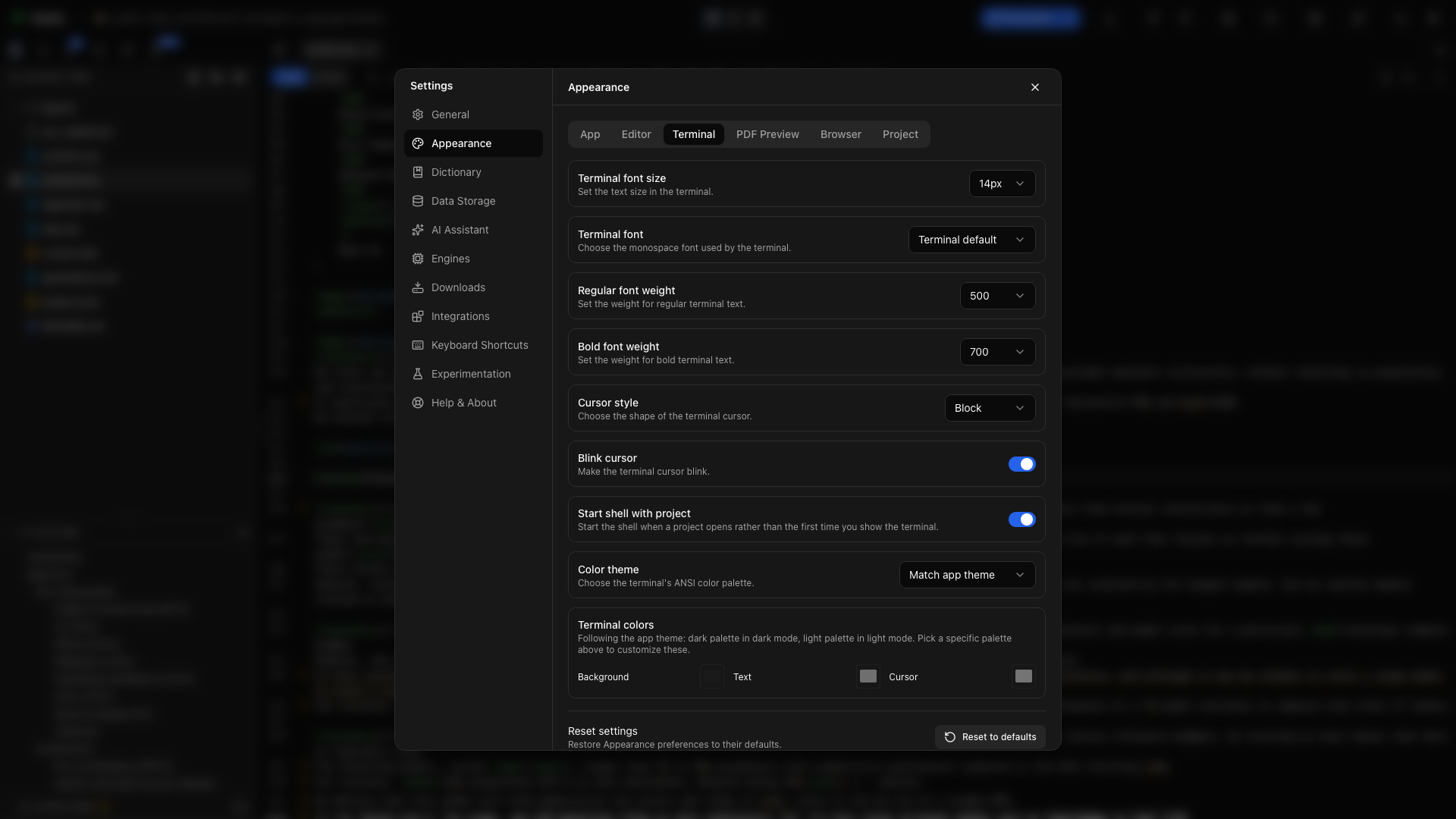
터미널 설정을 열면 터미널의 글꼴, 크기, 일반과 굵은 굵기, 커서 모양, 커서 깜박임, 시작 동작, 색상을 조정할 수 있습니다. 각 컨트롤은 모양 가이드에서 하나씩 설명합니다.
프로젝트와 함께 시작
섹션 제목: “프로젝트와 함께 시작”프로젝트를 열 때 터미널이 준비되어 있기를 원한다면 모양 설정에서 터미널 시작 옵션을 켜세요. 그렇지 않으면 shell이 필요할 때 독에서 여세요.
oleafly 명령 사용하기
섹션 제목: “oleafly 명령 사용하기”Oleafly의 터미널은 다른 터미널용으로 설치하지 않았더라도 PATH에 oleafly 명령이 들어 있습니다. 열려 있는 프로젝트에서 oleafly build나 oleafly check를 실행해 보세요. 명령줄 도구를 참고하세요.
LLaMA 프로젝트 살펴보기
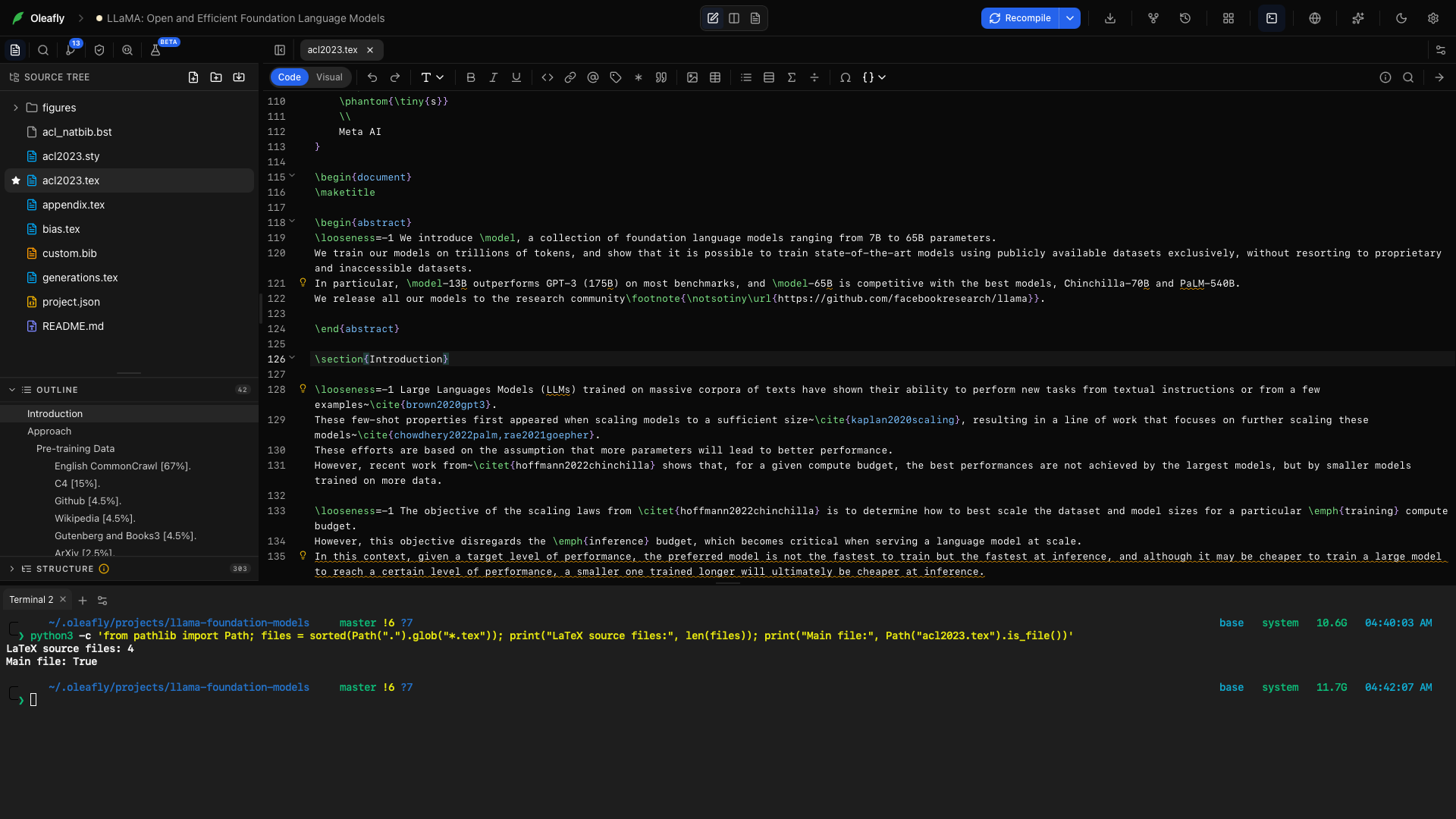
섹션 제목: “LLaMA 프로젝트 살펴보기”LLaMA 프로젝트와 그 터미널을 여세요. 다음 명령은 최상위 LaTeX 소스 파일 수를 세고 acl2023.tex가 있는지 확인합니다. 프로젝트를 읽기만 하고 바꾸지는 않습니다.
python3 -c 'from pathlib import Path; files = sorted(Path(".").glob("*.tex")); print("LaTeX source files:", len(files)); print("Main file:", Path("acl2023.tex").is_file())'개수는 내 프로젝트 사본에 따라 다릅니다. Main file: True는 진입 파일이 있다는 뜻입니다. Python이 python이라는 이름으로 설치된 시스템에서는 그 명령을 대신 사용하세요.
분석 스크립트는 스크립트와 입력 데이터를 프로젝트 안에 함께 두고, 이 터미널에서 실행하고, 결과를 확인한 뒤에야 출력을 논문에 넣으세요.