
Browser & terminal
Browser controls
Read references, search the web, and manage browser tabs from Oleafly.
이 콘텐츠는 아직 번역되지 않았습니다.
Keep a source open while you write. Oleafly’s browser is useful for reading a paper’s landing page, checking an author guide, or following a reference without leaving the app.
Enable the browser
Section titled “Enable the browser”Open Settings → Experimentation, enable Web browser, then open the browser from the workspace dock. This also makes browser tools available to the assistant.
Search or enter a URL
Section titled “Search or enter a URL”Click the address field, or press Cmd/Ctrl+L. Enter a web address to visit that page, or enter a query to search with the search engine selected in Appearance settings. Press Enter to navigate. Escape cancels an unfinished address edit.
Return to the previous page in the current tab’s history. Each tab keeps its own history.
Forward
Section titled “Forward”Move forward again after using Back.
Reload
Section titled “Reload”Reload the current page with the circular-arrow control or Cmd/Ctrl+R. The loading indicator shows when navigation is in progress.
Open in your browser
Section titled “Open in your browser”Use this control to send the current URL to your system browser. It is useful when a site works best with the account or extensions you already use there.
New tab
Section titled “New tab”Click +, choose More options → New tab, or press Cmd/Ctrl+T. Keep a journal’s instructions in one tab and the papers you are reading in others.
Switch tabs
Section titled “Switch tabs”Click a tab’s title to bring it forward. The address field updates to that tab’s page.
Close tab
Section titled “Close tab”Use the tab’s close control or Cmd/Ctrl+W. Closing a browser tab does not close your writing project.
Copy URL
Section titled “Copy URL”Choose More options → Copy URL. Paste the address into a reading list, research task, or message to the assistant.
Set as home page
Section titled “Set as home page”Choose More options → Set as home page to use the current address as your browser starting page. You can also edit the home page under Settings → Appearance → Browser.
Search engine
Section titled “Search engine”Open the Browser controls in Settings → Appearance and select a search engine. This affects queries entered in the address bar.
Import cookies
Section titled “Import cookies”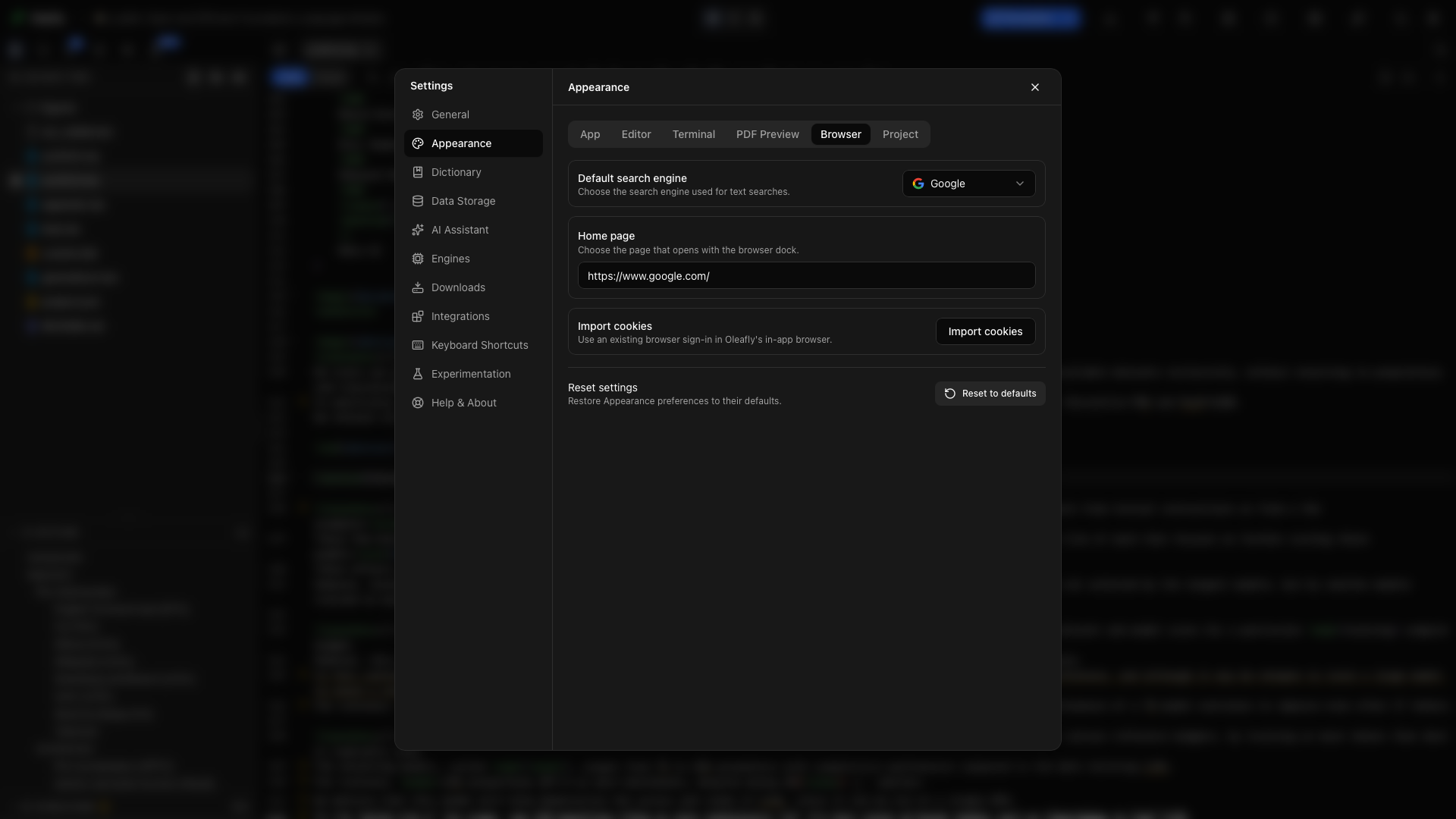
Open Settings → Appearance → Browser → Import cookies to reuse an existing browser sign-in. Choose an available browser profile. Oleafly reads that profile only after you review and confirm the import.
Target hostname
Section titled “Target hostname”Enter a hostname such as example.com to import only cookies that site can use. Leave the field empty to import all eligible cookies from the selected profile.
Review import
Section titled “Review import”Choose Review import and check the browser, profile, and hostname scope. Back returns to the selection step; Cancel closes without importing.
Confirm import
Section titled “Confirm import”Choose Import cookies, then confirm the native prompt. Chromium cookie unlocking uses macOS Keychain locally. Imported cookies are stored in Oleafly’s browser and sent to their matching websites. The completion summary reports what was imported or skipped.
Use a page in research
Section titled “Use a page in research”- Open a paper’s landing page and read its abstract.
- Copy its DOI or title into Citation Search.
- Check the returned author, venue, and year, then add the bibliography entry.
- Record the page URL and your reading notes in the project.
- Insert the citation into the section that uses the source.
Work with an assistant
Section titled “Work with an assistant”With the browser enabled, the assistant can use available browser tools while working on a task. Give it a specific destination and outcome, such as checking a journal’s manuscript requirements. Review the source page and the proposed edits before using the result in your paper.