# Write in a note
The note editor, every block a note can hold, and how each part of a note is saved in its Markdown file.
A note opens in a rich editor and saves itself as Markdown while you write. This page covers what you can put in a note and how each part looks in the file. Notes is an experiment and stays hidden until you turn it on. See [Turn on Notes](/docs/notes/#turn-on-notes).
## The parts of a note
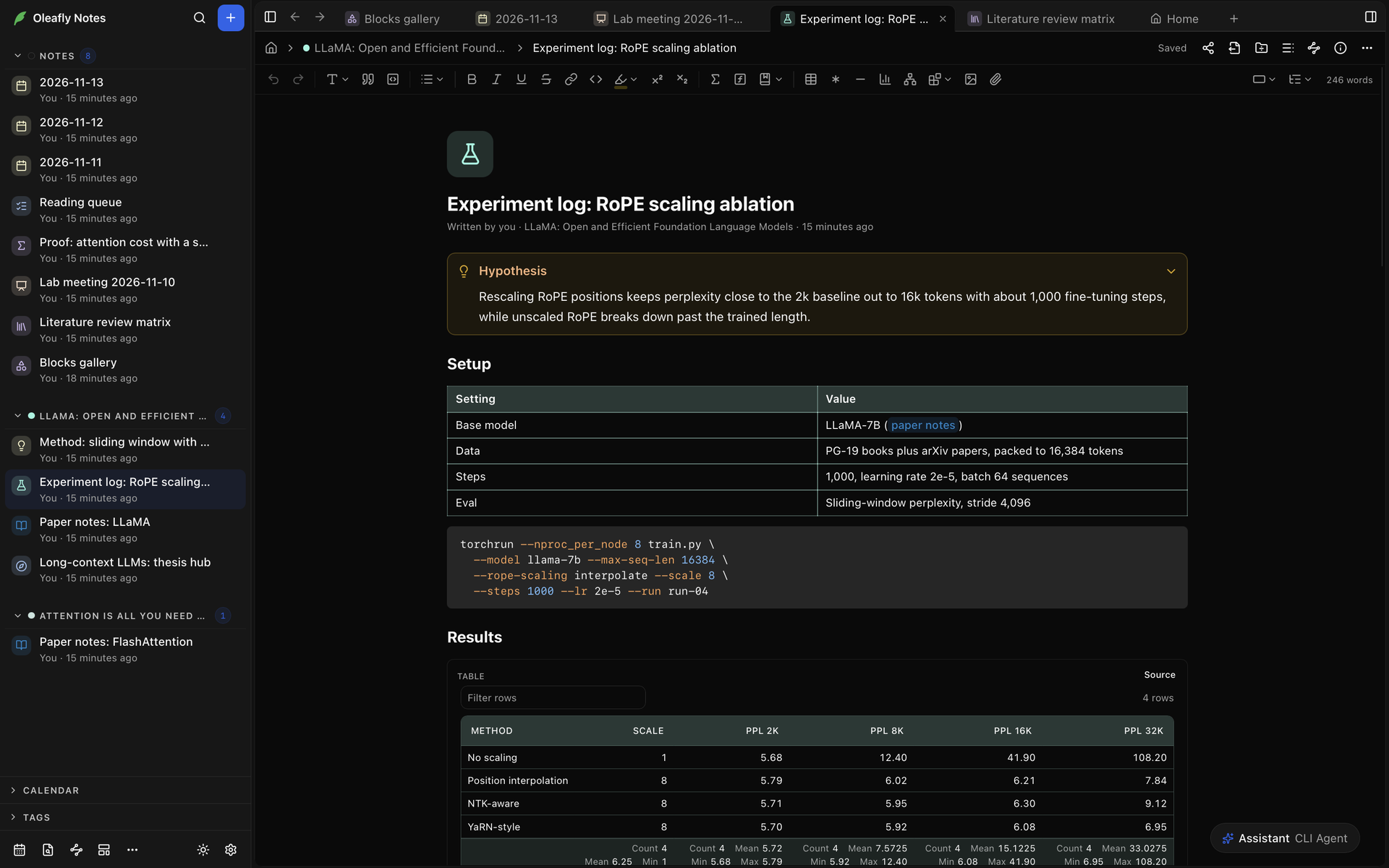
From the top of the tab down:
- The header. Its breadcrumb shows **Notes Home**, the note's project and the note's title. To the right are the save status and buttons such as **Export**, **Show outline**, **Note info** and **More**.
- The formatting [toolbar](#the-toolbar).
- The [icon](#icon-and-color).
- The title. Click it to change it. Enter moves into the text, and Esc puts the old title back.
- The [properties](#properties), when **Note info** is set to **Inline**.
- The text of the note.
## Type Markdown as you go
Markdown you type turns into formatting on the spot:
| Type | You get |
| --- | --- |
| `# ` to `###### ` at the start of a line | A heading |
| `- ` or `1. ` | A bullet or numbered list |
| `[ ] ` or `[x] ` at the start of a line | A task, open or done |
| `> ` | A quote. `> [!tip] ` makes a [callout](#callouts) |
| ```` ``` ````, optionally followed by a language such as `python`, then a space | A code block. A block name such as ```` ```mermaid ```` gives a [drawn block](#blocks-a-note-can-hold) |
| `$x^2$` | Inline math |
| `$$` on an empty line | Display math |
| `---` on a line of its own | A divider |
| `==text==` | Highlighted text |
**Replace as you type** swaps pairs such as `->` for `→` and `!=` for `≠`. Code and math stay as typed, and Backspace right after a swap puts your text back. Edit the pairs, or turn this off, in **Settings → Appearance → Notes**. **Check spelling in notes** is on the same tab.
The formatting keys, such as ⌘B (Ctrl+B) for bold and ⌘⇧9 (Ctrl+Shift+9) for a task list, are in [Note editor keys](/docs/keyboard-shortcuts/#note-editor-keys).
## The toolbar
The toolbar above the note has, from left to right:
- **Undo** and **Redo**.
- **Block type**, to turn a line into **Text** or a heading from **Heading 1** to **Heading 6**.
- **Quote** and **Code block**.
- **List**, with **Bullet list**, **Numbered list** and **Task list**.
- **Bold**, **Italic**, **Underline**, **Strikethrough** and **Add link**, for a web address.
- **Inline code** and **Highlight**. **Highlight** picks **Yellow**, **Orange**, **Red**, **Pink**, **Purple**, **Blue** or **Green**, or **Remove highlight**.
- **Superscript** and **Subscript**.
- **Inline math** and **Display math**.
- **Citation**, when the note is linked to a project. It lists the references in that project's bibliography and inserts one as `[@key]`. With that project open and [Zotero connected](/docs/citations/#cite-from-your-zotero-library), it searches Zotero too.
- **Insert table**, **Insert footnote**, **Divider**, **Chart**, **Mermaid diagram**, **Insert block** (the blocks from the slash menu's Data, Math, Diagrams, Code and Science groups), **Insert image** and **Attach file**.
- **Note width** (**Standard**, **Wide** or **Full width**) and **Outline**, which lists the note's headings. The [outline panel](/docs/notes/organize/#outline) shows them beside the note.
- The word count, while **Show word count** is on.
In a narrow window, the controls that don't fit move into **More** at the end of the toolbar. With the cursor in a code block, **Code language** sets the language for its colors. With the cursor in a table, **Table tools** appears. See [Tables](#tables). With an image selected, **Image size** sets **Original size**, 25%, 50%, 75% or 100%, and **Alt text** describes the image.
## The slash menu
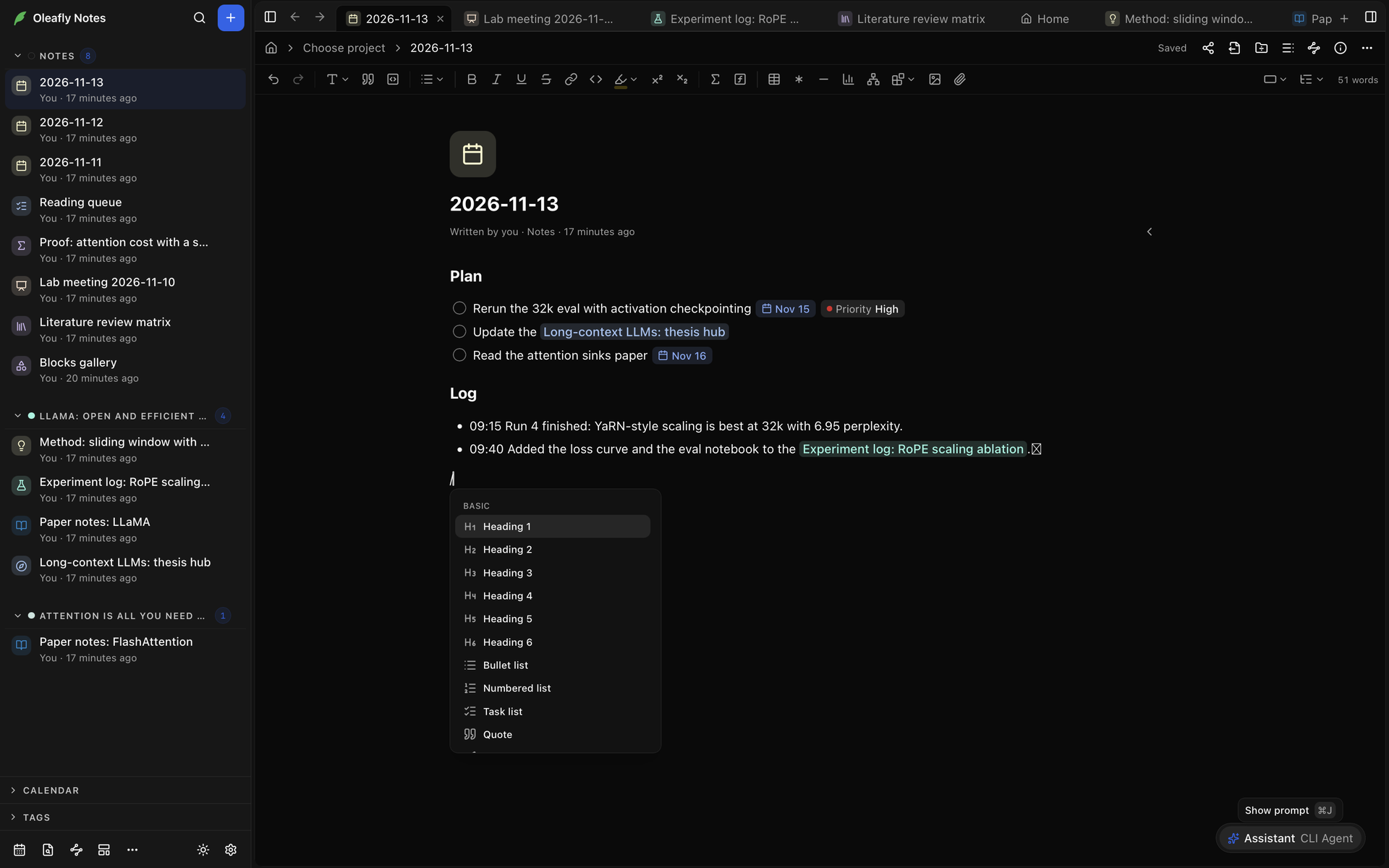
The slash menu inserts any block.
1. On an empty line, type `/`. This works inside lists, quotes and callouts too.
2. Keep typing to narrow the list, for example `/chart` or `/dna`.
3. Use ↑ and ↓ to move, then Enter or Tab to insert. Esc closes the menu and leaves the `/` as text.
The menu has six groups:
| Group | Items |
| --- | --- |
| **Basic** | **Heading 1** to **Heading 6**, **Bullet list**, **Numbered list**, **Task list**, **Quote**, **Callout**, **Table**, **Code**, **Math**, **Divider**, **Footnote**, **Bookmark**, **Attach file** |
| **Data** | **Table**, **Chart**, **Plot** |
| **Math** | **LaTeX**, **Typst** |
| **Diagrams** | **Mermaid**, **D2**, **TikZ**, **CircuiTikZ**, **SVG** |
| **Code** | **HTML**, **React** |
| **Science** | **Chemical structure**, **3D molecule**, **Sequence** |
**Table** under **Basic** inserts a Markdown table with three rows and three columns. **Table** under **Data** inserts a CSV table block. A drawn block starts with an example you can change.
## Block options
Move the pointer over a paragraph, heading, list item, task, quote, callout, table or code block, and a handle appears to its left. Click it for **Block options**:
- **Copy link to block** copies a link you can paste into another note. Oleafly gives the block a short ID first if it has none. The key is ⌘⇧L (Ctrl+Shift+L), and it copies a link to the block the cursor is in.
- **Linked from** lists the notes that link to this block. Pick one to open it.
A block that other notes link to shows how many notes link to it. Click the number to open the same menu.
## Blocks a note can hold
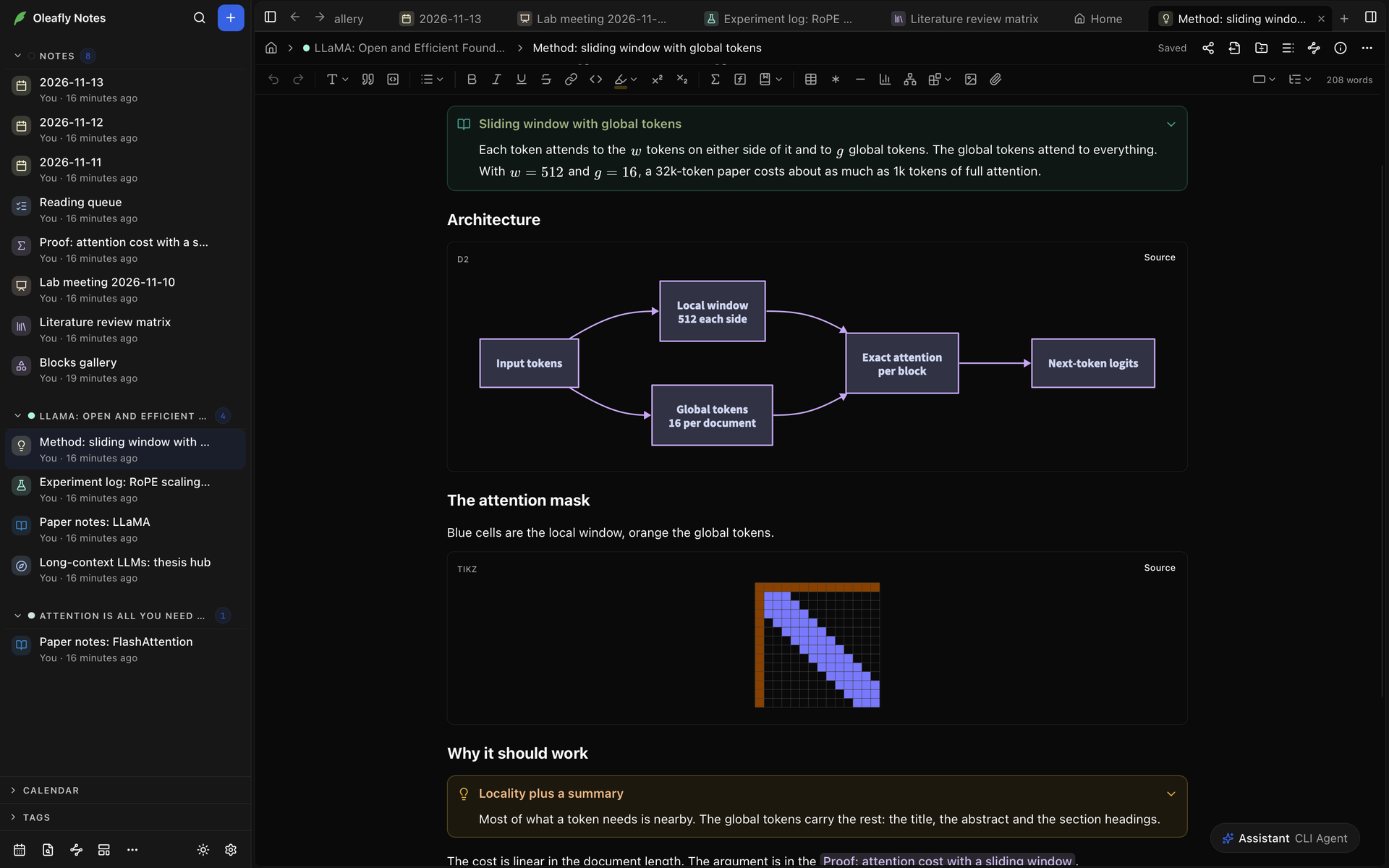
The blocks in the table below are drawn blocks. Each one is a fenced code block in the Markdown file, and the note shows what it describes, such as a chart or a diagram. The **Blocks gallery** note that Notes starts with has examples of most of them.
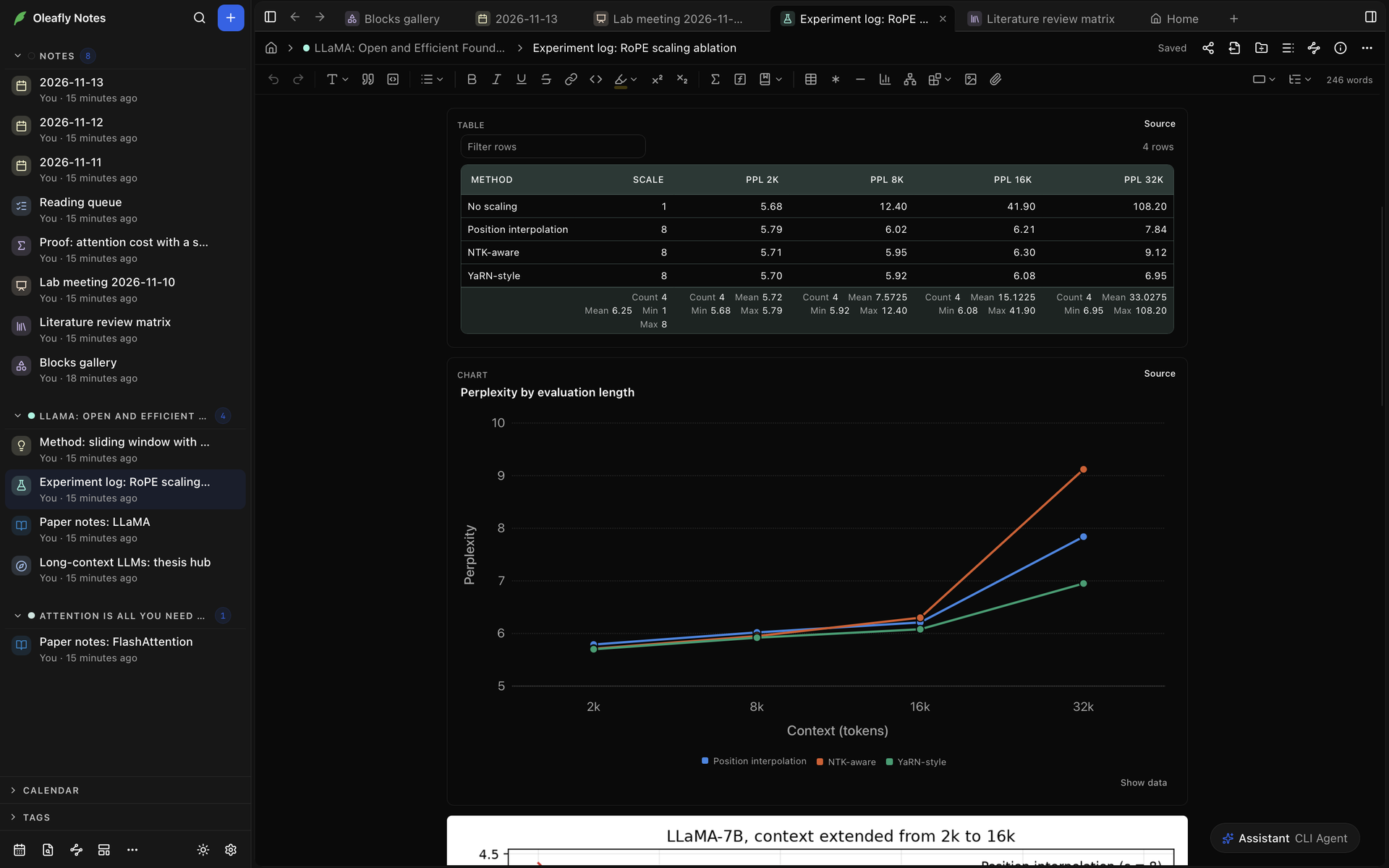
- Choose **Source** on a drawn block to edit what draws it, and **Preview** to go back. Moving the cursor into the block shows its source too.
- The drawing updates a moment after you stop typing.
- While the source shows, **Copy code** copies it, and the info button beside the block's name explains how to write that kind of block.
- If the source has a mistake, the block shows a message in place of the drawing. Open the source to fix it.
| Block | Fence | What it shows |
| --- | --- | --- |
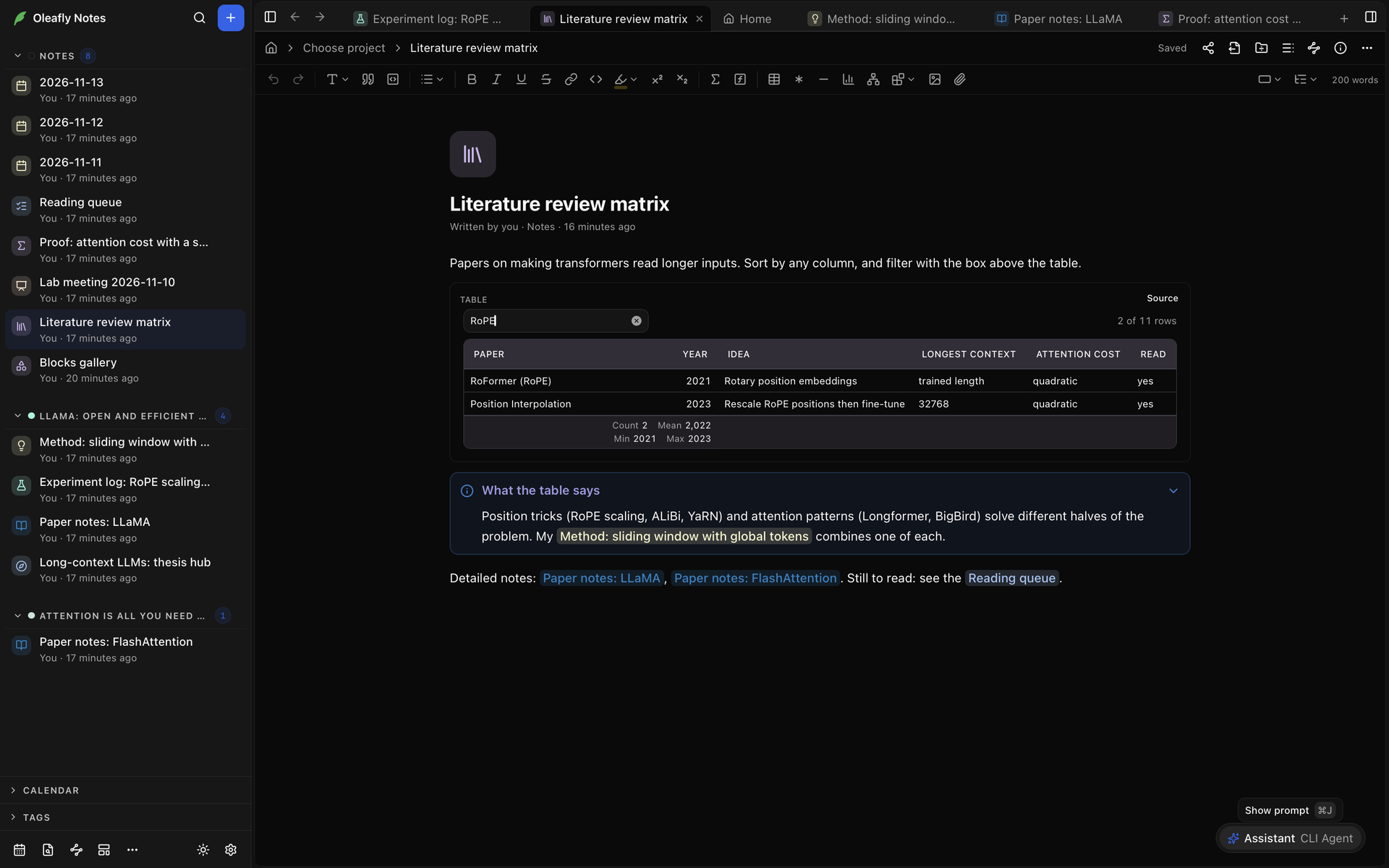
| **Table** (Data) | `csv` or `tsv` | A table with a summary row. Sort by any column, or filter with **Filter rows**. Put the rows in the block, the first one being the header, or read a file with a line such as `path: assets/results.csv`. Files can be `.csv`, `.tsv`, `.xlsx` or `.xls`, up to 6 MB |
| **Chart** | `chart` | A bar, line, area, scatter, pie, donut or histogram chart, written as JSON with a `type`, `categories` and `series`. Up to 8 series, with error bars, a log scale and stacked bars. **Show data** shows the numbers as a table |
| **Plot** | `plot` | Curves from expressions, one per line, such as `y = x^2 - 1` or `x = cos(t), y = sin(t)`. Lines such as `domain: -5, 5`, `range: 0, 1`, `labels: Time, Signal` and `point: 1, 0, Root` set the axes and mark points. Up to 8 curves and 50 points |
| **LaTeX** | `latex` | Display math, such as an `equation` or `align` environment. `\ce{H2O}` writes chemistry and `\pu{5 mg}` writes units |
| **Typst** | `typst` | A Typst snippet, drawn as an image. Packages from the internet aren't available |
| **Mermaid** | `mermaid` | A Mermaid diagram, such as a flowchart or a sequence diagram |
| **D2** | `d2` | A D2 diagram |
| **TikZ** | `tikz` | TikZ commands or a whole `tikzpicture`, compiled with LaTeX on your computer |
| **CircuiTikZ** | `circuitikz` | A circuit, from CircuiTikZ commands or a whole `circuitikz` environment |
| **SVG** | `svg` | One `svg` element. Scripts, links and remote images are removed |
| **HTML** | `html` | A page or a fragment with CSS and scripts. Scripts start when you choose **Run** |
| **React** | `jsx` | One component file with a default export. It starts when you choose **Run** |
| **Chemical structure** | `smiles` | Up to 24 structures, one SMILES string per line, each with an optional name, as in `Aspirin: CC(=O)OC1=CC=CC=C1C(=O)O` |
| **3D molecule** | `molecule` | A 3D view you can drag to rotate and scroll to zoom. Paste the file's text, or point to a file with `path: assets/1abc.pdb`. Reads PDB, SDF, MOL, XYZ, CIF and MOL2. `style:` and `color:` lines set the look, and the **Style** and **Color** menus change it on screen |
| **Sequence** | `sequence` | DNA, RNA or protein from FASTA records or a raw sequence, with its length. DNA and RNA also show GC content, and **Reverse complement** and **Translation** show those views |
| **Jupyter notebook** | `notebook` | The cells and outputs of a notebook file. See [Notebooks](#notebooks) |
| **Bookmark** | `bookmark` | A card with a web page's title, description and site. See [Bookmarks and videos](#bookmarks-and-videos) |
The slash menu writes LaTeX and Typst blocks with the fences ```` ```{=latex} ```` and ```` ```{=typst} ````. Plain ```` ```latex ```` and ```` ```typst ```` fences open the same way.
### Callouts
A callout is a box with an icon, a title and a body. Choose **Callout** in the slash menu, or start a line with `> [!tip] ` followed by a title. Press Enter in the title to move into the body. Backspace at the start of the title turns the callout back into a quote.
Click the icon to change the type. There are 24: **Note**, **Abstract**, **Info**, **To do**, **Tip**, **Success**, **Question**, **Warning**, **Failure**, **Danger**, **Bug**, **Example**, **Quote**, **Theorem**, **Lemma**, **Corollary**, **Proposition**, **Definition**, **Proof**, **Hypothesis**, **Assumption**, **Result**, **Method** and **Remark**. Other common names, such as `summary`, `hint`, `caution` and `error`, map to the closest of these. A callout with no title shows its type's name.
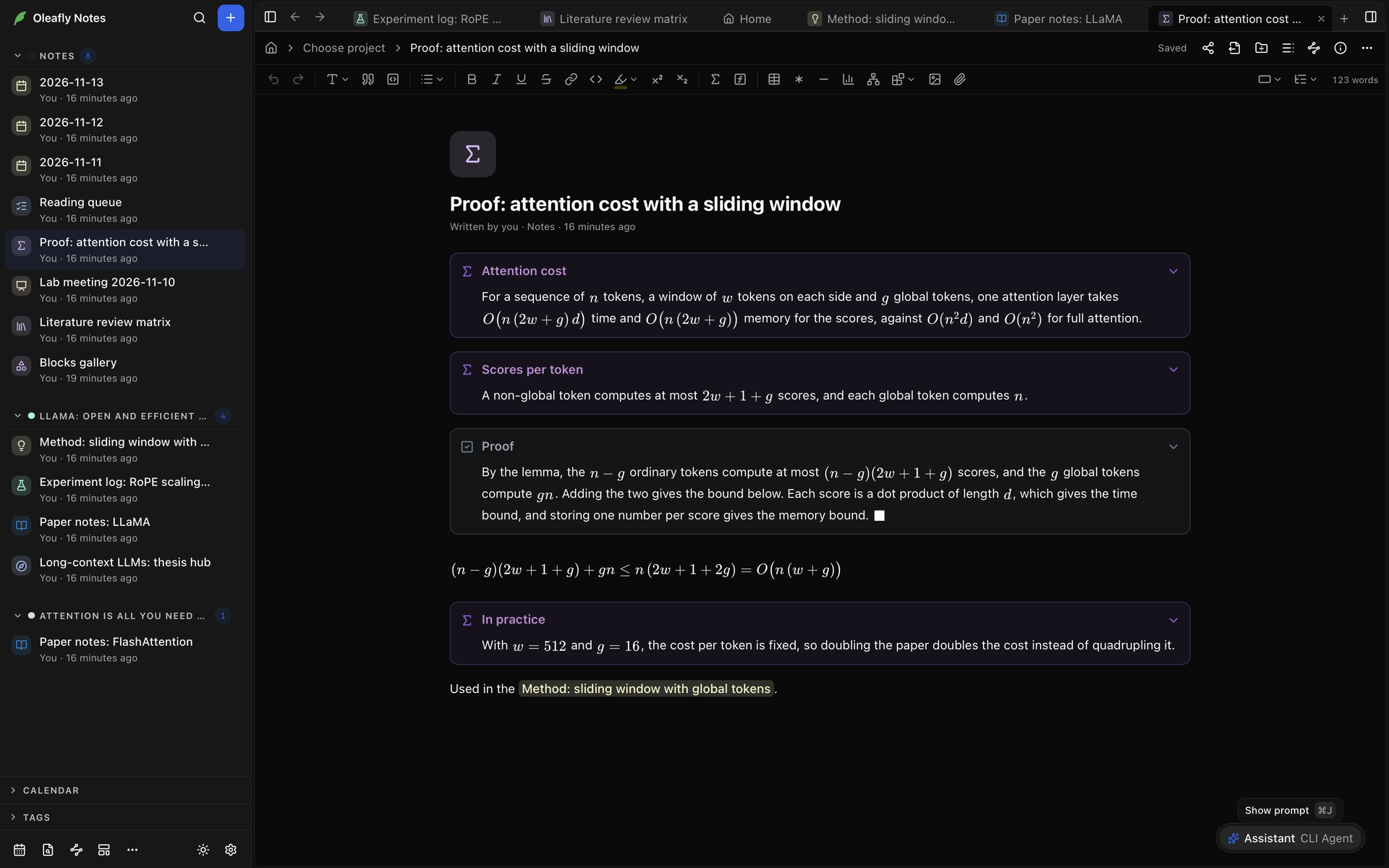
The arrow beside the icon folds the callout. Folding only changes the view and never the file. To make a callout start folded, add `-` after the type, as in `> [!example]- Protocol`.
**Callout style**, in **Settings → Appearance → Notes**, draws callouts **Tinted**, **Filled**, **Outlined** or with a **Side bar**.
### Tables
A Markdown table is a grid you type into. Insert one with **Table** in the slash menu, or with **Insert table** in the toolbar, which lets you pick the size. With the cursor in it, **Table tools** in the toolbar has **Insert row above**, **Insert row below**, **Insert column left**, **Insert column right**, **Delete row**, **Delete column**, **Align column left**, **Align column center**, **Align column right** and **Delete table**.
For data you want to sort and filter, use the CSV **Table** block instead. Dropping a `.csv`, `.tsv` or Excel file into a note makes one.
### Math
**Math** in the slash menu inserts display math. Click a formula to edit its source. For an `align` environment or chemistry, use a **LaTeX** block.
### Blocks that run code
**HTML** and **React** blocks run in a closed-off frame with no internet access, so put your data in the block. Choose **Run** to start one and **Stop** to end it. A React block can import `react`, `recharts`, `d3`, `lodash`, `papaparse`, `chart.js` and `lucide-react`.
When you change a block's code, it asks to run again. Tick **Always run this block** to have that block start by itself when the note opens, until its code changes. If a block froze or closed the app, the blocks in that note don't start by themselves the next time, and the block says why.
### LaTeX drawings
**TikZ** and **CircuiTikZ** blocks compile with LaTeX on your computer and show the result as a drawing. Lines above the picture, such as `\usetikzlibrary{positioning}`, go in that block's preamble. To start every TikZ and CircuiTikZ block with the same lines, set **TikZ preamble** in **Settings → Appearance → Notes**.
LaTeX runs on your computer and can read your files. In a note shared with other people, these blocks wait until you check the source and choose **Draw**.
### Notebooks
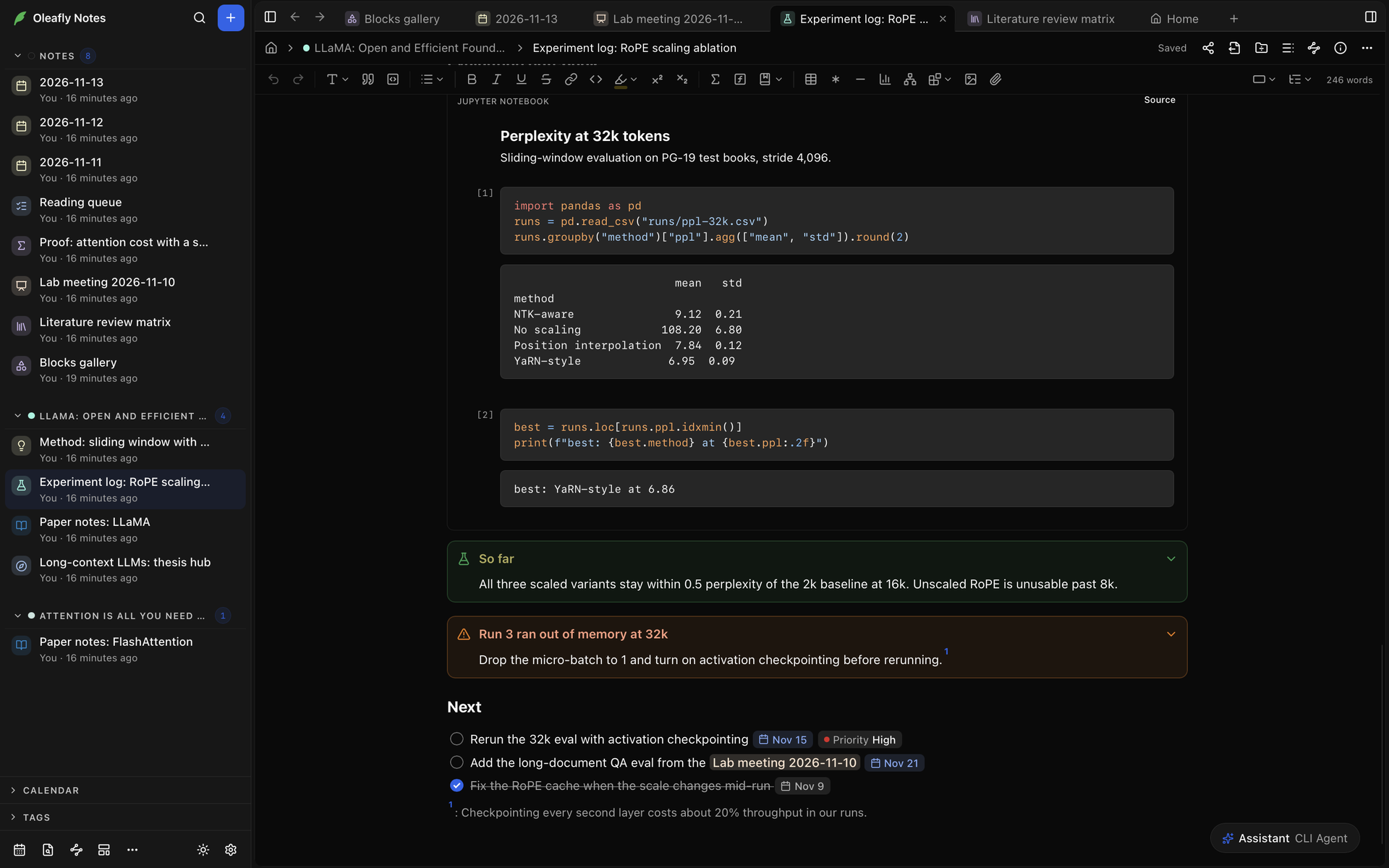
To show a Jupyter notebook, attach its `.ipynb` file. The note shows its cells and their outputs, read only. In the block's source, the notebook's path is the first line, and two optional lines change what shows:
- `cells: 2-5` shows only those cells. One number shows one cell.
- `code: hide` shows the outputs without the code.
Notebooks must be format 4 and smaller than 64 MiB.
### Images, files and media
To add a file, drop it into the note, paste it, or choose **Insert image** or **Attach file**. Oleafly copies it into the `assets` folder beside the note and adds a short code to its name. A note can hold:
| File | Shows as |
| --- | --- |
| Images: PNG, JPEG, GIF, WebP, AVIF, SVG | The image |
| Audio: MP3, WAV, M4A, AAC, OGG, Opus, FLAC | A player |
| Video: MP4, M4V, WebM, MOV, OGV | A player |
| PDF | One page of the PDF, with its name and page number and **Open PDF** |
| CSV, TSV, Excel | A CSV **Table** block |
| PDB, SDF, CIF, MOL, MOL2, XYZ | A **3D molecule** block |
| Jupyter notebook | A notebook block |
Each file can be up to 64 MB. If audio or video can't play, the note says so. Your computer may not have a codec for that format.
Drag the handle at the side of an image to resize it, or double-click the handle to go back to its original size. A PDF shows its first page. To show another page, add `#page=3` to the end of its path in the Markdown.
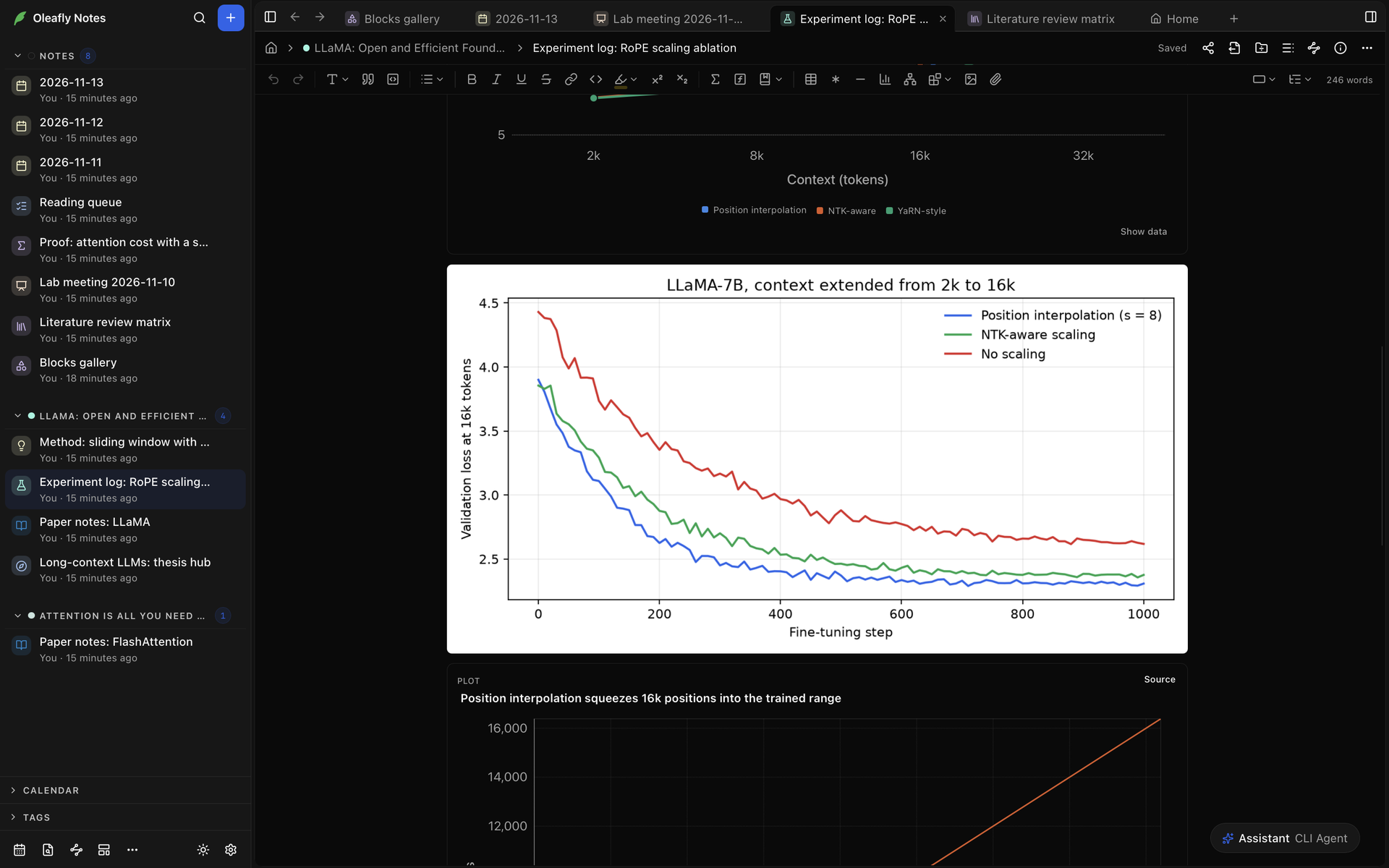
An image from the web doesn't load until you allow it. Choose **Load image**, or open **More ways to load images** for **Load all images in this note** and **Always load images from** that site. The sites you allow are listed under **Images from the web** in **Settings → Appearance → Notes**.
### Bookmarks and videos
- **Bookmark** in the slash menu asks for a web address and makes a card with the page's title, description and site. Click the card to open the page in your browser.
- Paste a web address on an empty line, and the note asks how to show it. Choose **Bookmark card** for a card, or **Keep as link** for the plain link. Carrying on typing keeps the link too.
- For a YouTube or Vimeo link, the choices are **Embed video** and **Keep as link**. An embedded video plays in the note when you click it.
### Files from research tasks
When a note is linked to a project and [research tasks](/docs/research-tasks/) are turned on, you can insert the files that the project's tasks made. See [Files from research tasks](/docs/notes/ai/#files-from-research-tasks).
## Properties
Properties are named values about a note, such as a status or a deadline. They're saved in the note's front matter.
Where they show depends on **Note info** in **Settings → Appearance → Notes**. With **Side panel**, the default, they're in the **Info** panel under the note's dates and counts. **Note info** in the note's header, or ⌘⌥I (Ctrl+Shift+T), opens and closes it. With **Inline**, they're under the title, and the same keys fold them.
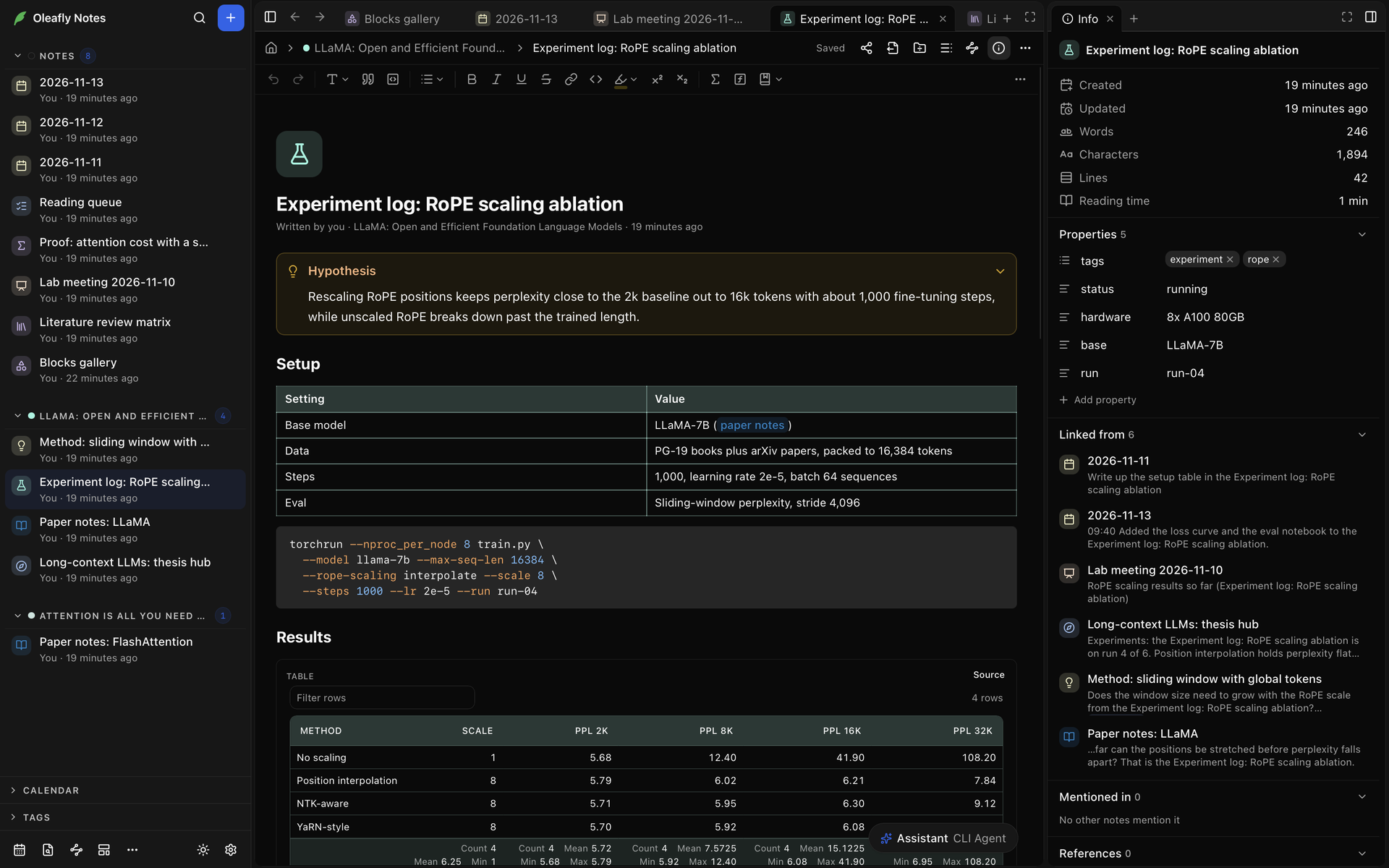
To add one:
1. Choose **Add property**. With **Inline**, it shows when you move the pointer over the title.
2. Type a **Property name** and press Enter.
3. Fill in the value.
Oleafly guesses each property's type from its value. Click the icon beside a property's name to pick another type or to remove the property. The types are:
| Type | Holds |
| --- | --- |
| **Text** | Any text |
| **List** | Several items. Add one with **Add item** |
| **Number** | A number |
| **Checkbox** | Yes or no |
| **Date** | A date, picked from a calendar |
| **Note link** | A link to another note. **Choose a note** picks it |
Oleafly remembers a type you pick for a property name. If changing the type would lose part of the value, it asks first. `tags` and `aliases` are always lists. Aliases are other names for the note: the link menu, **Go to note** and **Mentioned in** look for them as well as the title. To rename a property, type a new name in its name box.
If the front matter isn't valid YAML, the properties can't be edited here. Choose **Fix it in Markdown** to open the file's Markdown and correct it.
## Icon and color
Move the pointer over the title and choose **Add icon**, or click the icon a note already has. Pick from the **Emoji** or **Icons** tab, or search them. **Remove** takes the icon off.
The row of colors under the **Emoji** and **Icons** tabs sets the note's color. It's the color behind the icon wherever the note is listed, and it tints the note's tables. The icon and the color are saved in the front matter.
## Links between notes
Type `[[` to link to another note or to a project.
1. Type `[[` and part of a note's title or alias. The menu lists matching notes under **Notes** and projects under **Projects**.
2. Pick one with Enter. The link shows the note's title.
3. If no note has that name, **Create note "…"** makes one and links to it.
![Typing \[\[exp lists Experiment log: RoPE scaling ablation under Notes, a project under Projects, and Create note "exp".](https://cdn.oleafly.com/images/screenshots/desktop/docs/notes-link-menu-dark-window-v2.png#view=606,640,360,256)
To show different words, type them after a bar, as in `[[Masking|the masking study]]`. To get a link to the note you're in, choose **Copy link** in its **More** menu or press ⌘⌥L (Ctrl+Shift+X).
Click a link to open the note. Hover over it for a moment to see a preview of the note.
### Link to a heading or a block
- `[[Masking#` lists the headings in the note **Masking**. Pick one to link straight to it.
- `[[#` lists the headings of the note you're in, under **This note**.
- `[[Masking#^` lists the note's blocks: paragraphs, list items, tables and the rest. If the block has no ID yet, Oleafly adds one to that note.
A heading link shows as `Masking > Results`. Opening it scrolls to the heading.
### Embed a note
An embed shows another note's text inside this one. Type `![[` to pick the note, or highlight a note in the `[[` menu and press Shift+Enter instead of Enter. The notes in that menu also have an **Embed** button.
An embed can hold a whole note, one heading's section, or one block, picked with `#` and `#^` as above. Fold it with the arrow in its header, and open the note with **Open note**. A note can't embed itself.
### Backlinks and mentions
The **Info** panel, or the end of the note when **Note info** is **Inline**, has two lists:
- **Linked from**: the notes that link here, each with the line that holds the link. If a link points at a block in this note, a button beside it goes to that block. When more than 50 notes link here, a button such as **Show all 73** lists the rest.
- **Mentioned in**: notes that use this note's title or one of its aliases as plain text, without a link. **Link** turns the first such mention in that note into a link.
### Dead links
A link to a note that no longer exists is marked in the text. Click it to create a note with the link's words as its title, and the link points to the new note.
The **Dead links** section of the **Info** panel lists this note's links to missing notes and blocks, with the same fixes as [Dead links](/docs/notes/organize/#dead-links) in the sidebar: **Create note**, **Link to … instead** and **Remove link**.
## Tags
Type `#` and a name to tag a note, such as `#method` or `#lab/2024`. After the first letter, a menu suggests the tags you already use. Pick one with Enter or Tab, or keep typing a new one.
- A tag starts a line or follows a space or `(`.
- It can hold letters, numbers, `_`, `-` and `/`. A slash nests one tag under another.
- A tag that is only numbers, such as `#12`, isn't a tag.
- Text in code and inside links isn't tagged.
Tags show as colored chips. A `tags` property tags the note too. [Tags](/docs/notes/organize/#tags) covers finding notes by tag.
## The @ menu
Type `@` to insert a date, a task field, a tag or a link to a note. The menu groups what matches:
| Group | Items |
| --- | --- |
| **Dates** | **Today**, **Tomorrow**, **Yesterday**, **Next Monday**, and **Pick a date**. Type `next` for the other weekdays, or a date such as `2026-11-20` for that date |
| **Task fields** | **Due date**, **Scheduled date**, **Priority**, **Custom field**. Typing `@high` offers **High priority** |
| **Tags** | Tags you already use |
| **Notes** | Notes to link to |
A date goes in as a [field](#fields). In a task, the dates group is called **Due date**, and a date you pick becomes the task's `due` field. Anywhere else it's a `date` field.
To set a field by name, type `@` and the name with two colons, such as `@owner:: Ana`, then pick **Set owner to "Ana"**. If you type a word that isn't a field yet, **Add field "…"** starts one with that name.
### Fields
A field is a name and a value, written `[due:: 2026-11-20]` in the Markdown. Typing that form makes a field too, once you close the bracket. Fields work in tasks, paragraphs, callouts and tables, but not in links or code.
Fields show as chips. A date chip reads in words near today, such as **Today** or **Tomorrow**, and a due date that has passed is marked. Click a chip to change it:
- a date chip opens a calendar
- a priority chip offers **High**, **Medium** and **Low**
- any other chip has **Name** and **Value** boxes and **Save**
**Remove** deletes the field. **Date and field chips**, in **Settings → Appearance → Notes**, draws chips as a **Tint**, an **Outline** or an **Underline**.
## Tasks and due dates
A task is a list item with a checkbox. Start a line with `[ ] `, choose **Task list**, or press ⌘⇧9 (Ctrl+Shift+9).
- Click the box, or press ⌘↵ (Ctrl+Enter) with the cursor in the task, to mark it done or not done.
- Enter starts the next task. Tab and Shift+Tab nest it under the task above or move it back out.
- Backspace at the start of a task removes its box, leaving a plain list item.
Type `@` in a task to give it a due date, a scheduled date or a priority:
```markdown
- [ ] Send the draft to Ana [due:: 2026-11-20] [priority:: high]
- [x] Book the cluster [scheduled:: 2026-11-10]
```
Tasks in your personal notes show up under **Tasks** on Notes Home, and the sidebar calendar puts a ring around each day with open tasks due. Tasks in [project notes](/docs/notes/projects-and-sharing/#project-notes) don't appear in either place. See [Tasks](/docs/notes/organize/#tasks). **Task checkboxes**, in **Settings → Appearance → Notes**, makes the boxes **Square** or **Round**.
## Find and replace
Press ⌘F (Ctrl+F) in a note. If you had a few words selected, they're already in **Find**.
- Enter goes to the next match and Shift+Enter to the previous one. The count shows where you are, such as **3 of 12**.
- **Match case**, **Match whole word** and **Use regular expression** change how it matches.
- **Toggle Replace** opens the replace row. **Replace** changes the current match and moves on, and **All** changes every match in one step that a single undo reverses. **Preserve case** keeps each match's capitals.
- Esc closes the bar and selects the match you were on.
Find searches the note's text, including code blocks and the source of drawn blocks. It doesn't search the Markdown markup. A match stays within one paragraph, heading or other block, and never runs across inline math or a field.
The replacement goes in as plain text. A web address or Markdown typed in **Replace** stays as written and doesn't become a link or formatting. Each replaced word keeps the formatting it had. With **Use regular expression** on, `$1` in **Replace** inserts the first group. A note you can only read has no replace row.
## Saving and undo
A note saves itself a moment after you stop typing. The header says **Saving** while it writes, then **Saved**.
If a save fails, a bar above the note says **Not saved** and gives the reason, with **Retry** to try again.
**Undo** and **Redo** in the toolbar, or ⌘Z and ⌘⇧Z (Ctrl+Z and Ctrl+Shift+Z), step through your edits. **Keep undo after closing** is on by default, so undo still works after you close the note or quit Oleafly.
- The history stays on this computer and is kept for 30 days after you last edit the note.
- If the file changed in another program in the meantime, the note opens with a fresh history.
- Turning the setting off in **Settings → Appearance → Notes** deletes the kept history.
## Version history
A version is a saved copy of the note that you can go back to. Open **More** in the note's header and choose **Version history**.
- **Save a version** keeps the note as it is now. If nothing changed since the last version, Oleafly says so and saves nothing.
- Oleafly also saves a version each time you accept all suggested changes, and before it restores an older one.
- Select a version to see what restoring it would change, then choose **Restore this version**.
Restoring changes the note's text only. Attached files stay as they are.
## Export a note
Choose **Export** in the note's header, or right-click the note and open **Export**:
- **Markdown folder (.md)** saves the note as a Markdown file in a new folder, with its attachments in an `attachments` folder.
- **Word document (.docx)**, **Web page (.html)**, **LaTeX (.tex)** and **Typst (.typ)** convert the note to that format. Oleafly asks where to save the file.
- **Copy as Markdown** copies the note's text, with its title as a heading.
A Word document or web page keeps the note's images inside the file. A LaTeX or Typst export that needs image files is saved as a `.zip` file, with the images in a `figures` folder beside the document.
To export all your personal notes at once, choose **More → Export as Markdown folder** in the sidebar bar.
## How it looks in the Markdown file
A note is a Markdown file with front matter at the top. [What a note file looks like](/docs/notes/#what-a-note-file-looks-like) shows the fields Oleafly writes. In the text, each part of a note has its own form:
| In the note | In the file |
| --- | --- |
| Callout | `> [!tip] Title`, then the body on lines that start with `>`. `[!tip]-` starts folded |
| Task | `- [ ] Open task` and `- [x] Done task` |
| Field | `[due:: 2026-11-20]` |
| Tag | `#method` |
| Highlight | `==text==` for yellow. Other colors use `text` |
| Superscript, subscript | `2`, `2` |
| Inline and display math | `$x^2$` and `$$ ... $$` |
| Footnote | `[^1]` in the text and `[^1]: The note.` below |
| Citation | `[@key]` |
| Drawn block | A fenced code block named after the block, such as ```` ```chart ```` |
| Image or file | ``, with `{width=50%}` after it when you resized it |
| Link to a note | `[Masking](oleafly://note/)`, where `` is the `id` of the linked note |
| Link to a heading | `oleafly://note/#results`, using the heading's text in lower case with hyphens |
| Link to a block | `oleafly://note/#^k3x9q2`. The block carries ` ^k3x9q2` at the end of its line, or on its own line after a table, list, quote or code block |
| Embed | `` |
Links point at a note's `id`, so a link keeps working when you rename the note.
### What a save rewrites
Oleafly writes the blocks you didn't touch back byte for byte. A block you edit is written in Oleafly's own style, so its markup can change:
- `*` and `+` bullets become `-`, and an ordered list is numbered again from its start.
- `_em_` becomes `*em*`, and `__strong__` becomes `**strong**`.
- An underlined title (`Title` over `=====`) becomes `# Title`.
- A `~~~` fence becomes backticks, and indented code becomes a fenced block.
- `[X]` in a task becomes `[x]`.
- A reference link becomes an inline link.
- Characters that would read as markup, such as a lone `*`, get a backslash.
[Edit a note in another program](/docs/notes/#edit-a-note-in-another-program) covers what happens when another program changes a note that's open.